
Quest 3 PC Streaming Guide
The purpose of PC streaming is to render the Unity project on the PC via Meta Quest Link, and then stream it to the Meta Quest 3 device for browsing and interaction. It leverages the computing power and rendering capability of the PC to achieve smoother, higher-quality rendering on the device.
Step 1: Set up the Unity project that runs on Quest
First, refer to the Quest 3 Development Guide to complete the project setup.
Step 2: Download Meta Quest Link
- Visit Meta's official website to download and install Meta Quest Link (formerly Oculus Link).
- Official download: https://www.meta.com
- Complete the installation as prompted, and make sure the Link app is configured correctly on the PC.
Step 3: Enable developer mode and connect the Quest device
Enable developer mode on the phone
- Download and install the Meta Horizon app on your phone.
- Log in to the app with your Meta account.
- Go to Headset Settings and enable Developer Mode.
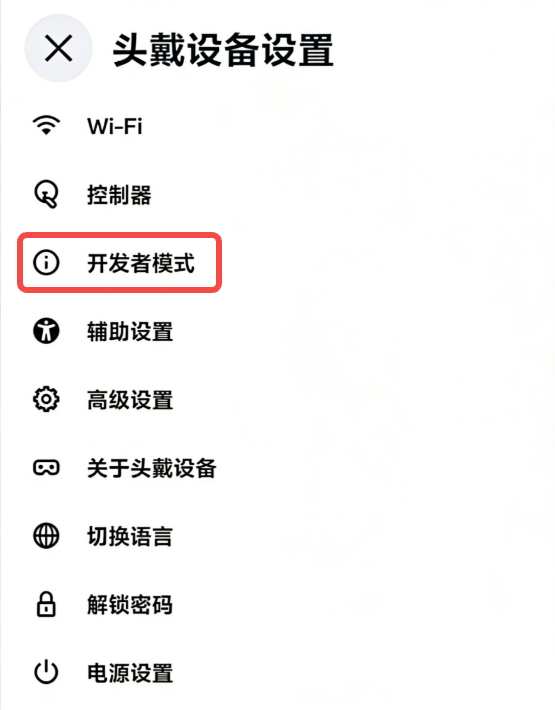
Enable developer mode in the Meta Horizon phone app
Connect Quest to PC
- Open Meta Quest Link, and use a USB 3.0 cable or high-speed Wi-Fi to connect the Quest 3 to the PC.
- Put on the Quest device, select Quick Settings in the lower-left corner, and open Link.
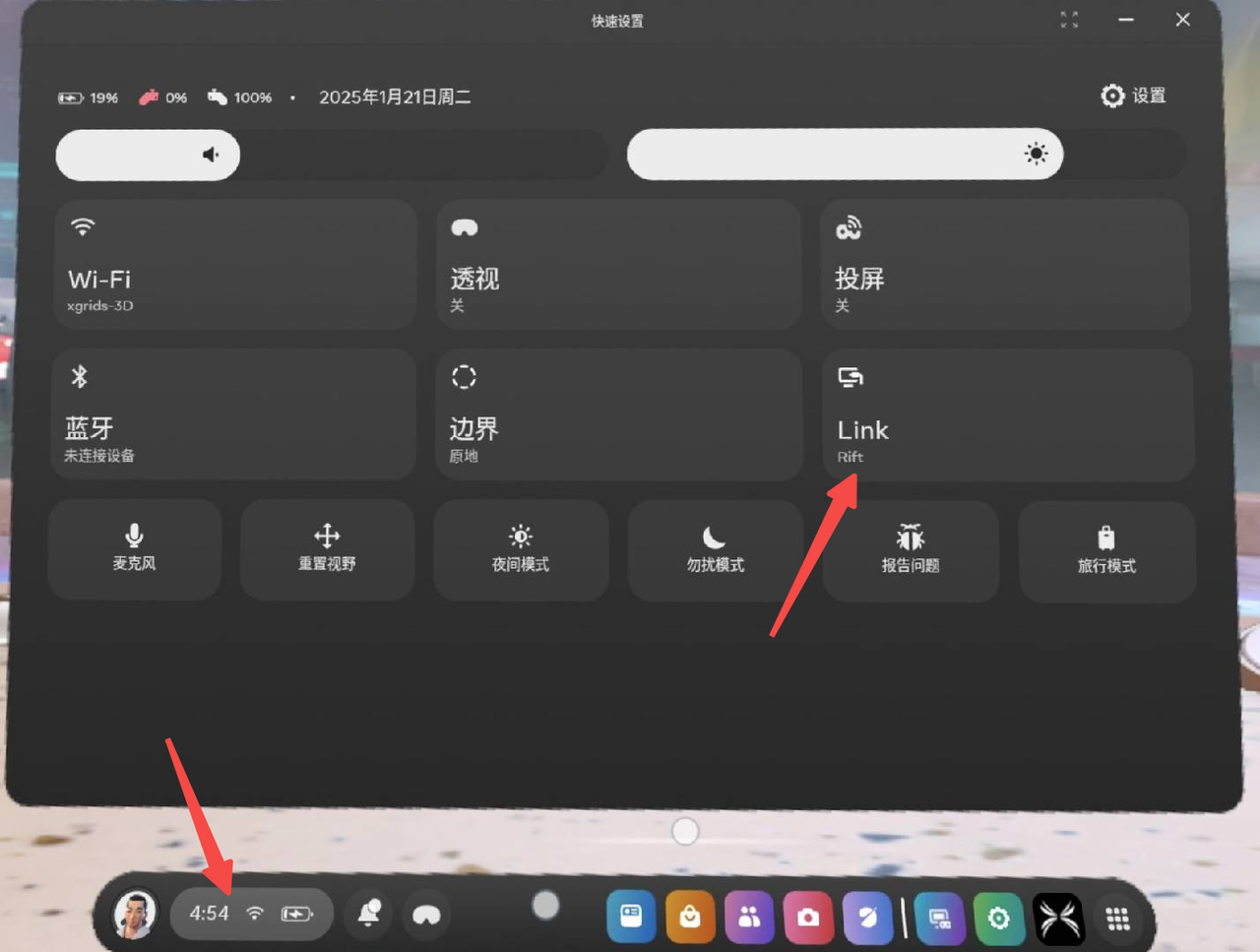
Open Link in the Quick Settings of the Quest device
Step 4: Launch Play mode in Unity
In the project's LCCRenderer.cs, make sure the Start() method loads using the PC platform:
m_manager.SetPlatformType(PlatformType.PCVR);
m_renderer = m_manager.GetRender(this.gameObject.transform);
m_renderer.Load(m_FilePath, onProgress, onLoaded);
Click the Play button in the Unity Editor, and you will see the content running in Unity on the Quest.
Note:
- PC streaming renders the scene image on the PC and then encodes it as a video stream transmitted to the Quest 3 device, so the runtime platform needs to be set to
PlatformType.PCVR.- PC streaming requires high data transfer bandwidth; it is recommended to use a wired USB3.0 connection or a high-speed WiFi network.
- If the Quest-side rendering is abnormal during streaming, you can modify the resolution in the Unity Game window and test different resolution modes until the rendering is normal. In this example, the rendering displayed normally when the resolution was adjusted to 1920×1080 Portrait or 3840×2160.