XGRIDSDocs
  • 简体中文
  • English
  • 繁體中文
  • 日本語
  • Deutsch
  • Español
  • Italiano
  • Français
  • Русский
  • 简体中文
  • English
  • 繁體中文
  • 日本語
  • Deutsch
  • Español
  • Italiano
  • Français
  • Русский
  • PortalCam

    • Product Overview
    • Basic Operation
    • Using the LCC Scan App
    • Maintenance and Care
    • FAQ
  • Lixel K Series

    • Lixel K1

      • Product Overview
      • Basic Operation
      • Device Activation and Connection
      • Scanning Workflow
      • Acquire Point Cloud Data with Absolute Coordinate
      • Map Fusion
      • Route Planning Suggestions for Typical Scenes
      • Precautions
      • FAQ
    • Lixel K2

      • Product Overview
      • Basic Operation
      • Device Activation and Connection
      • Scanning Workflow
      • Acquire Point Cloud Data with Absolute Coordinate
      • Map Fusion
      • Route Planning Suggestions for Typical Scenes
      • Precautions
      • FAQ
  • Lixel L Series

    • Lixel L2 Pro

      • Product Overview
      • Basic Operation
      • Device Activation and Connection
      • Scanning Workflow
      • Acquire Point Cloud Data with Absolute Coordinate
      • Measure Point
      • Appendix
      • FAQ
  • Accessories

    • Stick Light

      • Installation Guide
      • Basic Operation
      • FAQ
  • Lixel Studio

    • Version and Copyright
    • Installation and Activation
    • Software Interface
    • File Operations
    • Project Processing
    • Tools
    • 2D Drawing
    • Applications
    • Settings
    • Device Connection
  • Lixel CyberColor

    • LCC Studio

      • Getting Started
      • Version and Updates
      • Download and Installation
      • Interface Overview and Navigation
      • Before Reconstruction
      • Model Reconstruction
      • Single Model Reconstruction
      • Map Fusion
      • Aerial-Ground Fusion
      • Aerial Reconstruction
      • My Models
      • Other Features
      • Settings and Account
      • Converter
      • Video Reconstruction
      • FAQ
    • LCC Scene Editor

      • Version & Updates
      • Account & Login
      • Product Overview & Home
      • Editor Interface
      • Scene Navigation Modes
      • File
      • Settings
      • Edit Operations
      • Window
      • Global Toolbar
      • Assets & Properties
      • Left Toolbar
      • Viewpoints
      • Portal
      • Skybox
      • Annotations
      • Measurement
      • Flythrough
      • Scene Report
      • 3D Layout
      • Mini-Map
      • Preview Mode (Viewer)
      • Help
      • FAQ
      • Spawn Point
    • LCC Model Editor

      • Version and Updates
      • User Guide
      • Overview and Interface
      • File Operations
      • Selectors
      • Editing Models
      • Measurement
      • Color Grading
      • Asset Management
      • Settings and Help
      • FAQ
    • Capture Guide

      • Overview
      • Capture Devices Overview
      • General Capture Principles
      • Indoor Scene Capture
      • Outdoor Scene Capture
      • Large-Scale Capture (Map Fusion)
      • Aerial-Ground Map Fusion Capture
      • Object Capture
      • People Capture
      • Video Reconstruction Capture
      • HD Enhancement
      • Control Points (Lixel P1)
      • FAQ and Troubleshooting
    • LCC Studio Linux

      • Product Overview
      • Architecture Guide
      • Installation and Deployment Guide
      • Container Startup Parameters Guide
      • CodeMeter Offline Licensing Deployment Guide
      • API Reference
      • Appendix - Developer Data Guide
      • Appendix - Error Code List
      • Single-Machine Multi-GPU Cluster Deployment QuickStart
    • Version History
  • Plugin & SDK

    • Unreal

      • Introduction
      • Quick Start - Windows
      • Quick Start - Linux
      • Quick Start - Quest3
      • Editions and Licensing
      • Rendering
      • Visual Settings
      • Normals and Lighting
      • Scene Editing
      • Performance Parameters
      • Performance Guide
      • Third-party and Engine Plugin Integration
      • Proxy Mesh
      • Loading Animation
      • Collision
      • Navigation System Support
      • Single Layer Water Support
      • Localization
      • FAQ
      • Troubleshooting
      • Logging and Diagnostics
      • Contact Us
      • API Reference

        • ALCCActorBase
        • ULCCComponentBase
        • ULCCComponent
        • ULCC2Component
        • SOG / SPZ / PLY Actors
        • ALCC2ProxyMesh
        • ALCCClippingVolume
        • ALCCSectionPlane
        • ULCCUtilLibrary
        • Enums
        • Structs
      • Changelog

        • v3.3.1
        • v3.0.0
        • v2.2.1
        • v1.0.0
        • v0.9.0
        • v0.8.0
        • v0.7.1
        • v0.6.1
        • v0.5.2
        • v0.4.1
        • v0.4.0
        • v0.3.0
        • v0.0.5
        • v0.0.4
        • v0.0.3
        • v0.0.2
        • v0.0.1

Product Overview

ℹ️

Data Privacy Statement

The Lixel CyberColor Studio (Linux Server) is designed with data privacy as a fundamental principle, ensuring that sensitive information remains securely within the customer’s private environment. The software operates exclusively within a customer-controlled Docker environment, and all interactions with the business system are limited to read-only operations, authorized by the customer, ensuring no write access or data modification occurs. Key data privacy measures include:

  1. Isolated Processing: The LCC software processes data entirely within the customer’s private infrastructure with no data transmission to external servers or third-party services.
  2. Authorization-Driven Access: All API calls require authentication via a customer-provided access key, ensuring only authorized interactions.
  3. No External Data Reading: The software strictly operates on data provided within the specified working directory. It does not access, read, or transmit data from the private server or any external systems.
  4. Customer Control: All input and output directories are defined by the customer, giving them complete control over the data flow and ensuring compliance with internal data governance policies.

Introduction

LCC Studio (Linux Server) is a high-performance, scalable containerized solution designed for efficient 3D reconstruction. It supports multiple reconstruction modes, including single-map reconstruction, map fusion, and aerial-ground map fusion, while leveraging cluster computing to handle large-scale reconstruction tasks. Built on Docker, LCC seamlessly integrates with client enterprise system, offering flexible deployment options. Byutilizing multi-GPU parallel computing, it significantly enhances reconstruction performance. The software also enables data export for secondary development and ecosystem expansion.

Overview

Note: Single-map reconstruction, map fusion, aerial-ground map fusion, developer data export, and cluster mode are advanced features (Paid Add-ons). Feature availability depends on your specific requirements. Contact the XGRIDS sales team for details.

  • Multi-Mode Reconstruction: Supports single-map reconstruction, map fusion, and aerial-ground map fusion. When following standardized procedures, this version works best up to 300 minutes of ground scanning and 15,000 drone images for 3DGS reconstruction.
  • High-Performance Computing: Multi-GPU parallel acceleration is supported only for map fusion and aerial-ground map fusion, enabling efficient processing of large-scale datasets.
  • Data Accessibility: Supports developer data export, enabling secondary development and ecosystem expansion.
  • System Compatibility: Provides an HTTP API for seamless integration with other business systems, facilitating automated processing and application extensions.
  • Algorithm Upgrade: This version features algorithm optimizations that improve memory usage and detail rendering.
  • Authorization Methods: This version supports online authorization, offline hardware authorization, and offline software authorization.

Workflow

Note: Upon startup, LCC only retrieves authentication information from the XGRIDS server. This authorization verification ensures secure system access. While this requires server interaction, no work data is involved—your private data is never accessed, transmitted, or processed during this step.

Private DeploymentCustomer Linux Server (Nvidia Docker Runtime + Nvidia Driver)LCC DockerContainer 0(Main Node)GPU 0LCC DockerContainer 1(Sub Node 1)GPU 1LCC DockerContainer 2(Sub Node 2)GPU 2ServiceRegistryDockerContainerData StoragemountCustomerBusinessSystemAPICustomer UserUIUSB DongleorOnlineAuthorizationGet authorizationNotes: LCC retrieves authorizationinfo at startup; no work datais transmitted.

Architecture

Business
Layer
Industry Applications
Permission Control
API Service Bus
Software
Service
Capability
Layer
Spatial Reconstruction
Multi-SLAM
Aerial Triangulation
Panoramic Reconstruction
Multi-sensor Fusion
Spatial Understanding
Heterogeneous Computing
Gaussian Splatting
Neural Rendering
Multi-source Data Fusion
Multi-map Fusion
Air-ground Fusion
High-performance Distributed Computing
Large-scene Optimization
Data Compression
LOD Level Management
Streaming Loading
Multi-platform Roaming
XGRIDS
Distributed
Computing
Framework
Distributed Task Scheduling
Data Validation and Packaging
Task Creation and Chunking
Task Status Management
Task Data Management
Distributed Resource Management
Resource Allocation
Resource Status Management
Resource Registry
Virtualized
Resource Layer
Distributed Computing Power Virtualization
Network Interface Layer
Transport Layer
Computing Resource Encapsulation
Storage Layer
Distributed Storage Virtualization
Local Storage Management
Network Storage Management
Containerization Management
Infra-
structure
GPU
CPU
FGPA
ASICs
Storage
Network
Container

Integration

Prepare Data

  • Organize input data in the designated working directory as per the documentation requirements.

Initiate Multi-Map Fusion Reconstruction

  • Start the reconstruction task using the provided HTTP API.

Monitor Progress

  • Poll the API for real-time status updates until the task is complete.

System Requirements

Hardware Specifications

LCC reconstruction performance primarily depends on CUDA Cores and FP32 TFLOPS (floating point operations per second). Factors such as NVLink, Tensor Cores (AI computing), FP64, and memory size (≥32GB) have a relatively minor impact. As a result, certain high-end AI GPUs (e.g., A100, H100) may underperform compared to lower-tier models with higher CUDA Core counts and FP32 computing power (e.g., A10, L40).

  • LCC Reconstruction Workload Distribution:

    • GPU-intensive algorithms: ~50% of workload, significantly impacted by GPU performance, especially CUDA Core count and FP32 computing power.

    • CPU-intensive algorithms: ~50% of workload, significantly impacted by CPU frequency and physical cores.

Recommended GPUs

  • When selecting a GPU, it is recommended to choose a model based on task requirements and budget. Below is a ranked list of recommended GPUs based on performance:

    GPU ModelPerformance RankingKey AdvantagesBest For
    L401 (Best)Superior CUDA Core count and FP32 computingHigh-volume professional work
    RTX 40902Excellent CUDA Core performance with efficient FP32 computingMost professional reconstruction tasks
    RTX 4090 D3A domestic version of the RTX 4090, offering strong CUDA Core performance and efficient FP32 computingHigh-performance reconstruction with cost considerations
    L204Strong CUDA Core and FP32 performanceBudget-conscious professional use
    RTX 30905Great price-to-performance valueCost-effective professional work
    A106Budget-friendly optionBasic reconstruction tasks
  • Notes:

    • Memory Requirements: 24GB VRAM is sufficient for most tasks. Increasing beyond 32GB offers minimal performance benefits unless processing extremely large scenes.
  • A GPU performance reference table is provided below. Models marked in red with an asterisk (*) have been benchmarked, while other models are estimated based on similar architectures.

ModelCUDA CoreFP32 TFLOPSRelative Computing Power
RTX 5090/
RTX 5090 D
21760104.81.27~1.33
RTX 6000 Ada1817691.061.1~1.11
L401817690.521.1~1.11
RTX 4090*16384*82.58*1.00*
RTX 4090 D*14592*73.54*0.89*
H100 PCIe 96G1689662.080.75~1.03
H800 PCIe 80G1459251.220.62~0.89
L201177659.350.72~0.72
RTX A60001075238.710.64~0.67
RTX 3090*10496*35.58*0.62*
A10921631.240.54~0.54
L4742430.290.37~0.45
A100/A800691219.490.34~0.41
RTX 3060*3584*12.74*0.22*
RTX 2060 Laptop*1920*4.608*

Multi-GPU Configuration

  • When reconstructing large-scale scenes, a multi-GPU setup can provide significant acceleration. The relationship between scene size (ground scanning duration + number of drone images) and the maximum number of usable GPUs is shown in the graph below.
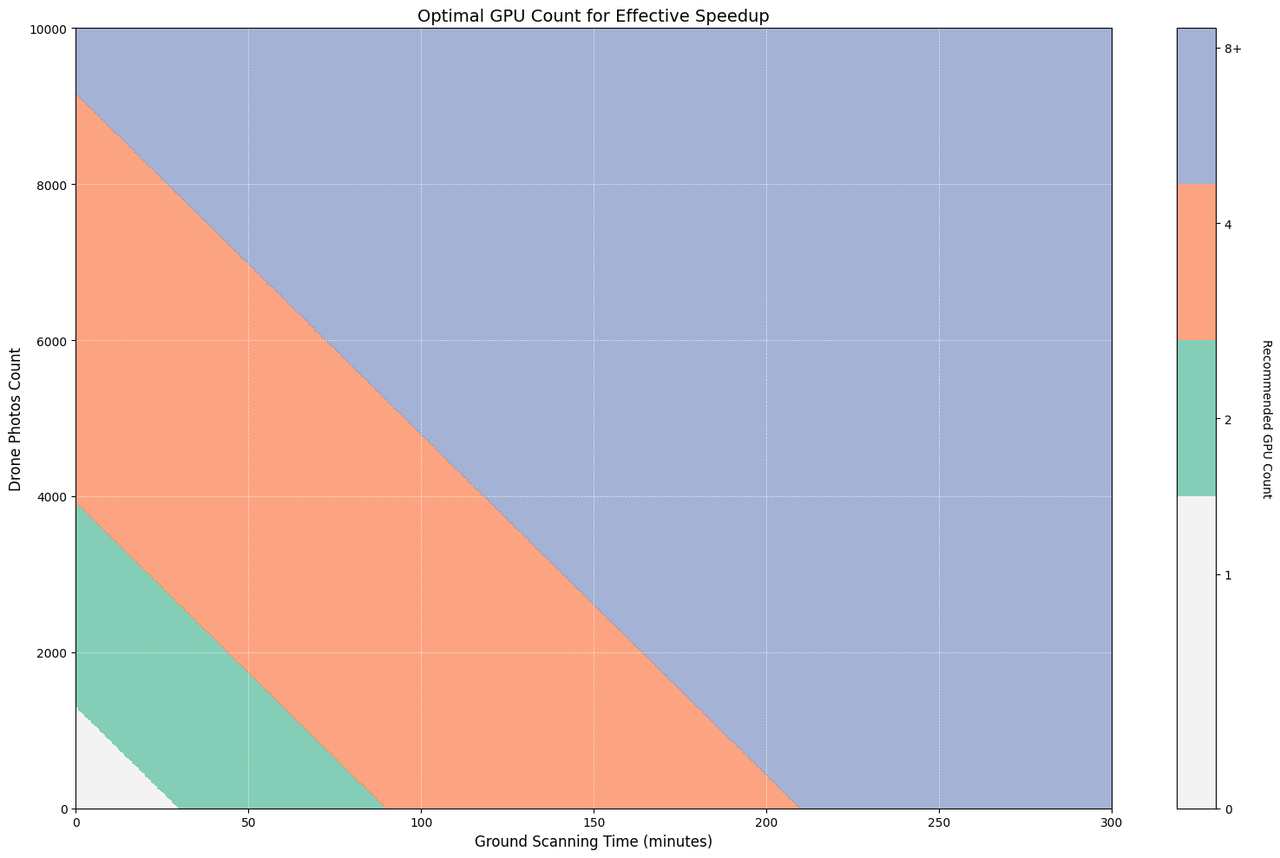
Chart of the optimal number of GPUs for effective acceleration. The horizontal axis is the ground scanning time (minutes) and the vertical axis is the number of drone photos. Colors mark the recommended number of GPUs for different scenarios: the green area suits 1 GPU, the orange area suits 2 GPUs, and the blue area suits 3 or more GPUs. This chart relates to the section on multi-GPU configuration providing significant acceleration for large-scene reconstruction, showing the relationship between scene size and the recommended number of GPUs.
Next
Architecture Guide