
Real-Time Clipping Development Guide
The LCC Unity SDK supports editing operations such as highlighting and clipping on 3DGS scenes. This guide introduces real-time clipping operations: selecting an area through 2D projected textures, 3D geometry, or a mix of both, clipping the selected area out of the scene, supporting normal selection and invert selection.
Note:
The current clipping feature is only a runtime display effect; it does not modify the original data file in any way and does not support saving or exporting the edit result. If you need to color-adjust, clip, and save data, use the XGRIDS LCC Editor software tool.
If you do not want to modify the data, you can also record the operations and replay them after the data finishes loading next time.
Prerequisites
Clipping a scene through the SDK requires the following conditions:
- Enter the edit state before loading data. The SDK is in the browsing state (View) by default, which provides the best performance and is recommended for normal browsing. To perform editing operations such as clipping, switch to the edit state via
SetEditorMode(true)before callingLoad. This method only takes effect if called before loading all the data. - Perform the clipping operation after data finishes loading. The clipping interface needs to be called after the scene data has fully loaded.
Step 1: Set up the scene
Prepare the GameObjects needed for clipping in the scene as shown below.
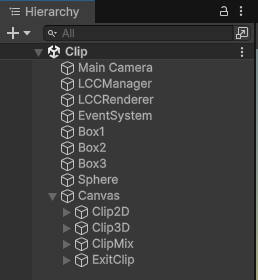
Scene hierarchy structure for the clipping example
- Main Camera: the scene camera; 2D clipping uses its view and projection matrices.
- LCCManager: an empty GameObject with a normalized Transform, with the
LCCManagerscript added. - LCCRenderer: an empty GameObject with Transform set to Rotation.x = -90, Scale.x = -1 (aligned with the LCC data coordinate system), used to attach the
Clipscript written later. - 3D selection geometry: auxiliary objects for 3D clipping. The example prepares 3 Cubes (
Box1,Box2,Box3) and 1 Sphere (Clipsphere); moving and scaling these objects controls the position and size of the clipping selection.
Note:
For settings related to the rendering camera, LCCManager, and LCCRenderer GameObjects, refer to the relevant sections of PC Quick Start Guide and Project Settings Optimization Guide.
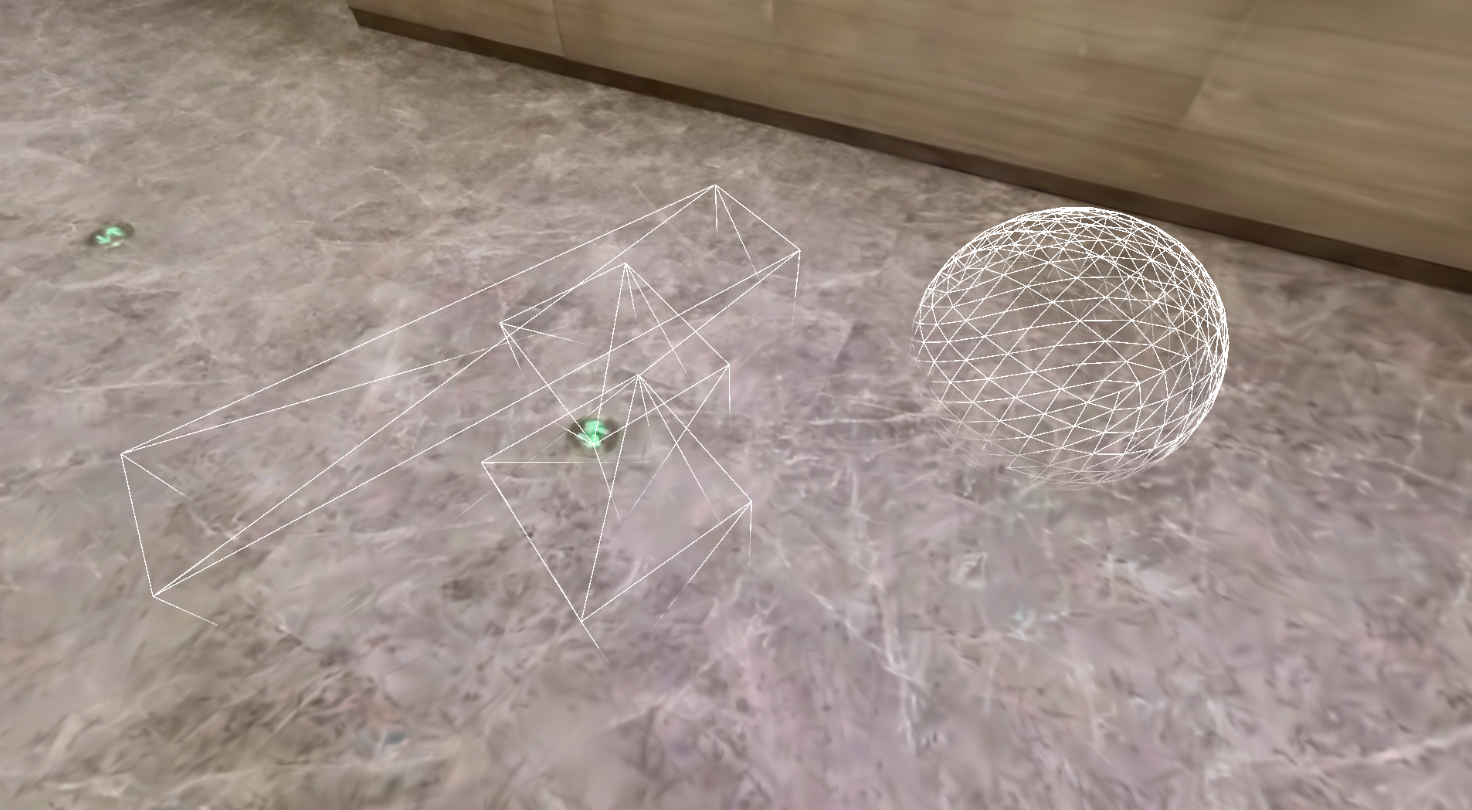
Selection geometry used for 3D clipping (Box1 / Box2 / Box3 / Clipsphere)
Step 2: Understand the data structures
Clipping involves three operation methods — 2D, 3D, and 2D/3D mixed. The enums and structs used are as follows.
public enum SelectMode    { normal, invert, clip }  // normal selection, invert, real-time clipping
public enum OperationMode { normal, erase }         // normal selection, erase selection
public enum ShapeType     { box, sphere }           // 3D Box selection, 3D Sphere selection
public enum EditType      { Edit2D, Edit3D }        // 2D edit, 3D edit

// 2D texture selection
public struct Data2D
{
    public Texture2D texture;   // 2D mask texture
    public Matrix4x4 mv;        // camera view matrix
    public Matrix4x4 mvp;       // camera view projection matrix
    public SelectMode mode;     // selection mode
}

// 3D geometry selection
public struct Data3D
{
    public ShapeType type;          // geometry type (box / sphere)
    public Matrix4x4 invMat;        // geometry's world-to-local (inverse) matrix
    public OperationMode operation; // operation type (normal union / erase difference)
    public SelectMode mode;         // selection mode
}

// 2D / 3D mixed selection
public struct DataMix
{
    public EditType editType;       // edit type (required; determines whether 2D or 3D fields are used)
    public Texture2D texture;       // 2D mask texture (used by Edit2D)
    public Matrix4x4 mv;            // camera view matrix (used by Edit2D)
    public Matrix4x4 mvp;           // camera view projection matrix (used by Edit2D)
    public ShapeType type;          // geometry type (used by Edit3D)
    public Matrix4x4 invMat;        // geometry inverse matrix (used by Edit3D)
    public OperationMode operation; // operation type (used by Edit3D)
    public SelectMode mode;         // selection mode (required)
}
There are three points to note about the selection list:
- The list is ordered. Whether 2D or 3D, entries in the list take effect in order; make sure the order of addition matches your expectation.
- Invert is an operation command and does not need to be associated with specific selection data. Simply append an entry with
mode = SelectMode.invertto invert the currently selected area. - The maximum number of entries in a single list is 255. Exceeding it returns an error code.
Step 3: Understand the clipping APIs
All clipping-related interfaces are provided by LCCManager, including three SetClip overloads and one exit method.
SetClip (2D texture clipping)
// Return value: int
// 0: success
// 1: list is null or has 0 elements
// 2: list elements exceed the maximum of 255
public int SetClip(List<Data2D> _2Ds)
Clips the scene using a 2D projected texture mask; the marked area is clipped out of the scene.
SetClip (3D geometry clipping)
// Return value: int
// 0: success
// 1: list is null or has 0 elements
// 2: list elements exceed the maximum of 255
// 3: the number of selection geometry boxes is 0
public int SetClip(List<Data3D> _3Ds)
Defines the clipping area using 3D geometry (cuboid, cube, sphere), supporting union and difference combinations. At least one geometry with operation == OperationMode.normal is required.
SetClip (mixed mode clipping)
// Return value: int
// 0: success
// 1: list is null or has 0 elements
// 2: list elements exceed the maximum of 255
public int SetClip(List<DataMix> _Mix)
Defines the clipping area using 2D textures and 3D geometry at the same time; each entry determines whether it is processed as 2D or 3D through editType.
QuitClipMode
// Return value: void
public void QuitClipMode()
Exits clipping mode and restores the complete scene display.
Tip:
The three
SetClipoverloads are mutually exclusive. When switching clipping methods or clearing the current clipping, callQuitClipMode()first and then set the new clipping.
Step 4: 2D mask texture specification
2D clipping describes the selection through a mask texture, supporting various selection methods such as quadrilaterals, triangles, brushes, and lassos — simply mark the corresponding pixels in the texture with the clipping value. When using 2D operations, the camera should be locked and the texture marked from a fixed viewpoint. The texture and pixel values have the following conventions:
- The texture is fixed at 1024 × 1024,
R8single channel, no Mipmap, point filtering (FilterMode.Point), and clamped sampling (TextureWrapMode.Clamp). - Pixel value conventions:
| Pixel value | Meaning |
|---|---|
128 | Default (keep) |
240 | Selected |
180 | Deselect (erase the already selected area) |
0 | Clipping |
In a clipping scenario, only the two values 128 (default keep) and 0 (clipping) are usually used.
Step 5: Write the script
Create a new C# script named Clip.cs. First complete the basic skeleton: in Start, enter the edit state and load data; after loading completes, set the load flag for the subsequent clipping methods to check.
using LCCCore;
using System.Collections.Generic;
using UnityEngine;

public class Clip : MonoBehaviour
{
    public LCCManager m_manager;
    public string m_FilePath;
    public GameObject m_Box1;
    public GameObject m_Box2;
    public GameObject m_Box3;
    public GameObject m_Clipsphere;

    private LCCCore.Renderer m_renderer;
    private Camera m_camera;
    private bool m_isLoaded = false;

    void Start()
    {
        m_camera = Camera.main;
        m_manager.SetPlatformType(PlatformType.PC);

        // Enter edit mode; must be called before Load
        m_manager.SetEditorMode(true);

        m_renderer = m_manager.GetRender(this.transform);
        if (m_renderer == null)
            Debug.LogError("GetRender failed, check if the manager is set correctly and the file path is valid.");

        m_renderer.Load(m_FilePath, onLoadProgress, onLoadCallback);
    }

    private void onLoadProgress(float value)
    {
        Debug.Log($"loading progress: {value}");
    }

    private void onLoadCallback()
    {
        Debug.Log("data loaded !!!");
        m_isLoaded = true;

        // Disable environment (far-field low-precision point cloud) rendering to better observe the clipping result
        m_renderer.SetEnvironment(false);
    }

    // 2D / 3D / mixed clipping methods below
}
Note:
SetEditorMode(true)must be called beforeLoadto take effect; andSetClipmust be called after data finishes loading (after theonLoadCallbackcallback fires).SetEnvironment(false)disables the far-field environment point cloud to make the clipping result clearer; decide whether to call it as needed.
Step 6: Attach the script and set properties
- Attach the
Clip.csscript to the LCCRenderer GameObject. - In the Inspector window, drag the LCCManager GameObject onto the script's Manager property.
- Fill in the LCC file path in the File Path property.
- Drag
Box1,Box2,Box3, andClipspherein the scene onto the script's corresponding properties respectively.
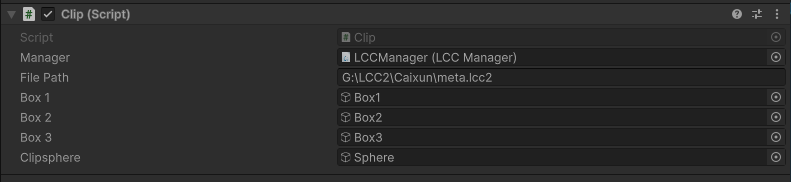
Set the Clip script properties in the Inspector
Step 7: Clipping operation examples
Add the methods below to the Clip class, and call the corresponding method after running and after data finishes loading.
2D texture clipping
Construct two R8 mask textures, mark the pixels to clip as 0 and the rest of the keep area as 128, then construct Data2D with the camera matrices and add them to the list.
public void on2DClip()
{
    // Texture size is fixed at 1024*1024; keep other properties the same as the example
    Texture2D _texture = new Texture2D(1024, 1024, TextureFormat.R8, false);
    _texture.filterMode = FilterMode.Point;
    _texture.wrapMode = TextureWrapMode.Clamp;

    int _count = 1024 * 1024;
    int _half = _count / 2;
    byte[] _values = new byte[_count];
    for (int i = 0; i < _count; i++)
    {
        if (i < _half)
            _values[i] = 0;      // 0 means clipping, 128 means default, 240 means selected
        else
            _values[i] = 128;
    }
    _texture.SetPixelData(_values, 0);

    Texture2D _texture2 = new Texture2D(1024, 1024, TextureFormat.R8, false);
    _texture2.filterMode = FilterMode.Point;
    _texture2.wrapMode = TextureWrapMode.Clamp;
    byte[] _values2 = new byte[_count];
    for (int i = 0; i < _count; i++)
    {
        if (i > _count * 0.75 && i < _count * 0.9)
            _values2[i] = 0;
        else
            _values2[i] = 128;
    }
    _texture2.SetPixelData(_values2, 0);

    List<Data2D> _2Ds = new List<Data2D>();
    Data2D _2d01 = new Data2D();
    _2d01.mv = m_camera.worldToCameraMatrix;
    _2d01.texture = _texture;
    _2d01.mode = SelectMode.normal;
    _2d01.mvp = GL.GetGPUProjectionMatrix(m_camera.projectionMatrix, true) * m_camera.worldToCameraMatrix;
    _2Ds.Add(_2d01);

    Data2D _2d02 = new Data2D();
    _2d02.mv = m_camera.worldToCameraMatrix;
    _2d02.texture = _texture2;
    _2d02.mode = SelectMode.normal;
    _2d02.mvp = GL.GetGPUProjectionMatrix(m_camera.projectionMatrix, true) * m_camera.worldToCameraMatrix;
    _2Ds.Add(_2d02);

    m_manager.SetClip(_2Ds);
}
Code explanation: two mask textures are built. The first mask clips the lower half of the screen (the screen origin is the lower-left corner), and the second mask clips the 0.75 to 0.9 region of the upper half of the screen. The example effect is as follows.
In actual use, you can use various selection tools such as rectangles, triangles, brushes, and lassos to select the corresponding positions on the mask.
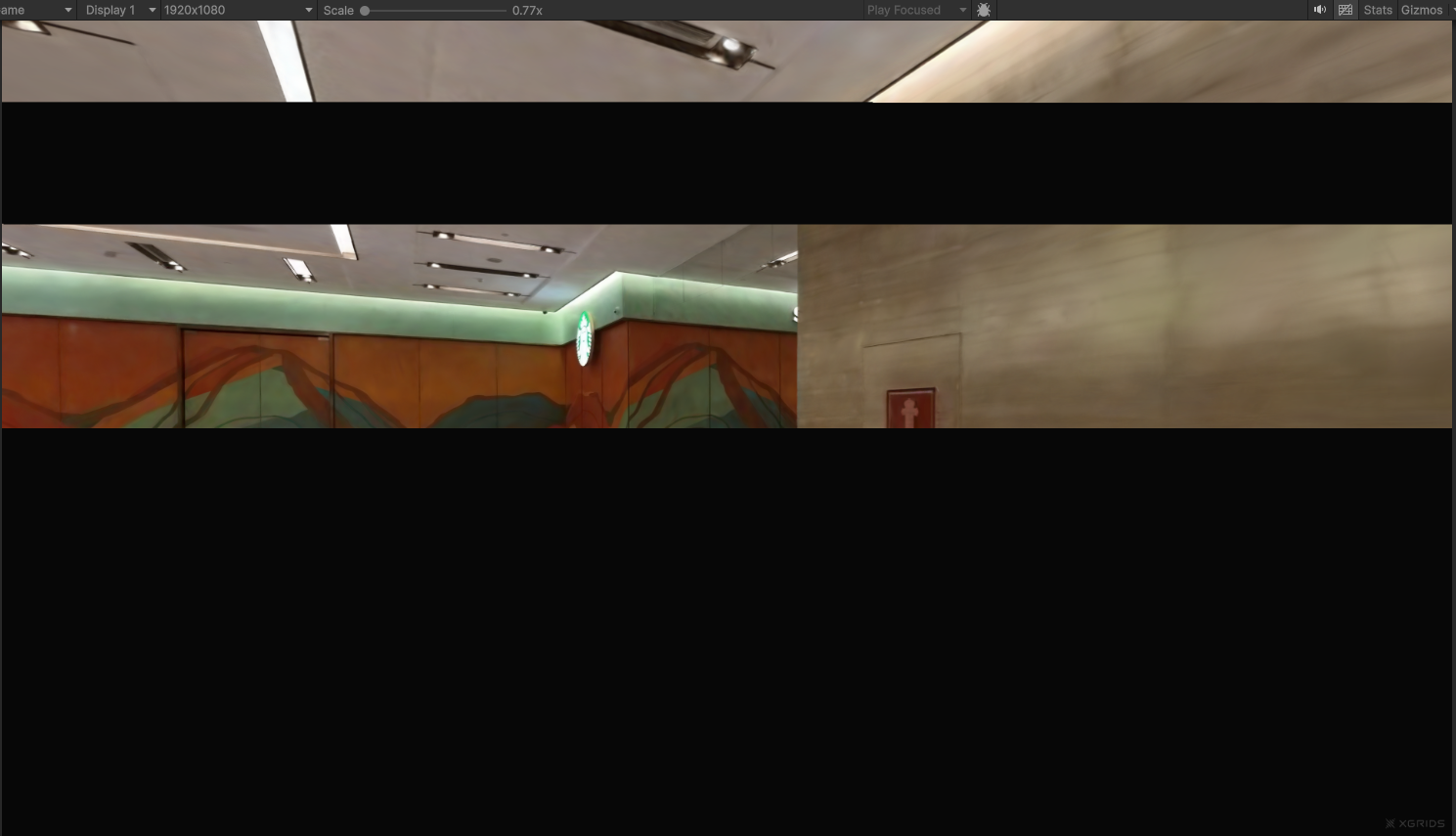
2D texture clipping effect
3D geometry clipping
Use the geometry's worldToLocalMatrix as the selection inverse matrix, combine union (normal) and difference (erase) through operation, and implement invert selection through an entry with mode = SelectMode.invert.
public void on3DClip()
{
    List<Data3D> _3Ds = new List<Data3D>();
    var _mat1 = m_Box1.transform.worldToLocalMatrix;
    var _mat2 = m_Box2.transform.worldToLocalMatrix;
    var _mat3 = m_Box3.transform.worldToLocalMatrix;
    var _mat4 = m_Clipsphere.transform.worldToLocalMatrix;

    // Box selection
    Data3D _3d01 = new Data3D();
    _3d01.type = ShapeType.box;
    _3d01.operation = OperationMode.normal;
    _3d01.mode = SelectMode.normal;
    _3d01.invMat = _mat1;
    _3Ds.Add(_3d01);

    Data3D _3d02 = new Data3D();
    _3d02.type = ShapeType.box;
    _3d02.operation = OperationMode.normal;
    _3d02.mode = SelectMode.normal;
    _3d02.invMat = _mat2;
    _3Ds.Add(_3d02);

    // Sphere selection
    Data3D _3d04 = new Data3D();
    _3d04.type = ShapeType.sphere;
    _3d04.operation = OperationMode.normal;
    _3d04.mode = SelectMode.normal;
    _3d04.invMat = _mat4;
    _3Ds.Add(_3d04);

    // Erase Box/Sphere (difference)
    Data3D _3d03 = new Data3D();
    _3d03.type = ShapeType.box;
    _3d03.operation = OperationMode.erase;
    _3d03.mode = SelectMode.normal;
    _3d03.invMat = _mat3;
    _3Ds.Add(_3d03);

    // Invert
    //Data3D _3d05 = new Data3D();
    //_3d05.mode = SelectMode.invert;
    //_3Ds.Add(_3d05);

    m_manager.SetClip(_3Ds);
}
Code explanation: 4 geometries are used, where Box1, Box2, and Sphere are normal selections, and Box3 is an erase selection, that is, erasing the previously selected area. With the invert-related code commented out, the example effect is as follows:
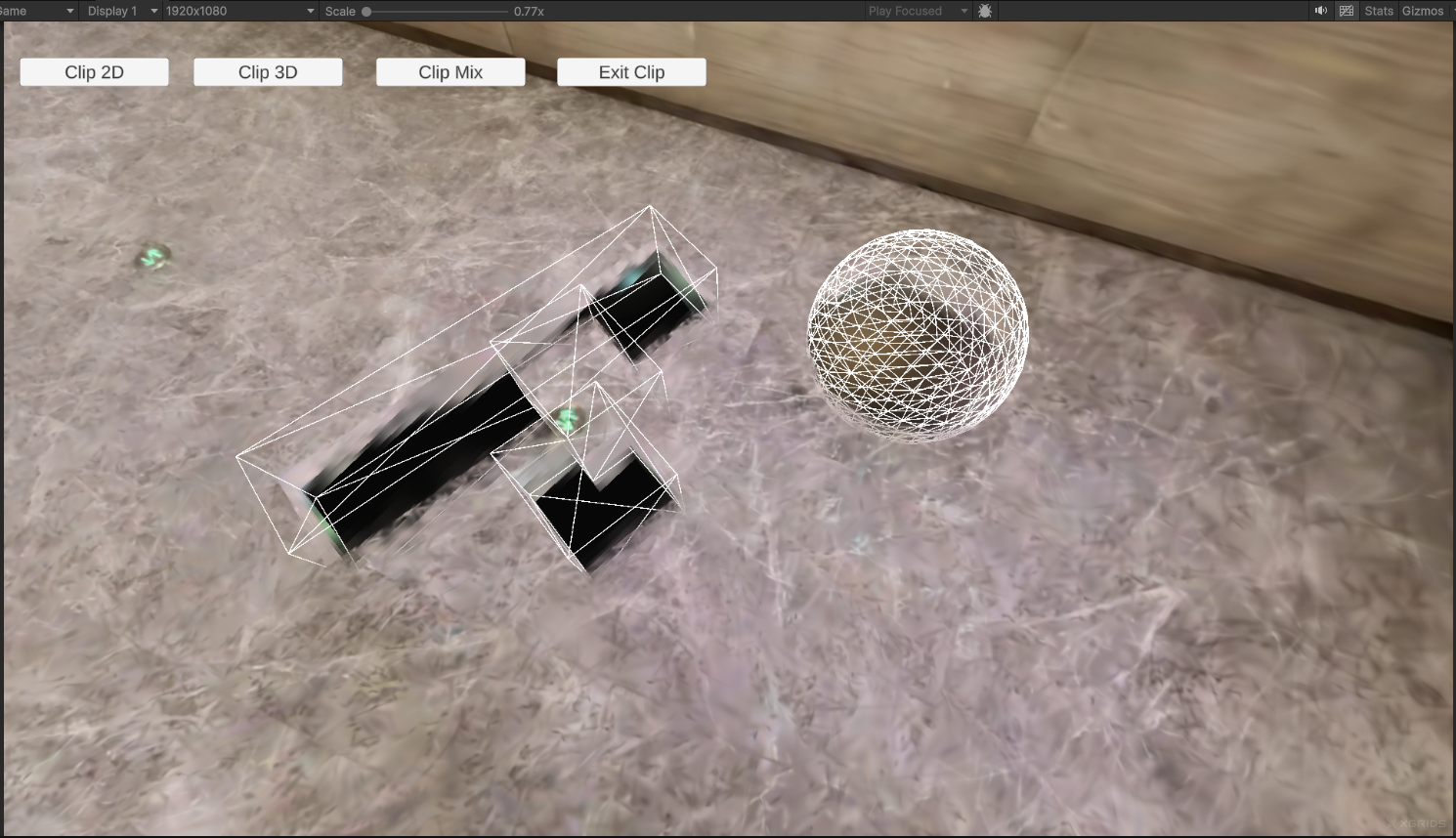
3D geometry clipping effect
Uncomment the invert code so that invert takes effect; the example effect is as follows. Invert flips the previously selected area; it is a command and does not need to be associated with operation data.
In particular, note that the list is ordered; different operation steps produce different final effects.
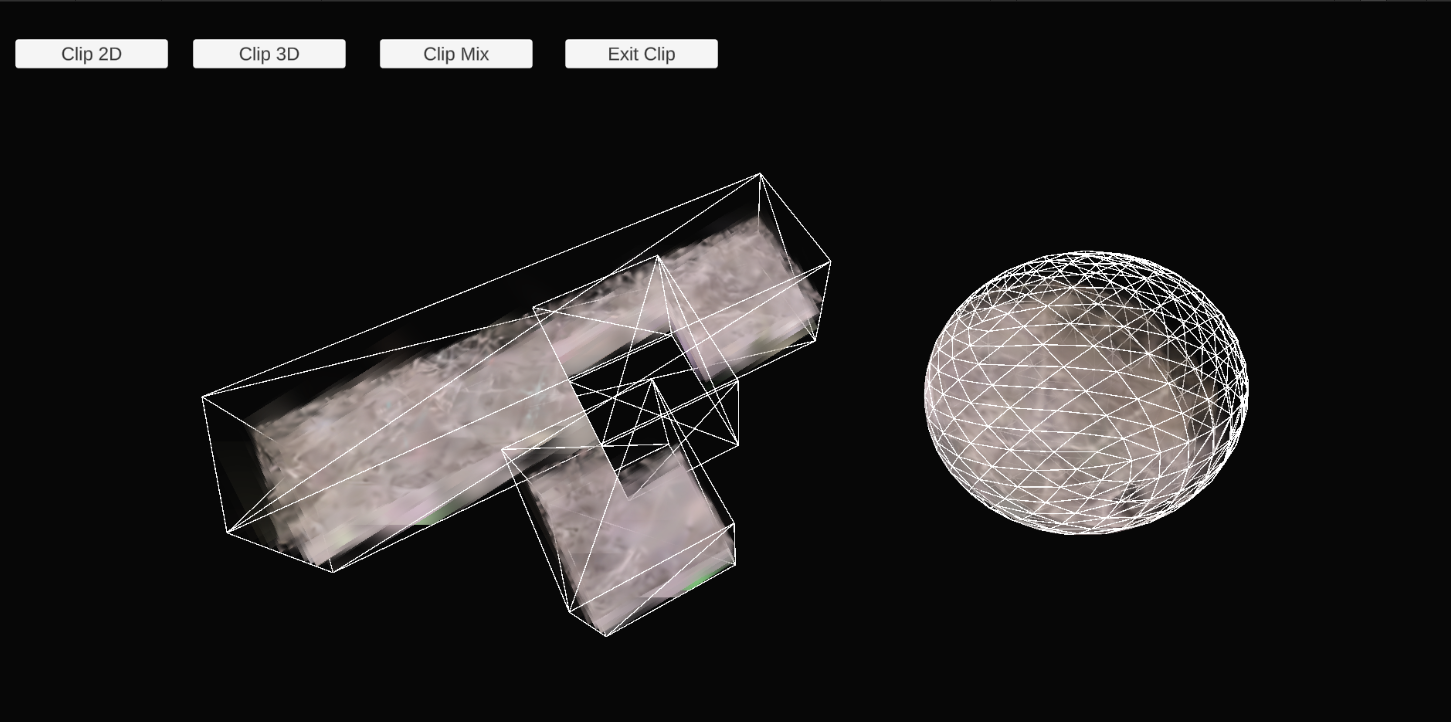
3D geometry + invert clipping effect
Mixed mode clipping
Mix 2D texture and 3D geometry entries in the same list; each entry specifies its processing method through editType.
public void onMixClip()
{
    // --- 2D selection preparation ---
    // Texture size is fixed at 1024*1024; keep other properties the same as the example
    Texture2D _texture = new Texture2D(1024, 1024, TextureFormat.R8, false);
    _texture.filterMode = FilterMode.Point;
    _texture.wrapMode = TextureWrapMode.Clamp;

    int _count = 1024 * 1024;
    int _half = _count / 2;
    byte[] _values = new byte[_count];
    for (int i = 0; i < _count; i++)
    {
        if (i < _half)
            _values[i] = 128;    // 128 means default, 240 means selected, 0 means clipping
        else
            _values[i] = 0;
    }
    _texture.SetPixelData(_values, 0);

    List<DataMix> _Mixs = new List<DataMix>();
    DataMix _mix01 = new DataMix();
    _mix01.editType = EditType.Edit2D;
    _mix01.mv = m_camera.worldToCameraMatrix;
    _mix01.texture = _texture;
    _mix01.mode = SelectMode.normal;
    _mix01.mvp = GL.GetGPUProjectionMatrix(m_camera.projectionMatrix, true) * m_camera.worldToCameraMatrix;
    _Mixs.Add(_mix01);

    // --- 3D selection preparation ---
    var _mat1 = m_Box1.transform.worldToLocalMatrix;
    var _mat2 = m_Box2.transform.worldToLocalMatrix;
    var _mat3 = m_Box3.transform.worldToLocalMatrix;
    var _mat4 = m_Clipsphere.transform.worldToLocalMatrix;

    // Box selection
    DataMix _mix02 = new DataMix();
    _mix02.editType = EditType.Edit3D;
    _mix02.type = ShapeType.box;
    _mix02.operation = OperationMode.normal;
    _mix02.mode = SelectMode.normal;
    _mix02.invMat = _mat1;
    _Mixs.Add(_mix02);

    DataMix _mix03 = new DataMix();
    _mix03.editType = EditType.Edit3D;
    _mix03.type = ShapeType.box;
    _mix03.operation = OperationMode.normal;
    _mix03.mode = SelectMode.normal;
    _mix03.invMat = _mat2;
    _Mixs.Add(_mix03);

    // Sphere selection
    DataMix _mix04 = new DataMix();
    _mix04.editType = EditType.Edit3D;
    _mix04.type = ShapeType.sphere;
    _mix04.operation = OperationMode.normal;
    _mix04.mode = SelectMode.normal;
    _mix04.invMat = _mat4;
    _Mixs.Add(_mix04);

    // Erase Box/Sphere (difference)
    DataMix _mix05 = new DataMix();
    _mix05.editType = EditType.Edit3D;
    _mix05.type = ShapeType.box;
    _mix05.operation = OperationMode.erase;
    _mix05.mode = SelectMode.normal;
    _mix05.invMat = _mat3;
    _Mixs.Add(_mix05);

    // Invert (enable as needed)
    DataMix _mix06 = new DataMix();
    _mix06.editType = EditType.Edit3D;
    _mix06.type = ShapeType.box;
    _mix06.mode = SelectMode.invert;
    //_Mixs.Add(_mix06);

    m_manager.SetClip(_Mixs);
}
Code explanation: 4 geometries and 1 2D texture are used, allowing 2D and 3D mixed processing. The example effect is as follows:
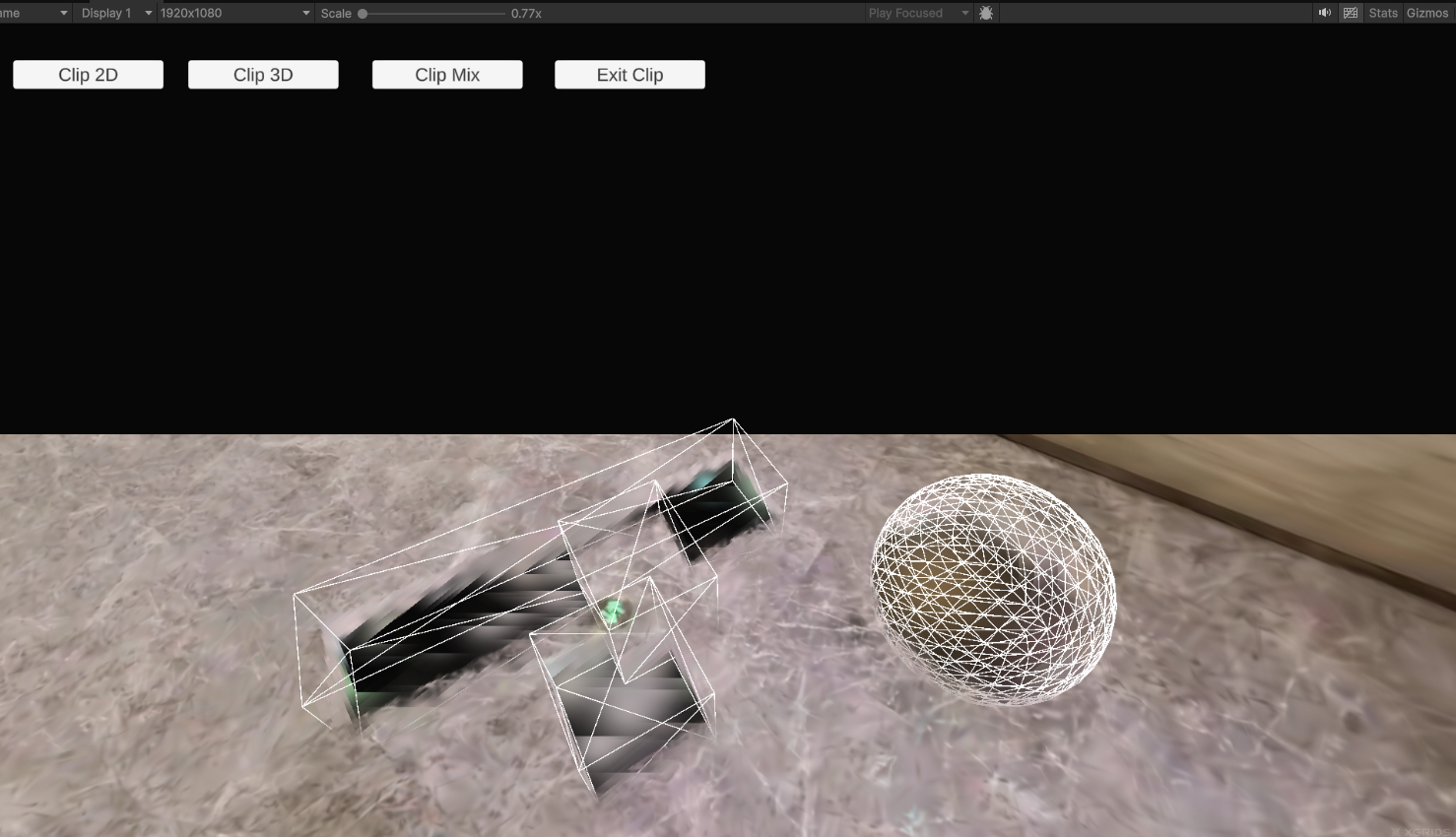
Mixed mode clipping effect
Step 8: Exit clipping
Call QuitClipMode() to clear the current clipping and restore the complete scene display.
public void onClearClip()
{
    m_manager.QuitClipMode();
}
Key Steps
The key steps for performing real-time clipping on a 3DGS scene:
- Call
SetEditorMode(true)before loading data to enter the edit state. - Call
SetClipafter data finishes loading (after theonLoadCallbackcallback fires, or triggered through a button/event). - Choose 2D texture, 3D geometry, or mixed mode as needed, and make sure the selection list's order of addition matches your expectation.
- The 2D mask texture is fixed at 1024 × 1024,
R8single channel; fill pixel values per convention (128default keep,0clipping). - When clearing or switching clipping, call
QuitClipMode()first.