
Shadow Receiving Development Guide
The LCC Unity SDK supports dynamically casting shadows from Mesh objects onto 3DGS surfaces for better lighting effects. The following describes the complete steps to implement dynamic shadows.
Step 1: Create the scene and GameObjects
Create a brand-new scene in Unity. Unity creates Main Camera and Directional Light by default.
Set up Main Camera
Select Main Camera in the Hierarchy window, and set its properties in the Inspector window as shown below.
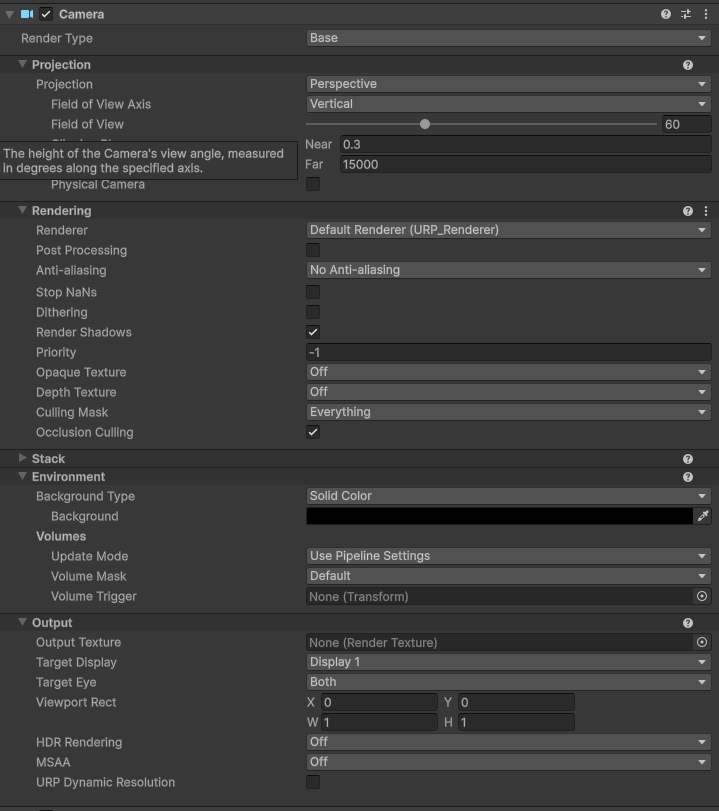
Set the Main Camera properties
Create LCCManager
Right-click an empty area in the Hierarchy window, select Create Empty from the pop-up menu to create an empty GameObject, name it LCCManager, normalize its Transform, and add the LCCManager script to it via Add Component.
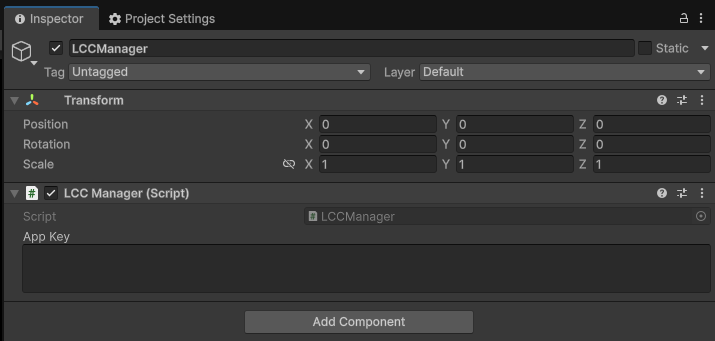
Create the LCCManager GameObject and add the LCCManager script
Create LCCRenderer
Right-click an empty area in the Hierarchy window, select Create Empty to create an empty GameObject, name it LCCRenderer, and set its Transform to Rotation.x = -90 and Scale.x = -1.
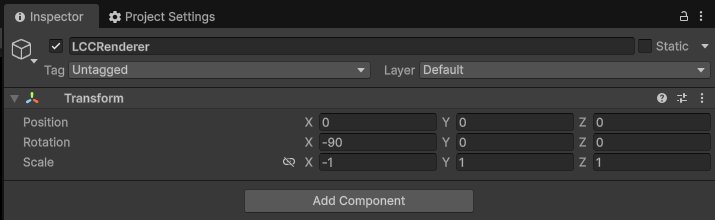
Create LCCRenderer and set its Transform (Rotation.x = -90, Scale.x = -1)
Note:
The Transform settings of the LCCRenderer GameObject (Rotation.x = -90, Scale.x = -1) align it with the LCC data coordinate system. For details on coordinate system alignment, see "LCC Data Coordinate System" in Unity SDK Introduction.
Enable Directional Light shadows
Select the Directional Light GameObject in the Hierarchy window, and make sure shadows are enabled in the Inspector window.
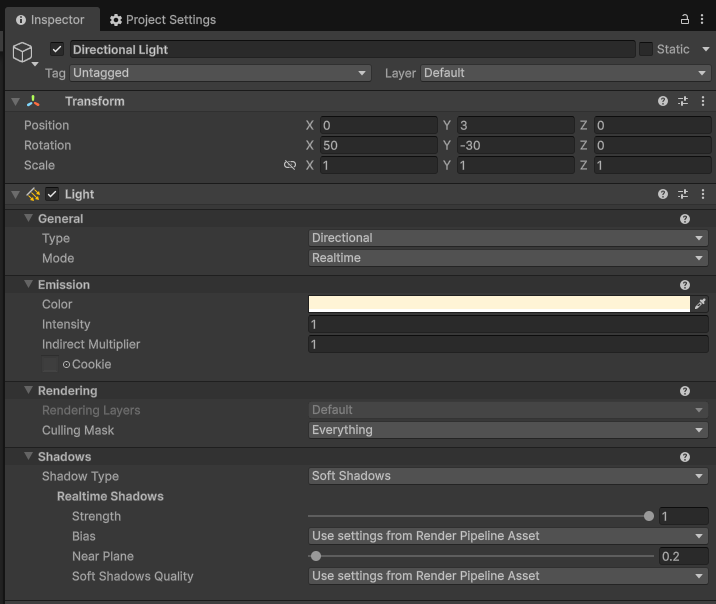
Make sure shadows are enabled on the Directional Light
Step 2: Add a Render Feature
- In the Unity menu bar, select File → Project Settings, choose Graphics on the left, and confirm the current Default Render Pipeline Asset. This example uses URP (Universal Render Pipeline Asset).
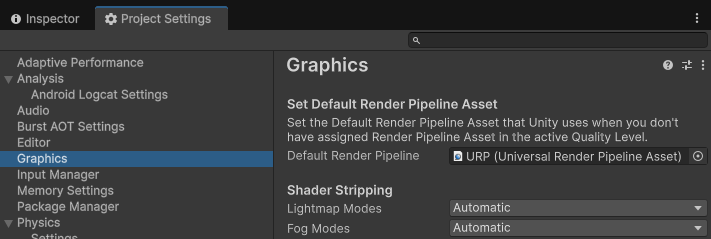
Confirm the Default Render Pipeline Asset in Graphics settings
Click that Asset, locate the corresponding asset file in the Project window, and find its associated Renderer (
URP_Renderer.assetin this example).Select that Renderer asset file, click Add Renderer Feature in the Inspector window, and add the Splat Shadow Mask Feature.
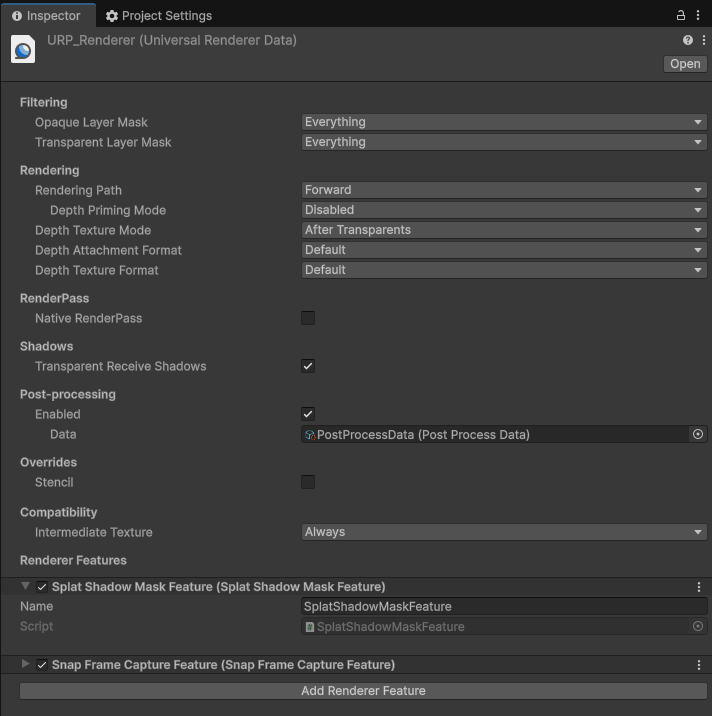
Add the Splat Shadow Mask Feature to the URP Renderer
Step 3: Write a script to enable shadow receiving
Create a new C# script named LCCShadow.cs with the following code:
using LCCCore;
using UnityEngine;

public class LCCShadow : MonoBehaviour
{
    public LCCManager m_manager;
    public string m_FilePath;
    private LCCCore.Renderer m_renderer;

    void Start()
    {
        m_manager.SetPlatformType(PlatformType.PC);
        m_manager.SwitchRenderPass(ActiveRenderMode.SingleRender);

        Debug.Log("Started ");
        m_renderer = m_manager.GetRender(this.transform);
        m_renderer.Load(m_FilePath, onProgress, onComplete);
    }

    private void onProgress(float _progress)
    {
        Debug.Log($"[LCCRenderer] file load progress: {_progress:P1}");
    }

    private void onComplete()
    {
        Debug.Log($"[LCCRenderer] file  loaded");
        m_manager.SetShadowReceive(true);
        //m_manager.SetShadowColor(new Color(0, 0, 0, 1.0f));
        //m_manager.SetShadowStrength(0.5f);
    }
}
Note:
Shadow receiving must be enabled after the LCC scene finishes loading, so
SetShadowReceive(true)is called in theonCompletecallback.
Step 4: Attach the script and set the data path
- Attach the
LCCShadow.csscript to the LCCRenderer GameObject in the Hierarchy window. - In the Inspector window, drag the LCCManager GameObject onto the script's Manager property.
- Fill in the LCC file path in the script's File Path property.
Step 5: Create a shadow-casting Mesh object
- Create a Cube object in the scene and make sure Cast Shadows = On.
- Move the Cube to a suitable position so you can observe the shadow it casts onto the 3DGS surface.
Step 6: Run
Click the Play button in the Game window and move the Cube in real time to observe the dynamic shadow it casts.
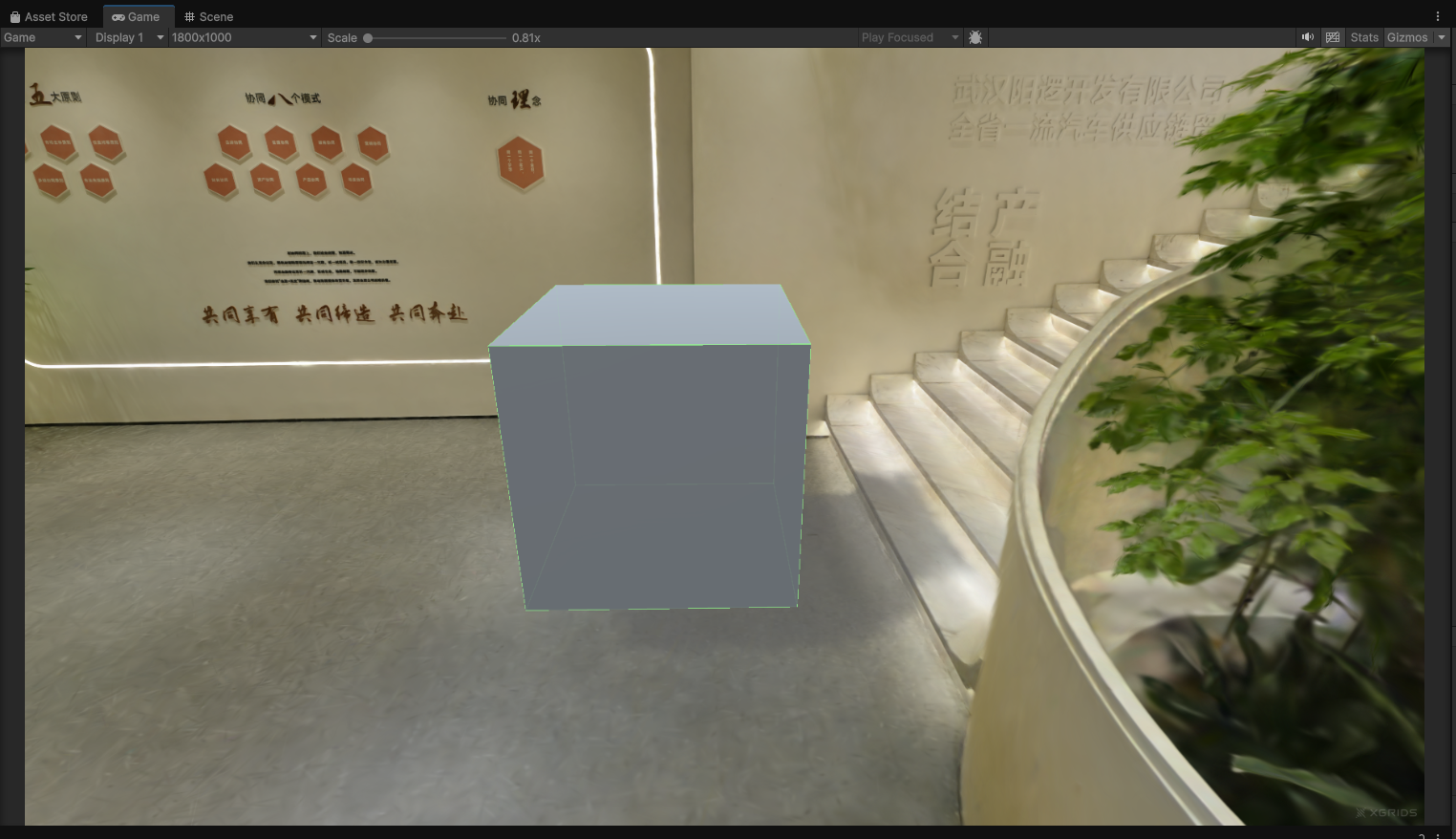
The Cube casting a dynamic shadow onto the 3DGS surface after running
FAQ: Disable compatibility mode
If the Unity Console window reports errors and no shadow appears, disable compatibility mode: open the settings panel via Edit → Project Settings → Graphics, select the URP tab, and do not check the checkbox after Render Graph → Compatibility Mode (Render Graph Disabled).
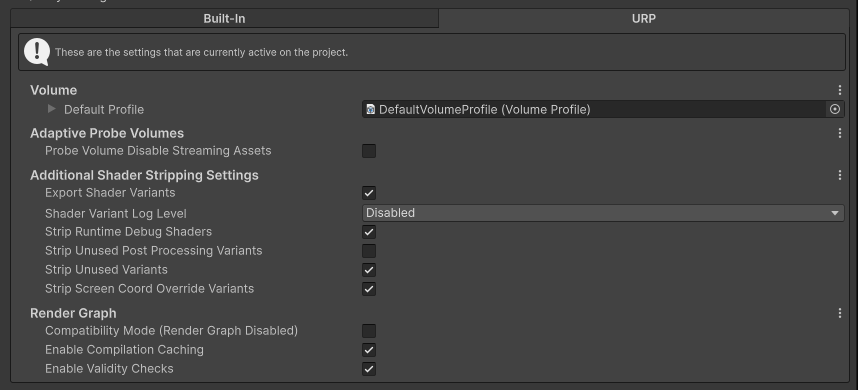
Do not check Render Graph compatibility mode (Render Graph Disabled)
Key Steps
The key steps for casting shadows from Mesh objects onto 3DGS surfaces:
- Make sure the scene has a Directional Light with shadows enabled.
- Make sure the scene has a Mesh object that casts shadows with Cast Shadows = On.
- Make sure the Splat Shadow Mask Feature has been added to the URP Renderer.
- Make sure shadow receiving is enabled in code after the LCC scene finishes loading (
SetShadowReceive(true)).
Shadow-related APIs
The LCC Unity SDK provides the following three shadow-related APIs through LCCManager. They must all be called after the LCC scene finishes loading (that is, in the onComplete callback), and SetShadowColor() / SetShadowStrength() only take effect after SetShadowReceive(true) is enabled.
SetShadowReceive
// Return value: void
public void SetShadowReceive(bool enable)
Toggles point cloud shadow receiving. When enabled, shadows from Mesh objects in the scene can be cast onto the 3DGS point cloud surface.
| Parameter | Type | Description |
|---|---|---|
enable | bool | Whether to receive shadows |
Usage example:
m_manager.SetShadowReceive(true);
Notes:
- Disabled by default.
- Requires a shadow-casting Mesh object and a Directional Light in the scene.
- When enabled, the
_SPLAT_SHADOW_ONshader keyword is enabled.
SetShadowColor
// Return value: void
public void SetShadowColor(Color color)
Sets the color of the shadow area.
| Parameter | Type | Description |
|---|---|---|
color | Color | Shadow color (RGBA) |
Usage example:
m_manager.SetShadowColor(new Color(0.3f, 0.3f, 0.3f, 1f));
Notes:
- Default value is
(0.3, 0.3, 0.3, 1). - Requires
SetShadowReceive(true)to be enabled first.
SetShadowStrength
// Return value: void
public void SetShadowStrength(float strength)
Sets the shadow strength. 0 means no shadow and 1 means the strongest shadow.
| Parameter | Type | Description |
|---|---|---|
strength | float | Shadow strength, in the range [0, 1] |
Usage example:
m_manager.SetShadowStrength(0.8f);
Notes:
- Default value is
1.0. - Range
[0, 1]; values outside the range are clamped automatically. - Requires
SetShadowReceive(true)to be enabled first.