
macOS Development Permission Issue Guide
Because the LCC Unity SDK uses a third-party webP decoding library, you may encounter the "Failed to open xxx.bundle" error when using the SDK on macOS. This is macOS's security mechanism (Gatekeeper) blocking uncertified third-party plugins from running, and has nothing to do with Unity or the SDK itself.
This guide has two parts:
- Part 1: Temporarily resolve third-party library permission issues in the development environment.
- Part 2: The formal solution when packaging an application (for public distribution).
Part 1: Temporarily Resolve Third-party Library Permission Issues in the Development Environment
The following methods apply to quickly removing the bundle restriction during development; try them in order of priority.
Method 1: Allow directly in System Settings (fastest)
| Step | Operation |
|---|---|
| 1 | Open the Mac System Settings, and find Privacy & Security on the left |
| 2 | Scroll down to find the "Security" section |
| 3 | Find the prompt "xxx.bundle was blocked from use", and click the adjacent Allow button |
| 4 | Restart Unity, then re-import or run the SDK |
Method 2: Remove the quarantine attribute via Terminal (most thorough)
macOS adds the com.apple.quarantine quarantine attribute to files downloaded from the network; you can remove it directly with a Terminal command.
| Step | Operation |
|---|---|
| 1 | Open Launchpad → Other → Terminal |
| 2 | Enter the command (keep a trailing space): sudo xattr -rd com.apple.quarantine |
| 3 | Drag the xxx.bundle file that reported the error directly into the Terminal window to auto-complete the path |
| 4 | Press Enter, and enter the Mac login password (not shown while typing, which is normal) |
| 5 | Restart Unity after the command completes |
Tip:
This command requires administrator privileges (
sudo). The screen will not show anything while you type the password; just finish typing and press Enter.
Method 3: Add executable permissions (supplementary)
If Methods 1 and 2 still do not work, add executable permissions to the bundle:
chmod -R 755 /path/to/xxx.bundle
You can also drag the bundle file into the Terminal to auto-complete the path, press Enter, and restart Unity.
Method 4: Check Unity plugin platform settings
| Step | Operation |
|---|---|
| 1 | Find the xxx.bundle file in Unity's Project window |
| 2 | Select it and look at the Inspector window |
| 3 | In Platform Settings, check Any Platform, or separately check Standalone / macOS |
| 4 | Make sure Exclude Platform is not checked |
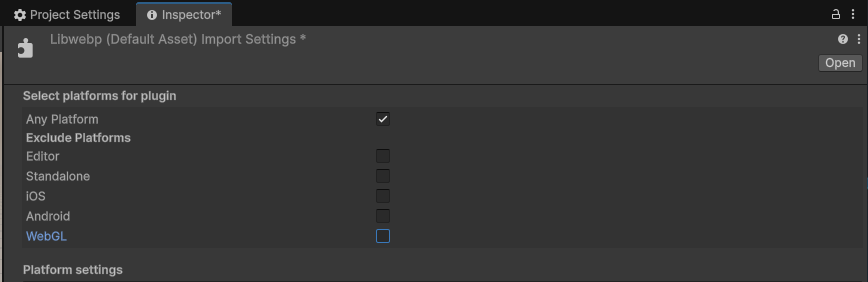
Check Any Platform or macOS in Platform Settings in the Inspector
Method 5: Temporarily disable Gatekeeper (last resort)
Warning:
This method reduces system security. It is only recommended for temporary use on a development machine; be sure to re-enable it after development is complete.
If none of the above methods work, you can temporarily disable system security verification:
sudo spctl --master-disable
Verify whether it is disabled:
spctl --status
# assessments disabled is shown when disabled successfully
Re-enable security protection after development is complete:
sudo spctl --master-enable
Part 2: Resolve Third-party Library Permission Issues When Packaging an Application
To let end users use an application containing a third-party SDK with no perception of the issue, you must complete "deep code signing + Apple notarization + Staple ticket binding" on the developer side. This is the only compliant standard solution on macOS with zero user operations.
Prerequisites (all required)
| No. | Condition | Description |
|---|---|---|
| 1 | Apple Developer Program | USD 99/year, used to obtain the Developer ID Application certificate |
| 2 | Enable Hardened Runtime | In Unity Player Settings → Other Settings → Mac, check Use Hardened Runtime |
| 3 | Configure a unique Bundle ID | Keep it consistent with the developer portal |
| 4 | Disable Unity auto signing | Use Terminal to manually deep-sign after packaging |
Complete Signing and Notarization Workflow
Step 1: Clear extended attributes
xattr -cr "YourApp.app"
Step 2: Deep recursive signing
The --deep parameter automatically traverses all internal .bundle, .dylib, and .framework files and signs them uniformly, thoroughly solving the problem of third-party bundles being blocked for being unsigned.
codesign --force --deep --options runtime --sign "Developer ID Application: YourCompany (TeamID)" "YourApp.app"
Key point:
Replace
YourCompany (TeamID)with your full Developer ID. Using--deepensures all internal third-party bundles are signed — this is the root cause of 90% of the "still errors after signing" issues.
Step 3: Package a standard zip for notarization
You must use the ditto command to package; do not use the system right-click compression (otherwise the notarization verification will fail).
ditto -c -k --sequesterRsrc --keepParent "YourApp.app" build.zip
Step 4: Upload to Apple for notarization
Use notarytool (the official new tool) to submit for notarization; Apple's backend automatically scans for malicious code:
xcrun notarytool submit build.zip --apple-id your@apple.com --password app-specific-password --team-id TeamID --wait
Wait for Accepted to be returned, which means notarization passed.
Step 5: Staple the notarization ticket into the App
After stapling, users can pass verification even when opening offline:
xcrun stapler staple "YourApp.app"
# Verify whether it succeeded
xcrun stapler validate "YourApp.app"
Internal Testing / Enterprise Intranet Distribution (alternative)
If you do not yet have an Apple developer account, you can distribute within the intranet using the following approach:
| Step | Operation |
|---|---|
| 1 | Unity packages the .app |
| 2 | On the build machine, run: xattr -rd com.apple.quarantine "YourApp.app" |
| 3 | Distribute through intranet tools (scp, enterprise cloud drive, USB drive), do not download via a browser |
Limitation:
This approach only applies to intranet transfer. Browser downloads will re-add the quarantine attribute, causing the bundle error to reappear, and is not suitable for public distribution.
Common Pitfalls
| Common mistake | Correct approach |
|---|---|
Signed only the main program, without --deep | Must use --deep to recursively sign all internal bundles / dylibs |
| Did not enable Hardened Runtime | Check it in Player Settings before Unity packaging, otherwise notarization fails directly |
| Forgot to staple the ticket after notarization | Must run xcrun stapler staple, otherwise offline opening still shows the dialog |
| Did not clear extended attributes before signing | Run xattr -cr first to clear residual attributes of all bundles, then sign |
Used system right-click compression instead of ditto | Must use ditto -c -k standard packaging, otherwise notarization verification fails |
Summary
The only standard solution for public distribution = Apple Developer ID + deep codesign + notarytool notarization + stapler ticket. After completion, users download and use it immediately, with no security dialog and no perception of the issue.