
Projected Decal Development Guide
Feature Overview
Decal projection (Decal Projector) projects a 2D image onto the 3DGS point cloud surface like a slide projector. The projector is a fixed perspective frustum in world space; the point cloud inside the frustum is covered by the decal color, and the point cloud outside the frustum is unaffected. The decal is a global shading state that has a consistent shading effect on the entire 3DGS scene.
On top of the basic projection, occlusion culling can optionally be enabled. By default the decal is X-ray-like: because 3DGS itself has no concept of a surface, the decal penetrates through to the back faces occluded by front objects and passes through the entire 3DGS scene. After enabling occlusion culling, only the front surface facing the projector is colored, while the occluded back faces and occluded scenes are no longer colored, producing a realistic slide-projector effect.
Note:
Decal and occlusion culling only take effect on PC / Mac (URP pipeline). Calling the related interfaces on mobile or VR platforms is ignored by the SDK, which prints a warning log. You do not need to do platform checks on the business side, but do not expect to see the effect on those platforms.
Step 1: Create the scene and GameObjects
Create a brand-new scene in Unity. Unity creates Main Camera and Directional Light by default.
Set up Main Camera
Select Main Camera in the Hierarchy window, and set its properties in the Inspector window as shown below.
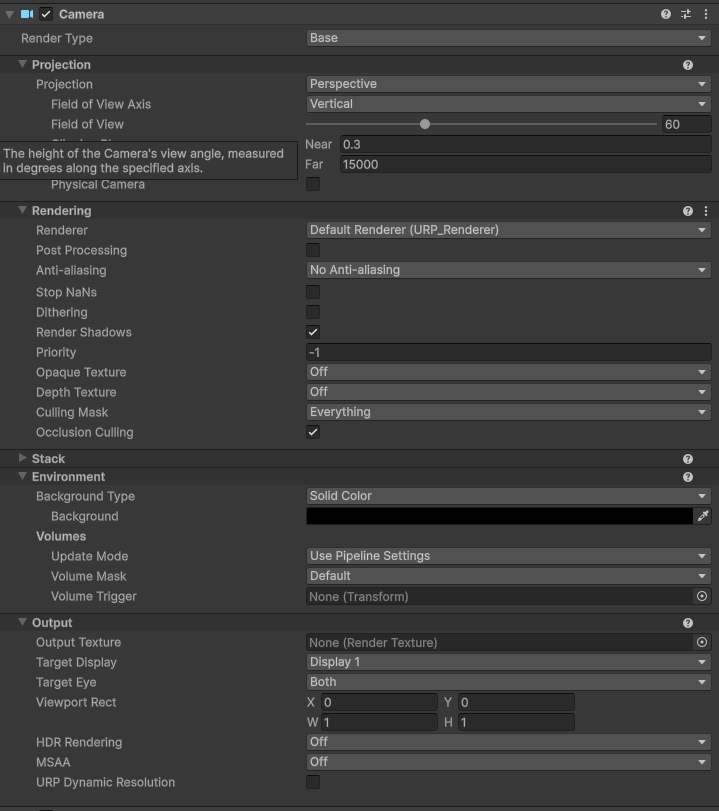
Set the Main Camera properties
Create LCCManager
Right-click an empty area in the Hierarchy window, select Create Empty from the pop-up menu to create an empty GameObject, name it LCCManager, normalize its Transform, and add the LCCManager script to it via Add Component.
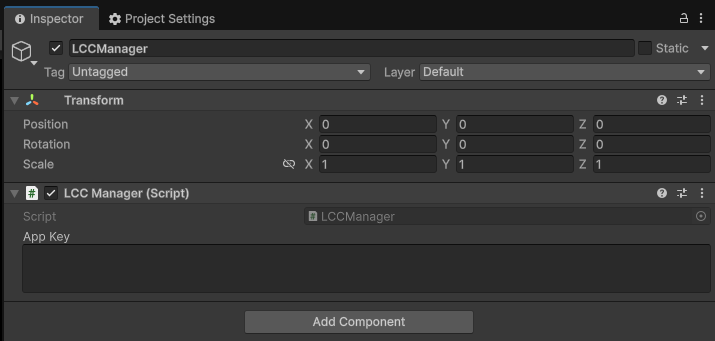
Create the LCCManager GameObject and add the LCCManager script
Create LCCRenderer
Right-click an empty area in the Hierarchy window, select Create Empty to create an empty GameObject, name it LCCRenderer, and set its Transform to Rotation.x = -90 and Scale.x = -1.
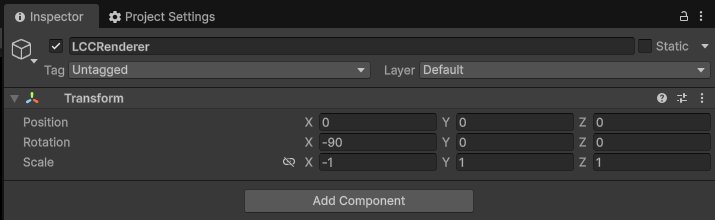
Create LCCRenderer and set its Transform (Rotation.x = -90, Scale.x = -1)
Note:
The Transform settings of the LCCRenderer GameObject (Rotation.x = -90, Scale.x = -1) align it with the LCC data coordinate system. For details on coordinate system alignment, see "LCC Data Coordinate System" in Unity SDK Introduction.
Create Projector
Right-click an empty area in the Hierarchy window, select Create Empty to create an empty GameObject named Projector. The purpose of creating this empty object is to use its Transform component to control the projector's position and orientation; after associating it with the script code, you can adjust the projector properties at runtime. The projector projects along its +Z direction, and its properties can be set as needed.
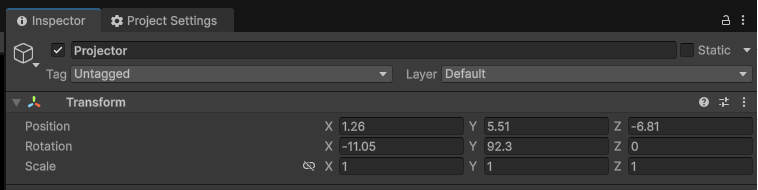
Create the Projector empty GameObject as the projector (+Z is the projection direction)
Step 2: Add a Render Feature
- In the Unity menu bar, select File → Project Settings, choose Graphics on the left, and confirm the current Default Render Pipeline Asset. This example uses URP (Universal Render Pipeline Asset).
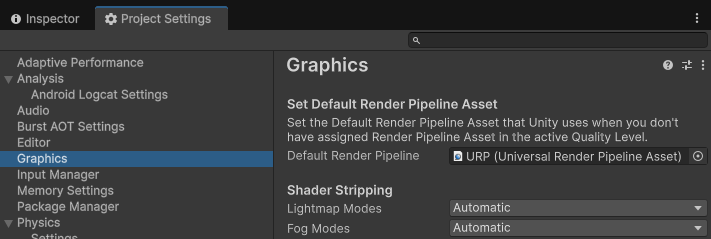
Confirm the Default Render Pipeline Asset in Graphics settings
Click that Asset, locate the corresponding asset file in the Project window, and find its associated Renderer (
URP_Renderer.assetin this example).Select that Renderer asset file, click Add Renderer Feature in the Inspector window, and add the Decal Depth Feature.
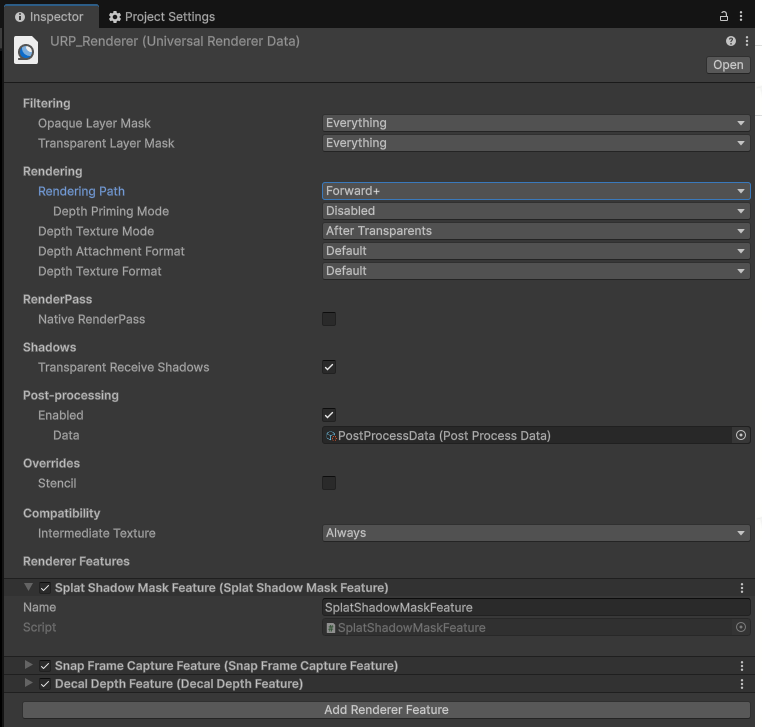
Add the Decal Depth Feature to the URP Renderer
Note:
Decal Depth Feature is a prerequisite for occlusion culling. If you only use the basic projection (X-ray decal), you do not need to add it; but to enable occlusion culling, you must first register this Feature in the URP Renderer Asset, otherwise the occlusion depth map will not be generated and occlusion will not take effect.
Step 3: Write the script
Create a new C# script named Decal.cs. The complete code below simulates the integrator's perspective and covers all 7 decal-related methods (5 for basic projection + 2 for occlusion culling); it can be copied directly into your project.
using LCCCore;
using UnityEngine;

/// <summary>
/// Decal projection — minimal developer usage example.
///
/// This script simulates an "integrator script": it only calls LCCManager public APIs and does not touch SDK internals.
/// Covers all 7 decal APIs:
///   Base projection (5): SetDecalEnabled / SetDecalTexture / SetDecalProjection / SetDecalOpacity / SetDecalEdgeFade
///   Occlusion culling (2): SetDecalOcclusion / SetDecalOcclusionSettings
///
/// Usage steps:
///   1) Create an empty GameObject and attach this script;
///   2) In the Inspector, drag the LCCManager in the scene to m_manager;
///   3) Set m_filePath to a valid LCC scene path;
///   4) Drag the image to project into m_decalTexture (recommend enabling Read/Write in its import settings);
///   5) Drag an empty object into m_projector as the projector (leave empty to use this object); its +Z axis is the projection direction;
///   6) Play. After the scene finishes loading, the decal turns on automatically; drag the projector to see the decal on the point cloud in real time.
///
/// Platform note: decal and occlusion culling only take effect on PC/Mac (URP). Calls on mobile/VR are ignored by the SDK and logged as warnings.
/// </summary>
public class Decal : MonoBehaviour
{
    [Header("Required")]
    [Tooltip("The LCCManager instance in the scene")]
    public LCCManager m_manager;
    [Tooltip("A valid LCC scene path")]
    public string m_filePath;
    [Tooltip("The decal image to project. RGB=color, A=decal's own mask")]
    public Texture2D m_decalTexture;

    [Header("Projector (projects along +Z)")]
    [Tooltip("Projector pose. Leave empty to use this object's transform")]
    public Transform m_projector;
    [Range(1f, 179f)] public float m_fov = 60f;
    [Tooltip("Projection aspect ratio; <=0 uses the decal image's aspect ratio automatically")]
    public float m_aspect = 0f;
    public float m_near = 0.1f;
    public float m_far = 100f;

    [Header("Decal Appearance")]
    [Range(0f, 1f)] public float m_opacity = 1.0f;
    [Range(0f, 0.5f)][Tooltip("Edge fade width (UV ratio). 0 = hard edge")]
    public float m_edgeFade = 0.1f;
    [Tooltip("Refresh projection every frame, so you can drag the projector / tweak parameters at runtime")]
    public bool m_updateEveryFrame = true;

    [Header("Occlusion Culling (PC/Mac only)")]
    [Tooltip("When on, back-facing/occluded points behind front geometry are no longer colored by the decal (slide-projector effect); when off it is X-ray")]
    public bool m_occlusion = false;
    [Range(0f, 1f)][Tooltip("Opacity threshold: only splats with opacity >= this value contribute to the depth map, filtering out floaters/foggy points. 0 = all participate")]
    public float m_occlusionCutoff = 0f;
    [Range(0f, 0.5f)][Tooltip("Relative depth tolerance. Too small -> near-surface self-occlusion; too large -> leaked X-ray coloring. Default 0.05")]
    public float m_occlusionBias = 0.05f;
    [Range(0, 16)][Tooltip("Square footprint radius cap (px), the main knob for removing X-ray bleed-through. 0 = single texel, default 2")]
    public int m_occlusionFootprint = 2;
    [Tooltip("Depth map resolution (px, power of two 256~4096). Lower it to fill grazing-angle holes. Default 1024")]
    public int m_occlusionResolution = 1024;

    // -- Runtime state --
    private bool m_loaded;
    private bool m_lastOcclusion;
    private float m_lastCutoff = float.NaN;
    private float m_lastBias = float.NaN;
    private int m_lastFootprint = -1;
    private int m_lastResolution = -1;

    void Start()
    {
        if (m_manager == null || string.IsNullOrEmpty(m_filePath))
        {
            Debug.LogError("[DecalDemo] m_manager or m_filePath is not assigned.");
            enabled = false;
            return;
        }

        // 1) Initialize the render pipeline to PC single-scene editor mode
        m_manager.SetPlatformType(PlatformType.PC);
        m_manager.SwitchRenderPass(ActiveRenderMode.SingleRender);
        m_manager.SetEditorMode(true);

        // 2) Load the point cloud scene, then enable the decal after completion (decal is a global state; setting it after the scene is ready is safest)
        var renderer = m_manager.GetRender(this.transform);
        Debug.Log($"[DecalDemo] Start loading: {m_filePath}");
        renderer.Load(m_filePath,
            _ => { /* progress callback, unused in the example */ },
            OnSceneLoaded);
    }

    private void OnSceneLoaded()
    {
        Debug.Log("[DecalDemo] Load complete, enabling decal projection.");

        // -- Base projection: 5 APIs --
        m_manager.SetDecalTexture(m_decalTexture);   // decal content
        m_manager.SetDecalOpacity(m_opacity);        // overall opacity
        m_manager.SetDecalEdgeFade(m_edgeFade);      // edge fade
        ApplyProjection();                           // projector pose (internally calls SetDecalProjection)
        m_manager.SetDecalEnabled(true);             // enable decal (_DECAL keyword)

        // -- Occlusion culling: 2 APIs -- must be after ApplyProjection (the depth map needs a valid projector VP)
        m_manager.SetDecalOcclusionSettings(BuildOcclusionSettings());
        m_manager.SetDecalOcclusion(m_occlusion);
        CacheOcclusionState();

        m_loaded = true;
    }

    /// <summary>
    /// For demonstration only. In real projects, for better performance you do not need to call
    /// SetDecalProjection / SetDecalOpacity / SetDecalEdgeFade every frame in Update();
    /// only call the corresponding API when the parameter changes.
    /// </summary>
    void Update()
    {
        if (!m_loaded) return;

        // toggle occlusion at runtime
        if (m_occlusion != m_lastOcclusion)
        {
            m_manager.SetDecalOcclusion(m_occlusion);
            m_lastOcclusion = m_occlusion;
        }

        // any occlusion quality parameter changed -> push the struct once
        if (!Mathf.Approximately(m_occlusionCutoff, m_lastCutoff) ||
            !Mathf.Approximately(m_occlusionBias, m_lastBias) ||
            m_occlusionFootprint != m_lastFootprint ||
            m_occlusionResolution != m_lastResolution)
        {
            m_manager.SetDecalOcclusionSettings(BuildOcclusionSettings());
            CacheOcclusionState();
        }

        // refresh projector / appearance every frame for convenient real-time debugging
        if (!m_updateEveryFrame) return;
        m_manager.SetDecalOpacity(m_opacity);
        m_manager.SetDecalEdgeFade(m_edgeFade);
        ApplyProjection();
    }

    /// <summary>Build the projection matrix from the current projector pose and perspective parameters.</summary>
    private void ApplyProjection()
    {
        Transform p = m_projector != null ? m_projector : this.transform;
        float aspect = m_aspect > 0f
            ? m_aspect
            : (m_decalTexture != null ? (float)m_decalTexture.width / m_decalTexture.height : 1f);
        m_manager.SetDecalProjection(p.position, p.rotation, m_fov, aspect, m_near, m_far);
    }

    /// <summary>Collect the 4 occlusion parameters into a struct.</summary>
    private DecalOcclusionSettings BuildOcclusionSettings()
    {
        return new DecalOcclusionSettings
        {
            opacityCutoff  = m_occlusionCutoff,
            depthBias      = m_occlusionBias,
            footprintMaxPx = m_occlusionFootprint,
            resolution     = m_occlusionResolution,
        };
    }

    private void CacheOcclusionState()
    {
        m_lastOcclusion  = m_occlusion;
        m_lastCutoff     = m_occlusionCutoff;
        m_lastBias       = m_occlusionBias;
        m_lastFootprint  = m_occlusionFootprint;
        m_lastResolution = m_occlusionResolution;
    }

    // -- Convenient debug entry points (Inspector right-click) --
    [ContextMenu("Decal On")]  private void DecalOn()  { m_manager?.SetDecalEnabled(true); }
    [ContextMenu("Decal Off")] private void DecalOff() { m_manager?.SetDecalEnabled(false); }
    [ContextMenu("Occlusion On")]  private void OcclusionOn()  { m_occlusion = true;  m_manager?.SetDecalOcclusion(true);  m_lastOcclusion = true; }
    [ContextMenu("Occlusion Off")] private void OcclusionOff() { m_occlusion = false; m_manager?.SetDecalOcclusion(false); m_lastOcclusion = false; }
}
Note:
The decal is a global shading state and needs to be set after the LCC scene finishes loading (that is, in the onComplete callback).
The example puts
SetDecalTexture/SetDecalProjection/SetDecalEnabledin theLoadcompletion callback (OnSceneLoaded) to avoid setting them before the point cloud is ready.The occlusion-culling-related
SetDecalOcclusionSettings/SetDecalOcclusionmust be called afterApplyProjection(that is,SetDecalProjection), because the occlusion depth map needs a valid projector view-projection matrix.
Step 4: Attach the script and configure properties
- Attach the
Decal.csscript to the LCCRenderer GameObject in the Hierarchy window. - In the Inspector window, drag the LCCManager GameObject onto the script's Manager property.
- Drag the Projector GameObject onto the script's Projector property.
- Fill in the LCC file path in the script's File Path property, and drag the decal texture image onto the Decal Texture property.
- Other property parameters can be adjusted as needed; the meaning of each property is shown in the table below.
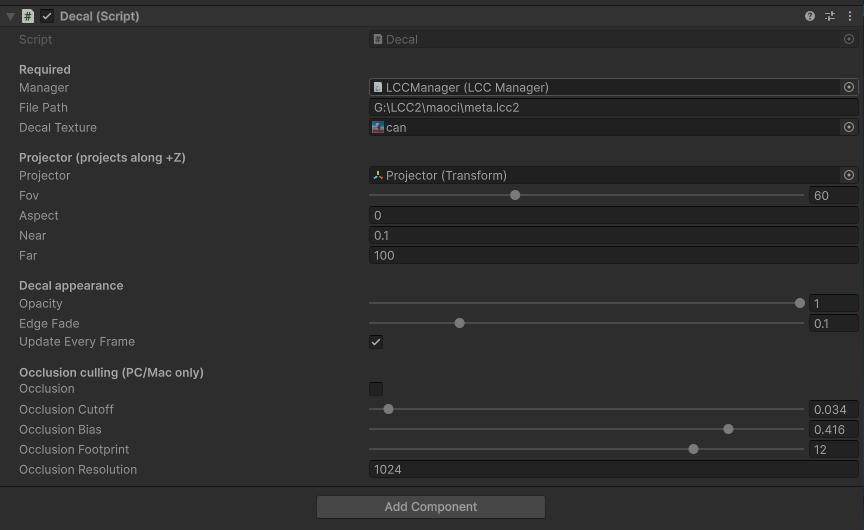
Inspector property settings for the Decal script
| Field | Meaning | Default value |
|---|---|---|
| Manager | The LCCManager instance in the scene | Required |
| File Path | A valid LCC scene path | Required |
| Decal Texture | The decal image to project, RGB is color and A is the decal's own mask | Required |
| Projector | Projector pose, +Z is the projection direction; empty uses this object's Transform | Empty |
| Fov | Projector perspective field of view | 60 |
| Aspect | Projection aspect ratio; when less than or equal to 0, it is calculated automatically from the decal image's aspect ratio | 0 (auto) |
| Near / Far | Near / far clipping planes of the projector frustum | 0.1 / 100 |
| Opacity | Overall decal opacity | 1 |
| Edge Fade | Edge fade width (UV ratio), 0 is a hard edge | 0.1 |
| Update Every Frame | Refresh projection every frame, convenient for dragging the projector or changing parameters at runtime | Checked |
| Occlusion | Whether to enable occlusion culling | Off |
| Occlusion Cutoff | Opacity threshold; only splats with opacity not lower than this value contribute to the depth map | 0 |
| Occlusion Bias | Relative depth tolerance | 0.05 |
| Occlusion Footprint | Square footprint radius cap (px), the main knob for removing X-ray bleed-through | 2 |
| Occlusion Resolution | Occlusion depth map resolution (px, power of two 256~4096) | 1024 |
Step 5: Run and observe the effect
Click the Play button in Unity. After the scene finishes loading, the decal turns on automatically. When Update Every Frame is checked, you can directly drag the projector object in the Scene view during runtime and see the decal move on the 3DGS surface in real time; adjusting parameters such as Opacity and Edge Fade also takes effect immediately. The script component's right-click menu also provides four shortcuts — Decal On/Off and Occlusion On/Off — for conveniently verifying the on/off effect separately.
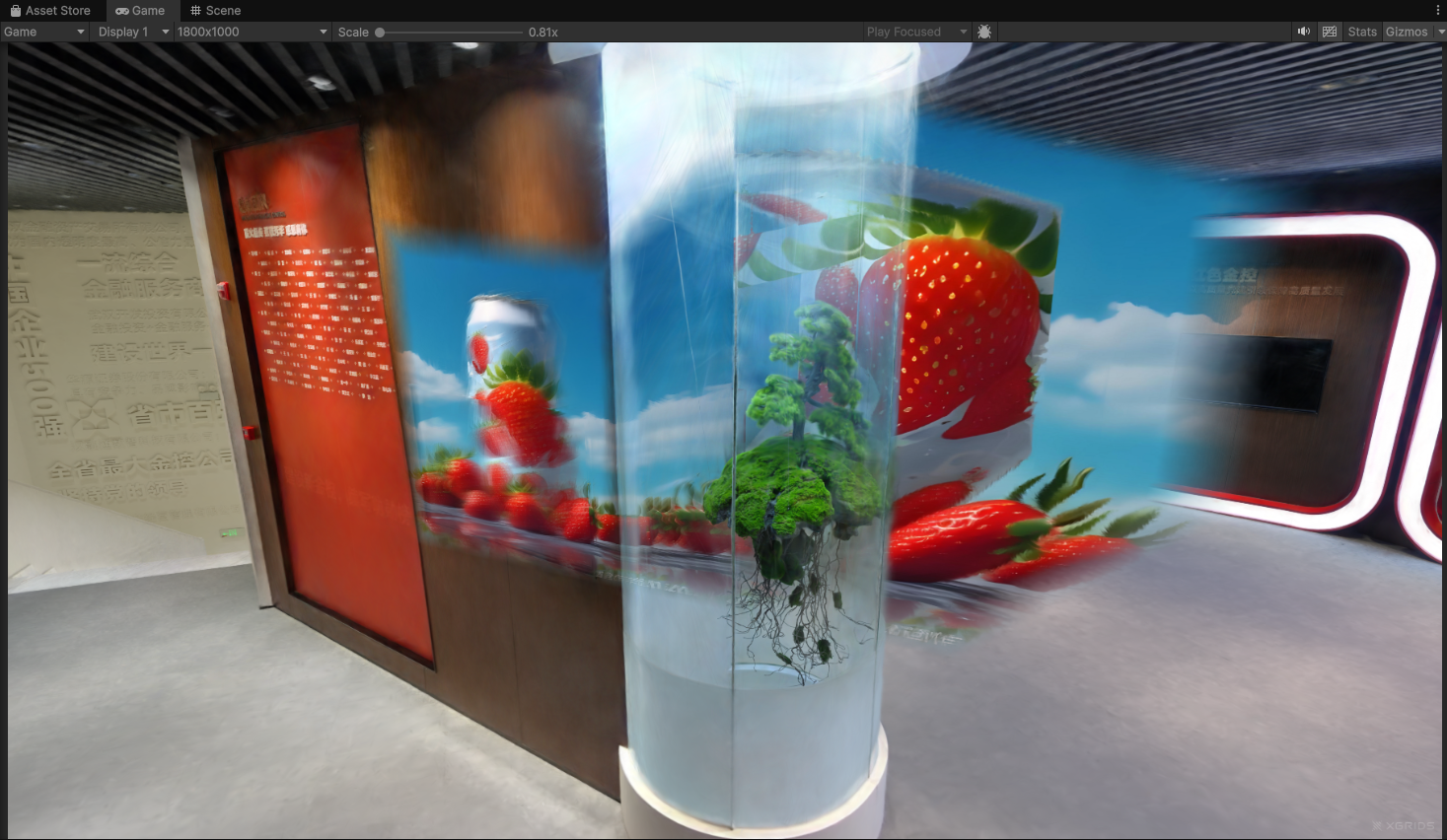
Decal projected onto the 3DGS surface after running (basic projection, X-ray penetration)
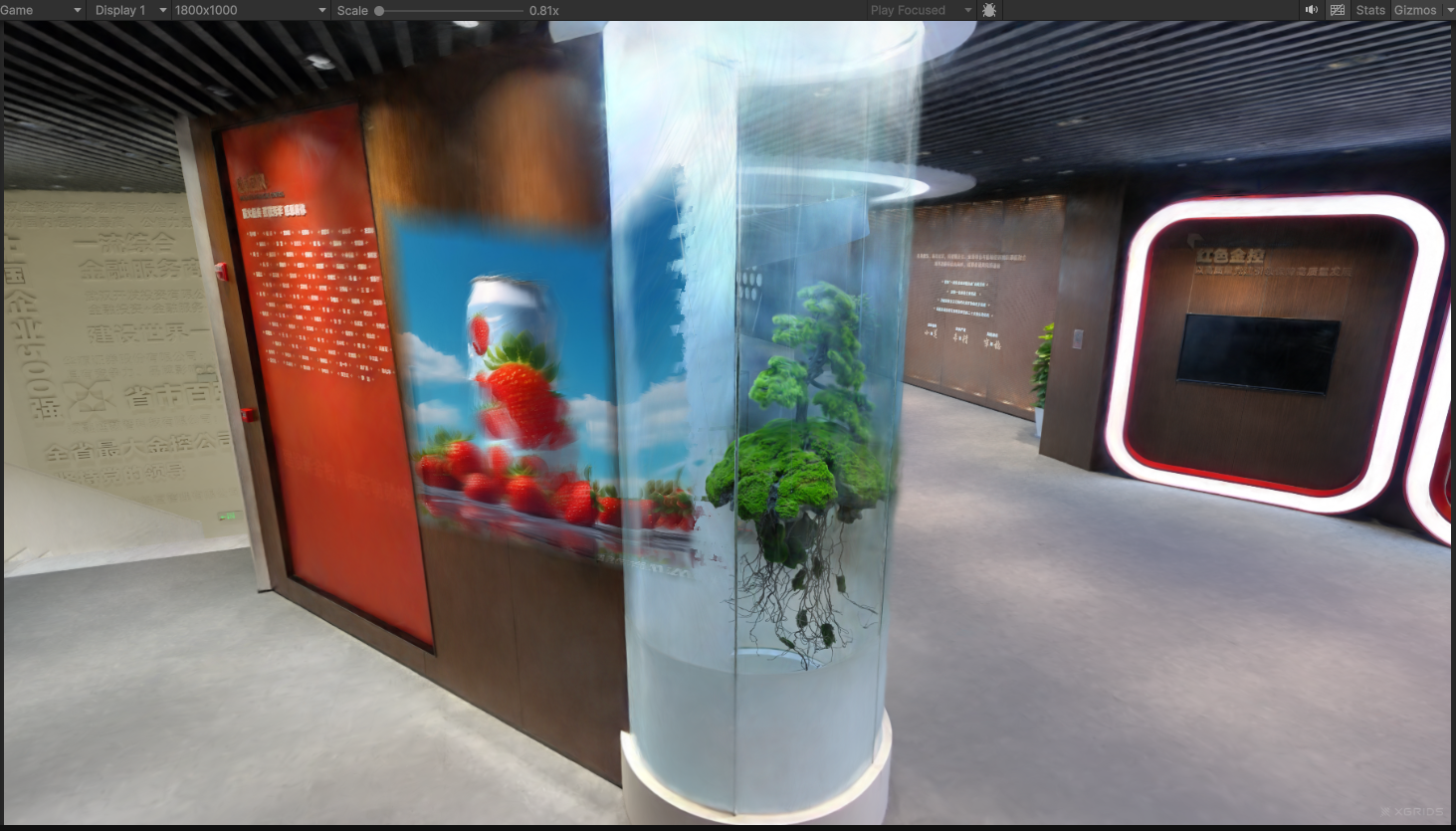
After enabling occlusion culling, only the front surface facing the projector is colored (slide-projector effect)
FAQ: Disable compatibility mode
If the Unity Console window reports errors and no decal effect appears, disable compatibility mode: open the settings panel via Edit → Project Settings → Graphics, select the URP tab, and do not check the checkbox after Render Graph → Compatibility Mode (Render Graph Disabled).
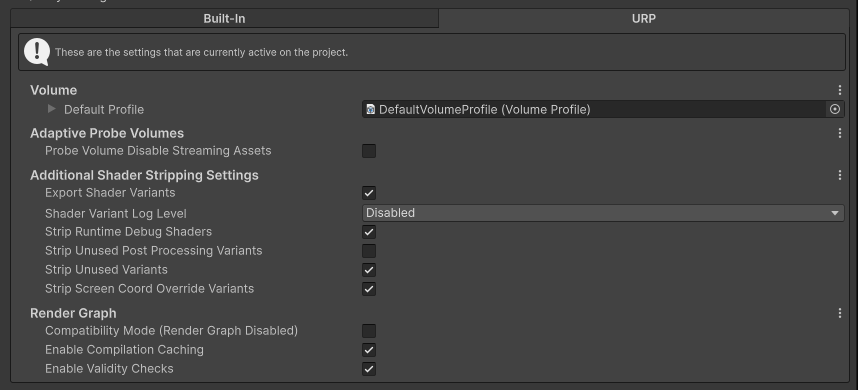
Do not check Render Graph compatibility mode (Render Graph Disabled)
Occlusion Culling and Tuning
Occlusion culling must be enabled after the projector has been set up. The example calls SetDecalProjection first in the scene-load-complete callback, then calls SetDecalOcclusionSettings and SetDecalOcclusion, to ensure the occlusion depth map gets a valid projector view-projection matrix. At runtime, turn on the Occlusion checkbox in the Inspector to see the penetrated blocks culled and only the front surface facing the projector retained.
Prerequisite:
Before enabling occlusion culling, the Decal Depth Feature must already be registered in the URP Renderer Asset (in this project it has been written into
URP_Renderer.assetas a sub-asset). If it is not registered, the occlusion depth map will not be generated and occlusion will not take effect.
Occlusion quality is controlled by four parameters, delivered all at once through a struct. The four are mutually orthogonal; tune them according to the table below:
| Parameter | Effect | Default | Tuning suggestion |
|---|---|---|---|
opacityCutoff | Filters floating / foggy splats so they do not pull the occlusion surface closer | 0 | Increase moderately when blocky noise appears in the foreground; too large causes missed coloring |
depthBias | Relative depth tolerance that absorbs the point cloud surface thickness by distance | 0.05 | Increase when self-occlusion noise appears on the near surface; decrease when thin occluders leak |
footprintMaxPx | The front-surface near depth fills sparse gaps at world scale, the main knob for fixing X-ray bleed-through | 2 | Increase when penetrated blocks remain; decrease when contours are over-occluded, 0 is a single texel |
resolution | Occlusion depth map resolution | 1024 | Lower it (e.g. 512 / 256) when large patches of missed-coloring small blocks appear on grazing surfaces, at the cost of slightly rougher occlusion boundaries |
Key Steps
The key steps for implementing projected decal:
- Create the Projector empty object in the scene as the projector; its +Z axis is the projection direction.
- If occlusion culling is needed, make sure the Decal Depth Feature has been added to the URP Renderer.
- After the LCC scene finishes loading, set the decal texture, appearance, and projector pose in order, then enable the decal (
SetDecalEnabled(true)). - The occlusion culling
SetDecalOcclusionSettings/SetDecalOcclusionmust be called afterSetDecalProjection.
Decal-related APIs
The following methods are all on the LCCManager facade class and only take effect on PC / Mac (URP pipeline); calls on mobile / VR are ignored and a warning is printed.
SetDecalEnabled
// Return value: void
public void SetDecalEnabled(bool enable)
Toggles decal projection. When enabled, the currently cached opacity / edge fade parameters are pushed to the GPU and the _DECAL shader keyword is enabled. The decal is a world-fixed global state, consistent for all cameras. You also need to call SetDecalTexture and SetDecalProjection to set the content and the projector pose.
| Parameter | Type | Description |
|---|---|---|
enable | bool | Whether to enable decal projection |
Usage example:
m_manager.SetDecalEnabled(true);
m_manager.SetDecalTexture(decalTex);
m_manager.SetDecalProjection(projectorPos, projectorRot, 60f, 1.778f, 0.1f, 20f);
Notes:
- When disabled, only the
_DECALkeyword is disabled; the cached texture / parameters are not cleared.
SetDecalTexture
// Return value: void
public void SetDecalTexture(Texture2D tex)
Sets the decal texture. RGB is color and A is the decal's own mask, which is multiplied with the global opacity and edge fade.
| Parameter | Type | Description |
|---|---|---|
tex | Texture2D | Decal texture |
Usage example:
m_manager.SetDecalTexture(logoTex);
Notes:
- Passing
nullclears the global texture reference.
SetDecalProjection
// Return value: void
public void SetDecalProjection(Vector3 pos, Quaternion rot, float fov, float aspect, float near, float far)
Sets the decal projector's pose and perspective parameters. The projector projects along its forward (+Z) direction, and points inside the frustum are covered by the decal.
| Parameter | Type | Description |
|---|---|---|
pos | Vector3 | Projector world position |
rot | Quaternion | Projector orientation |
fov | float | Vertical FOV (degrees), clamped to [1, 179] |
aspect | float | Aspect ratio, minimum 1e-4 |
near | float | Near clipping plane, minimum 1e-3 |
far | float | Far clipping plane, minimum near + 1e-3 |
Usage example:
m_manager.SetDecalProjection(new Vector3(0, 10, 0), Quaternion.Euler(90, 0, 0), 60f, 1.778f, 0.1f, 20f);
Notes:
- If
SetDecalOcclusion(true)is already enabled, this method synchronously forwards the new VP / view to theDecal Depth Feature.
SetDecalOpacity
// Return value: void
public void SetDecalOpacity(float opacity)
Sets the overall decal opacity, immediately pushing it to the GPU and caching it for reuse the next time SetDecalEnabled(true) is called.
| Parameter | Type | Description |
|---|---|---|
opacity | float | Overall decal opacity, range [0, 1] |
Usage example:
m_manager.SetDecalOpacity(0.8f);
Notes:
- Range
[0, 1]; values outside the range are clamped automatically.
SetDecalEdgeFade
// Return value: void
public void SetDecalEdgeFade(float edgeFade)
Sets the decal edge fade width. 0 is a hard edge, and the larger the value, the softer the edge transition.
| Parameter | Type | Description |
|---|---|---|
edgeFade | float | Edge fade width, a UV-space ratio, range [0, 0.5) |
Usage example:
m_manager.SetDecalEdgeFade(0.1f);
Notes:
- Range
[0, 0.5); values outside the range are clamped automatically.
SetDecalOcclusion
// Return value: void
public void SetDecalOcclusion(bool enable)
Toggles decal occlusion culling (based on the projector depth map), which is orthogonal to and independently toggled from the shadow feature. SetDecalProjection should have been called to set the projector before enabling, otherwise the depth map has no valid VP.
| Parameter | Type | Description |
|---|---|---|
enable | bool | Whether to enable decal occlusion culling |
Usage example:
m_manager.SetDecalOcclusion(true);
Notes:
- Only supported on URP (calls on the Built-in pipeline are a no-op and print a log).
- Requires the
Decal Depth Featureto be registered in the URP Renderer Asset. - Depends on the quality parameters configured by
SetDecalOcclusionSettings.
SetDecalOcclusionSettings
// Return value: void
public void SetDecalOcclusionSettings(DecalOcclusionSettings settings)
Sets all the decal occlusion culling quality parameters at once (see the struct below and the "Occlusion Culling and Tuning" table for the meanings of the four items).
| Parameter | Type | Description |
|---|---|---|
settings | DecalOcclusionSettings | Occlusion culling quality parameters |
Usage example:
m_manager.SetDecalOcclusionSettings(DecalOcclusionSettings.Default);
m_manager.SetDecalOcclusionSettings(new DecalOcclusionSettings {
    opacityCutoff = 0.1f,
    depthBias = 0.05f,
    footprintMaxPx = 2,
    resolution = 1024
});
Notes:
- Can be adjusted at any time; parameters are immediately pushed to the GPU and the
Decal Depth Feature. - Changing
resolutiontriggers a rebuild of the depth map RT.
Related data structures
DecalOcclusionSettings
public struct DecalOcclusionSettings {
    public float opacityCutoff;   // [0,1] minimum opacity for a splat to participate in the depth map, default 0 (all participate)
    public float depthBias;       // relative depth tolerance ratio, default 0.05
    public int   footprintMaxPx;  // square footprint radius cap (px), 0~16, default 2
    public int   resolution;      // depth map resolution (px, power of two, 256~4096), default 1024

    public static DecalOcclusionSettings Default { get; } // cutoff=0, bias=0.05, footprint=2, resolution=1024
}
Used by SetDecalOcclusionSettings(); the default value can be obtained through DecalOcclusionSettings.Default.
| Field | Meaning | Default |
|---|---|---|
opacityCutoff | float, [0,1], opacity threshold; only splats with opacity not lower than this value participate in the depth map | 0 |
depthBias | float, relative depth tolerance | 0.05 |
footprintMaxPx | int, 0~16, square footprint radius cap (px) | 2 |
resolution | int, power of two 256~4096, occlusion depth map resolution | 1024 |
Notes
- Only effective on PC / Mac. Calls to decal-related interfaces on mobile and VR platforms are ignored and print a warning. You do not need to do platform checks on the business side, but do not expect to see the effect on those platforms.
- It is recommended to set the decal after the scene finishes loading. The decal is a global shading state; the example puts
SetDecalTexture/SetDecalProjection/SetDecalEnabledin theLoadcompletion callback to avoid setting them before the point cloud is ready. - Occlusion culling depends on two prerequisites. First, the URP Renderer Asset has registered the Decal Depth Feature; second,
SetDecalProjectionhas been called to set the projector. Occlusion does not take effect if either is missing. - Static projection has almost zero extra overhead. The occlusion depth map is only recomputed when the projector pose or point cloud changes; when the projector is stationary, there is no extra per-frame computation.