XGRIDSDocs
  • 简体中文
  • English
  • 繁體中文
  • 日本語
  • Deutsch
  • Español
  • Italiano
  • Français
  • Русский
  • Polski
  • Nederlands
  • 简体中文
  • English
  • 繁體中文
  • 日本語
  • Deutsch
  • Español
  • Italiano
  • Français
  • Русский
  • Polski
  • Nederlands
  • Lixel PortalCam Series

    • PortalCam P1

      • Product Overview
      • Basic Operation
      • Using the LCC Scan App
      • Maintenance and Care
      • FAQ
  • Lixel K Series

    • Lixel K1

      • Product Overview
      • Basic Operation
      • Device Activation and Connection
      • Scanning Workflow
      • Acquire Point Cloud Data with Absolute Coordinate
      • Map Fusion
      • Route Planning Suggestions for Typical Scenes
      • Precautions
      • FAQ
    • Lixel K2

      • Product Overview
      • Basic Operation
      • Device Activation and Connection
      • Scanning Workflow
      • Acquire Point Cloud Data with Absolute Coordinate
      • Map Fusion
      • Route Planning Suggestions for Typical Scenes
      • Precautions
      • FAQ
  • Lixel L Series

    • Lixel L2 Pro

      • Product Overview
      • Basic Operation
      • Device Activation and Connection
      • Scanning Workflow
      • Acquire Point Cloud Data with Absolute Coordinate
      • Measure Point
      • Appendix
      • FAQ
    • Lixel L3

      • Product Overview
      • Basic Device Functions
      • Device Activation and Connection
      • Data Capture
      • Capturing Absolute Coordinates
      • Appendix
  • Accessories

    • Stick Light

      • Installation Guide
      • Basic Operation
      • FAQ
  • Lixel Studio

    • Version and Copyright
    • Installation and Activation
    • Software Interface
    • File Operations
    • Project Processing
    • Tools
    • 2D Drawing
    • Applications
    • Settings
    • Device Connection
    • FAQ
  • Lixel CyberColor

    • LCC Studio

      • Getting Started
      • Version and Updates
      • Download and Installation
      • Interface Overview and Navigation
      • Before Reconstruction
      • Model Reconstruction
      • Single Model Reconstruction
      • Map Fusion
      • Aerial-Ground Fusion
      • Aerial Reconstruction
      • My Models
      • Other Features
      • Settings and Account
      • Converter
      • Video Reconstruction
      • FAQ
    • LCC Scene Editor

      • Version & Updates
      • Account & Login
      • Product Overview & Home
      • Editor Interface
      • Scene Navigation Modes
      • File
      • Settings
      • Edit Operations
      • Window
      • Global Toolbar
      • Assets & Properties
      • Left Toolbar
      • Viewpoints
      • Portal
      • Skybox
      • Annotations
      • Measurement
      • Flythrough
      • Scene Report
      • 3D Layout
      • Mini-Map
      • Preview Mode (Viewer)
      • Help
      • FAQ
      • Spawn Point
    • LCC Model Editor

      • Version and Updates
      • User Guide
      • Overview and Interface
      • File Operations
      • Selectors
      • Editing Models
      • Measurement
      • Color Grading
      • Asset Management
      • Settings and Help
      • FAQ
    • Capture Guide

      • Overview
      • Capture Devices Overview
      • General Capture Principles
      • Indoor Scene Capture
      • Outdoor Scene Capture
      • Large-Scale Capture (Map Fusion)
      • Aerial-Ground Map Fusion Capture
      • Object Capture
      • People Capture
      • Video Reconstruction Capture
      • HD Enhancement
      • Control Points (Lixel P1)
      • FAQ and Troubleshooting
    • LCC Studio Linux

      • Product Overview
      • Architecture Guide
      • Installation and Deployment Guide
      • Container Startup Parameters Guide
      • CodeMeter Offline Licensing Deployment Guide
      • API Reference
      • Appendix - Developer Data Guide
      • Appendix - Error Code List
      • Single-Machine Multi-GPU Cluster Deployment QuickStart
    • Best Practices

      • Merging Multiple Large 3DGS Models
    • Version History
  • Plugin & SDK

    • Unreal

      • Introduction
      • Quick Start - Windows
      • Quick Start - Linux
      • Quick Start - Quest3
      • Editions and Licensing
      • Rendering
      • Tiled Rasterization (Experimental)
      • Visual Settings
      • Normals and Lighting
      • Scene Editing
      • Performance Parameters
      • Performance Guide
      • Third-party and Engine Plugin Integration
      • Proxy Mesh
      • Loading Animation
      • Collision
      • Navigation System Support
      • Single Layer Water Support
      • Localization
      • FAQ
      • Troubleshooting
      • Logging and Diagnostics
      • Contact Us
      • Best Practices

        • Relighting 3DGS with a LixelStudio Mesh
      • API Reference

        • ALCCActorBase
        • ULCCComponentBase
        • ULCCComponent
        • ULCC2Component
        • SOG / SPZ / PLY Actors
        • ALCC2ProxyMesh
        • ALCCClippingVolume
        • ALCCSectionPlane
        • ALCCLoadVolume
        • ULCCUtilLibrary
        • Enums
        • Structs
      • Changelog

        • v3.4.0
        • v3.3.1
        • v3.0.0
        • v2.2.1
        • v1.0.0
        • v0.9.0
        • v0.8.0
        • v0.7.1
        • v0.6.1
        • v0.5.2
        • v0.4.1
        • v0.4.0
        • v0.3.0
        • v0.0.5
        • v0.0.4
        • v0.0.3
        • v0.0.2
        • v0.0.1
    • Unity

      • Unity SDK Introduction
      • Technical Features
      • Development Environment Requirements
      • PC Quick Start Guide
      • Project Settings Optimization Guide
      • Pico 4 Ultra Development Guide
      • Pico 4 Ultra PC Streaming Guide
      • Quest 3 Development Guide
      • Quest 3 PC Streaming Guide
      • OpenXR Development Guide
      • Pico 4 Ultra Business Streaming Guide
      • Glossary
      • FAQ
      • Contact Us
      • Feature Development Guide

        • Multi-Scene Mixed Rendering Development Guide
        • Shadow Receiving Development Guide
        • Real-Time Lighting Development Guide
        • Multi-Camera Rendering Development Guide
        • High-Resolution Image Rendering Development Guide
        • LCC and LCC2 Data Format Compatibility Development Guide
        • Loading Effect Development Guide
        • Mip Rendering Mode Switching Development Guide
        • Edge and Corner Snapping Development Guide
        • Projected Decal Development Guide
        • Video Projected Decal Development Guide
        • Highlight Development Guide
        • Real-Time Clipping Development Guide
        • Color Adjustment Development Guide
        • Getting Scene Mesh Data Development Guide
        • Editor Mode Development Guide
        • Render Performance Parameter Configuration Guide
        • Application and Data Co-packaging Development Guide
        • Collision System Development Guide
        • macOS Development Permission Issue Guide
        • iOS Device Compilation and Packaging Development Guide
      • API Reference

        • LCCManager
        • Renderer
        • Data Types
      • Changelog

        • v2.3.0
        • v2.2.10
        • v2.2.0
        • v2.1.19
        • v2.0.14
    • Web

      • Introduction
      • Rendering Performance Optimization Guide
      • Graphics Configuration
      • FAQ
      • API Reference

        • LCCRender::clearIndexDB
        • LCCRender::dispose
        • LCCRender::load
        • LCCRender::setCamera
        • LCCRender::unload
        • LCCRender::update
        • LCCObject::checkRenderNextFrame
        • LCCObject::clearRenderNextFrame
        • LCCObject::ecef2Prj
        • LCCObject::getBounds
        • LCCObject::getEnvInstancedMesh
        • LCCObject::getInstancedMesh
        • LCCObject::getLodInfos
        • LCCObject::getOriginPosition
        • LCCObject::getProjectionCoordinateSystemInfos
        • LCCObject::hasCollision
        • LCCObject::hasEnvironment
        • LCCObject::hasShcoef
        • LCCObject::intersectsCapsule
        • LCCObject::intersectsRayExt
        • LCCObject::intersectsRayFromOriginExt
        • LCCObject::intersectsSphere
        • LCCObject::lowerToBottom
        • LCCObject::prj2Ecef
        • LCCObject::raiseToTop
        • LCCObject::raycast
        • LCCObject::raycastFromOrigin
        • LCCObject::setAlpha
        • LCCObject::setClipBox
        • LCCObject::setClipPlane
        • LCCObject::setEndLod
        • LCCObject::setLodAutoLevelUp
        • LCCObject::setMaxDistance
        • LCCObject::setMaxNodeSplats
        • LCCObject::setMaxSplats
        • LCCObject::setOriginPosition
        • LCCObject::setPointsColor
        • LCCObject::setRenderState
        • LCCObject::setRotation
        • LCCObject::setScale
        • LCCObject::setSemantic
        • LCCObject::setSemanticColor
        • LCCObject::setSmooth
        • LCCObject::setStartLod
        • LCCObject::setTranslation
        • LCCObject::setVisible
        • LCCObject::togglePointsDisplayMode
        • LCCObject::useEnvironment
        • LCCObject::useShcoef
      • Changelog

        • v0.6.3
        • v0.6.2
        • v0.6.1
        • v0.6.0
        • v0.5.5
        • v0.5.4
        • v0.5.3
        • v0.5.2
        • v0.5.1
        • v0.5.0
        • v0.4.1
        • v0.4.0
        • v0.3.1
        • v0.3.0
        • v0.2.0
    • Lixel OpenAPI

      • Overview
      • Connection & Authentication
      • Message Model & Codec
      • Interface Catalog
      • Real-time Data
      • Project File Access
      • Error Codes
      • Python

        • Quick Start
        • Client Wrapper & Tools
        • FAQ
      • C++

        • Quick Start
        • Client & Examples
        • FAQ

Multi-Camera Rendering Development Guide

The LCC Unity SDK supports rendering with multiple cameras simultaneously in single-scene full rendering mode. The following uses an example of one main camera plus two secondary cameras to describe the complete steps for implementing multi-camera rendering.

Step 1: Create the scene and GameObjects

Create a brand-new scene in Unity. Unity creates Main Camera and Directional Light by default.

Set up Main Camera

Select Main Camera in the Hierarchy window, and set its properties in the Inspector window as shown below.
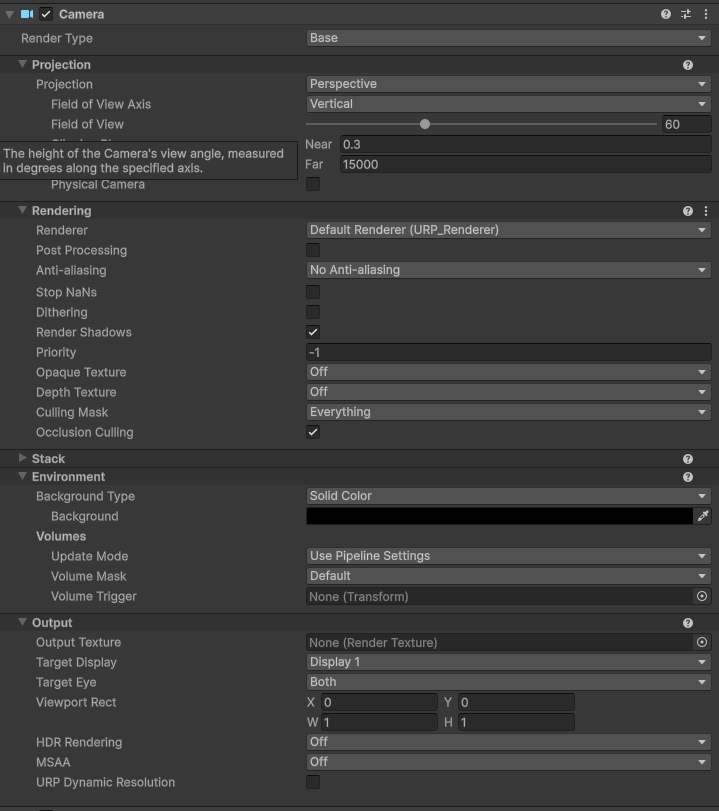
Set the Main Camera properties

Set the Main Camera properties

Create LCCManager

Right-click an empty area in the Hierarchy window, select Create Empty from the pop-up menu to create an empty GameObject, name it LCCManager, normalize its Transform, and add the LCCManager script to it via Add Component.
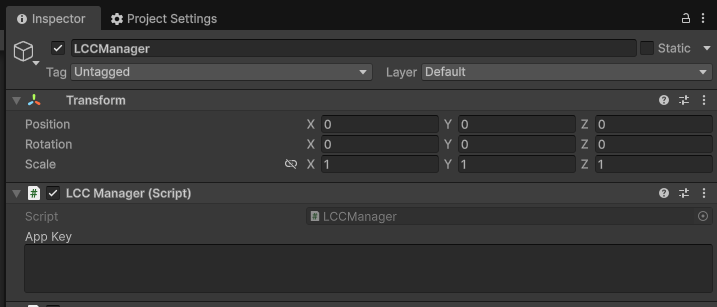
Create the LCCManager GameObject and add the LCCManager script

Create the LCCManager GameObject and add the LCCManager script

Create LCCRenderer

Right-click an empty area in the Hierarchy window, select Create Empty to create an empty GameObject, name it LCCRenderer, and set its Transform to Rotation.x = -90 and Scale.x = -1.
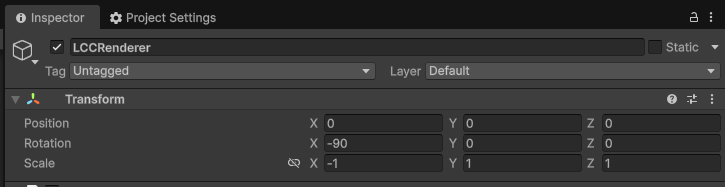
Create LCCRenderer and set its Transform

Create LCCRenderer and set its Transform (Rotation.x = -90, Scale.x = -1)

Note:

The Transform settings of the LCCRenderer GameObject (Rotation.x = -90, Scale.x = -1) align it with the LCC data coordinate system. For details on coordinate system alignment, see "LCC Data Coordinate System" in Unity SDK Introduction.

Create secondary rendering cameras

Right-click an empty area in the Hierarchy window to create two additional rendering cameras, name them Camera01 and Camera02 respectively, and set the properties of these two cameras as shown below.
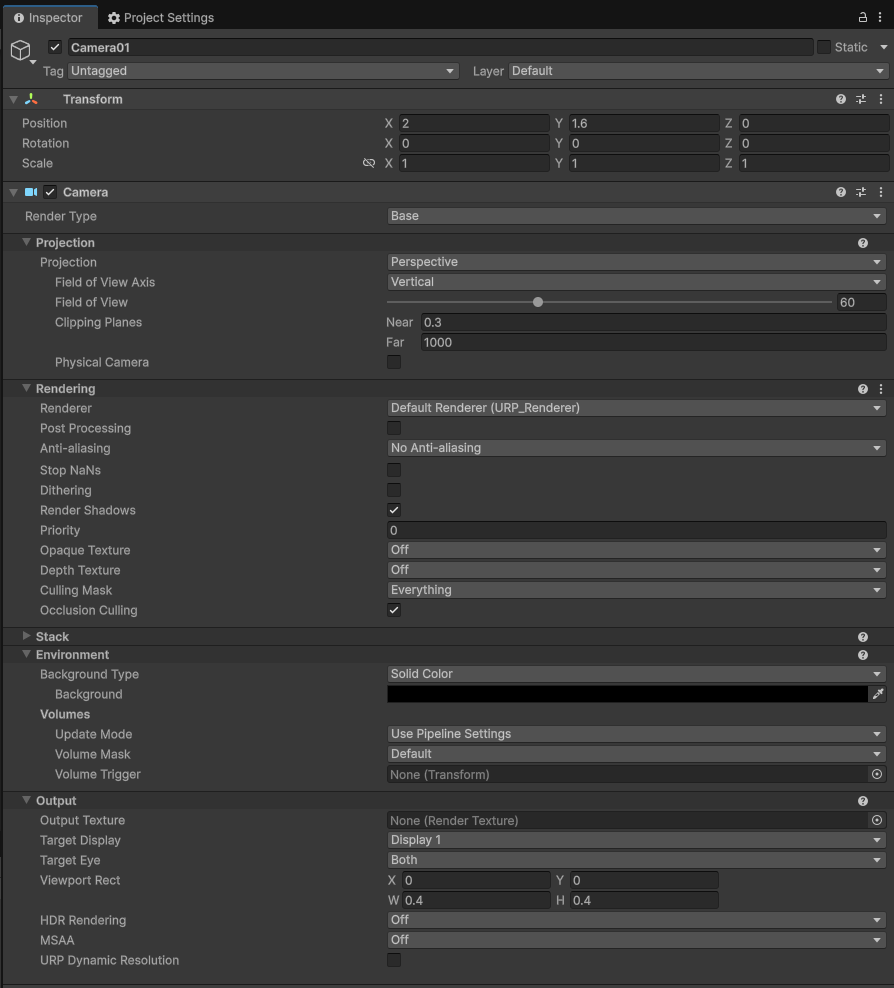
Set the Camera01 properties
Set the Camera01 properties

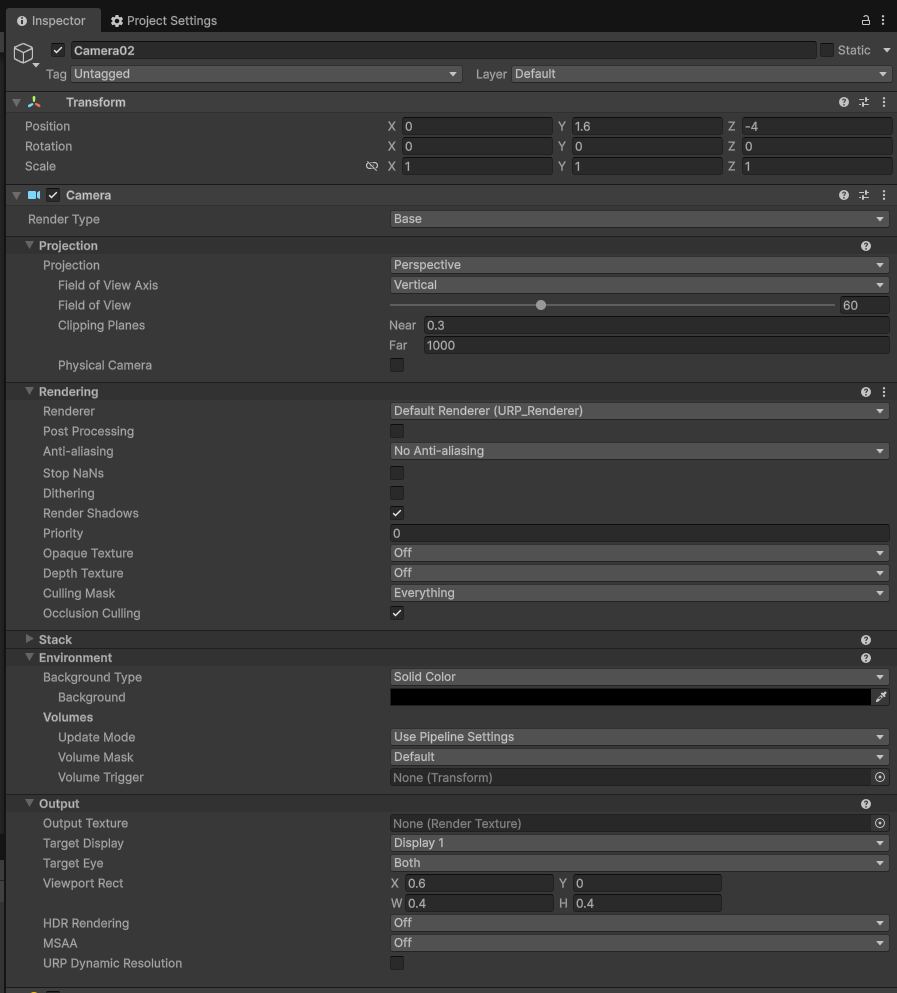
Set the Camera02 properties

Set the Camera02 properties

In this example, the two cameras' Viewport Rect is configured to place them in the lower-left corner and lower-right corner of the main rendering window respectively.

Step 2: Write the multi-camera script

Create a new C# script named MultiCamera.cs with the following code:

using LCCCore;
using UnityEngine;

public class MultiCamera : MonoBehaviour
{
    public LCCManager m_manager;
    public string m_FilePath01;
    public Camera m_camera01;
    public Camera m_camera02;

    public Transform m_transform01;
    private LCCCore.Renderer m_renderer01;

    private int m_currentFileIndex = 0;

    void Start()
    {
        m_manager.SetPlatformType(PlatformType.PC);
        m_manager.SwitchRenderPass(ActiveRenderMode.SingleRender);

        Debug.Log("Started ");
        m_renderer01 = m_manager.GetRender(m_transform01);

        m_currentFileIndex = 0;
        m_renderer01.Load(m_FilePath01, onProgress, onComplete);
    }

    private void onProgress(float _progress)
    {
        Debug.Log($"[LCCRenderer] file {m_currentFileIndex} load progress: {_progress:P1}");
    }

    private void onComplete()
    {
        Debug.Log($"[LCCRenderer] file {m_currentFileIndex} loaded");

        m_manager.AddCamera(m_camera01);
        m_manager.AddCamera(m_camera02);
    }

    private void OnDestroy()
    {
        m_manager.RemoveCamera(m_camera01);
        m_manager.RemoveCamera(m_camera02);
    }
}

Note:

  • Secondary cameras must be registered after the LCC scene finishes loading, so AddCamera is called in the onComplete callback.
  • The script file name must match the class name (MultiCamera.cs corresponds to class MultiCamera), otherwise it cannot be attached to a GameObject.
  • The main camera is set via SetMainCamera, and secondary cameras are added via AddCamera; you cannot add the main camera as a secondary camera.

Step 3: Attach the script and set properties

  1. Attach the MultiCamera.cs script to the LCCRenderer GameObject in the Hierarchy window.
  2. In the Inspector window, drag the LCCManager GameObject onto the script's Manager property.
  3. Drag the Camera01 and Camera02 GameObjects onto the script's Camera01 and Camera02 properties respectively.
  4. Fill in the LCC file path in the script's File Path01 property.
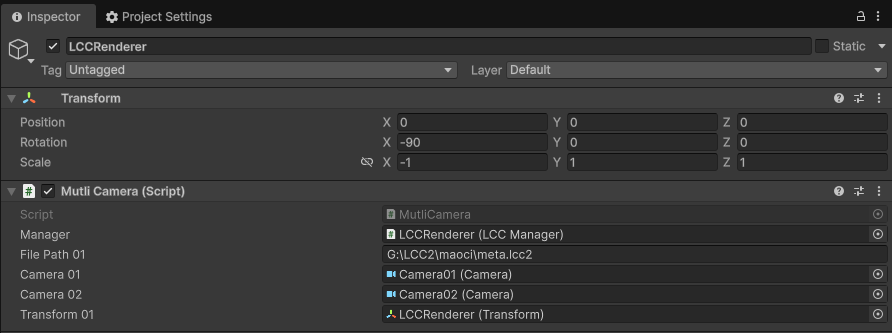
Attach the MultiCamera script and set its properties

Attach the MultiCamera script and set its properties in the Inspector

Step 4: Run

Click the Play button in the Game window to see the real-time rendering effect of multiple rendering cameras in the scene.
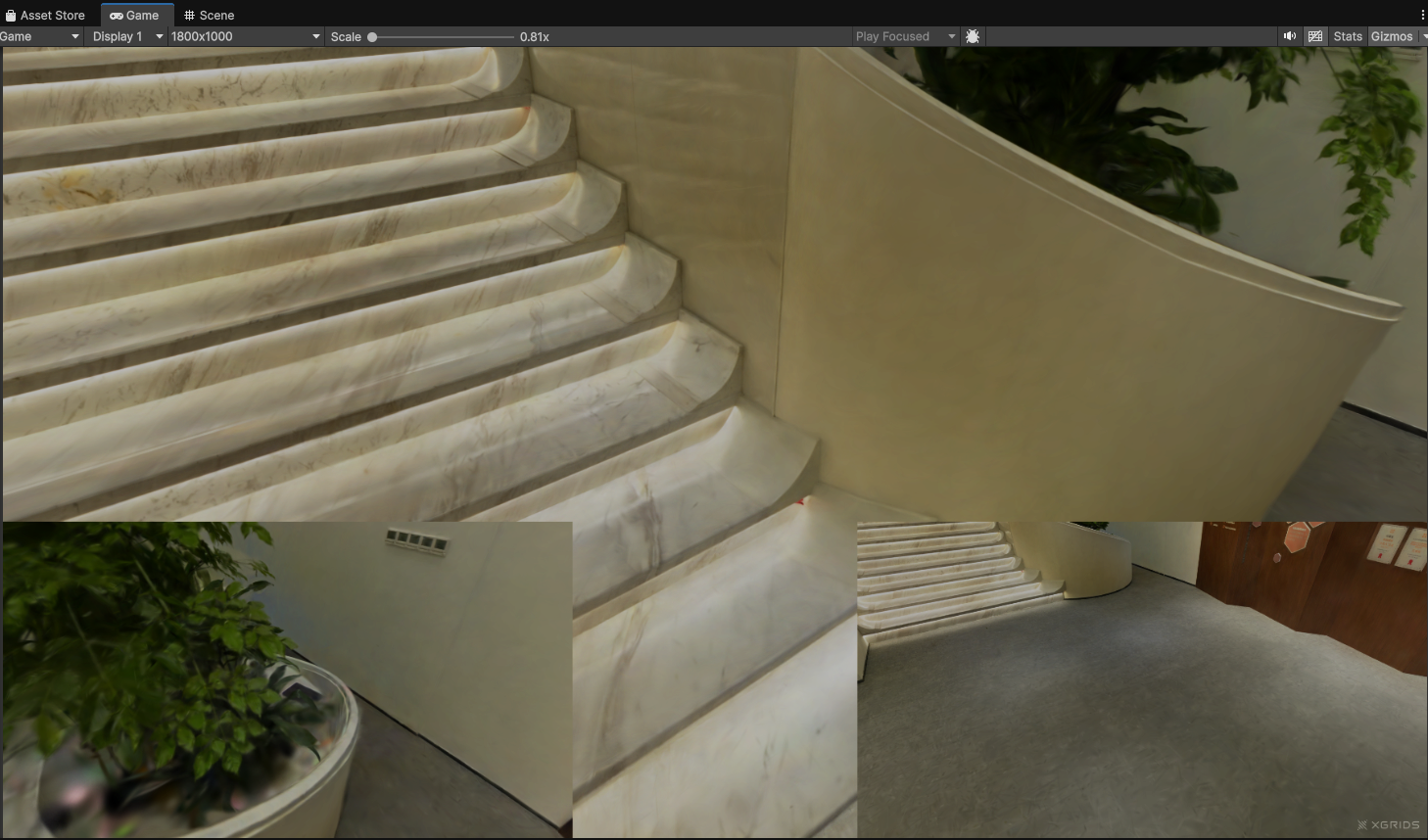
Multiple cameras rendering simultaneously after running

Multiple rendering cameras rendering simultaneously after running

Key Steps

The key steps for implementing multi-camera rendering:

  1. Make sure the scene is in single-scene full rendering mode (SwitchRenderPass(ActiveRenderMode.SingleRender) and the data goes through the Full Load path).
  2. The main camera is set via SetMainCamera; secondary cameras are registered via AddCamera after the scene finishes loading (in the onComplete callback).
  3. Control each camera's rendering area on the screen through its Viewport Rect.
  4. When the object is destroyed (OnDestroy), remove secondary cameras via RemoveCamera to avoid dangling references.

Multi-Camera Rendering Notes

  • Only full rendering mode is supported. The LCC SDK currently only supports multi-camera rendering in full rendering mode under a single scene. For performance optimization, in chunked rendering mode the SDK only loads and renders the visible data inside the camera frustum; and to pursue high performance, the CPU-side scene node data filtering, data assembly, and data upload from CPU to GPU are all asynchronous, so it cannot process and render data for multiple cameras separately within the same frame.

  • Make sure the scene is in full rendering state. To use the complete multi-camera rendering feature, configure the scene to full rendering (Full Load) mode: use ActiveRenderMode.SingleRender and enable full rendering on the Renderer (Renderer.SetRenderAll(true), which takes effect on the next Load()). For details on rendering modes and performance parameters, see PC Quick Start Guide.

  • The more cameras, the higher the performance cost. Each additional rendering camera adds one complete rendering pass, so performance degrades accordingly. Multi-camera rendering is recommended on high-performance computer devices.

  • Only supported on PC/Mac. AddCamera / RemoveCamera are only effective on PC/Mac platforms.

Multi-camera APIs

The LCC Unity SDK provides the following camera-related APIs through LCCManager. Secondary cameras must be registered via AddCamera after the LCC scene finishes loading (that is, in the onComplete callback).

SetMainCamera

// Return value: void
public void SetMainCamera(Camera _cam)

Sets the main rendering camera. LCC uses this camera for frustum culling, LOD selection, sorting, and other operations.

ParameterTypeDescription
_camCameraMain rendering camera; pass null to clear it

Usage example:

m_manager.SetMainCamera(Camera.main);

Notes:

  • Must be set before Renderer.Load().
  • Call it again when switching cameras.
  • Only supported on PC/Mac.
  • Pass null to clear the main camera.

AddCamera

// Return value: void
public void AddCamera(Camera _cam)

Adds a secondary camera. Secondary cameras participate in rendering but do not affect LOD selection.

ParameterTypeDescription
_camCameraSecondary camera

Usage example:

m_manager.AddCamera(m_camera01);

Notes:

  • Only supported on PC/Mac.
  • You cannot add the main camera as a secondary camera.
  • LOD selection is determined only by the main camera; secondary cameras reuse the data filtered by the main camera for rendering.

RemoveCamera

// Return value: void
public void RemoveCamera(Camera _cam)

Removes a previously added secondary camera.

ParameterTypeDescription
_camCameraThe secondary camera to remove

Usage example:

m_manager.RemoveCamera(m_camera01);

Notes:

  • Only supported on PC/Mac.
  • It is recommended to call it when the object is destroyed (OnDestroy) to clean up the secondary camera reference.