
Render Performance Parameter Configuration Guide
Overview
To adapt to devices with different performance levels, the LCC Unity SDK provides several render performance configuration parameters. They are distributed on the LCCManager class and the Renderer class, mainly involving the following methods:
| Class | Method | Purpose | Call timing |
|---|---|---|---|
LCCManager | SetMaxBufferSplat | Set the maximum Buffer capacity (allocated once on the GPU) | Must be before any Renderer.Load() |
LCCManager | SetFullRenderSplat | Set the Splat count threshold between full/chunked rendering | Must be before Load() |
LCCManager | SetMaxRenderSplats | Set the total number of Splats rendered on screen in chunked rendering | Any time during chunked rendering |
LCCManager | SetStartLod | Set the starting LOD level | Takes effect at runtime, after Load() |
LCCManager | SetDetailLevel | Set the rendering detail level (fine-tune rendering precision) | Can be adjusted dynamically at runtime |
Renderer | SetRenderAll | Set whether to force full rendering | Must be before Load() |
Note:
Among the parameters above, the units of the Splat-count-related methods (
SetMaxBufferSplat,SetFullRenderSplat,SetMaxRenderSplats) are all in ten-thousands, i.e. passed value × 10000 = actual Splat count.
Note:
SetMaxBufferSplat sets the maximum CPU memory and GPU video memory buffer space available for rendering, while SetMaxRenderSplats sets the number of Splat primitives rendered on screen during chunked streaming rendering. Therefore, if the value set by SetMaxRenderSplats exceeds the value set by SetMaxBufferSplat, it will be truncated.
SDK Render Modes
To adapt to various data and platforms, the SDK has 3 main render modes. Understanding the render modes is the prerequisite for correctly setting performance parameters, because different parameters only take effect in specific modes.
- SingleRender mode (default): mainly used on PC/Mac. This mode does not allow creating multiple Renderers, meaning only one LCC scene can be rendered at a time. When the data volume is small and meets the requirements, the data will be fully rendered (full LOD0 data is loaded, no dynamic LOD switching, best rendering quality); when the LOD0 Splat primitives exceed the total amount that can be fully rendered, the data will be chunked rendered, using a runtime dynamic LOD streaming rendering mechanism to adapt to the rendering of very large scenes.
- MultiRender mode: mainly used on PC/Mac. This mode allows real-time mixed rendering of multiple LCC scenes; all scene data will be chunked rendered using the dynamic LOD mechanism.
- Chunked rendering path: On Mobile (iOS / Android), VR (Pico 4 / Quest 3) platforms, as well as HTTP data sources on PC/Mac, the chunked rendering path is used, employing the dynamic LOD mechanism.
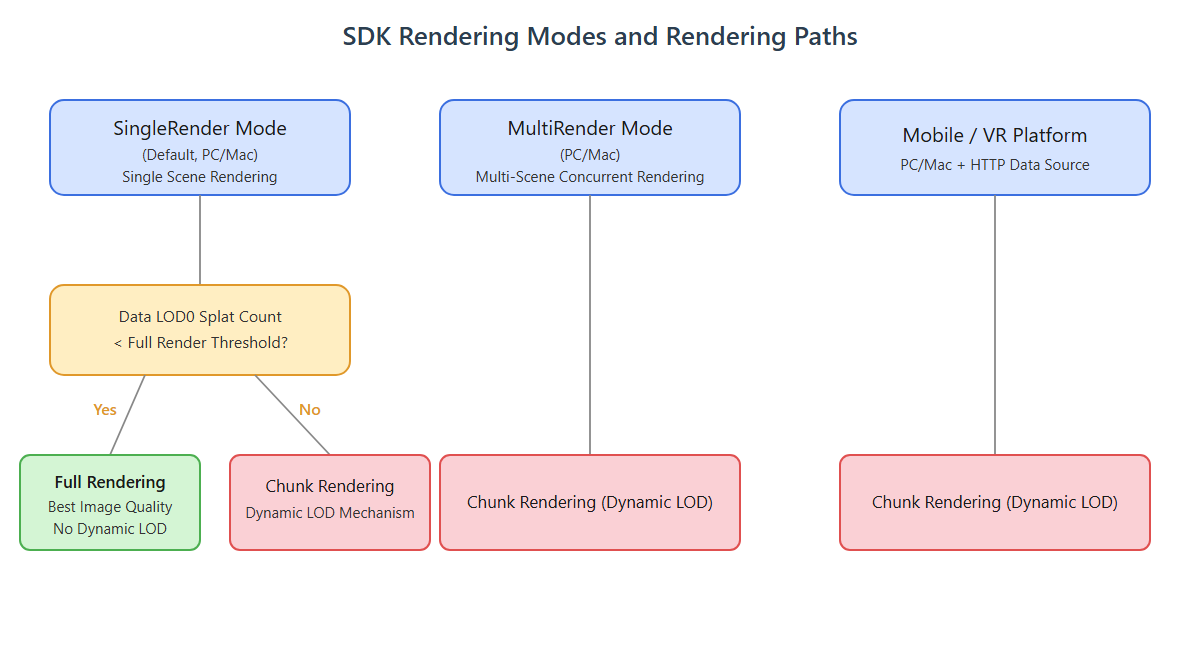
Relationship between the SDK's three render modes and the full / chunked rendering paths
Full rendering vs chunked rendering:
- Full rendering: loads and renders full LOD0 data at once, best image quality, only enabled in PC/Mac SingleRender mode when the LOD0 data volume meets the conditions.
- Chunked rendering: dynamically loads LOD level data according to the render camera frustum, controls the number of on-screen Splats, and adapts to hardware environments with limited video memory and performance.
SDK Default Values
The default values, minimum allowed values, and maximum allowed values for each platform are as follows (unit: ten-thousands):
| Item | Default value | Minimum allowed value | Maximum allowed value | Remarks |
|---|---|---|---|---|
| Global Buffer | PC/Mac: 3000 Mobile: 300 VR: 100 | 100 | PC/Mac: 4450 Mobile: 600 VR: 200 | Controlled via SetMaxBufferSplat() |
| Full rendering threshold | 2500 | 100 | 4450 | Controlled via SetFullRenderSplat(); only effective for PC/Mac SingleRender mode |
| Chunked on-screen rendering count | PC/Mac: 2000 Mobile: 200 VR: 60 | 10 | —— | Controlled via SetMaxRenderSplats(); the maximum value is limited by the global Buffer amount |
| Whether to force full | No | —— | —— | Only effective on PC/Mac, and only for SingleRender mode |
PC/Mac Configuration Strategy
For PC/Mac, it is recommended to configure parameters according to the following quality tiers (Splat count unit: ten-thousands):
| Tier | Global Buffer | Full rendering threshold | Chunked on-screen count | StartLOD | Force full |
|---|---|---|---|---|---|
| Very low | 300 | 300 | 300 | 2 | No |
| Low | 1000 | 1000 | 1000 | 1 | No |
| Medium | 3000 | 1900 | 1900 | 1 | No |
| High | 3000 | 2500 | 2500 | 0 | No |
| Very high | 3000 | 3000 | 3000 | 0 | No |
Notes on Switching Tiers at Runtime
- When switching between the Medium / High / Very high tiers, you can leave the global Buffer unchanged, and the handling logic is very simple: you only need to set the full rendering threshold, the on-screen rendering count, and StartLOD.
- When switching between the Very low / Low tiers and other tiers, the situation is more complex: because the global Buffer may already be allocated, you need to destroy the original global Buffer first and then create a new Buffer. This operation requires disposing of all Renderers with
Dispose()and releasing the Buffer, then re-acquiring the Renderer viaGetRender(). - Current recommendation: set the default tier to High; when switching tiers, leave the global Buffer unchanged, but still handle the full/chunked rendering switch.
Notes
SetMaxBufferSplat()must be set at the very beginning, ideally beforeGetRender(). If you set this value after the scene is already running, you need to dispose of all Renderers withDispose()and then re-acquire the Renderer for it to take effect.SetFullRenderSplat()is only effective for PC/Mac SingleRender mode and must be set beforeLoad().SetMaxRenderSplats()applies to all chunked rendering and can be set at any time, but must be later thanSetMaxBufferSplat()(if that method is called).
Render Performance APIs
SetMaxBufferSplat
// Return value: void
public void SetMaxBufferSplat(int _count)
Sets the maximum GPU Buffer capacity (Splat count). In the RenderCore path (MultiRender / SingleRender chunk), it determines the shared Global Buffer size; in SingleRender Full Load mode, it is allocated according to the actual data volume and does not reference this value. Allocated once and cannot be modified dynamically.
| Parameter | Type | Description |
|---|---|---|
_count | int | Global unified Buffer size, in 3DGS Splat count, unit: ten-thousands |
Usage example:
lccManager.SetMaxBufferSplat(3000); // 30 million points (PC/Mac default)
lccManager.SetMaxBufferSplat(4450); // 44.5 million points (PC/Mac maximum)
Description:
- The unit is "ten-thousands"; passed value × 10000 = actual Splat count.
- Must be called before any
Renderer.Load(), otherwise it errors out and returns. - Must call
SetPlatformTypefirst. - The larger the capacity, the higher the video memory usage; set as needed.
- Platform limits: PC/Mac 44.5 million, Android/iOS 6 million, VR 2 million; minimum 1 million.
- Default values: PC/Mac 30 million, Android/iOS 3 million, VR 1 million.
SetFullRenderSplat
// Return value: void
public void SetFullRenderSplat(int _count)
Sets the Splat count threshold between full rendering and chunked rendering in PC/Mac SingleRender mode. When the LOD0 Splat count of the data is less than this value, the full rendering path is used (dedicated GPU Buffer); otherwise the chunked rendering path is used.
| Parameter | Type | Description |
|---|---|---|
_count | int | 3DGS Splat count, unit: ten-thousands |
Usage example:
lccManager.SetFullRenderSplat(2500); // 25 million points
Description:
- The unit is "ten-thousands".
- Only supported on PC/Mac platforms; calling it on other platforms errors out and returns directly.
- Must be called before any
Renderer.Load(). - Must call
SetPlatformTypefirst. - Value range
[100, 4450](i.e. 1 million ~ 44.5 million).
SetMaxRenderSplats
// Return value: void
public void SetMaxRenderSplats(int _count)
Sets the maximum number of Splats rendered on screen per frame in chunked rendering. Can be called dynamically after Load(), and is clamped by the upper limit set by SetMaxBufferSplat. Calling it in SingleRender full rendering mode has no effect (logs a warning and returns directly).
| Parameter | Type | Description |
|---|---|---|
_count | int | 3DGS Splat count, unit: ten-thousands; minimum 100 thousand, maximum not exceeding the Buffer size set by SetMaxBufferSplat() |
Usage example:
lccManager.SetMaxRenderSplats(2000); // 20 million points
Description:
- The unit is "ten-thousands"; passed value × 10000 = actual Splat count.
- Can be adjusted dynamically at runtime.
- Must not exceed the capacity upper limit set by
SetMaxBufferSplat(if exceeded, it is automatically clamped and logs a warning). - Runtime adjustment is not supported in SingleRender full rendering mode.
SetStartLod
// Return value: void
public void SetStartLod(int lod)
Sets the LOD expansion starting point (0-based). 0 means the finest; the larger the number, the coarser the level. This method takes effect at runtime and needs to be called after Load().
| Parameter | Type | Description |
|---|---|---|
lod | int | Starting LOD level, range [0, 10], 0 is the finest |
Usage example:
lccManager.SetStartLod(0);
Description:
- Only effective for chunked rendering, range
[0, 10], automatically clamped if exceeded. - The actual effective upper limit is restricted by the data's
totalLevels. - The SDK takes effect immediately after calling.
SetDetailLevel
// Return value: void
public void SetDetailLevel(float sse)
Sets the rendering detail level, used to fine-tune rendering precision. The larger the value, the finer the rendering and the higher the performance cost.
| Parameter | Type | Description |
|---|---|---|
sse | float | Subdivision factor, range [1, 100]. 1 = coarsest (no refinement even at close distance), 100 = finest (all levels refined to the lowest) |
Usage example:
lccManager.SetDetailLevel(50f); // Medium precision
Description:
- This parameter is used to fine-tune scene detail, only applies to chunked rendering, default is 40, range
[1, 100], automatically clamped if exceeded. - Uses logarithmic mapping: the low-value range is sensitive to changes, and the high-value range changes gently.
- Can be adjusted dynamically at runtime.
SetRenderAll
// Return value: void
public void SetRenderAll(bool _renderAll)
A Renderer class method. Sets whether this Renderer forces full rendering, and must be called before Load(). Only used for PC/Mac SingleRender mode: at execution time it compares the LOD0 data volume against the 44.5 million upper limit; if LOD0 < 44.5 million, LOD0 full data is used directly for rendering; if LOD0 > 44.5 million, this setting is ineffective (limited by Unity's maximum GBuffer) and chunked rendering is used instead.
| Parameter | Type | Description |
|---|---|---|
_renderAll | bool | Whether to force full rendering |
Usage example:
renderer.SetRenderAll(true);
renderer.Load(filePath, null, () => Debug.Log("Full loaded"));
Description:
- Only supported on PC/Mac platforms; calling it on mobile / VR logs a warning and returns.
- The setting takes effect on the next
Load()call and does not affect the currently loaded dataset. - Can be used together with the
IsRenderAllproperty to query the current state.