
High-Resolution Image Rendering Development Guide
The LCC Unity SDK supports high-resolution image rendering, that is, rendering scene images that exceed the display resolution. For example, when the display resolution is 1920×1080, the LCC Unity SDK can still render and generate images of 3840×2160 (4K), 2560×1440 (2K), 1920×1080 (1080p), 1280×720 (720P), and other resolutions. Once images of various resolutions are rendered, they can be used to produce high-definition images and high-definition videos. The following uses an example of rendering a 4K image and saving it as JPG to describe the complete steps for implementing high-resolution image rendering.
Step 1: Create the scene and GameObjects
Create a brand-new scene in Unity. Unity creates Main Camera and Directional Light by default.
Set up Main Camera
Select Main Camera in the Hierarchy window, and set its properties in the Inspector window as shown below.
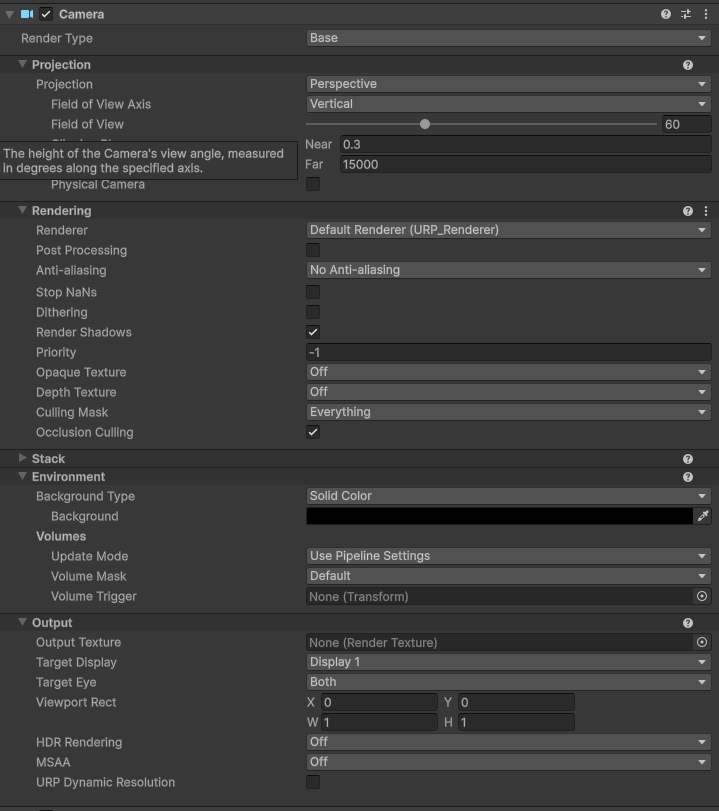
Set the Main Camera properties
Create LCCManager
Right-click an empty area in the Hierarchy window, select Create Empty from the pop-up menu to create an empty GameObject, name it LCCManager, normalize its Transform, and add the LCCManager script to it via Add Component.
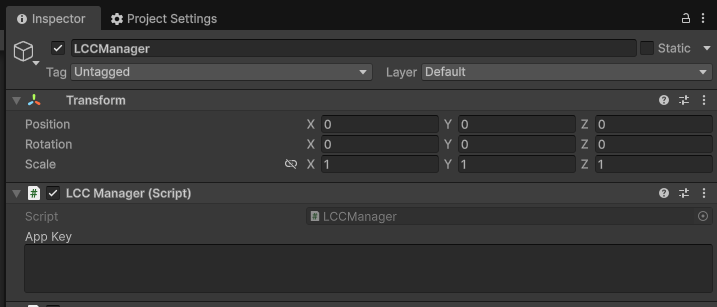
Create the LCCManager GameObject and add the LCCManager script
Create LCCRenderer
Right-click an empty area in the Hierarchy window, select Create Empty to create an empty GameObject, name it LCCRenderer, and set its Transform to Rotation.x = -90 and Scale.x = -1.
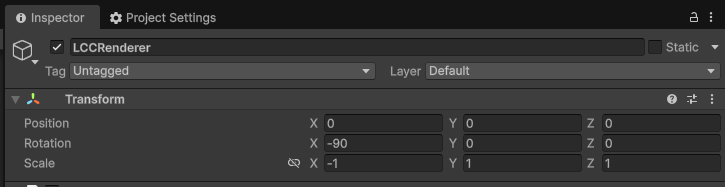
Create LCCRenderer and set its Transform (Rotation.x = -90, Scale.x = -1)
Note:
The Transform settings of the LCCRenderer GameObject (Rotation.x = -90, Scale.x = -1) align it with the LCC data coordinate system. For details on coordinate system alignment, see "LCC Data Coordinate System" in Unity SDK Introduction.
Step 2: Write the high-resolution rendering script
Create a new C# script named HDRecord.cs with the following code:
using System.IO;
using System.Collections;
using LCCCore;
using UnityEngine;

public class HDRecord : MonoBehaviour
{
    public LCCManager m_manager;
    public string m_FilePath;
    public Camera m_camera;

    private LCCCore.Renderer m_renderer;

    private const int HD_WIDTH = 3840;
    private const int HD_HEIGHT = 2160;
    private const string OUTPUT_DIR = @"G:\output";

    void Start()
    {
        m_manager.SetPlatformType(PlatformType.PC);
        m_manager.SwitchRenderPass(ActiveRenderMode.SingleRender);

        if (m_camera == null)
            m_camera = Camera.main;

        m_manager.SetMainCamera(m_camera);

        Debug.Log("[HDRecord] Started, loading data...");
        m_renderer = m_manager.GetRender(this.transform);
        m_renderer.Load(m_FilePath, onProgress, onComplete);
    }

    private void onProgress(float _progress)
    {
        Debug.Log($"[HDRecord] Load progress: {_progress:P1}");
    }

    private void onComplete()
    {
        Debug.Log("[HDRecord] Load complete, enabling 4K record mode...");

        float verticalFov = m_camera.fieldOfView;
        m_manager.SetRecordMode(true, new Vector2(HD_WIDTH, HD_HEIGHT), verticalFov);
        StartCoroutine(CaptureFrame());
    }

    private IEnumerator CaptureFrame()
    {
        // Wait some time to ensure the camera has finished rendering the scene at 4K resolution
        yield return new WaitForSeconds(10);

        RenderTexture tempRT = RenderTexture.GetTemporary(HD_WIDTH, HD_HEIGHT, 24);
        RenderTexture preTarget = m_camera.targetTexture;
        Rect preRect = m_camera.rect;

        m_camera.targetTexture = tempRT;
        m_camera.rect = new Rect(0, 0, 1, 1);

        yield return new WaitForEndOfFrame();
        yield return new WaitForEndOfFrame();
        yield return new WaitForEndOfFrame();

        RenderTexture.active = tempRT;
        Texture2D tex = new Texture2D(HD_WIDTH, HD_HEIGHT, TextureFormat.RGB24, false);
        tex.ReadPixels(new Rect(0, 0, HD_WIDTH, HD_HEIGHT), 0, 0);
        tex.Apply();
        RenderTexture.active = null;

        m_camera.rect = preRect;
        m_camera.targetTexture = preTarget;
        RenderTexture.ReleaseTemporary(tempRT);

        byte[] jpgData = tex.EncodeToJPG(95);
        Destroy(tex);

        if (!Directory.Exists(OUTPUT_DIR))
            Directory.CreateDirectory(OUTPUT_DIR);

        string timestamp = System.DateTime.Now.ToString("yyyyMMdd_HHmmss");
        string filePath = Path.Combine(OUTPUT_DIR, $"HD4K_{timestamp}.jpg");
        File.WriteAllBytes(filePath, jpgData);

        Debug.Log($"[HDRecord] 4K image saved: {filePath} ({jpgData.Length / 1024}KB)");

        m_manager.SetRecordMode(false, new Vector2(Screen.width, Screen.height), m_camera.fieldOfView);
        Debug.Log("[HDRecord] Record mode disabled, restored normal rendering.");
    }
}
Note:
- Recording mode must be enabled after the LCC scene finishes loading, so
SetRecordMode(true, ...)is called in theonCompletecallback.- After entering recording mode, the SDK renders at a fixed resolution and vertical FOV. It is recommended to wait a few frames/seconds before capturing the frame to ensure the scene has finished rendering at the target resolution.
- After capturing, call
SetRecordMode(false, ...)to restore normal rendering.- The script file name must match the class name (
HDRecord.cscorresponds toclass HDRecord), otherwise it cannot be attached to a GameObject.HD_WIDTHandHD_HEIGHTin the example determine the output resolution and can be changed to 2K (2560×1440), 1080p (1920×1080), 720P (1280×720), and so on as needed;OUTPUT_DIRis the output directory — change it to a path where you have write permission.
Step 3: Attach the script and set properties
- Attach the
HDRecord.csscript to the LCCManager GameObject in the Hierarchy window. - In the Inspector window, drag the LCCManager GameObject onto the script's Manager property.
- Fill in the LCC file path in the script's File Path property.
- Other properties (such as Camera) can be configured freely; when left empty, the script automatically uses
Camera.main.
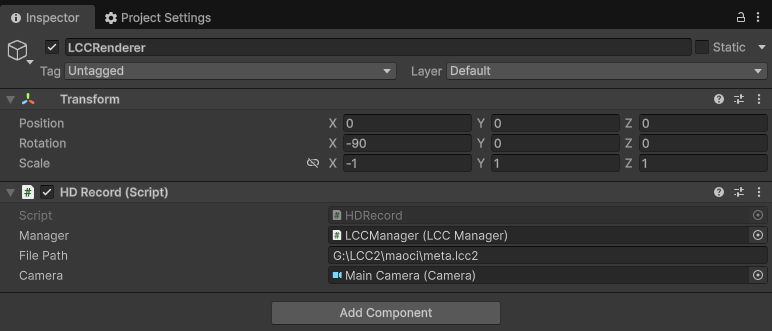
Attach the HDRecord script and set its properties in the Inspector
Step 4: Run
Click the Play button in the Game window. After data finishes loading, the script enters 4K recording mode, captures one frame, and saves it as a JPG image to the output directory.
In this example, the image is rendered at 4K and then saved directly as a JPG image. If you want to save it as a high-definition video, you can encode the continuously captured high-resolution images into a high-definition video through video encoding.
Key Steps
The key steps for implementing high-resolution image rendering:
- Set the main rendering camera via
SetMainCamera, and load the LCC data withRenderer.Load(). - After the scene finishes loading (in the
onCompletecallback), enter recording mode viaSetRecordMode(true, renderSize, verticalFov)and specify the target resolution and vertical FOV. - Render the camera to the target resolution via
RenderTexture, read the pixels back withTexture2D.ReadPixels, and encode them into an image to save. - After capturing, restore normal rendering via
SetRecordMode(false, ...).
High-Resolution Image Rendering Notes
- Only supported on PC/Mac.
SetRecordModeis only effective on PC/Mac platforms. - The camera focal length is fixed in recording mode. After entering recording mode, the SDK renders with the fixed resolution and vertical FOV passed in, and no longer changes with the Camera component.
- Restore normal rendering in time. After capturing or recording finishes, call
SetRecordMode(false, ...)to restore the normal resolution; otherwise subsequent rendering will continue to use the recording resolution. - Watch video memory and memory overhead. The higher the resolution, the larger the video memory/memory occupied by
RenderTextureandTexture2D. High-resolution rendering is recommended on high-performance computer devices.
Recording-related API
The LCC Unity SDK provides the recording-mode API through LCCManager. It must be called after the LCC scene finishes loading (that is, in the onComplete callback).
SetRecordMode
// Return value: void
public void SetRecordMode(bool isRecord, Vector2 renderSize, float verticalFov)
Sets the recording mode. In recording mode, rendering uses a fixed resolution and FOV, which is suitable for recording high-definition images and videos.
| Parameter | Type | Description |
|---|---|---|
isRecord | bool | Whether to enter recording mode |
renderSize | Vector2 | Recording resolution (width × height), such as (3840, 2160) |
verticalFov | float | Vertical FOV (field of view) |
Usage example:
// Enter 4K recording mode
m_manager.SetRecordMode(true, new Vector2(3840, 2160), 60f);

// End recording and restore normal rendering
m_manager.SetRecordMode(false, new Vector2(Screen.width, Screen.height), m_camera.fieldOfView);
Notes:
- Only supported on PC/Mac.
- In recording mode the camera focal length is fixed and does not change with the Camera component.
- After recording ends, call
SetRecordMode(false, ...)to restore normal rendering. - Must be called after the LCC scene finishes loading.