
Container Startup Parameters Guide
3 Software Startup
3.1 Downloading and Installing the LCC Reconstruction Software Docker Edition Image
- Download the lcc-rebuild-cloud-server-tag-x.x.x.tar.gz image file [the specific download address is provided by XGRIDS delivery personnel], and run the import command:
Download URL:
https://cdn-bukbb1.xgrids.cloud/developer/deploy/lcc/lcc-rebuild-cloud-server-tag-x.x.x.tar.gz

Decompress with gunzip and import the image with docker load:
gunzip -c lcc-rebuild-cloud-server-tag-x.x.x.tar.gz | docker load

The imported tag version is as follows:
lcc-rebuild-cloud-server:tag-x.x.x
3.2 Image Startup Commands
3.2.1 Starting the LCC Reconstruction Software Image
The LCC reconstruction software is provided as a Docker image and started with the docker command. For detailed descriptions of the startup parameters, refer to Section 3.3.
Example startup command for the offline license edition:

sudo docker run -d --gpus "device=0" -p 8080:8080 -v /local_work_folder:/work  -v /local_work_folder/db-0:/app/db    -e CODEMETER_SERVER=<private-license-server-ip> lcc-rebuild-cloud-server:tag-v1.0.0-offline-20250319010823
3.2.2 Reference: Quickly Starting the Consul Registry [Required for Cluster Edition]
When using cluster mode on a single-machine multi-GPU server to start multiple container nodes, support from a Consul registry is required.
If there is no Consul registry infrastructure in your data center environment, the following is an example of quickly starting a Consul registry service using Docker:
sudo docker run -d --restart always --name=consul -p 8300:8300 -p 8301:8301 -p 8302:8302 -p 8500:8500 -p 8600:8600 hashicorp/consul:1.20 agent -server -ui -node=n1 -bootstrap-expect=1 -client='0.0.0.0'

Note:
1. This example runs Consul in standalone mode with no cluster or DNS service requirements; the host only needs port 8500 open (Web UI and API).
2. If Consul itself is deployed in cluster mode, ports 8300, 8301, 8302 and 8400 must be open between Consul nodes; open port 8600 if DNS service discovery is required. See the official Consul documentation for details.
3.2.3 Reference: Quickly Starting a MySQL Database
Task information and the like for the LCC reconstruction software is stored in a database for persistence.
The current version supports two databases: [embedded SQLite DB file] and [MySQL database]. For configuration methods, refer to Section 3.3.
If there is no MySQL database infrastructure in your data center environment, the following is an example of using a MySQL 8 image to quickly start a MySQL database service and create the required database and user:
# MySQL 8 is recommended. Set the character set to support unicode at startup, create the lcc-storage-0 database, and use the /data/lcc/mysql8-data directory for data persistence
sudo docker run -d --restart=always   --name mysql8 -e MYSQL_CHARACTER_SET_SERVER=utf8mb4 -e MYSQL_COLLATION_SERVER=utf8mb4_unicode_ci  -e MYSQL_ROOT_PASSWORD=xxxx   -e MYSQL_DATABASE=lcc-storage-0   -v /data/lcc/mysql8-data:/var/lib/mysql   -p 3306:3306 mysql:8.0

# Log in, create a database user for the LCC software, and grant it privileges on the lcc-storage-0 database
CREATE USER 'lcc-user-0'@'%' IDENTIFIED BY '<password>';
GRANT ALL PRIVILEGES ON `lcc-storage-0`.* TO 'lcc-user-0'@'%';
3.3 Container Startup Parameters Description
3.3.1 General Parameters
| Parameter | Necessity | Meaning |
|---|---|---|
| -d | Optional | Runs the container in background mode. After the container starts, the command line returns immediately while the container keeps running in the background. |
| --pull always | Optional | Always attempts to pull the latest image version from the remote repository, regardless of whether the image already exists locally. Use only when explicitly using a remote image repository and the delivery tag is locked; do not use this parameter when importing the image offline, to avoid accessing the remote repository or causing version drift at startup. |
| --restart always | Recommended | Properly setting the restart policy of the Docker container ensures that the process inside the container can automatically recover after an abnormal exit, thereby improving application stability. |
| --name=lcc-rebuild-0 | Recommended | Names this container lcc-rebuild-0 It is recommended to name each container systematically, for example keeping consistency with the GPU card, to facilitate container management. |
| --gpus "device=0" | Required | Specifies the GPU number used by the container. 0 is the first graphics card. Note: 1. A single container currently does not support multiple graphics cards, otherwise it will cause an exception. 2. When starting the container, do not use the --privileged=true parameter, otherwise conflicts in GPU usage will occur. |
| -p 8080:8080 | Required | Maps the API port of the container node to port 8080 of the host Note: The API port inside the Docker container is fixed at 8080, and the host port mapping can be customized. |
| -e APP_MODE=CLUSTER_MAIN | Required when using container cluster mode |
If the purchased authorization includes [Cluster Mode Authorization], APP_MODE can be set to:
Note: In each single-machine multi-GPU container cluster, there can be only one main node. Sub nodes can only be invoked by the main node as processing units, with multiple nodes jointly completing a larger reconstruction task. |
| -e SERVICE_ACCESS_KEY=y6vera | Optional | Specifies the accessKey field required for authentication when calling the current container's API. The default value is y6vera. If the container sets this parameter, when accessing the API from the WebUI or other business systems, be sure to change it to the same value in order to call it properly. |
| -e JOB_QUEUE_CONTROL=ON/OFF | Optional | Whether to automatically start executing the tasks in the queue when the container starts. Default is ON ※ When a reconstruction task is in progress, newly added reconstruction tasks can be temporarily stored in the task list of the DB, waiting to start. |
3.3.2 Authorization-Related Parameters
| Parameter | Necessity | Meaning |
|---|---|---|
| Offline Authorization Mode | ||
| -e CODEMETER_SERVER=192.168.68.205 | Required for offline authorization | In offline authorization mode, the address of the CodeMeter server in the current data center. |
| Online Authorization Mode | ||
| -e LICENSE_SERVER=CN or INTL -e LICENSE_KEY=xxxxxxx | Required for online authorization | In online authorization mode, the address of the XGRIDS cloud server from which the authorization is requested.
LICENSE_KEY is the online authorization key sold by XGRIDS. |
3.3.3 Parameters Required for Cluster Mode
| Parameter | Necessity | Meaning |
|---|---|---|
| -e SERVICE_REGISTER=http://registry-IP:registry-port | Required when starting in cluster mode | The address and port of the CONSUL registry. If you have a standalone CONSUL service, enter the IP and port of that service. If you directly use the CLUSTER_MAIN node as the registry, use the local IP of the host for the IP address, and use 8500, the registry port exposed externally by the main node container, for the port number |
| -e SERVICE_ADDRESS=IP address this container exposes externally -e SERVICE_PORT=host port this container exposes externally | Required when starting in cluster mode | The IP address and API service port of the current container itself when it registers with the registry as a service node |
| Topology 1: When using the built-in Consul of the CLUSTER_MAIN main node, you need to map 8500 of the LCC main container; Topology 2: When using a standalone Consul, do not map 8500 of the LCC main container, and point SERVICE_REGISTER to the standalone Consul address: | ||
| -p 8500:8500 | Only the main node of the built-in Consul topology Optional | CLUSTER_MAIN supports a built-in Consul; you only need to map 8500 of the main container when using this topology. When using a standalone Consul, the LCC main container does not map 8500. The built-in mode example is: mapping port 8500 of the host (customizable) to the fixed port 8500 inside the LCC main container.
|
3.3.4 Data Directory Mounting
| Parameter | Necessity | Meaning |
|---|---|---|
-v /local_work_folder:/work | Required | The /work directory in the docker container must be mounted to a host directory.
|
| -v /data01:/data01 etc. | Optional | Mount the paths holding business data according to actual business requirements. After mounting, the directory can be accessed by the processing inside the container. Note: In cluster mode, each node should mount exactly the same paths. If these directories serve as data input and output directories, their IO performance must be ensured. |
3.3.5 Database-Related Parameters
| Parameter | Necessity | Meaning |
|---|---|---|
| -e DB_TYPE="mysql" or "sqlite" | Optional | The current system supports two database types: the embedded database SQLite or MySQL If this parameter is not set, SQLite is used by default for persistent storage of task information. If specified as "mysql", it can connect to a MySQL database for persistent storage of task information. |
| When DB_TYPE="sqlite", you can persist the database file to a host directory by mounting the db directory: | ||
| -v /data/lcc-work/db-0:/app/db | Recommended when using STAND_ALONE mode | In STAND_ALONE mode, it is recommended that each container mount the /app/db directory in the docker container to a different host directory, in order to persistently store the DB data of each container node. This way, even after the container is deleted, the historical reconstruction task information can still be retained. Note: If multiple STAND_ALONE containers mount the same host directory to /app/db, it will cause errors due to multiple nodes reading from and writing to a single database file. |
| -v /data/lcc-work/db:/work/db | Optional when using CLUSTER mode | When DB_TYPE="sqlite" and starting in CLUSTER mode, the default database directory of the container is /work/db. In CLUSTER mode, the container nodes of the same cluster must mount the same /work directory, so generally there is no need to mount it specially, and the database file can also be persisted to the /work/db directory. |
| When DB_TYPE="mysql", specify the following parameters to connect to an external MySQL database | ||
| -e DB_USER="userxxx" -e DB_PASSWORD="pwdxxxxx" -e DB_HOST="192.168.11.11" -e DB_PORT="3306" -e DB_NAME="lcc-storage-0" | Required when DB_TYPE="mysql" | Note: The database does not need to have its table structure initialized, as long as DB_USER has DDL privileges on the database specified by DB_NAME. |
3.3.5 WebUI-Related Parameters (Beta)
| Parameter | Necessity | Meaning |
|---|---|---|
| -e WEBUI=ON/OFF | Optional | Default OFF When ON, a WebUI interface is opened by default on the API port, where functional operations can be performed |
| -e RESULT_AUTO_ZIP="ON" or "OFF" | Optional | Whether to generate a zip archive after the LCC model result is generated, which can be downloaded via the Download button in the WebUI interface |
3.4 Data Directory Management Model Reference
- ※Recommendation※ The business system can create job directories separately for different tasks in
/local_work_folder. - And create an
inputdirectory in the directory as the storage directory for input data; - Create an
outputdirectory as the receiving directory for the algorithm output results. - Example:
/local_work_folder
    L /job001
        L /input   # Place the scan project data from the Lixel device in the input directory
        L /output  # The algorithm writes result data to the output directory
    L /job002
        L /input
        L /output
3.5 Test Reconstruction Data Samples
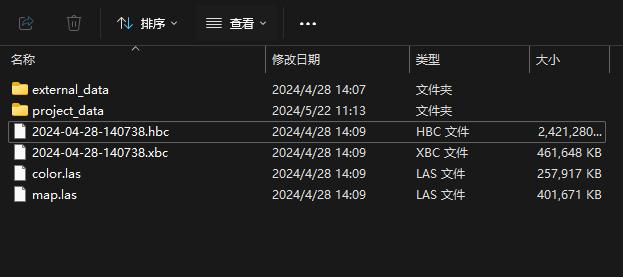
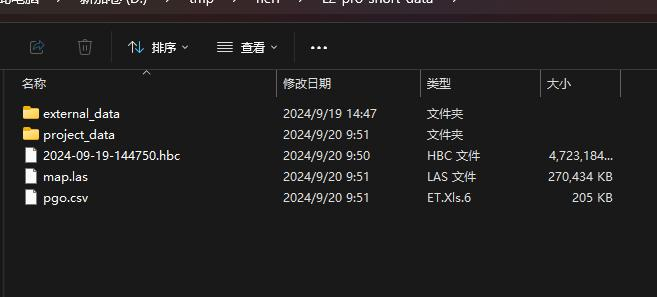
- The K1, L2 Pro scan project data samples placed in
inputare shown in the figure:
- Download address for the K1 scan project data sample placed in
input(2.7G): https://cdn-bukbb1.xgrids.cloud/lcc-install/test-data/input-K1.zip
3.6 [MAINLAND CHINA ONLY] Problem of Being Unable to Connect to the Docker Image Source
Due to network restrictions in mainland China, it may not be possible to pull images such as Consul and MySQL from Docker's official source. It is recommended to configure a domestic image source to resolve this problem
1. Edit /etc/docker/daemon.json to set the registry mirror. The specific command is as follows:
sudo vim /etc/docker/daemon.json <<EOF
{
    "registry-mirrors": [
        "https://docker.1panel.live/"
    ]
}
EOF
2. Restart docker:
systemctl daemon-reload
systemctl restart docker