
Video Projected Decal Development Guide
Feature Overview
Video projected decal is an extension of Projected Decal: the projected content is no longer a static image, but a video. The approach is to decode the video with Unity's built-in VideoPlayer and dynamically update each frame onto the decal texture, so the video is projected onto the 3DGS point cloud surface like a slide projector.
Because the decal itself is a perspective projection fixed in world space, the video frame is "pasted" onto the point cloud surface according to the projector's pose. Points inside the projector frustum are colored by the current video frame, and points outside the frustum are unaffected.
Note:
Like the normal decal, the video decal only takes effect on PC / Mac (URP pipeline). Calling the related interfaces on mobile or VR platforms is ignored by the SDK and prints a warning.
This guide only explains the incremental parts related to "video". For the basics — scene setup (Main Camera / LCCManager / LCCRenderer / Projector), adding the Decal Depth Feature to the URP Renderer, occlusion culling tuning, and the detailed decal APIs — please read Projected Decal Development Guide first.
Implementation Principle
The SDK's decal interface SetDecalTexture(Texture2D tex) only accepts Texture2D, but it supports dynamically updating this texture at runtime. The output of Unity's VideoPlayer decoding is a RenderTexture (on the GPU). Therefore the whole data pipeline is:
VideoPlayer decodes → RenderTexture (GPU) → copy to Texture2D → SetDecalTexture(frame texture) → project onto the point cloud
There are two key points, which are also the two "alignments" this guide emphasizes:
- Spatial alignment: the position, size, and orientation of the video frame projected onto the point cloud are determined by the projector parameters (pose, FOV, Aspect, Near/Far); see Spatial Alignment of Video and Scene.
- Time alignment: the video frame rate is often far lower than the scene rendering frame rate (the scene may run at hundreds of FPS), so you cannot copy and push the texture once per render frame. Use
VideoPlayer.frameto detect whether a new decoded frame has appeared, and update only when a new frame arrives; see Aligning Video Frame Rate and Rendering Frame Rate.
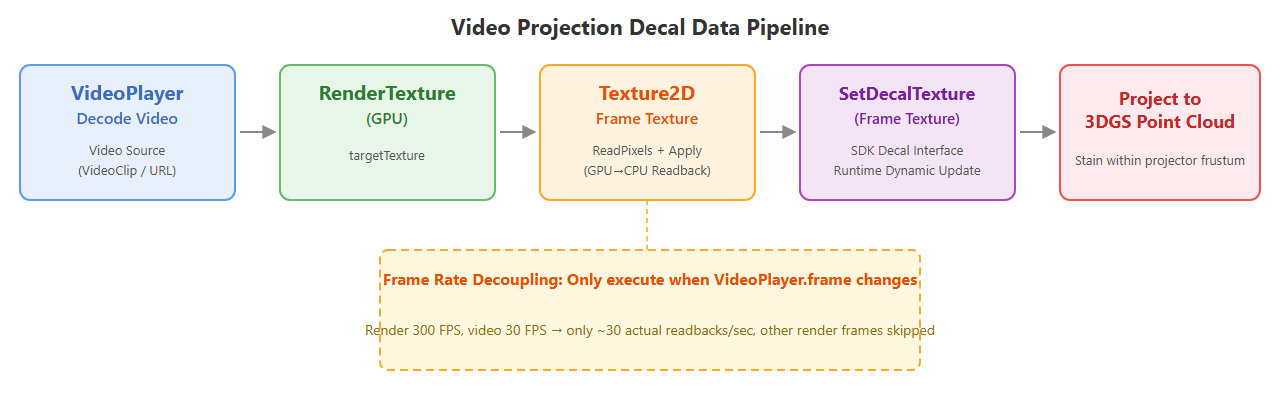
Video projected decal data pipeline: VideoPlayer → RenderTexture → Texture2D → SetDecalTexture
Prerequisites
The video decal shares the same set of prerequisites as the normal decal. Before starting, confirm the following:
- The scene already has Main Camera, LCCManager, LCCRenderer, and Projector set up (see Projected Decal Development Guide · Step 1).
- The URP pipeline is currently in use; if occlusion culling is needed, the Decal Depth Feature has been registered in the URP Renderer Asset.
- If the Console reports errors and no effect is visible, disable Render Graph compatibility mode (see the FAQ section of Projected Decal Development Guide).
- Prepare a video asset: it can be a
VideoClipasset inside the project, or a video file URL on disk / network (e.g.file:///D:/sample.mp4).
Step 1: Write the script
Create a new C# script named VideoStreaming.cs. Based on the skeleton of the normal Decal.cs, it replaces the "static decal texture" with "creating a VideoPlayer at runtime to decode the video, and updating the decal texture in Update() according to the decoded frames". It can be copied directly into your project.
using LCCCore;
using UnityEngine;
using UnityEngine.Video;

public class VideoStreaming : MonoBehaviour
{
    [Header("Required")]
    [Tooltip("The LCCManager instance in the scene")]
    public LCCManager m_manager;
    [Tooltip("A valid LCC scene path")]
    public string m_filePath;

    [Header("Video source (decoded frames are projected as the decal)")]
    [Tooltip("Video clip to project. Takes priority over the URL below")]
    public VideoClip m_videoClip;
    [Tooltip("Video file path / URL, used when no clip is assigned (e.g. file:///D:/xxx.mp4)")]
    public string m_videoUrl;
    [Tooltip("Loop playback")]
    public bool m_videoLoop = true;

    [Header("Projector (projects along +Z)")]
    [Tooltip("Projector pose. Leave empty to use this object's transform")]
    public Transform m_projector;
    [Range(1f, 179f)] public float m_fov = 60f;
    [Tooltip("Projection aspect ratio; <=0 uses the video's aspect ratio automatically")]
    public float m_aspect = 0f;
    public float m_near = 0.1f;
    public float m_far = 100f;

    [Header("Decal appearance")]
    [Range(0f, 1f)] public float m_opacity = 1.0f;
    [Range(0f, 0.5f)][Tooltip("Edge fade width (UV ratio). 0 = hard edge")]
    public float m_edgeFade = 0.1f;
    [Tooltip("Refresh projection every frame, so you can drag the projector / tweak params at runtime")]
    public bool m_updateEveryFrame = true;

    [Header("Occlusion culling (PC/Mac only)")]
    [Tooltip("When on, back-facing/occluded points behind front geometry are no longer colored by the decal (slide-projector effect); when off it is X-ray")]
    public bool m_occlusion = false;
    [Range(0f, 1f)][Tooltip("Opacity threshold: only splats with opacity >= this value contribute to the depth map, filtering out floaters/foggy points. 0 = all participate")]
    public float m_occlusionCutoff = 0f;
    [Range(0f, 0.5f)][Tooltip("Relative depth tolerance. Too small -> near-surface self-occlusion; too large -> leaked X-ray coloring. Default 0.05")]
    public float m_occlusionBias = 0.05f;
    [Range(0, 16)][Tooltip("Square footprint radius cap (px), the main knob for removing X-ray bleed-through. 0 = single texel, default 2")]
    public int m_occlusionFootprint = 2;
    [Tooltip("Depth map resolution (px, power of two 256~4096). Lower it to fill grazing-angle holes. Default 1024")]
    public int m_occlusionResolution = 1024;

    // -- Runtime state --
    private bool m_loaded;
    private bool m_lastOcclusion;
    private float m_lastCutoff = float.NaN;
    private float m_lastBias = float.NaN;
    private int m_lastFootprint = -1;
    private int m_lastResolution = -1;

    // -- Video state --
    private VideoPlayer m_videoPlayer;
    private RenderTexture m_videoRT;   // VideoPlayer decodes the video here (GPU)
    private Texture2D m_frameTex;      // the current frame is copied here and fed to the decal
    private bool m_videoReady;
    private long m_lastVideoFrame = -1; // the last frame index pushed to the decal

    void Start()
    {
        if (m_manager == null || string.IsNullOrEmpty(m_filePath))
        {
            Debug.LogError("[VideoStreaming] m_manager or m_filePath is not assigned.");
            enabled = false;
            return;
        }

        // 1) Initialize the render pipeline to PC single-scene editor mode
        m_manager.SetPlatformType(PlatformType.PC);
        m_manager.SwitchRenderPass(ActiveRenderMode.SingleRender);
        m_manager.SetEditorMode(true);

        // 2) Start decoding the video in parallel with scene loading
        SetupVideo();

        // 3) Load the point cloud scene, then enable the decal (decal is a global state; it is safest to set it after the scene is ready)
        var renderer = m_manager.GetRender(this.transform);
        Debug.Log($"[VideoStreaming] Start loading: {m_filePath}");
        renderer.Load(m_filePath,
            _ => { /* progress callback, unused in this example */ },
            OnSceneLoaded);
    }

    /// <summary>Create the VideoPlayer at runtime and start preparing the clip/URL.</summary>
    private void SetupVideo()
    {
        m_videoPlayer = gameObject.AddComponent<VideoPlayer>();
        m_videoPlayer.playOnAwake = false;
        m_videoPlayer.isLooping = m_videoLoop;
        m_videoPlayer.renderMode = VideoRenderMode.RenderTexture;
        m_videoPlayer.audioOutputMode = VideoAudioOutputMode.None; // demo: no audio

        if (m_videoClip != null)
        {
            m_videoPlayer.source = VideoSource.VideoClip;
            m_videoPlayer.clip = m_videoClip;
        }
        else
        {
            m_videoPlayer.source = VideoSource.Url;
            m_videoPlayer.url = m_videoUrl;
        }

        // Allocate the frame buffer once the resolution is known, then start playback.
        m_videoPlayer.prepareCompleted += OnVideoPrepared;
        m_videoPlayer.Prepare();
    }

    private void OnVideoPrepared(VideoPlayer vp)
    {
        int w = (int)vp.width;
        int h = (int)vp.height;

        m_videoRT = new RenderTexture(w, h, 0, RenderTextureFormat.ARGB32);
        m_videoRT.Create();
        vp.targetTexture = m_videoRT;

        m_frameTex = new Texture2D(w, h, TextureFormat.RGBA32, false);

        m_videoReady = true;
        vp.Play();
        Debug.Log($"[VideoStreaming] Video prepared: {w}x{h}, playing.");
    }

    private void OnSceneLoaded()
    {
        Debug.Log("[VideoStreaming] Load complete, enabling decal projection.");

        // -- Base projection: 5 APIs --
        // Texture content is driven by decoded frames in Update(); here we push the current available frame first.
        if (m_frameTex != null) m_manager.SetDecalTexture(m_frameTex);
        m_manager.SetDecalOpacity(m_opacity);        // overall opacity
        m_manager.SetDecalEdgeFade(m_edgeFade);      // edge fade
        ApplyProjection();                           // projector pose (internally calls SetDecalProjection)
        m_manager.SetDecalEnabled(true);             // enable decal (_DECAL keyword)

        // -- Occlusion culling: 2 APIs -- must be after ApplyProjection (the depth map needs a valid projector VP matrix)
        m_manager.SetDecalOcclusionSettings(BuildOcclusionSettings());
        m_manager.SetDecalOcclusion(m_occlusion);
        CacheOcclusionState();

        m_loaded = true;
    }

    void Update()
    {
        if (!m_loaded) return;

        // --- Video frame update, decoupled from render FPS ---
        // VideoPlayer.frame only increments at the video's own playback rate. Even if the scene renders at hundreds of FPS,
        // the index stays the same between two adjacent video frames, so only when a new decoded frame actually appears
        // do we copy that frame and push the decal texture again.
        if (m_videoReady && m_videoPlayer.frame != m_lastVideoFrame)
        {
            m_lastVideoFrame = m_videoPlayer.frame;

            // Copy the RenderTexture on the GPU to the Texture2D accepted by the decal API.
            // This only runs at the video frame rate, so the readback cost is manageable.
            RenderTexture prev = RenderTexture.active;
            RenderTexture.active = m_videoRT;
            m_frameTex.ReadPixels(new Rect(0, 0, m_videoRT.width, m_videoRT.height), 0, 0, false);
            m_frameTex.Apply(false);
            RenderTexture.active = prev;

            m_manager.SetDecalTexture(m_frameTex);
        }

        // toggle occlusion at runtime
        if (m_occlusion != m_lastOcclusion)
        {
            m_manager.SetDecalOcclusion(m_occlusion);
            m_lastOcclusion = m_occlusion;
        }

        // if any occlusion quality parameter changed -> push the struct once
        if (!Mathf.Approximately(m_occlusionCutoff, m_lastCutoff) ||
            !Mathf.Approximately(m_occlusionBias, m_lastBias) ||
            m_occlusionFootprint != m_lastFootprint ||
            m_occlusionResolution != m_lastResolution)
        {
            m_manager.SetDecalOcclusionSettings(BuildOcclusionSettings());
            CacheOcclusionState();
        }

        // refresh projector / appearance every frame for convenient runtime tuning
        if (!m_updateEveryFrame) return;
        m_manager.SetDecalOpacity(m_opacity);
        m_manager.SetDecalEdgeFade(m_edgeFade);
        ApplyProjection();
    }

    /// <summary>Build the projection matrix from the current projector pose and perspective parameters.</summary>
    private void ApplyProjection()
    {
        Transform p = m_projector != null ? m_projector : this.transform;
        float aspect = m_aspect > 0f
            ? m_aspect
            : (m_videoRT != null ? (float)m_videoRT.width / m_videoRT.height : 1920.0f / 1080.0f);
        m_manager.SetDecalProjection(p.position, p.rotation, m_fov, aspect, m_near, m_far);
    }

    /// <summary>Collect the 4 occlusion parameters into a struct.</summary>
    private DecalOcclusionSettings BuildOcclusionSettings()
    {
        return new DecalOcclusionSettings
        {
            opacityCutoff  = m_occlusionCutoff,
            depthBias      = m_occlusionBias,
            footprintMaxPx = m_occlusionFootprint,
            resolution     = m_occlusionResolution,
        };
    }

    private void CacheOcclusionState()
    {
        m_lastOcclusion  = m_occlusion;
        m_lastCutoff     = m_occlusionCutoff;
        m_lastBias       = m_occlusionBias;
        m_lastFootprint  = m_occlusionFootprint;
        m_lastResolution = m_occlusionResolution;
    }

    private void OnDestroy()
    {
        if (m_videoPlayer != null) m_videoPlayer.prepareCompleted -= OnVideoPrepared;
        if (m_videoRT != null)
        {
            m_videoRT.Release();
            Destroy(m_videoRT);
        }
        if (m_frameTex != null) Destroy(m_frameTex);
    }

    // -- Convenient debug entry points (Inspector right-click) --
    [ContextMenu("Decal On")]  private void DecalOn()  { m_manager?.SetDecalEnabled(true); }
    [ContextMenu("Decal Off")] private void DecalOff() { m_manager?.SetDecalEnabled(false); }
    [ContextMenu("Occlusion On")]  private void OcclusionOn()  { m_occlusion = true;  m_manager?.SetDecalOcclusion(true);  m_lastOcclusion = true; }
    [ContextMenu("Occlusion Off")] private void OcclusionOff() { m_occlusion = false; m_manager?.SetDecalOcclusion(false); m_lastOcclusion = false; }
}
Note:
- Video and scene loading run in parallel: in
Start(),SetupVideo()is called first to startVideoPlayer.Prepare(), and then the point cloud sceneLoadis initiated. The two do not block each other.- The frame buffer is only allocated after the video is ready: the sizes of
RenderTextureandTexture2Dare taken from the video's real resolution (vp.width/vp.height), so they are created in theprepareCompletedcallbackOnVideoPrepared.- The decal is only enabled after the scene finishes loading: consistent with the normal decal,
SetDecalTexture/SetDecalEnabledare placed in theOnSceneLoadedcallback. If the video is not ready at that point,m_frameTexis null and the first texture set is skipped; it is filled in when the first frame arrives inUpdate().
Step 2: Attach the script and configure properties
- Attach the
VideoStreaming.csscript to the LCCRenderer GameObject in the Hierarchy window. - In the Inspector window, drag the LCCManager GameObject onto the script's Manager property.
- Drag the Projector GameObject onto the script's Projector property.
- Fill in the LCC scene file path in the File Path property.
- Specify the video source, choose one of two:
- Drag a VideoClip asset from the project onto the Video Clip property; or
- Fill in the video file path in the Video Url property (e.g.
file:///D:/sample.mp4). - When both are filled, Video Clip takes priority.
- Other properties can be adjusted as needed; their meanings are shown in the table below.
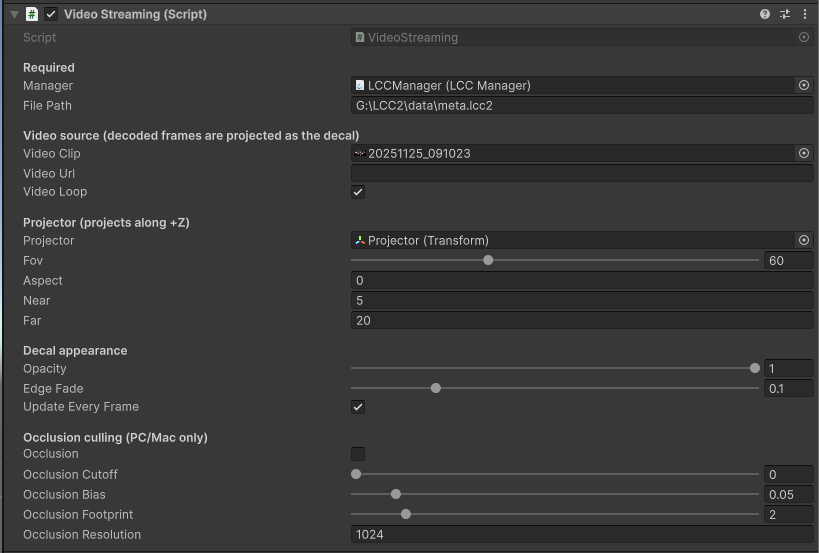
Inspector property settings for the VideoStreaming script
| Field | Meaning | Default value |
|---|---|---|
| Manager | The LCCManager instance in the scene | Required |
| File Path | A valid LCC scene path | Required |
| Video Clip | The video asset to project, higher priority than Video Url | Empty |
| Video Url | Video file path / URL, used when no clip is specified | Empty |
| Video Loop | Whether to loop playback | Checked |
| Projector | Projector pose, +Z is the projection direction; empty uses this object's Transform | Empty |
| Fov | Projector perspective field of view | 60 |
| Aspect | Projection aspect ratio; when less than or equal to 0, it is calculated automatically from the video's aspect ratio | 0 (auto) |
| Near / Far | Near / far clipping planes of the projector frustum | 0.1 / 100 |
| Opacity | Overall decal opacity | 1 |
| Edge Fade | Edge fade width (UV ratio), 0 is a hard edge | 0.1 |
| Update Every Frame | Refresh projector / appearance every frame, convenient for runtime tuning | Checked |
| Occlusion | Whether to enable occlusion culling | Off |
| Occlusion Cutoff / Bias / Footprint / Resolution | Occlusion culling quality parameters; see Projected Decal Development Guide | 0 / 0.05 / 2 / 1024 |
Step 3: Run and observe the effect
Click Play in Unity. The video starts playing after Prepare completes; after the scene finishes loading the decal turns on automatically, and the video frames are projected onto the 3DGS surface frame by frame. When Update Every Frame is checked, you can directly drag the projector in the Scene view and see the video frame move on the point cloud surface in real time.
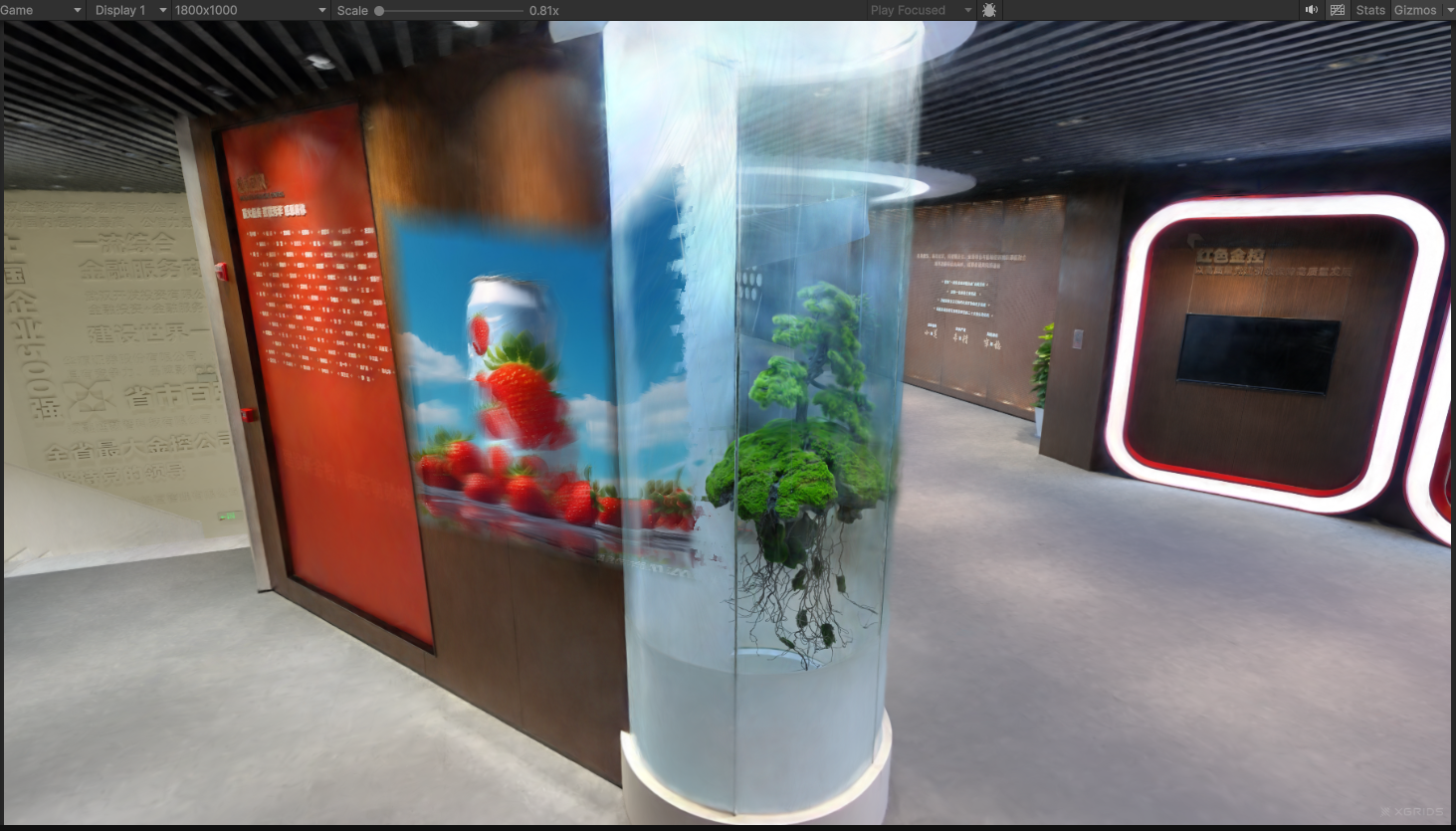
Video frames projected onto the 3DGS surface after running
Spatial Alignment of Video and Scene
"Spatial alignment" means making the video frame project accurately onto the point cloud at the position, orientation, and size you want. The position of the video frame is entirely determined by the projector (SetDecalProjection), independent of the video content. The parameters affecting alignment are as follows:
| Parameter | Source | Effect on alignment |
|---|---|---|
| Projector position (Projector.position) | Projector's Transform | Determines the world coordinate of the frustum apex, that is, where the video is projected "from". Translating it shifts where the frame lands on the point cloud. |
| Projector orientation (Projector.rotation) | Projector's Transform | +Z is the projection direction. Rotating the projector changes the projection direction, and the frame shifts / tilts on the surface accordingly. |
| Fov (vertical field of view) | Script field m_fov | Determines the frustum opening angle, directly affecting the size of the frame on the point cloud: the larger the FOV, the larger the frame; the smaller, the more concentrated. Range [1, 179]. |
| Aspect (aspect ratio) | Script field m_aspect | Determines the frame's horizontal/vertical ratio. When set to 0, the video's resolution aspect ratio is used automatically (m_videoRT.width / height), which is the recommended way to keep the video from being stretched. A wrong manual value causes the frame to be stretched. |
| Near / Far (near / far clipping planes) | Script fields m_near / m_far | Determines the effective depth interval of the frustum along the projection direction. Only points within [near, far] are colored. Too small a Far clips distant point clouds, and too large a Near misses nearby ones. It should cover the depth range of the target point cloud. |
General alignment steps:
- First keep Aspect at 0 (auto) to avoid frame distortion, and focus on adjusting position and size.
- Drag the Projector position and orientation to center the frame on the target area (check Update Every Frame for real-time preview).
- Adjust Fov to control the frame's coverage size.
- Confirm the Near / Far interval fully covers the depth of the target point cloud, to avoid the frame being cut off by the clipping planes.
- If you need to force a specific ratio (e.g. projecting a 16:9 video onto a square area), set Aspect manually.
Tip:
The video's frame ratio is controlled by Aspect, while the video's resolution only affects clarity and readback cost, not the physical size projected onto the point cloud — the size is determined by Fov and the projection distance together.
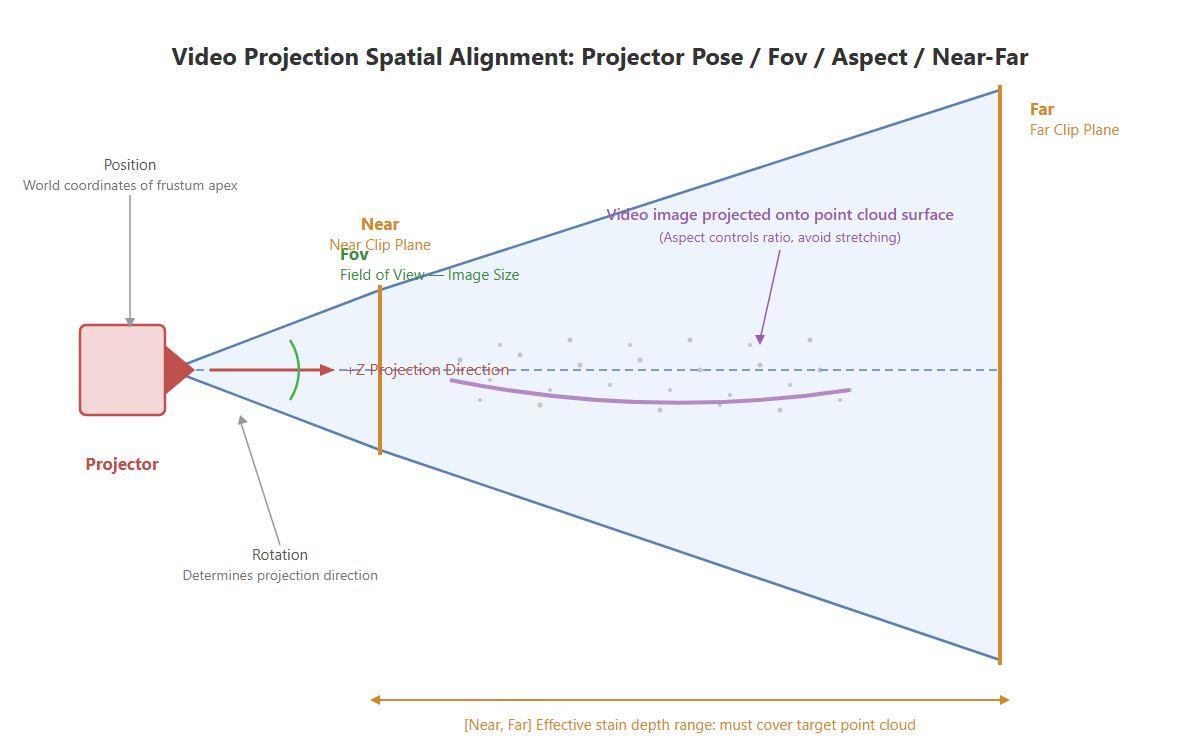
Effect of projector pose / Fov / Aspect / Near-Far on where and how large the video frame lands on the point cloud
Aligning Video Frame Rate and Rendering Frame Rate
This is the most critical part of the video decal. The video frame rate (e.g. 25/30 FPS) is usually far lower than the scene rendering frame rate (a 3DGS scene may run at hundreds of FPS). If you do a "readback + SetDecalTexture" every render frame, there are two problems:
- Redundant work: the same video frame is repeatedly copied and repeatedly pushed, which is pure waste.
- Performance drag:
ReadPixelsis a GPU→CPU readback with non-trivial cost; doing it every frame at a high rendering frame rate causes noticeable frame drops.
Decoupling strategy: use VideoPlayer.frame as the beat
VideoPlayer.frame is the current decoded frame index, which increments only at the video's own playback rate. No matter how high the rendering frame rate is, this index does not change between two video frames. Based on this, update the texture only when "the index changes":
if (m_videoReady && m_videoPlayer.frame != m_lastVideoFrame)
{
    m_lastVideoFrame = m_videoPlayer.frame;

    // Only readback once and push the decal when a new decoded frame arrives
    RenderTexture prev = RenderTexture.active;
    RenderTexture.active = m_videoRT;
    m_frameTex.ReadPixels(new Rect(0, 0, m_videoRT.width, m_videoRT.height), 0, 0, false);
    m_frameTex.Apply(false);
    RenderTexture.active = prev;

    m_manager.SetDecalTexture(m_frameTex);
}
This way:
- When the scene renders at 300 FPS and the video is 30 FPS, only about 30 of the 300 render frames actually perform the readback and push; the remaining frames are skipped directly by the
if. - The beat is controlled by the player itself; no hand-written timer is needed to match the video frame rate, and no frames are dropped or duplicated due to rendering frame rate fluctuations.
- The video's speed, looping, and pausing are all managed internally by
VideoPlayer, and theframeindex reflects them truthfully; the script needs no extra synchronization.
Why not use a per-frame timer?
Manually accumulating
Time.deltaTimeto approximate the video frame interval requires handling both rendering frame rate jitter and video speed changes / frame skipping, and can easily drift from the player's actual internal decoding progress. ReadingVideoPlayer.framedirectly makes the player the single source of truth — simplest and most robust.
About Update Every Frame:
The
m_updateEveryFramein the script controls whether the projector pose / opacity / fade are refreshed every frame, which is a separate matter from the video frame update. The video frame update always follows theVideoPlayer.framebeat and is not affected by this switch.
Performance and Format Notes
- Readback cost is proportional to resolution.
ReadPixels+Applyis a GPU→CPU→GPU round trip; the higher the resolution, the slower it is. This example uses it for simplicity and sufficient demonstration. If the video resolution is very high or performance is sensitive, you can switch to a pure GPU copyGraphics.CopyTexture(m_videoRT, m_frameTex), but the source and target formats must match (RenderTextureFormat.ARGB32corresponds toTextureFormat.RGBA32), and some platforms restrict CopyTexture. SetDecalTextureonly acceptsTexture2D. This is exactly why theRenderTexturemust be read back into aTexture2D; you cannot directly pass theVideoPlayer'sRenderTextureto the decal interface.- Reuse the frame buffer, do not
newit every frame. In the example,m_frameTexis created only once when the video is ready, and the sameTexture2Dis reused every frame afterward, avoiding frequent allocation / GC. - Release resources in time. In
OnDestroy,Release()andDestroytheRenderTextureandTexture2D, and unregisterprepareCompleted, to avoid leaks. - Audio is not wired up. The example sets
audioOutputModetoNoneand only demonstrates the visuals. If sound is needed, change toAudioSourcemode and attach anAudioSource.
Summary of Differences from the Normal Decal
| Aspect | Normal decal (Decal.cs) | Video decal (VideoStreaming.cs) |
|---|---|---|
| Decal content | Static Texture2D | Texture2D from per-frame video decoding |
| Texture source | Drag an image in the Inspector | VideoPlayer decode → RenderTexture → readback |
| Texture update timing | Set once | Updated frame by frame on the VideoPlayer.frame beat |
| Extra component | None | AddComponent<VideoPlayer>() at runtime |
| Aspect auto value | Image aspect ratio | Video aspect ratio |
| The rest (projector / occlusion / API) | Exactly the same | Exactly the same |
Key APIs Involved
On the SDK side, the video decal only additionally uses the dynamic update capability of SetDecalTexture; the other decal APIs are exactly the same as the normal decal. See Projected Decal Development Guide · Decal-related APIs.
SetDecalTexture (dynamic update)
// Return value: void
public void SetDecalTexture(Texture2D tex)
Sets the decal texture. RGB is color and A is the decal's own mask. This method supports being called repeatedly at runtime: each time a new Texture2D is passed in, the current decal content is replaced immediately — this is exactly the basis of per-frame video projection: call it once whenever a new decoded frame appears in Update().
| Parameter | Type | Description |
|---|---|---|
tex | Texture2D | Decal texture, can be replaced repeatedly at runtime |
The other related Unity built-in types (VideoPlayer / RenderTexture / Texture2D) are standard Unity APIs; see the official Unity documentation for usage.