
Collision System Development Guide
LCC Unity SDK has a built-in collision system, focused on solving the acceleration of collider construction and collision detection — that is, the collision performance problem. Unity's Collider system cannot handle real-time detection in very large scenes.
LCC Unity SDK uses its own built-in collision system, no longer relying on Unity's MeshCollider component and related capabilities, so it cannot directly act on GameObjects in a Unity scene. The official LCC data format generated by XGrids (LCC Studio) generates Mesh data used for collision during reconstruction at the same time, and the SDK uses this collision data to quickly and efficiently build scene collision. Because it is a self-built collision system, using the collision feature requires calling the corresponding methods provided by the SDK.
Note:
The SDK's built-in collision system is incompatible with Unity's Collider system and cannot directly act on
Rigidbodyobjects in Unity. Collision for characters such as digital humans needs to be driven by the SDK's detection methods (see "Digital Human Collision Implementation" below).For fixed scenes, you can also extract the Mesh data and bake it into a NavMesh in advance, which can be compatible with Unity's Collider system; see the NavMesh guide for details.
Data Prerequisites
The prerequisite for collision detection to work is that the scene has corresponding collision data. Data reconstructed in earlier versions may not contain collision data; in that case, calling SetColliderEnable(true) returns false, and all subsequent detection methods are unavailable.
Therefore, after enabling collision, be sure to check the return value:
bool ok = renderer.SetColliderEnable(true);
if (!ok)
{
    Debug.LogWarning("The current data contains no collider, cannot enable collision detection");
}
Basic Usage Workflow
The basic workflow for the collision feature has three steps:
- Load the scene data through the
Load()method. - In the load-complete callback, enable collision through
SetColliderEnable(true). - Perform collision detection through the various detection methods (
RaycastMesh/IntersectsSphere/IntersectsCapsule).
// 1. Load the scene
renderer.Load(dataPath, onProgress: null, onComplete: () =>
{
    // 2. Enable collision after loading completes
    if (renderer.SetColliderEnable(true))
    {
        colliderReady = true;
    }
});

void Update()
{
    if (!colliderReady) return;

    // 3. Perform collision detection every frame
    var capsule = new Capsule(footPos, headPos, 0.3f);
    if (m_manager.IntersectsCapsule(capsule, out Vector3 delta))
    {
        characterController.Move(delta);
    }
}
Note:
SetColliderEnable()is a method ofRenderer, while the detection methods (RaycastMesh/IntersectsSphere/IntersectsCapsule/Raycast) are onLCCManager. Call them on the corresponding objects respectively.
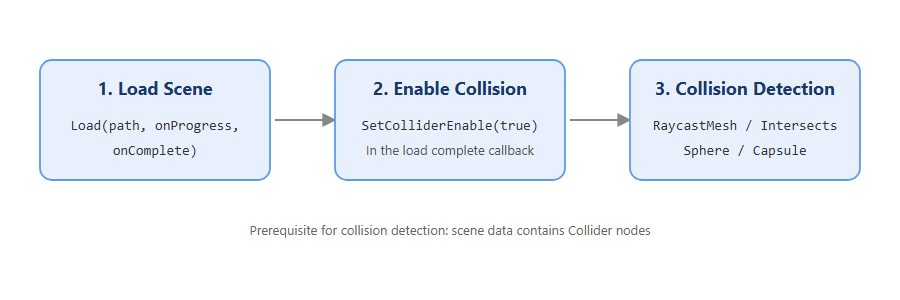
Basic collision system workflow
Digital Human Collision Implementation
Because the SDK's collision system does not act on Unity's Rigidbody, collision for digital humans (characters) needs to be driven by the detection methods. There are three common approaches:
- Dual-ray detection: use
RaycastMesh()to fire one ray downward and one forward, and judge whether the character can walk based on the ray return results (probe the ground downward, probe obstacles forward). - Capsule detection: use
IntersectsCapsule()to detect whether the capsule the digital human is in intersects the collision mesh, and judge whether it can walk. The overloaded version's_deltareturns the offset of the next safely reachable point. - Sphere detection: use
IntersectsSphere()to detect whether the sphere the digital human is in intersects the collision mesh, and judge whether it can walk. The overloaded version's_deltaalso returns the offset of a safely reachable point.
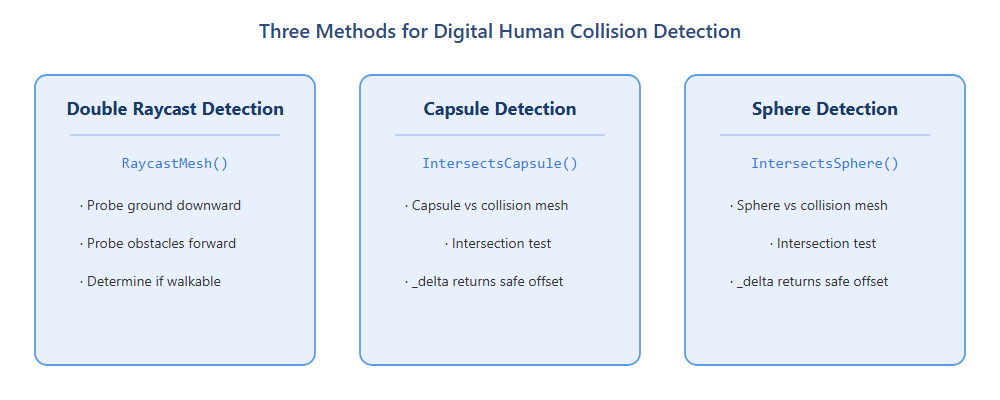
Three implementation approaches for digital human collision
Choosing Between RaycastMesh and Raycast
The SDK provides two types of ray detection methods with different purposes:
| Method | Detection target | Precision | Speed | Applicable scenario |
|---|---|---|---|---|
RaycastMesh() | Collision mesh (Collider data) | Relatively low | Fast | Digital human collision, per-frame detection |
Raycast() | Gaussian primitives (does not rely on the collision mesh) | Relatively high | Slow | Measurement-type applications |
Raycast() performs ray detection directly on Gaussian primitives, with higher precision but slower speed, and is not recommended for per-frame calls, so it is not suitable for digital human collision, only for measurement-type use. For digital human collision, prefer RaycastMesh(), which relies on the collision mesh.
Related APIs
Among the collision-related methods below, SetColliderEnable() is on Renderer, while the remaining detection methods are on LCCManager. All detection methods are only available after the scene finishes loading and SetColliderEnable(true) has been called successfully.
SetColliderEnable
// Return value: bool → true=set successfully, false=data contains no collider or instance is not active
public bool SetColliderEnable(bool _enable)
Toggles the collider feature. After enabling, IntersectsSphere / IntersectsCapsule / RaycastMesh become available.
| Parameter | Type | Description |
|---|---|---|
_enable | bool | Whether to enable the collider |
Usage example:
bool ok = renderer.SetColliderEnable(true);
if (!ok) Debug.LogWarning("Data contains no collider");
Description:
- The data must contain collision (Mesh) data, otherwise it returns
false. - Requires the
Rendererto be in an active state.
RaycastMesh (screen coordinates)
// Return value: bool → true=hit
public bool RaycastMesh(Vector3 mousePos, out HitResult _finalResult, float _disatnce = 70.0f)
Fires a ray from screen coordinates to detect the collision mesh. Uses Collider data for detection, faster than Raycast but with lower precision.
| Parameter | Type | Description |
|---|---|---|
mousePos | Vector3 | Screen coordinates |
_finalResult | out HitResult | Hit result |
_disatnce | float | Maximum detection distance, default 70.0 |
Usage example:
if (m_manager.RaycastMesh(Input.mousePosition, out HitResult hit))
{
    Debug.Log(hit.hitPos);
}
Description:
- Requires collision to be successfully enabled first.
- Requires calling
SetColliderEnable(true)first.
RaycastMesh (Ray + Bounds)
// Return value: bool → true=hit
public bool RaycastMesh(Ray ray, out HitResult result, out Bounds hitBounds, float maxDist = 70.0f)
Uses a custom Ray for collision mesh detection, and also returns the bounding box information of the hit node.
| Parameter | Type | Description |
|---|---|---|
ray | Ray | The ray |
result | out HitResult | Hit result |
hitBounds | out Bounds | Bounding box of the hit node (bounding box of the hit LOD node) |
maxDist | float | Maximum detection distance, default 70.0 |
Usage example:
Ray ray = Camera.main.ScreenPointToRay(Input.mousePosition);
if (m_manager.RaycastMesh(ray, out HitResult hit, out Bounds bounds))
{
    Debug.Log(bounds.center);
}
Description:
- Requires collision to be successfully enabled first.
- This method is commonly used for dual-ray detection (downward, forward) to judge whether a digital human can walk.
IntersectsSphere
// Return value: bool → true=intersect
public bool IntersectsSphere(Sphere sphere)

// Return value: bool → true=intersect
public bool IntersectsSphere(Sphere sphere, out Vector3 delta)
Detects whether a sphere intersects the collision mesh. The second overload additionally returns the penetration vector delta (push-out direction and distance), which can be used to compute the next safely reachable point.
| Parameter | Type | Description |
|---|---|---|
sphere | Sphere | The sphere to detect |
delta | out Vector3 | Penetration vector (push-out direction and distance) |
Usage example:
var sphere = new Sphere(transform.position, 0.5f);
if (m_manager.IntersectsSphere(sphere, out Vector3 delta))
{
    transform.position += delta;
}
Description:
- Requires collision to be successfully enabled first.
- Requires calling
SetColliderEnable(true)first. - Iterates over all active
Renderers.
IntersectsCapsule
// Return value: bool → true=intersect
public bool IntersectsCapsule(Capsule capsule)

// Return value: bool → true=intersect
public bool IntersectsCapsule(Capsule capsule, out Vector3 delta)
Detects whether a capsule intersects the collision mesh. Commonly used for character controller collision detection. The second overload returns the penetration vector delta, which can be used as the offset to the next safely reachable point for a digital human.
| Parameter | Type | Description |
|---|---|---|
capsule | Capsule | The capsule to detect |
delta | out Vector3 | Penetration vector |
Usage example:
var capsule = new Capsule(footPos, headPos, 0.3f);
if (m_manager.IntersectsCapsule(capsule, out Vector3 delta))
{
    characterController.Move(delta);
}
Description:
- Requires the data to contain collision nodes.
- Requires calling
SetColliderEnable(true)first. - Suitable for first-person / third-person character collision.
Raycast
// Return value: bool → true=hit
public bool Raycast(Ray _ray, out HitResult _finalResult)
Uses a custom Ray to perform ray detection on Gaussian primitives, iterating over all active Renderers and returning the nearest hit. Does not rely on the collision mesh; higher precision but slower.
| Parameter | Type | Description |
|---|---|---|
_ray | Ray | The ray |
_finalResult | out HitResult | Hit result |
Usage example:
Ray ray = new Ray(origin, direction);
if (m_manager.Raycast(ray, out HitResult hit))
{
    Debug.Log(hit.hitPos);
}
Description:
- Does not rely on the collision mesh, no need for
SetColliderEnable. - Higher precision but slower, not recommended for per-frame calls, suitable for measurement-type applications, not suitable for digital human collision.
HitResult
The hit results of the above detection methods are returned through the HitResult struct:
public struct HitResult {
    public bool isHit;             // Whether it hit
    public float distance;         // Distance
    public Vector3 hitPos;         // Hit point world coordinates (field name is hitPos, not position)
    public Vector3 normal;         // Hit normal
    public float hitAlpha;         // Alpha of the hit ellipsoid
    public float dist2Origin;      // Distance to the ray origin
    public float scale;            // Ellipsoid scale
}
Note:
The field name of the hit point world coordinates is
hitPos, notposition; access it by the actual field name.