
LCC and LCC2 Data Format Compatibility Development Guide
The LCC2 data format provides better data compression and LOD mechanisms. The original LCC format will gradually be replaced by LCC2, and the original LCC SDK (v1.x) will gradually stop being maintained. Because the old and new data formats differ greatly, the new LCC SDK (v2.x) is not backward compatible with the LCC format. Data compatibility can be achieved in the following two ways:
- Use the official converter (LccConverter) exe/dll to convert the LCC data format to LCC2, then use it in the SDK;
- Implement LCC and LCC2 data format compatibility at the application layer.
This guide mainly describes the flow and steps of implementing data format compatibility at the application layer, that is, importing two versions of the SDK into the same Unity project at the same time and automatically selecting the corresponding version for rendering and processing based on the data format.
Step 1: Unity version and project settings
The Unity version and project settings are the same as when using the SDK independently; no additional configuration is required. See PC Quick Start Guide and Project Settings Optimization Guide.
Step 2: Import the two SDK versions
Import SDK v1.4.8 and later (v1.4.32 is recommended) and SDK v2.0.1 and later through Unity UPM. After importing, the v1.x version will be displayed as Legacy. The two SDK versions can coexist without affecting each other.
Note:
- SDK v1.4.32 can be downloaded from GitHub: https://github.com/xgrids/LCC-Unity-SDK/releases
- SDK v1.4.32's namespace is
LCCCore_Legacyand its manager component isLCCManager_Legacy; v2.x's namespace isLCCCoreand its manager component isLCCManager.
Step 3: Configure the scene
Create an empty object in the scene named LCCController, and attach both the LCCManager_Legacy and LCCManager components to it.
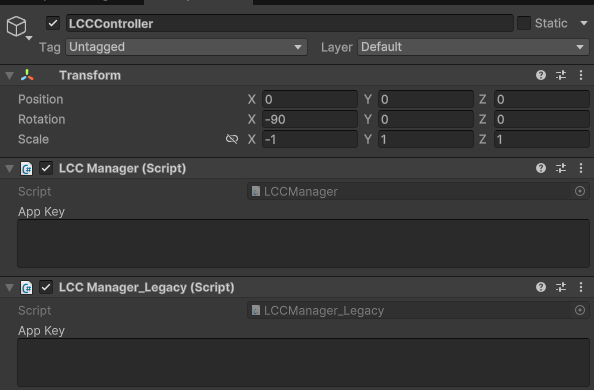
Attach both the LCCManager_Legacy and LCCManager components to the LCCController object
Note:
The Transform settings of the LCCController GameObject (Rotation.x = -90, Scale.x = -1) align it with the LCC data coordinate system. For details on coordinate system alignment, see "LCC Data Coordinate System" in Unity SDK Introduction.
Step 4: Write the MultiSDKController script
Create a new C# script named MultiSDKController.cs with the following code:
using LCCCore;
using LCCCore_Legacy;
using System.IO;
using UnityEngine;

public class MultiSDKController : MonoBehaviour
{
    public LCCManager_Legacy m_managerLegacy;          // for LCC SDK v1.4.8 and earlier
    public LCCManager m_manager;                       // for LCC SDK v2.0.0 and later
    public string m_FilePath;                          // LCC file path
    private LCCCore_Legacy.Renderer m_rendererLegacy;  // for LCC SDK v1.4.8 and earlier
    private LCCCore.Renderer m_renderer;               // for LCC SDK v2.0.0 and later
    private DataType m_dataType;                       // data type, used to determine which SDK to use

    void Start()
    {
        string extension = Path.GetExtension(m_FilePath);
        if (extension == ".lcc")
        {
            m_manager.Enable = false; // disable the v2.0.0+ manager
            m_dataType = DataType.LCC;
            m_rendererLegacy = m_managerLegacy.GetRender(this.transform);
            m_rendererLegacy.Load(m_FilePath, LCCCore_Legacy.PlatformType.PC, onLoadCallback);
        }
        else if (extension == ".lcc2")
        {
            m_managerLegacy.Enable = false; // disable the v1.4.8 and earlier manager
            m_dataType = DataType.LCC2;
            m_renderer = m_manager.GetRender(this.transform);
            m_renderer.Load(m_FilePath, LCCCore.PlatformType.PC, onLoadCallback);
        }
    }

    private void onLoadCallback()
    {
        Debug.Log("data loaded !!!");
    }

    // Method call example: determine which SDK renderer to operate on by data type
    public void onRenderPointClick()
    {
        if (m_dataType == DataType.LCC)
            m_rendererLegacy.SwitchRenderMode(LCCCore_Legacy.RenderMode.PointCloud);
        else if (m_dataType == DataType.LCC2)
            m_renderer.SwitchRenderMode(LCCCore.RenderMode.PointCloud);
    }

    void OnDestroy()
    {
        if (m_dataType == DataType.LCC)
            m_rendererLegacy?.Dispose();
        else if (m_dataType == DataType.LCC2)
            m_renderer?.Dispose();
    }

    public enum DataType { LCC, LCC2 }
}
Note:
- The script file name must match the class name (
MultiSDKController.cscorresponds toclass MultiSDKController), otherwise it cannot be attached to a GameObject.- The two versions have different namespaces (
LCCCoreandLCCCore_Legacy). When using same-named types such asRenderer,PlatformType, andRenderMode, you need to prefix them with the namespace to distinguish them.- The example determines the data format by the file extension (
.lcc/.lcc2) and selects the corresponding SDK version.
Step 5: Attach the script and set properties
- Attach the
MultiSDKController.csscript to the LCCController object in the scene as well. - In the Inspector window, drag the LCCManager and LCCManager_Legacy components onto the corresponding script properties.
- Fill in the LCC / LCC2 file path in the script's File Path property.
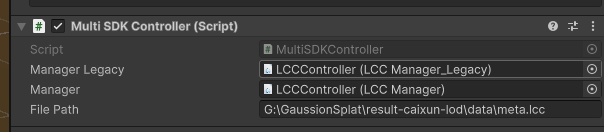
Attach the MultiSDKController script and set its properties in the Inspector
Now when you run the code, the corresponding SDK version is automatically used for rendering based on the LCC data format, achieving data format compatibility.
Key Steps
The key steps for implementing LCC and LCC2 data format compatibility at the application layer:
- Import both the v1.x (Legacy) and v2.x SDK versions through UPM; the two can coexist.
- Attach both the
LCCManager_LegacyandLCCManagermanager components to the same object. - Select the corresponding version's manager to create a renderer and load data based on the data format (file extension
.lcc/.lcc2). - After determining which version to use, disable the other version's manager (
Manager.Enable = false). - When switching data or destroying, unload the currently rendered data via
Renderer.Dispose().
Data Format Compatibility Notes
Simultaneous rendering of LCC and LCC2 is not supported. Therefore, when switching data, you need to unload the currently rendered data first (call
Renderer.Dispose()), otherwise it may cause memory and video memory leaks.Disable the unused Manager. After determining which SDK version to use, it is best to disable the Manager object of the other SDK version (
Manager.Enable = false), otherwise it may cause some ineffective performance overhead.The API interfaces are consistent, but you must call the correct Renderer. The API interfaces of the two SDK versions are exactly the same (in v2.x many APIs have been moved to the Manager class; see the API manual), but you must ensure you call the correct version's Renderer (
m_rendererLegacyorm_renderer). In addition, v2.0.0 and later no longer support color adjustment and clipping data saving, and some other APIs are also deprecated; please check the developer documentation for the corresponding version.
Related APIs
This solution mainly involves the manager and renderer APIs of the two SDK versions. The following uses v2.x (LCCCore) as an example; v1.x (LCCCore_Legacy) has the same interface with only a different namespace.
LCCManager.Enable
// Property
public bool Enable { get; set; }
The manager's enable switch. Setting it to false disables that SDK version's manager, avoiding ineffective performance overhead from working simultaneously with the other version.
Usage example:
// When using LCC2 data, disable the Legacy manager
m_managerLegacy.Enable = false;
Notes:
- After determining which version to use, it is recommended to disable the other version's manager.
GetRender
// Return value: Renderer → render instance, null on failure
public Renderer GetRender(Transform _transform)
Creates a render instance and binds it to the specified Transform.
| Parameter | Type | Description |
|---|---|---|
_transform | Transform | The Transform the render instance is attached to |
Usage example:
m_renderer = m_manager.GetRender(this.transform);
Notes:
- Must be created through the corresponding version's manager to ensure the renderer matches the data format.
Renderer.Dispose
// Return value: void
public void Dispose()
Destroys the render instance and releases all GPU resources and memory. The instance cannot be used again after destruction.
Usage example:
m_renderer?.Dispose();
Notes:
- Before switching data, you must unload the current data first, otherwise it may cause memory and video memory leaks.
- After calling, it automatically notifies the Manager to remove the reference.
- It is recommended to call it when the object is destroyed (
OnDestroy).