XGRIDSDocs
  • 简体中文
  • English
  • 繁體中文
  • 日本語
  • Deutsch
  • Español
  • Italiano
  • Français
  • Русский
  • Polski
  • Nederlands
  • 简体中文
  • English
  • 繁體中文
  • 日本語
  • Deutsch
  • Español
  • Italiano
  • Français
  • Русский
  • Polski
  • Nederlands
  • Lixel PortalCam Series

    • PortalCam P1

      • Product Overview
      • Basic Operation
      • Using the LCC Scan App
      • Maintenance and Care
      • FAQ
  • Lixel K Series

    • Lixel K1

      • Product Overview
      • Basic Operation
      • Device Activation and Connection
      • Scanning Workflow
      • Acquire Point Cloud Data with Absolute Coordinate
      • Map Fusion
      • Route Planning Suggestions for Typical Scenes
      • Precautions
      • FAQ
    • Lixel K2

      • Product Overview
      • Basic Operation
      • Device Activation and Connection
      • Scanning Workflow
      • Acquire Point Cloud Data with Absolute Coordinate
      • Map Fusion
      • Route Planning Suggestions for Typical Scenes
      • Precautions
      • FAQ
  • Lixel L Series

    • Lixel L2 Pro

      • Product Overview
      • Basic Operation
      • Device Activation and Connection
      • Scanning Workflow
      • Acquire Point Cloud Data with Absolute Coordinate
      • Measure Point
      • Appendix
      • FAQ
    • Lixel L3

      • Product Overview
      • Basic Device Functions
      • Device Activation and Connection
      • Data Capture
      • Capturing Absolute Coordinates
      • Appendix
  • Accessories

    • Stick Light

      • Installation Guide
      • Basic Operation
      • FAQ
  • Lixel Studio

    • Version and Copyright
    • Installation and Activation
    • Software Interface
    • File Operations
    • Project Processing
    • Tools
    • 2D Drawing
    • Applications
    • Settings
    • Device Connection
    • FAQ
  • Lixel CyberColor

    • LCC Studio

      • Getting Started
      • Version and Updates
      • Download and Installation
      • Interface Overview and Navigation
      • Before Reconstruction
      • Model Reconstruction
      • Single Model Reconstruction
      • Map Fusion
      • Aerial-Ground Fusion
      • Aerial Reconstruction
      • My Models
      • Other Features
      • Settings and Account
      • Converter
      • Video Reconstruction
      • FAQ
    • LCC Scene Editor

      • Version & Updates
      • Account & Login
      • Product Overview & Home
      • Editor Interface
      • Scene Navigation Modes
      • File
      • Settings
      • Edit Operations
      • Window
      • Global Toolbar
      • Assets & Properties
      • Left Toolbar
      • Viewpoints
      • Portal
      • Skybox
      • Annotations
      • Measurement
      • Flythrough
      • Scene Report
      • 3D Layout
      • Mini-Map
      • Preview Mode (Viewer)
      • Help
      • FAQ
      • Spawn Point
    • LCC Model Editor

      • Version and Updates
      • User Guide
      • Overview and Interface
      • File Operations
      • Selectors
      • Editing Models
      • Measurement
      • Color Grading
      • Asset Management
      • Settings and Help
      • FAQ
    • Capture Guide

      • Overview
      • Capture Devices Overview
      • General Capture Principles
      • Indoor Scene Capture
      • Outdoor Scene Capture
      • Large-Scale Capture (Map Fusion)
      • Aerial-Ground Map Fusion Capture
      • Object Capture
      • People Capture
      • Video Reconstruction Capture
      • HD Enhancement
      • Control Points (Lixel P1)
      • FAQ and Troubleshooting
    • LCC Studio Linux

      • Product Overview
      • Architecture Guide
      • Installation and Deployment Guide
      • Container Startup Parameters Guide
      • CodeMeter Offline Licensing Deployment Guide
      • API Reference
      • Appendix - Developer Data Guide
      • Appendix - Error Code List
      • Single-Machine Multi-GPU Cluster Deployment QuickStart
    • Best Practices

      • Merging Multiple Large 3DGS Models
    • Version History
  • Plugin & SDK

    • Unreal

      • Introduction
      • Quick Start - Windows
      • Quick Start - Linux
      • Quick Start - Quest3
      • Editions and Licensing
      • Rendering
      • Tiled Rasterization (Experimental)
      • Visual Settings
      • Normals and Lighting
      • Scene Editing
      • Performance Parameters
      • Performance Guide
      • Third-party and Engine Plugin Integration
      • Proxy Mesh
      • Loading Animation
      • Collision
      • Navigation System Support
      • Single Layer Water Support
      • Localization
      • FAQ
      • Troubleshooting
      • Logging and Diagnostics
      • Contact Us
      • Best Practices

        • Relighting 3DGS with a LixelStudio Mesh
      • API Reference

        • ALCCActorBase
        • ULCCComponentBase
        • ULCCComponent
        • ULCC2Component
        • SOG / SPZ / PLY Actors
        • ALCC2ProxyMesh
        • ALCCClippingVolume
        • ALCCSectionPlane
        • ALCCLoadVolume
        • ULCCUtilLibrary
        • Enums
        • Structs
      • Changelog

        • v3.4.0
        • v3.3.1
        • v3.0.0
        • v2.2.1
        • v1.0.0
        • v0.9.0
        • v0.8.0
        • v0.7.1
        • v0.6.1
        • v0.5.2
        • v0.4.1
        • v0.4.0
        • v0.3.0
        • v0.0.5
        • v0.0.4
        • v0.0.3
        • v0.0.2
        • v0.0.1
    • Unity

      • Unity SDK Introduction
      • Technical Features
      • Development Environment Requirements
      • PC Quick Start Guide
      • Project Settings Optimization Guide
      • Pico 4 Ultra Development Guide
      • Pico 4 Ultra PC Streaming Guide
      • Quest 3 Development Guide
      • Quest 3 PC Streaming Guide
      • OpenXR Development Guide
      • Pico 4 Ultra Business Streaming Guide
      • Glossary
      • FAQ
      • Contact Us
      • Feature Development Guide

        • Multi-Scene Mixed Rendering Development Guide
        • Shadow Receiving Development Guide
        • Real-Time Lighting Development Guide
        • Multi-Camera Rendering Development Guide
        • High-Resolution Image Rendering Development Guide
        • LCC and LCC2 Data Format Compatibility Development Guide
        • Loading Effect Development Guide
        • Mip Rendering Mode Switching Development Guide
        • Edge and Corner Snapping Development Guide
        • Projected Decal Development Guide
        • Video Projected Decal Development Guide
        • Highlight Development Guide
        • Real-Time Clipping Development Guide
        • Color Adjustment Development Guide
        • Getting Scene Mesh Data Development Guide
        • Editor Mode Development Guide
        • Render Performance Parameter Configuration Guide
        • Application and Data Co-packaging Development Guide
        • Collision System Development Guide
        • macOS Development Permission Issue Guide
        • iOS Device Compilation and Packaging Development Guide
      • API Reference

        • LCCManager
        • Renderer
        • Data Types
      • Changelog

        • v2.3.0
        • v2.2.10
        • v2.2.0
        • v2.1.19
        • v2.0.14
    • Web

      • Introduction
      • Rendering Performance Optimization Guide
      • Graphics Configuration
      • FAQ
      • API Reference

        • LCCRender::clearIndexDB
        • LCCRender::dispose
        • LCCRender::load
        • LCCRender::setCamera
        • LCCRender::unload
        • LCCRender::update
        • LCCObject::checkRenderNextFrame
        • LCCObject::clearRenderNextFrame
        • LCCObject::ecef2Prj
        • LCCObject::getBounds
        • LCCObject::getEnvInstancedMesh
        • LCCObject::getInstancedMesh
        • LCCObject::getLodInfos
        • LCCObject::getOriginPosition
        • LCCObject::getProjectionCoordinateSystemInfos
        • LCCObject::hasCollision
        • LCCObject::hasEnvironment
        • LCCObject::hasShcoef
        • LCCObject::intersectsCapsule
        • LCCObject::intersectsRayExt
        • LCCObject::intersectsRayFromOriginExt
        • LCCObject::intersectsSphere
        • LCCObject::lowerToBottom
        • LCCObject::prj2Ecef
        • LCCObject::raiseToTop
        • LCCObject::raycast
        • LCCObject::raycastFromOrigin
        • LCCObject::setAlpha
        • LCCObject::setClipBox
        • LCCObject::setClipPlane
        • LCCObject::setEndLod
        • LCCObject::setLodAutoLevelUp
        • LCCObject::setMaxDistance
        • LCCObject::setMaxNodeSplats
        • LCCObject::setMaxSplats
        • LCCObject::setOriginPosition
        • LCCObject::setPointsColor
        • LCCObject::setRenderState
        • LCCObject::setRotation
        • LCCObject::setScale
        • LCCObject::setSemantic
        • LCCObject::setSemanticColor
        • LCCObject::setSmooth
        • LCCObject::setStartLod
        • LCCObject::setTranslation
        • LCCObject::setVisible
        • LCCObject::togglePointsDisplayMode
        • LCCObject::useEnvironment
        • LCCObject::useShcoef
      • Changelog

        • v0.6.3
        • v0.6.2
        • v0.6.1
        • v0.6.0
        • v0.5.5
        • v0.5.4
        • v0.5.3
        • v0.5.2
        • v0.5.1
        • v0.5.0
        • v0.4.1
        • v0.4.0
        • v0.3.1
        • v0.3.0
        • v0.2.0
    • Lixel OpenAPI

      • Overview
      • Connection & Authentication
      • Message Model & Codec
      • Interface Catalog
      • Real-time Data
      • Project File Access
      • Error Codes
      • Python

        • Quick Start
        • Client Wrapper & Tools
        • FAQ
      • C++

        • Quick Start
        • Client & Examples
        • FAQ

Editor Mode Development Guide

LCC Unity SDK supports rendering scenes in the Editor, meaning the LCC model can be translated, rotated, and scaled in edit mode like any other GameObject in Unity. You can view and adjust the 3DGS scene in the Scene window in real time without clicking the Play button to enter Play mode.

When using the Samples scene, you can complete scene rendering through non-code operations; when using custom scripts, you can achieve the same effect through code operations.

Note:

LCC Unity SDK supports both full and chunked rendering modes. In full rendering mode, the Scene view can render the entire model completely; in chunked rendering mode, because the positions and orientations of the Scene Camera and Game Camera are not consistent, the model may not be fully displayed in the Scene window. In this case, you need to synchronize the Scene Camera and the Game Camera.

Non-code Operations

When using the SDK Samples scene, if the data file path (File Path) is filled in correctly, Unity will automatically render the scene in the Editor after startup, as shown below.
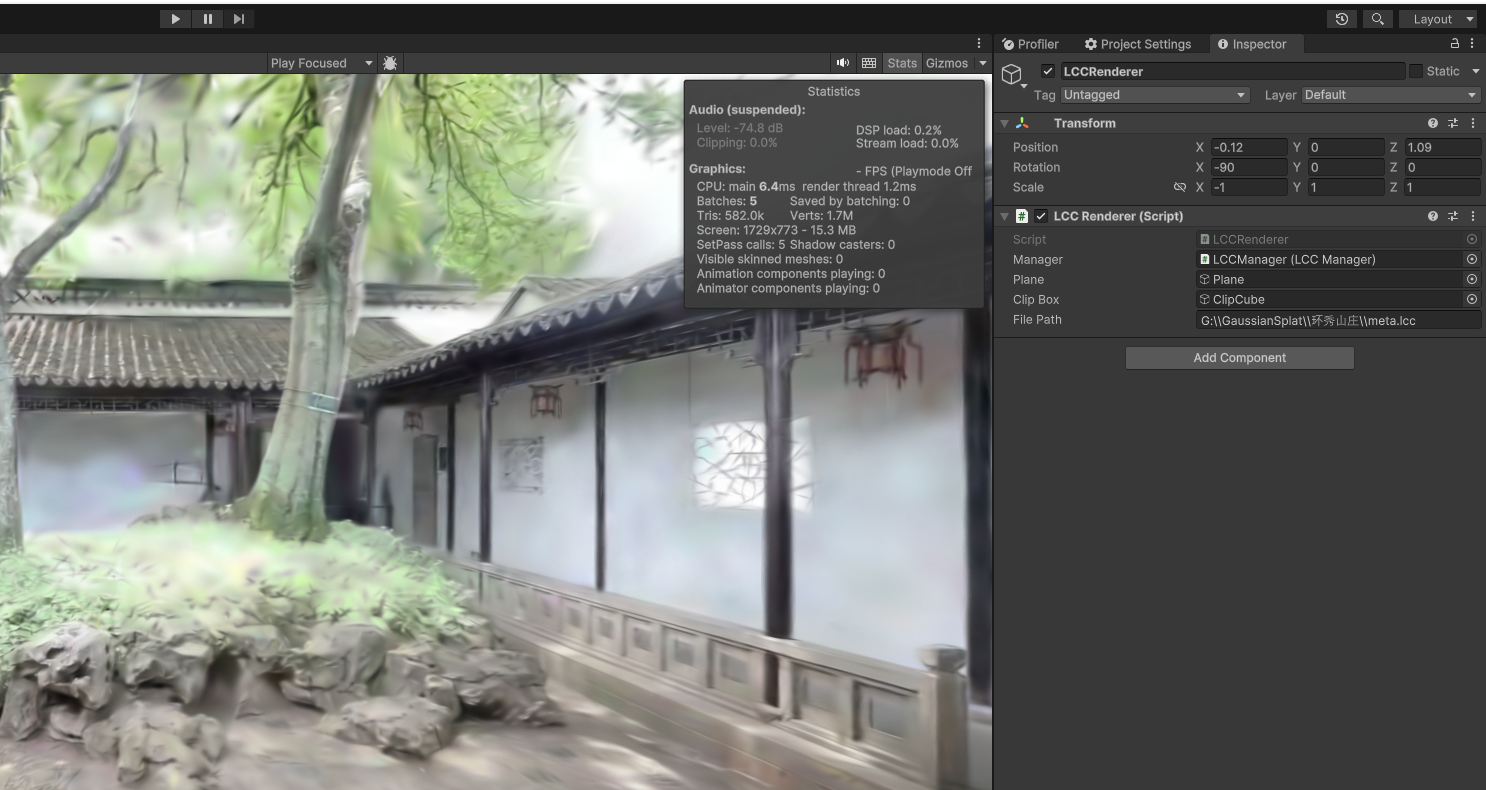
Automatically render the scene in the Editor

After filling in File Path correctly, Unity renders the scene automatically in the Editor on startup

Switch Scene

When you need to modify the rendered scene, follow these steps:

  1. Select the LCCRenderer GameObject in the Hierarchy window.
  2. Fill in the new scene's data path correctly in File Path in the Inspector window.
  3. Click the three dots (⋮) to the right of the LCCRenderer (Script) component, and choose Render from the pop-up menu, as shown below.
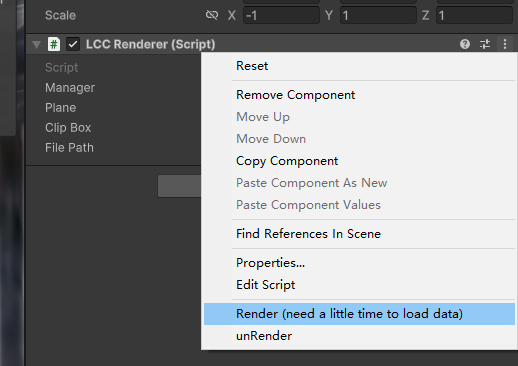
Click Render in the LCCRenderer component menu to render a new scene

Click Render in the three-dot menu to the right of the LCCRenderer (Script) component

Note:

Because unloading the original scene data and loading new scene data takes some time, please wait a moment after clicking Render; the new scene will finish loading.

Stop Scene Rendering

When you no longer need to render the scene in the Editor, follow these steps to stop rendering:

  1. Select the LCCRenderer GameObject in the Hierarchy window.
  2. Fill in the data path correctly in File Path in the Inspector window.
  3. Click the three dots (⋮) to the right of the LCCRenderer (Script) component, and choose unRender from the pop-up menu, as shown below. This stops the current scene rendering.
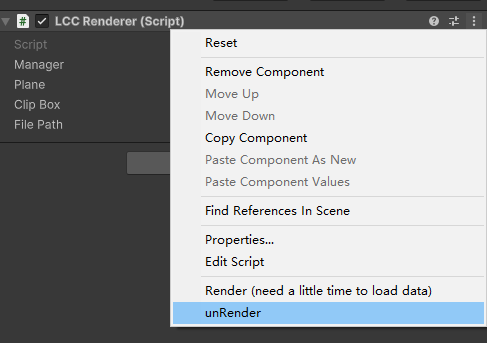
Click unRender in the LCCRenderer component menu to stop rendering

Click unRender in the three-dot menu to the right of the LCCRenderer (Script) component

Enter Play Mode

When you click the Play button in Unity to enter normal Play mode, the scene will re-render in the runtime state. Because the SDK uses a multithreading mechanism internally, entering Play mode forcibly exits the rendering thread in edit mode, which shows as an error message printed in the Console.

You can completely ignore this error; it has no adverse effect and does not affect subsequent normal operation.

If you really do not want to see this error, you can perform the Stop Scene Rendering (unRender) step above before clicking the Play button, then click the Play button to enter the runtime state.

Code Operations

If you use a custom script to render the scene, just add the [ExecuteInEditMode] attribute before your custom rendering class to make the script run in the Editor, thereby rendering the scene in edit mode. For other operation logic, refer to the LCCRenderer.cs script in Samples.

using LCCCore;
using UnityEngine;

[ExecuteInEditMode]
public class MyLCCRenderer : MonoBehaviour
{
    public LCCManager m_manager;
    public string m_FilePath;
    private LCCCore.Renderer m_renderer;

    void Start()
    {
        m_manager.SetPlatformType(PlatformType.PC);
        m_manager.SwitchRenderPass(ActiveRenderMode.SingleRender);
        // Enable editor mode
        m_manager.SetEditorMode(true);

        m_renderer = m_manager.GetRender(this.transform);
        m_renderer.Load(m_FilePath, onProgress, onComplete);
    }

    private void onProgress(float _progress)
    {
        Debug.Log($"[MyLCCRenderer] file load progress: {_progress:P1}");
    }

    private void onComplete()
    {
        Debug.Log($"[MyLCCRenderer] file loaded");
    }
}

Note:

  • The [ExecuteInEditMode] attribute causes lifecycle methods such as Start and Update to be called in the Editor even outside Play mode; this is the key to Editor mode rendering.
  • Editor mode is supported only on PC/Mac platforms.
  • For the complete rendering workflow (platform setup, render mode, data loading), refer to the LCCRenderer.cs script in Samples.

Synchronize Cameras Between the Scene and Game Windows

The Samples provided by the SDK include the SceneGameCameraSync script, which syncs the camera operations of the Scene window to the Game window, letting you operate the view in the Editor while previewing the runtime image. Usage steps:

  1. Attach the SceneGameCameraSync script from Samples to the camera (Camera) GameObject in the scene.
  2. Disable the camera operation script (by default CameraOperate).
  3. Click the Play button to enter Play mode.

At this point, operating the camera in the Scene window will sync the camera in the Game window accordingly.
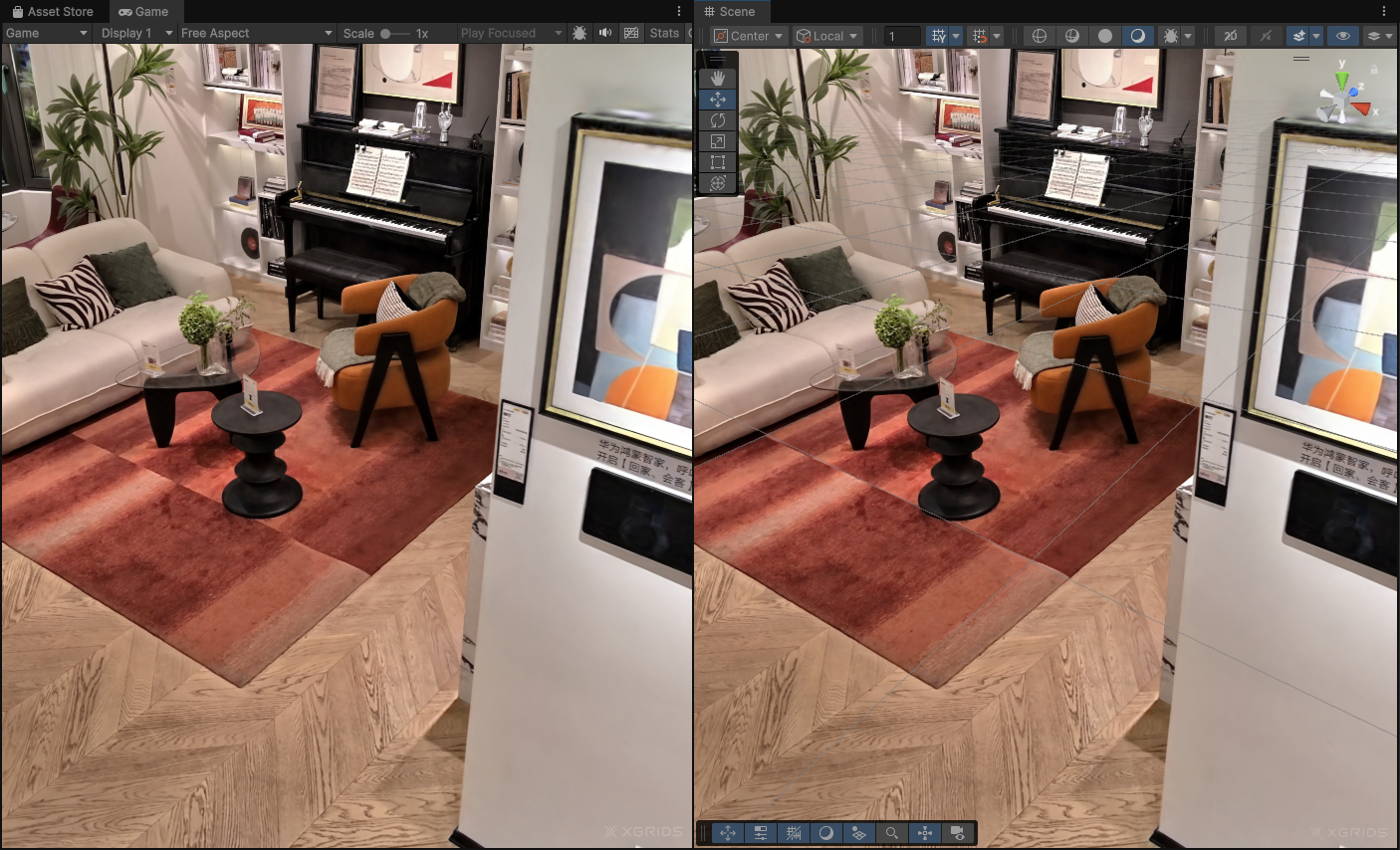
Attach the SceneGameCameraSync script to the camera object

Attach the SceneGameCameraSync script to the camera object and disable the CameraOperate script

Note:

Camera synchronization only supports syncing the camera from the Scene window to the Game window; it does not support syncing camera operations from the Game window to the Scene window.