
Edge and Corner Snapping Development Guide
The LCC Unity SDK supports edge and corner detection and snap preview on 3DGS surfaces, which can be used in interaction scenarios requiring precise positioning such as measurement, annotation, and placement. The following describes the complete steps for implementing edge/corner detection and snapping.
Note:
The snapping feature (edge/corner detection, snap preview, and raycasting with snapping) is only supported on PC / Mac platforms. Calling the related APIs on mobile / VR platforms has no effect and outputs a warning.
Step 1: Create the scene and GameObjects
Create a brand-new scene in Unity. Unity creates Main Camera and Directional Light by default.
Set up Main Camera
Select Main Camera in the Hierarchy window, and set its properties in the Inspector window as shown below.
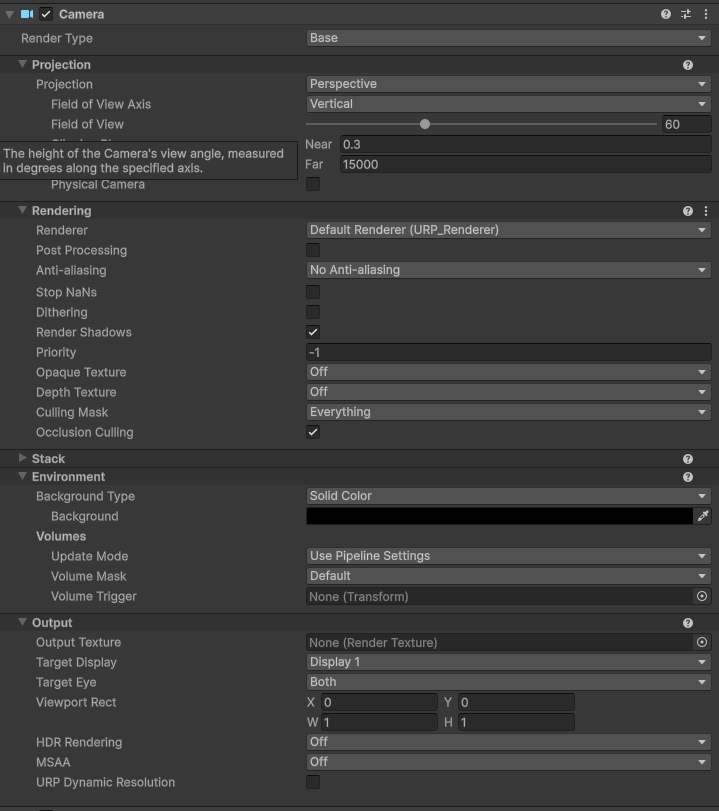
Set the Main Camera properties
Create LCCManager
Right-click an empty area in the Hierarchy window, select Create Empty from the pop-up menu to create an empty GameObject, name it LCCManager, normalize its Transform, and add the LCCManager script to it via Add Component.
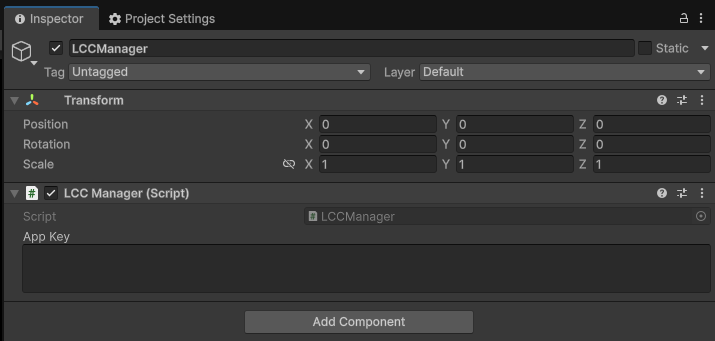
Create the LCCManager GameObject and add the LCCManager script
Create LCCRenderer
Right-click an empty area in the Hierarchy window, select Create Empty to create an empty GameObject, name it LCCRenderer, and set its Transform to Rotation.x = -90 and Scale.x = -1.
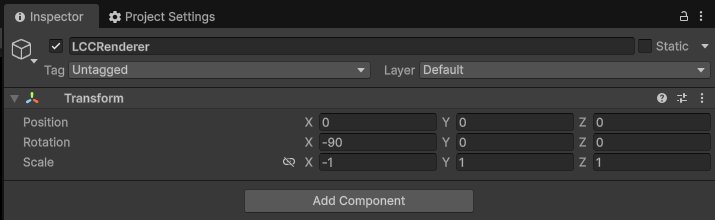
Create LCCRenderer and set its Transform (Rotation.x = -90, Scale.x = -1)
Note:
The Transform settings of the LCCRenderer GameObject (Rotation.x = -90, Scale.x = -1) align it with the LCC data coordinate system. For details on coordinate system alignment, see "LCC Data Coordinate System" in Unity SDK Introduction.
Step 2: Add a Render Feature
- In the Unity menu bar, select File → Project Settings, choose Graphics on the left, and confirm the current Default Render Pipeline Asset. This example uses URP (Universal Render Pipeline Asset).
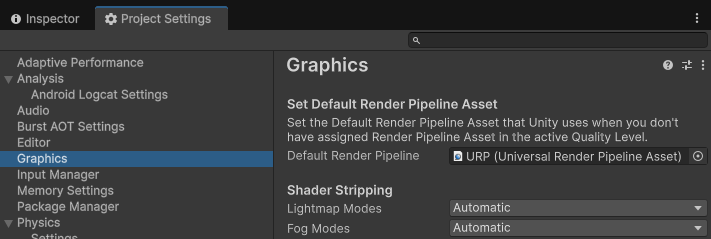
Confirm the Default Render Pipeline Asset in Graphics settings
Click that Asset, locate the corresponding asset file in the Project window, and find its associated Renderer (
URP_Renderer.assetin this example).Select that Renderer asset file, click Add Renderer Feature in the Inspector window, and add the Snap Frame Capture Feature.
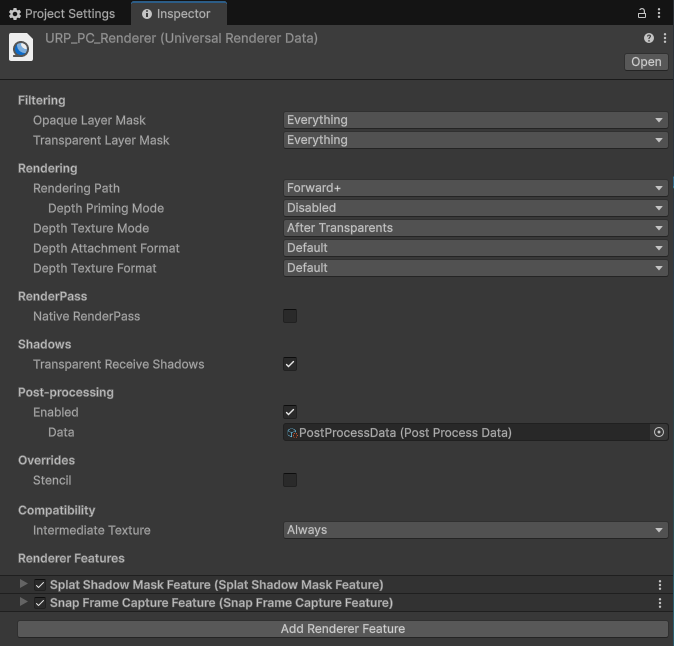
Add the Snap Frame Capture Feature to the URP Renderer
Step 3: Write a script to enable snapping
Create a new C# script named Snap.cs with the following code:
using LCCCore;
using UnityEngine;

public class Snap : MonoBehaviour
{
    public LCCManager m_manager;
    public string m_FilePath;
    private LCCCore.Renderer m_renderer;
    private bool m_loaded = false;
    private Camera m_camera;

    void Start()
    {
        m_camera = Camera.main;
        m_manager.SetPlatformType(PlatformType.PC);
        Debug.Log("Started ");
        m_renderer = m_manager.GetRender(this.transform);
        m_renderer.Load(m_FilePath, onProgress, onComplete);
    }

    private void onProgress(float _progress)
    {
        Debug.Log($"[LCCRenderer] file load progress: {_progress:P1}");
    }

    private void onComplete()
    {
        Debug.Log($"[LCCRenderer] file loaded");
        m_loaded = true;
        // Enable edge/corner detection and snap preview
        m_manager.SetSnapEnabled(true);
        m_manager.SetSnapPreviewEnabled(true);
    }

    private void Update()
    {
        if (!m_loaded) return;
        // Update the snap preview in real time based on the current mouse position
        m_manager.UpdateSnapPreview(Input.mousePosition, m_camera);
        if (Input.GetMouseButtonDown(1))
        {
            m_manager.RaycastWithSnap(Input.mousePosition, m_camera, out HitResult result);
            if (result.isHit)
            {
                GameObject sphere = GameObject.CreatePrimitive(PrimitiveType.Sphere);
                sphere.transform.position = result.hitPos;
                sphere.GetComponent<UnityEngine.Renderer>().material.color = Color.red;
                sphere.transform.localScale = new Vector3(0.1f, 0.1f, 0.1f);
            }
        }
    }
}
Note:
Edge/corner detection (
SetSnapEnabled) and snap preview (SetSnapPreviewEnabled) must be enabled after the LCC scene finishes loading, so both are called in theonCompletecallback. Snap preview also needs to be continuously updated viaUpdateSnapPreviewinUpdate.
The example above demonstrates the following points:
- Enable edge and corner detection:
m_manager.SetSnapEnabled(true) - Enable snap preview:
m_manager.SetSnapPreviewEnabled(true) - Update snap preview in real time:
m_manager.UpdateSnapPreview(Input.mousePosition, m_camera) - Raycast at the snap point and create a sphere at the hit point:
m_manager.RaycastWithSnap(...); on hit, a red sphere is created atresult.hitPos
Step 4: Attach the script and set the data path
- Attach the
Snap.csscript to the LCCRenderer GameObject in the Hierarchy window. - In the Inspector window, drag the LCCManager GameObject onto the script's Manager property.
- Fill in the LCC file path in the script's File Path property.
Step 5: Run
Click the Play button in the Game window to see the edges and corners detected in real time and the preview icon of the snap target. As you move the mouse, the preview icon follows the nearest snap target in real time; right-clicking performs a raycast at the snap point and creates a red sphere.

Edges, corners, and the snap preview icon detected in real time after running
FAQ: Disable compatibility mode
If the Unity Console window reports errors and no snap preview icon appears, disable compatibility mode: open the settings panel via Edit → Project Settings → Graphics, select the URP tab, and do not check the checkbox after Render Graph → Compatibility Mode (Render Graph Disabled).
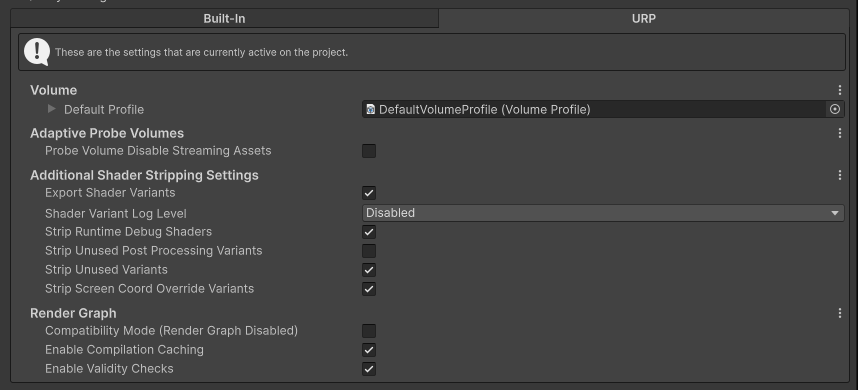
Do not check Render Graph compatibility mode (Render Graph Disabled)
Key Steps
The key steps for implementing edge/corner detection and snapping:
- Make sure the Snap Frame Capture Feature has been added to the URP Renderer.
- Make sure edge/corner detection (
SetSnapEnabled(true)) and snap preview (SetSnapPreviewEnabled(true)) are enabled in code after the LCC scene finishes loading. - Make sure
UpdateSnapPreviewis called in real time inUpdateto update the preview icon.
Snap-related APIs
The LCC Unity SDK provides the following snap-related APIs through LCCManager. They are only supported on PC / Mac platforms — calling them on mobile / VR platforms has no effect and outputs a warning — and they all must be called after the LCC scene finishes loading.
SetSnapEnabled
// Return value: void
public void SetSnapEnabled(bool enable)
Toggles the snapping feature. When enabled, RaycastWithSnap automatically searches for nearby edges/corners to snap to.
| Parameter | Type | Description |
|---|---|---|
enable | bool | Whether to enable snapping |
Usage example:
m_manager.SetSnapEnabled(true);
Notes:
- Disabled by default.
- Only supported on PC / Mac; calling it on mobile / VR has no effect and outputs a warning.
- When enabled, GPU resources are allocated (EdgeDetect / CornerDetect / SnapSearch).
SetSnapRadius
// Return value: void
public void SetSnapRadius(float pixels)
Sets the snap search radius. The nearest edge/corner is searched within this pixel range.
| Parameter | Type | Description |
|---|---|---|
pixels | float | Snap search radius (pixels) |
Usage example:
m_manager.SetSnapRadius(30f);
Notes:
- Default is 20 pixels.
- The larger the value, the wider the search range, but it may snap to unintended targets.
- Only supported on PC / Mac.
SetEdgeThreshold
// Return value: void
public void SetEdgeThreshold(float threshold)
Sets the Sobel edge detection threshold. The smaller the value, the more edges are detected.
| Parameter | Type | Description |
|---|---|---|
threshold | float | Edge detection threshold |
Usage example:
m_manager.SetEdgeThreshold(0.2f);
Notes:
- Default is 0.3.
- Recommended range
[0.1, 0.8]. - Too small a value produces a lot of noisy edges.
- Only supported on PC / Mac.
SetSnapPreviewEnabled
// Return value: void
public void SetSnapPreviewEnabled(bool enable)
Toggles the snap preview feature. When enabled, the nearest snap target indicator is displayed in real time as the mouse moves.
| Parameter | Type | Description |
|---|---|---|
enable | bool | Whether to enable snap preview |
Usage example:
m_manager.SetSnapPreviewEnabled(true);
Notes:
- Requires
SetSnapEnabled(true)to be called first. - Preview continuously consumes GPU resources (detection every frame).
- Only supported on PC / Mac.
UpdateSnapPreview
// Return value: void
public void UpdateSnapPreview(Vector2 mousePos, Camera cam)
Updates the snap preview state. Call it as the mouse moves to update the preview indicator position.
| Parameter | Type | Description |
|---|---|---|
mousePos | Vector2 | Current mouse screen coordinate |
cam | Camera | Camera |
Usage example:
void Update()
{
    m_manager.UpdateSnapPreview(Input.mousePosition, Camera.main);
}
Notes:
- Requires
SetSnapPreviewEnabled(true)to be called first. - It is recommended to call it continuously in
Update. - Only supported on PC / Mac.
GetSnapPreviewState
// Return value: SnapPreviewState (screenPos is in screen coordinates)
public SnapPreviewState GetSnapPreviewState()
Gets the current snap preview state, including whether there is a snap target, the target type, the target screen position, and the pixel distance to the mouse.
Usage example:
var state = m_manager.GetSnapPreviewState();
if (state.hasTarget)
{
    // state.snapType: Corner / Edge
    // state.screenPos: snap target screen position
    // state.distanceToMouse: pixel distance
}
Notes:
- Requires
SetSnapPreviewEnabled(true)andUpdateSnapPreviewto be called first. - Returns
default(SnapPreviewState)when there is no target. screenPosis a screen coordinate, not a world coordinate; if you need the world coordinate, useRaycastWithSnapto getHitResult.hitPos.- Only supported on PC / Mac.
RaycastWithSnap
// Return value: bool (true = hit)
public bool RaycastWithSnap(Vector2 screenPos, Camera cam, out HitResult result)
Raycasting with snapping. It first performs a normal Raycast, then searches for edges/corners near the hit point to snap to.
| Parameter | Type | Description |
|---|---|---|
screenPos | Vector2 | Screen coordinate |
cam | Camera | Camera |
result | out HitResult | Hit result (including snapping information) |
Usage example:
if (m_manager.RaycastWithSnap(Input.mousePosition, m_camera, out HitResult hit))
{
    // hit.snapType: Corner / Edge / None
    // hit.hitPos: world position after snapping
    // hit.originalHitPos: original hit point before snapping
}
Notes:
- Requires
SetSnapEnabled(true)to be called first. - Snap priority: Corner > Edge > None.
- This entry point synchronously blocks the main thread (waiting for the GPU readback result); it is recommended to call it only on interaction events (such as clicks), not every frame.
- In preview mode (
SetSnapPreviewEnabled(true)), if a snap target already exists, the preview cache is reused directly without recomputation; otherwise the normal snap flow is used. - Only supported on PC / Mac.
Related data structures
SnapType
public enum SnapType { None, Edge, Corner }
Snap target type: none / edge / corner.
SnapPreviewState
public struct SnapPreviewState {
    public bool hasTarget;          // whether there is a snap target
    public SnapType snapType;       // None / Edge / Corner
    public Vector2 screenPos;       // snap target screen position (not world position)
    public float distanceToMouse;   // pixel distance to the mouse position
}
⚠️
screenPosis a screen pixel coordinate, not a world coordinate. If you need the world coordinate, useRaycastWithSnapto getHitResult.hitPos.
HitResult
public struct HitResult {
    public bool isHit;             // whether hit
    public float distance;         // distance
    public Vector3 hitPos;         // hit point world position (field name is hitPos, not position)
    public Vector3 normal;         // hit normal
    public float hitAlpha;         // alpha of the hit ellipsoid
    public float dist2Origin;      // distance to the ray origin
    public float scale;            // ellipsoid scale
    public SnapType snapType;      // snap type (None / Edge / Corner)
    public Vector3 originalHitPos; // original hit point before snapping
}
⚠️ Field naming difference: the field for the hit point world position is
hitPos(notposition); callers should access it using the actual field name.