
Real-Time Lighting Development Guide
The LCC Unity SDK supports real-time lighting from dynamic point lights and spotlights. The following uses an example of a point light moving along a circular path to describe the complete steps for implementing real-time lighting.
Step 1: Create the scene and GameObjects
Create a brand-new scene in Unity. Unity creates Main Camera and Directional Light by default.
Set up Main Camera
Select Main Camera in the Hierarchy window, and set its properties in the Inspector window as shown below.
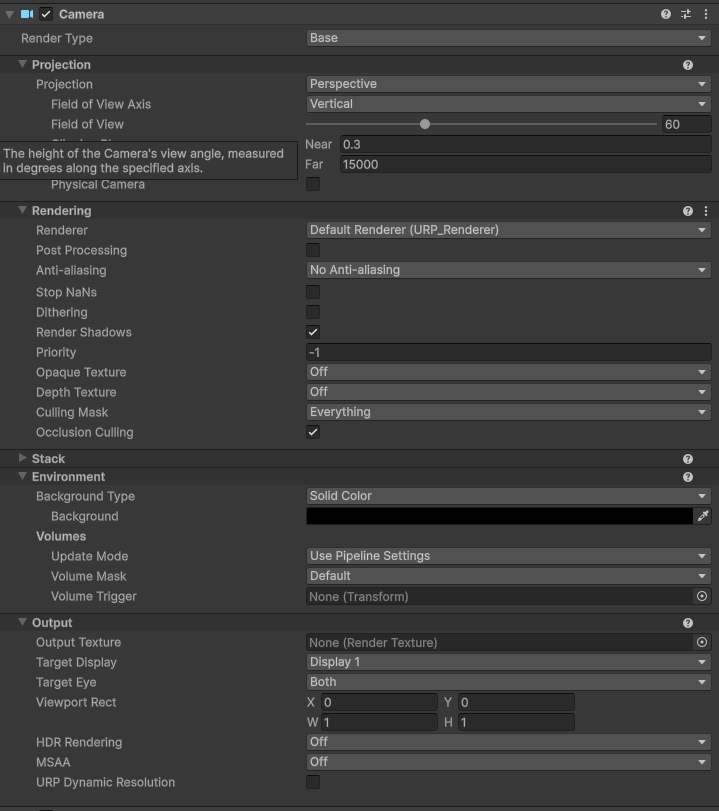
Set the Main Camera properties
Create LCCManager
Right-click an empty area in the Hierarchy window, select Create Empty from the pop-up menu to create an empty GameObject, name it LCCManager, normalize its Transform, and add the LCCManager script to it via Add Component.
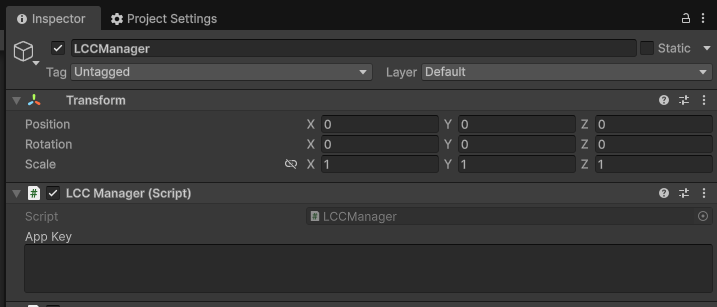
Create the LCCManager GameObject and add the LCCManager script
Create LCCRenderer
Right-click an empty area in the Hierarchy window, select Create Empty to create an empty GameObject, name it LCCRenderer, and set its Transform to Rotation.x = -90 and Scale.x = -1.
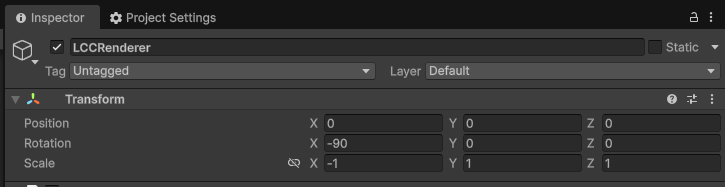
Create LCCRenderer and set its Transform (Rotation.x = -90, Scale.x = -1)
Note:
The Transform settings of the LCCRenderer GameObject (Rotation.x = -90, Scale.x = -1) align it with the LCC data coordinate system. For details on coordinate system alignment, see "LCC Data Coordinate System" in Unity SDK Introduction.
Step 2: Write a script to send down the lights
Create a new C# script named Relighting.cs with the following code:
using System.Collections.Generic;
using LCCCore;
using Unity.Mathematics;
using UnityEngine;

public class Relighting : MonoBehaviour
{
    public LCCManager m_manager;
    public string m_FilePath;
    private LCCCore.Renderer m_renderer;

    [Header("Point Light Settings")]
    public Vector3 pointLightPosition = new Vector3(0, 2, 0);
    public Color pointLightColor = Color.red;
    public float pointLightIntensity = 2.0f;
    public float pointLightRange = 3.0f;

    [Header("Spot Light Settings")]
    public Vector3 spotLightPosition = new Vector3(0, 2, -2);
    public Vector3 spotLightDirection = new Vector3(0, -1, 0);
    public Color spotLightColor = new Color(0.1f, 0.9f, 0.7f);
    public float spotLightIntensity = 3.0f;
    public float spotLightRange = 20.0f;
    public float spotLightAngle = 45.0f;

    [Header("Animation")]
    public bool animateLights = true;
    public float rotateSpeed = 30.0f;

    private List<PointLightData> m_lights = new List<PointLightData>();
    private float m_angle;

    void Start()
    {
        m_manager.SetPlatformType(PlatformType.PC);
        m_manager.SwitchRenderPass(ActiveRenderMode.SingleRender);
        m_manager.SetMainCamera(Camera.main);

        m_renderer = m_manager.GetRender(this.transform);
        m_renderer.Load(m_FilePath, onProgress, onComplete);
    }

    private void onProgress(float _progress)
    {
        Debug.Log($"[Relighting] load progress: {_progress:P1}");
    }

    private void onComplete()
    {
        Debug.Log("[Relighting] load complete, setting up lights");
        //m_manager.SetLightIntensity(0.5f);
        ApplyLights();
    }

    void Update()
    {
        if (!animateLights) return;

        m_angle += rotateSpeed * Time.deltaTime;
        ApplyLights();
    }

    private void ApplyLights()
    {
        m_lights.Clear();

        float rad = m_angle * Mathf.Deg2Rad;
        float px = pointLightPosition.x + Mathf.Cos(rad) * 3f;
        float pz = pointLightPosition.z + Mathf.Sin(rad) * 3f;

        // lightType 0 = point light
        m_lights.Add(new PointLightData
        {
            position = new float3(px, pointLightPosition.y, pz),
            lightType = 0,
            color = new float3(pointLightColor.r, pointLightColor.g, pointLightColor.b),
            intensity = pointLightIntensity,
            direction = float3.zero,
            range = pointLightRange,
            spotAngle = 0f,
            pad = float3.zero
        });

        // lightType 1 = spotlight
        Vector3 dir = spotLightDirection.normalized;
        m_lights.Add(new PointLightData
        {
            position = new float3(spotLightPosition.x, spotLightPosition.y, spotLightPosition.z),
            lightType = 1,
            color = new float3(spotLightColor.r, spotLightColor.g, spotLightColor.b),
            intensity = spotLightIntensity,
            direction = new float3(dir.x, dir.y, dir.z),
            range = spotLightRange,
            spotAngle = spotLightAngle,
            pad = float3.zero
        });

        int result = m_manager.SetLights(m_lights);
        if (result != 0)
            Debug.LogWarning($"[Relighting] SetLights failed: {result}");
    }

    void OnDisable()
    {
        // Pass null to disable custom lighting
        m_manager.SetLights(null);
    }
}
Note:
- Real-time lighting must be sent down after the LCC scene finishes loading, so the first
ApplyLights()is called in theonCompletecallback.- This example refreshes the light position every frame in
Updateto animate the point light moving along a circular path.- The light field type is
Unity.Mathematics.float3, which requiresusing Unity.Mathematics;.colorhas only three RGB components and no alpha.
Step 3: Attach the script and set the data path
- Attach the
Relighting.csscript to the LCCManager GameObject in the Hierarchy window. - In the Inspector window, drag the LCCManager GameObject onto the script's Manager property.
- Fill in the LCC file path in the script's File Path property.
- The remaining point light, spotlight, and animation properties can be configured freely.
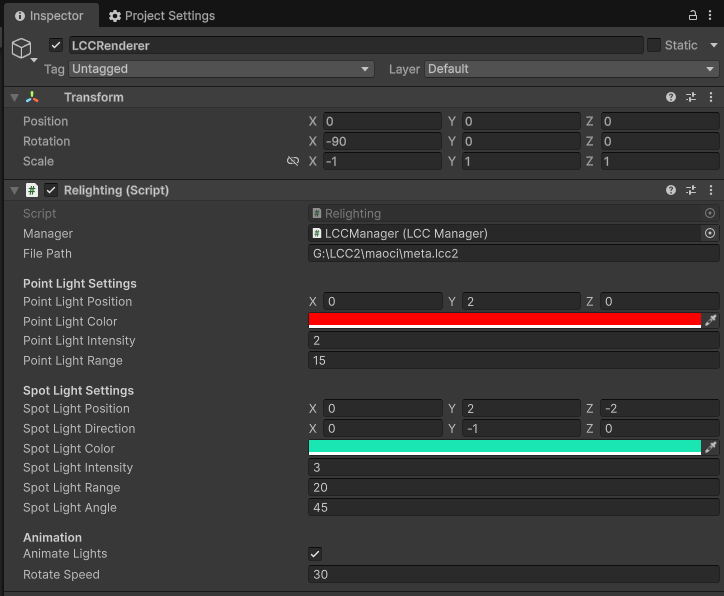
Attach the Relighting script and set its properties in the Inspector
In this example, one point light and one spotlight are created, and the point light moves along a circular path to demonstrate the real-time lighting effect.
Step 4: Run
Click the Play button in the Game window to see the real-time lighting effect in the scene.
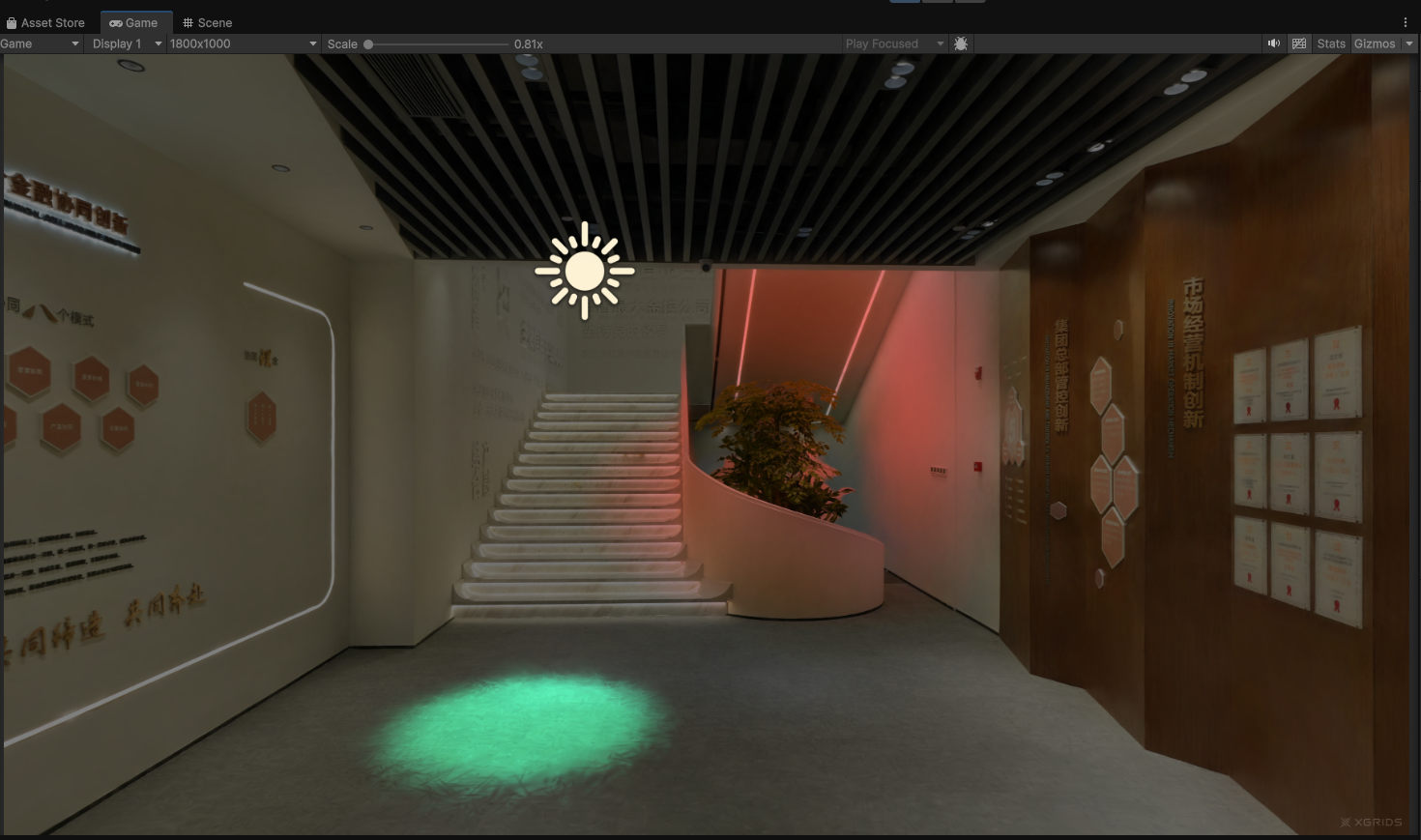
Real-time lighting effect in the 3DGS scene after running
Peculiarities of 3DGS Lighting
Lighting in 3DGS differs greatly from traditional Mesh model lighting. The lighting effect in 3DGS is written directly into the RGB color, meaning the lighting is baked into the rendered color components. Therefore, if a 3DGS model was captured on a sunny day with very strong hard shadows, re-lighting cannot remove those already-baked shadows.
In addition, the color range during rendering is [0, 1]. If you directly strengthen the lighting without any processing, overexposure will occur. To prevent overexposure, you usually darken the 3DGS scene first before re-lighting it.
In the SDK, the lighting intensity can be adjusted through LCCManager.SetLightIntensity(float _intensity):
- The input parameter
_intensityranges from[0, 1]. - This function affects the overall lighting effect: the stronger the configured light intensity, the darker the 3DGS scene is pushed.
- The default value is
0.5.
Tip:
Lighting calculation is a relatively expensive operation. The SDK supports a maximum of 50 dynamic lights (point lights and spotlights combined). When the limit is exceeded,
SetLightsreturns-1and takes no effect.
Key Steps
The key steps for adding real-time lighting to a 3DGS scene:
- Complete the pre-configuration of
SetPlatformType/SwitchRenderPass/SetMainCamera, and load the LCC scene viaGetRender+Load. - After the scene finishes loading (in the
onCompletecallback), build thePointLightDatalist and callSetLightsto send down the lights. - When animation is needed, update the light parameters in
Updateand callSetLightsagain. - If overexposure occurs, use
SetLightIntensityto darken the scene first before re-lighting. - To disable real-time lighting, pass
nullor an empty list toSetLights.
Real-time lighting APIs
The LCC Unity SDK provides the following two real-time lighting APIs through LCCManager. They must both be called after the LCC scene finishes loading (that is, in the onComplete callback).
SetLights
// Return value: int → 0 = success, -1 = exceeded the maximum count limit
public int SetLights(List<PointLightData> lights)
Sets the custom point light list. Passing null or an empty list disables custom lighting.
| Parameter | Type | Description |
|---|---|---|
lights | List<PointLightData> | Light list (up to 50 point lights and spotlights combined) |
Usage example:
using Unity.Mathematics; // float3

var lights = new List<PointLightData>();
lights.Add(new PointLightData {
    position = new float3(0, 5, 0),
    lightType = 0,              // 0=point light, 1=spotlight
    color = new float3(1, 1, 1),
    intensity = 2f,
    range = 10f
});
m_manager.SetLights(lights);
Notes:
- The field type is
Unity.Mathematics.float3, notVector4;colorhas no alpha component. lightType:0= point light (ignoresdirection/spotAngle),1= spotlight (requiresdirection/spotAngle).- The maximum count is 50 (point lights and spotlights combined); returns
-1when exceeded. - Passing
nullor an empty list disables custom lighting. - When enabled, the
_USERLIGHTshader keyword is enabled. - The data structure is named PointLightData because UnityEngine already defines LightData, to avoid ambiguity.
SetLightIntensity
// Return value: void
public void SetLightIntensity(float intensity)
Sets the global lighting intensity, used to darken the 3DGS scene before re-lighting to prevent overexposure.
| Parameter | Type | Description |
|---|---|---|
intensity | float | Lighting intensity, in the range [0, 1] |
Usage example:
m_manager.SetLightIntensity(0.5f);
Notes:
- The default value is
0.5. - Range
[0, 1]; values outside the range are clamped automatically. - The larger the value, the darker the overall 3DGS scene is pushed.
PointLightData data structure
public struct PointLightData {
    public float3 position;    // world position
    public int lightType;      // 0=point light, 1=spotlight
    public float3 color;       // rgb color (no alpha component)
    public float intensity;    // light intensity
    public float3 direction;   // spotlight direction (ignored for point lights)
    public float range;        // light range
    public float spotAngle;    // spotlight cone angle (degrees, ignored for point lights)
    public float3 pad;         // alignment padding, no assignment needed
}
| Field | Type | Description |
|---|---|---|
position | float3 | Light world position |
lightType | int | 0 = point light, 1 = spotlight |
color | float3 | RGB color (no alpha component) |
intensity | float | Light intensity |
direction | float3 | Spotlight direction, ignored for point lights |
range | float | Light range |
spotAngle | float | Spotlight cone angle (degrees), ignored for point lights |
pad | float3 | Alignment padding, no assignment needed |