
Installation and Deployment Guide
2 Server Environment Configuration (Ubuntu 20.04 or above ~ 24.04)
1. NVIDIA Graphics Driver Installation
# Download the driver
wget https://download.nvidia.com/XFree86/Linux-x86_64/550.120/NVIDIA-Linux-x86_64-550.120.run

All versions :https://download.nvidia.com/XFree86/Linux-x86_64/

chmod +x NVIDIA-Linux-x86_64-550.120.run

# Installation requires a gcc build environment; install build-essential if it is missing
sudo apt-get install build-essential -y

# Run the installer
sudo ./NVIDIA-Linux-x86_64-550.120.run
Note: Minimum Version Dependencies
| Driver | Version | Supported Architectures | Operating System |
|---|---|---|---|
| NVIDIA Linux Driver | 545.23.08 | x86_64, arm64-sbsa, POWER | Linux |
| NVIDIA Windows Driver | 546.12 | x86_64 (Windows) | Windows, WSL |
2. Docker and NVIDIA Graphics Card Support Installation
# Install docker on the server
sudo apt update
sudo apt install docker.io


# Install NVIDIA container support

# Option 1
# Follow the latest official installation documentation:
https://docs.nvidia.com/datacenter/cloud-native/container-toolkit/latest/install-guide.html

# Option 2
# In mainland China, online installation may fail because of network issues
# Download the .deb files for libnvidia-container1, libnvidia-container-tools, nvidia-container-runtime and nvidia-docker2 from the mirror https://mirror.cs.uchicago.edu/nvidia-docker/
# We also provide a temporary download address for the required deb packages: https://cdn-bukbb1.xgrids.cloud/static/nvidia/docker-nvidia-support-ubuntu.zip

# After obtaining all deb files, run the installation:
sudo dpkg -i ./*.deb  # Install all downloaded deb packages

# Restart docker
sudo systemctl restart docker

# Run a test container to check that the GPU works:
sudo docker run --rm --gpus all nvidia/cuda:11.6.2-base nvidia-smi

#docker: Error response from daemon: Get "https://registry-1.docker.io/v2/": net/http: request canceled while waiting for connection (Client.Timeout exceeded while awaiting headers).

"registry-mirrors": ["https://docker.anyhub.us.kg","https://dockerhub.jobcher.com","https://dockerhub.icu"]

sudo systemctl daemon-reload
sudo systemctl restart docker
3. Special Configuration (Required!)
1) Change Docker's cgroupdriver to cgroupfs
There is a known issue when using NVIDIA graphics cards in containers: Containers losing access to GPUs with error: "Failed to initialize NVML: Unknown Error"
The official status of this issue is currently unresolved. References:
https://github.com/NVIDIA/nvidia-docker/issues/1730
https://github.com/NVIDIA/nvidia-container-toolkit/issues/48
To confirm whether the server is affected by this issue:
 $ docker info
 ...
 Cgroup Driver: systemd     # If you see Cgroup Driver = systemd, this problem may occur
 Cgroup Version: 1
The official solution provided by NVIDIA:
Manually edit /etc/docker/daemon.json to add the parameter "exec-opts": ["native.cgroupdriver=cgroupfs"], then restart Docker.
(Set the parameter "exec-opts": ["native.cgroupdriver=cgroupfs"] in the /etc/docker/daemon.json file and restart docker.)
![The image shows the content of the Docker configuration file `/etc/docker/daemon.json`, in which the key part is the `exec-opts` field, whose value is `["native.cgroupdriver=cgroupfs"]`. This image relates to the special configuration section of the document, illustrating the official solution provided by NVIDIA, namely manually editing the `/etc/docker/daemon.json` file to add this parameter and then restarting Docker, in order to resolve the issue caused by the cgroupdriver problem.](https://cdn-bukbb1.xgrids.cloud/xgrids-docs/assets/03-daemon-cgroupfs-ghFTBv1U.webp)
2) Enable NVIDIA Graphics Driver Persistence Mode (Persistent Mode)
Enable persistence mode:
sudo nvidia-smi -pm 1
Impact of not enabling persistence mode:
- The GPU is initialized each time it is accessed, increasing latency
- Symptom: When running
nvidia-smi, CUDA programs, or loading models, the GPU goes through a driver initialization. The nvidia-smi command runs slowly. - Impact: Longer startup times, slow command response, and even lag at the application layer.
- Frequent power control switching, unstable performance
- When idle, the GPU automatically enters a low-power state (e.g., turning off VRAM, turning off the clock), and must "wake up" the GPU when reactivated.
- This causes "performance jitter" during high-frequency use.
- Reduced multitasking response efficiency in servers or clusters
- In scenarios with high-frequency GPU use such as deep learning training, inference, and graphics rendering, frequent initialization increases the system load, especially in multi-user/multi-process usage scenarios.
- Certain containers or daemon processes may repeatedly trigger GPU initialization
- For example, when Docker is misconfigured, a container may trigger a GPU initialization each time it starts.
After enabling:
- The GPU driver remains loaded at all times, with no need to reinitialize on each access.
- Shorter startup times, e.g., faster loading of CUDA programs and deep learning frameworks.
- More stable runtime performance, especially in clusters or automated tasks.
In heavy GPU usage scenarios such as servers, deep learning, and rendering: enabling is recommended.
Only in ordinary desktop use or power-sensitive environments (such as laptops) can it be turned off as appropriate to save power.
4. Other Known Issues
1) High-end graphics cards + multi-GPU servers: GPUs cannot be used properly inside containers
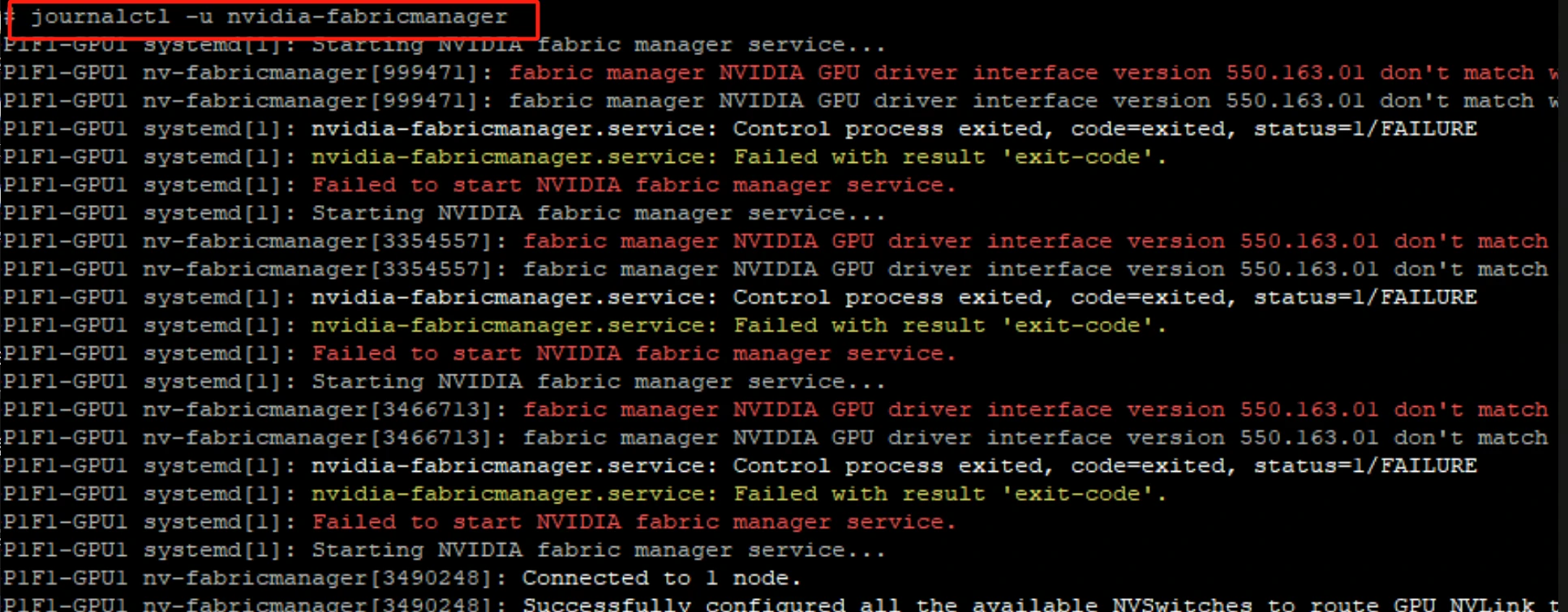
On servers with multiple high-end NVIDIA graphics cards (H100/V100/A100/A30, etc.), in addition to installing the corresponding driver, sometimes you also need to install the nvidia-fabricmanager service that exactly matches the driver version in order to perform reconstruction properly.
The failure symptom is that executing the nvidia-smi and nvcc commands inside the container both output normally; but the actual reconstruction fails; the reconstruction error is as follows, and multiple retries all fail:
- Error code:
0x34040070 - Error log:
Unspecified GPU Error: Update GPU drivers to the latest stable version and restart the computer.
Check the server error log, and you may find an error indicating that the nvidia-fabricmanager version is inconsistent:
Solution
Follow NVIDIA's official documentation to install the nvidia-fabricmanager that exactly matches the current driver version, and disable its automatic update at the operating system level. It is recommended that this be handled by the server's technical operations personnel.