
Project Settings Optimization Guide
3DGS rendering is centered on GPU sorting and rendering and is a heavy resource consumer. The project's graphics pipeline, graphics API, camera and quality settings directly determine frame rate and video memory usage. Reasonable project configuration can significantly improve frame rate and reduce video memory usage. This document describes scene organization, as well as recommended settings for the graphics pipeline, graphics API, camera and quality. It uses Unity 6000.0 LTS with the URP render pipeline as an example.
Scene Object Organization
For the SingleRender mode, create an empty GameObject in the scene, set its Transform properties, attach a custom script, obtain the Renderer object in that script, and call the renderer.Load() method to load data.
For the MultiRender mode, you typically create the corresponding empty GameObjects dynamically, set their Transform properties via code, bind one empty GameObject per Renderer object, and independently control each object's renderer.Load() method to load data.
In all modes, each scene can independently set its Position, Rotation and Scale, allowing independent operation and control.
Platform and Pipeline Settings
Because 3DGS data is reconstructed and trained in the Gamma color space, setting Color Space to Gamma helps improve rendering quality; rendering in the Linear color space makes the scene slightly washed out.
For platforms with different performance levels, the SDK provides GPU sorting algorithms of different performance, supporting Direct3D12, Direct3D11, Vulkan and Metal. They have been validated on Intel HD Graphics 620, NVIDIA RTX 1x/2x/3x/4x series, AMD 7900X series and Apple M1/M2 series.
Graphics API priority
The recommended graphics API priority per platform is as follows. On Windows, prefer Direct3D12 to help improve frame rate.
| Platform | Graphics API priority |
|---|---|
| Windows | Direct3D12 > Vulkan > Direct3D11 |
| Linux | Vulkan |
| macOS | Metal |
In the Unity menu bar, select File → Project Settings, select Player on the left side of the Project Settings window, switch to the tab of the target platform to publish to (Desktop for desktop; select Android if publishing to Android), expand the Other Settings section, and configure the graphics API per platform:
- Windows: uncheck Auto Graphics API for Windows, set Graphics APIs to Direct3D12, Vulkan, Direct3D11, and remove the other graphics APIs;
- macOS: uncheck Auto Graphics API for Mac, set Graphics APIs to Metal, and remove the other graphics APIs;
- Linux: uncheck Auto Graphics API for Linux, set Graphics APIs to Vulkan, and remove the other graphics APIs.
Finally, set the Color Space to Gamma, as shown below:
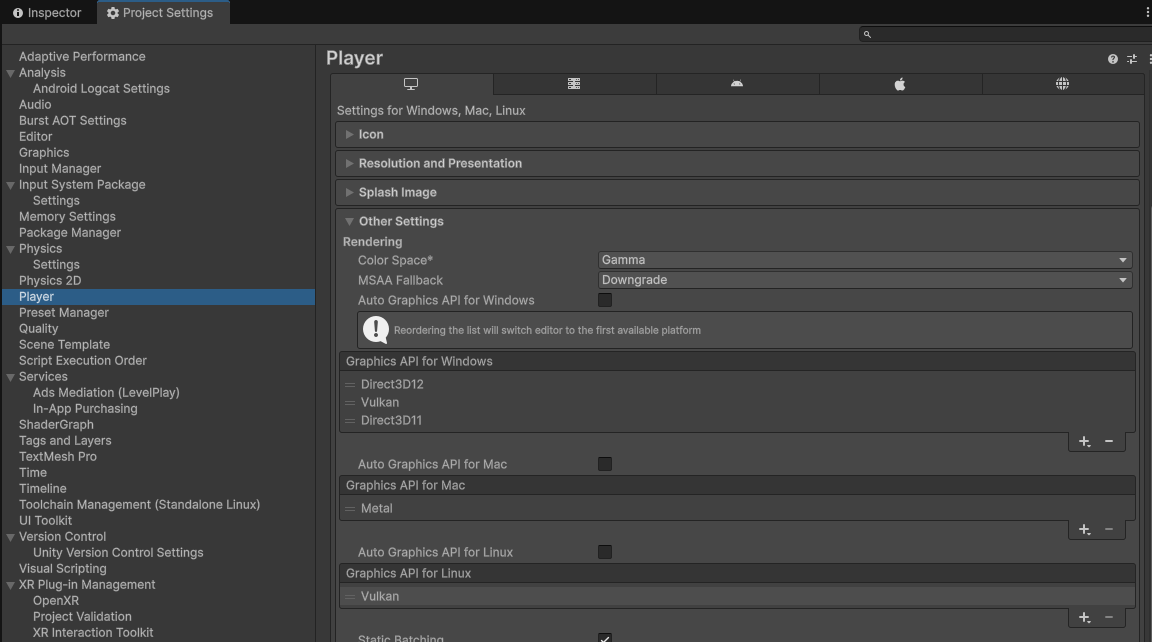
Set the graphics API
Graphics settings recommendations (same for PC and mobile)
On the left side of the Project Settings window, select Graphics and check the Render Asset used by the current Default Render Pipeline, which is Mobile_RPAsset in this example, as shown below:
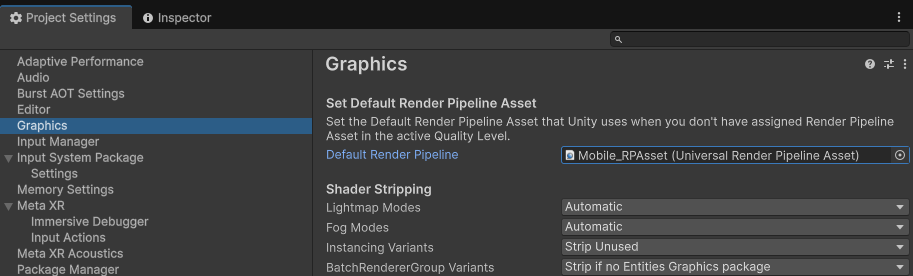
Check the Render Asset in use
On the left side of the Project Settings window, select Quality and check the Render Asset used by the current Default Render Pipeline, which is Mobile_RPAsset in this example. Set Resolution Scaling Fixed DPI Factor = 0.7 and VSync Count = Don't Sync, as shown below:
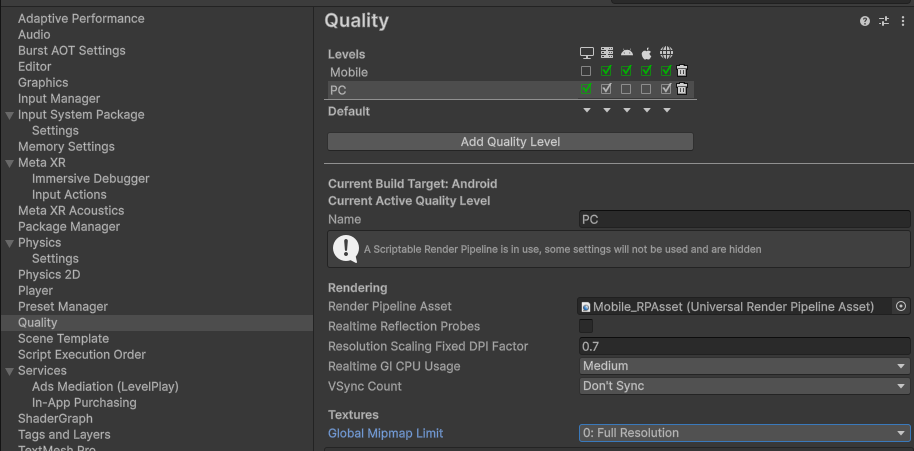
Check the Quality settings
Clicking the Render Asset used by the current Default Render Pipeline (Mobile_RPAsset in this example) locates that Asset in the Project window; select it and set the corresponding property toggles in the Inspector window.
For both PC and mobile, it is recommended to disable HDR, MSAA and similar modes to reduce bandwidth and video memory overhead:
- Disable Depth Texture
- Disable Opaque Texture
- Disable HDR
- Disable Anti Aliasing (MSAA)
You can also use URP's built-in super-resolution, i.e. set Render Scale = 0.7 and Upscaling Filter = Automatic, as shown below:
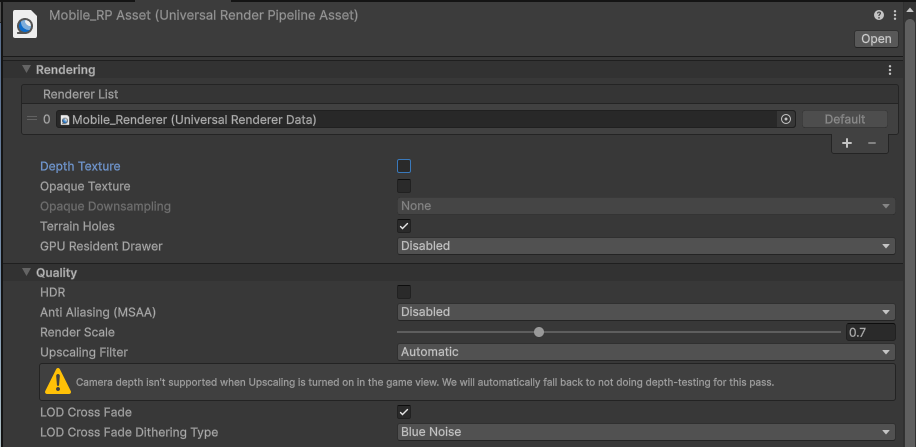
Disable HDR, Depth Texture, Opaque Texture and Anti Aliasing (MSAA) in the Render Pipeline Asset
Mobile (URP) uses the same strategy as PC: also disable HDR, Depth Texture, Opaque Texture and MSAA, and enable super-resolution.
Find the matching Renderer of the Render Asset used by the platform's Default Render Pipeline, which is Mobile_Renderer (Universal Renderer Data) in this example, and set its related properties in the Inspector window, as shown below:
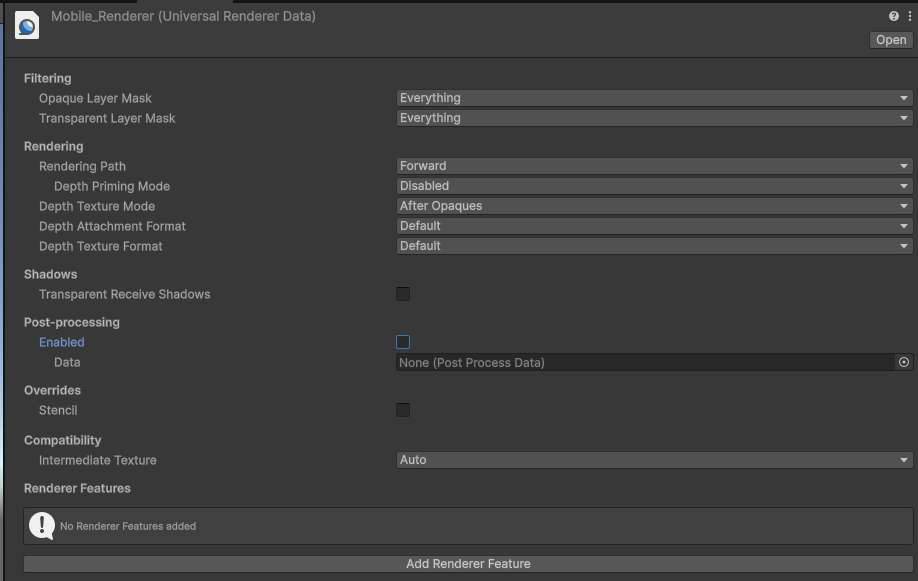
Set the Renderer
Camera Settings
Select the camera in the Hierarchy window (Main Camera by default), and set the Camera properties in the Inspector window:
| Property | Recommended value | Description |
|---|---|---|
| Field of View | 60 | FOV |
| Clipping Planes → Near | 0.2 ~ 0.3 | Near clipping plane |
| Clipping Planes → Far | 5000 ~ 15000 | Far clipping plane, covering large scenes |
| Anti-aliasing | No Anti-aliasing | Anti-aliasing disabled by default |
| Opaque Texture | Off | Disabled by default |
| Depth Texture | Off | Disabled by default |
| Background Type | Solid Color | Solid color recommended |
| Background | Black | Black recommended as the default background color |
| HDR Rendering | Off | Disabled by default |
| MSAA | Off | Disabled by default |
Other properties can be set as needed.
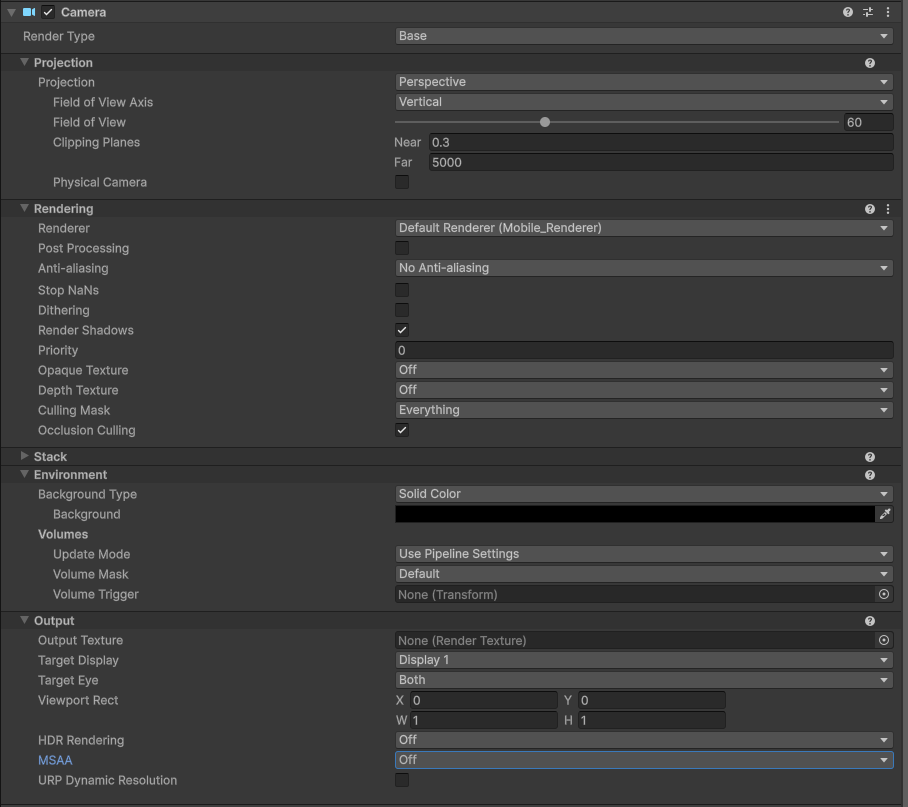
Set the camera Clipping Planes, Clear Flags and background color in the Inspector