
实时光照开发指南
LCC Unity SDK 支持动态点光源和聚光灯光源的实时光照。下面通过一个点光源绕圆周运动的示例,介绍实现实时光照的完整步骤。
步骤 1:创建场景与游戏对象
在 Unity 中创建一个全新的场景,Unity 默认会创建 Main Camera 和 Directional Light。
设置 Main Camera
在 Hierarchy 窗口中选择 Main Camera,在 Inspector 窗口中按下图设置其属性。
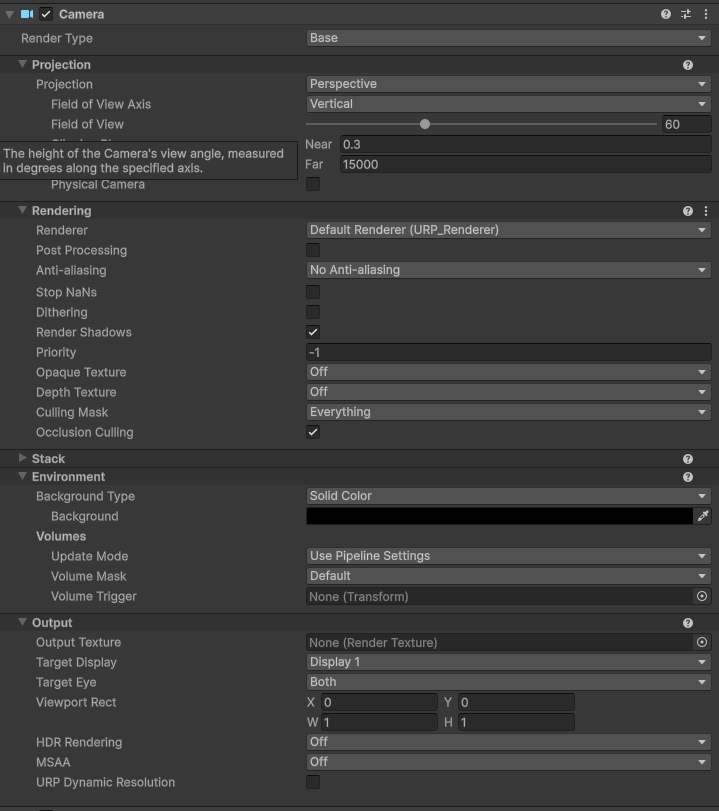
设置 Main Camera 的属性
创建 LCCManager
在 Hierarchy 窗口空白处单击鼠标右键,在弹出的菜单中选择 Create Empty,创建一个空游戏对象,命名为 LCCManager,将其 Transform 归一,并通过 Add Component 为其添加 LCCManager 脚本。
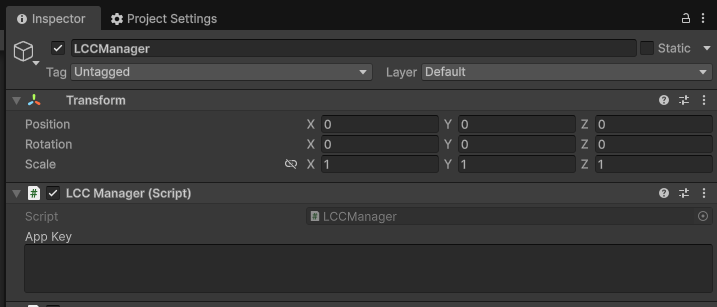
创建 LCCManager 游戏对象并添加 LCCManager 脚本
创建 LCCRenderer
在 Hierarchy 窗口空白处单击鼠标右键,选择 Create Empty,创建一个空游戏对象,命名为 LCCRenderer,将其 Transform 设置为 Rotation.x = -90、Scale.x = -1。
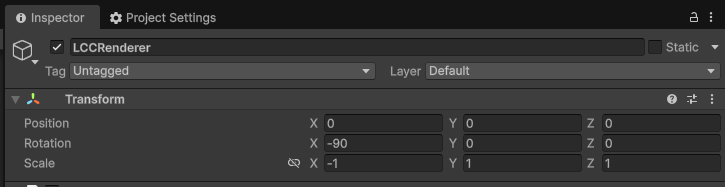
创建 LCCRenderer 并设置 Transform(Rotation.x = -90、Scale.x = -1)
注意:
LCCRenderer 游戏对象的 Transform 设置(Rotation.x = -90、Scale.x = -1)是与 LCC 数据坐标系的对齐。关于坐标系对齐的详细说明,参见 Unity SDK 简介 中的「LCC 数据坐标系」。
步骤 2:编写脚本下发光源
新建一个 C# 脚本,命名为 Relighting.cs,代码如下:
using System.Collections.Generic;
using LCCCore;
using Unity.Mathematics;
using UnityEngine;

public class Relighting : MonoBehaviour
{
    public LCCManager m_manager;
    public string m_FilePath;
    private LCCCore.Renderer m_renderer;

    [Header("Point Light Settings")]
    public Vector3 pointLightPosition = new Vector3(0, 2, 0);
    public Color pointLightColor = Color.red;
    public float pointLightIntensity = 2.0f;
    public float pointLightRange = 3.0f;

    [Header("Spot Light Settings")]
    public Vector3 spotLightPosition = new Vector3(0, 2, -2);
    public Vector3 spotLightDirection = new Vector3(0, -1, 0);
    public Color spotLightColor = new Color(0.1f, 0.9f, 0.7f);
    public float spotLightIntensity = 3.0f;
    public float spotLightRange = 20.0f;
    public float spotLightAngle = 45.0f;

    [Header("Animation")]
    public bool animateLights = true;
    public float rotateSpeed = 30.0f;

    private List<PointLightData> m_lights = new List<PointLightData>();
    private float m_angle;

    void Start()
    {
        m_manager.SetPlatformType(PlatformType.PC);
        m_manager.SwitchRenderPass(ActiveRenderMode.SingleRender);
        m_manager.SetMainCamera(Camera.main);

        m_renderer = m_manager.GetRender(this.transform);
        m_renderer.Load(m_FilePath, onProgress, onComplete);
    }

    private void onProgress(float _progress)
    {
        Debug.Log($"[Relighting] load progress: {_progress:P1}");
    }

    private void onComplete()
    {
        Debug.Log("[Relighting] load complete, setting up lights");
        //m_manager.SetLightIntensity(0.5f);
        ApplyLights();
    }

    void Update()
    {
        if (!animateLights) return;

        m_angle += rotateSpeed * Time.deltaTime;
        ApplyLights();
    }

    private void ApplyLights()
    {
        m_lights.Clear();

        float rad = m_angle * Mathf.Deg2Rad;
        float px = pointLightPosition.x + Mathf.Cos(rad) * 3f;
        float pz = pointLightPosition.z + Mathf.Sin(rad) * 3f;

        // lightType 0 = 点光源
        m_lights.Add(new PointLightData
        {
            position = new float3(px, pointLightPosition.y, pz),
            lightType = 0,
            color = new float3(pointLightColor.r, pointLightColor.g, pointLightColor.b),
            intensity = pointLightIntensity,
            direction = float3.zero,
            range = pointLightRange,
            spotAngle = 0f,
            pad = float3.zero
        });

        // lightType 1 = 聚光灯
        Vector3 dir = spotLightDirection.normalized;
        m_lights.Add(new PointLightData
        {
            position = new float3(spotLightPosition.x, spotLightPosition.y, spotLightPosition.z),
            lightType = 1,
            color = new float3(spotLightColor.r, spotLightColor.g, spotLightColor.b),
            intensity = spotLightIntensity,
            direction = new float3(dir.x, dir.y, dir.z),
            range = spotLightRange,
            spotAngle = spotLightAngle,
            pad = float3.zero
        });

        int result = m_manager.SetLights(m_lights);
        if (result != 0)
            Debug.LogWarning($"[Relighting] SetLights failed: {result}");
    }

    void OnDisable()
    {
        // 传入 null 关闭自定义光照
        m_manager.SetLights(null);
    }
}
注意:
- 实时光照需要在 LCC 场景加载完成后下发,因此首次
ApplyLights()在onComplete回调中调用。- 本示例在
Update中每帧刷新光源位置,实现点光源绕圆周运动的动画效果。- 光源字段类型为
Unity.Mathematics.float3,需要using Unity.Mathematics;;color只有 RGB 三个分量,没有 alpha。
步骤 3:挂载脚本并设置数据路径
- 将
Relighting.cs脚本挂载到 Hierarchy 窗口中的 LCCManager 游戏对象上。 - 在 Inspector 窗口中,将 LCCManager 游戏对象拖动到脚本的 Manager 属性上。
- 在脚本的 File Path 属性中填写 LCC 文件的路径地址。
- 其余点光源、聚光灯、动画相关的属性可自由设置。
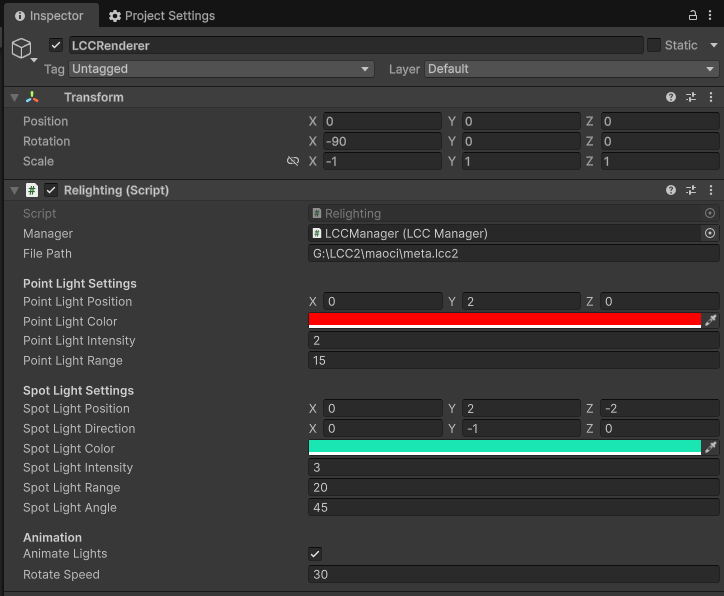
挂载 Relighting 脚本并在 Inspector 中设置属性
在本示例中,创建了一个点光源和一个聚光灯光源,并让点光源绕圆周运动,用于演示实时光照效果。
步骤 4:运行
在 Game 窗口中点击 Play 按钮,即可看到场景中的实时光照效果。
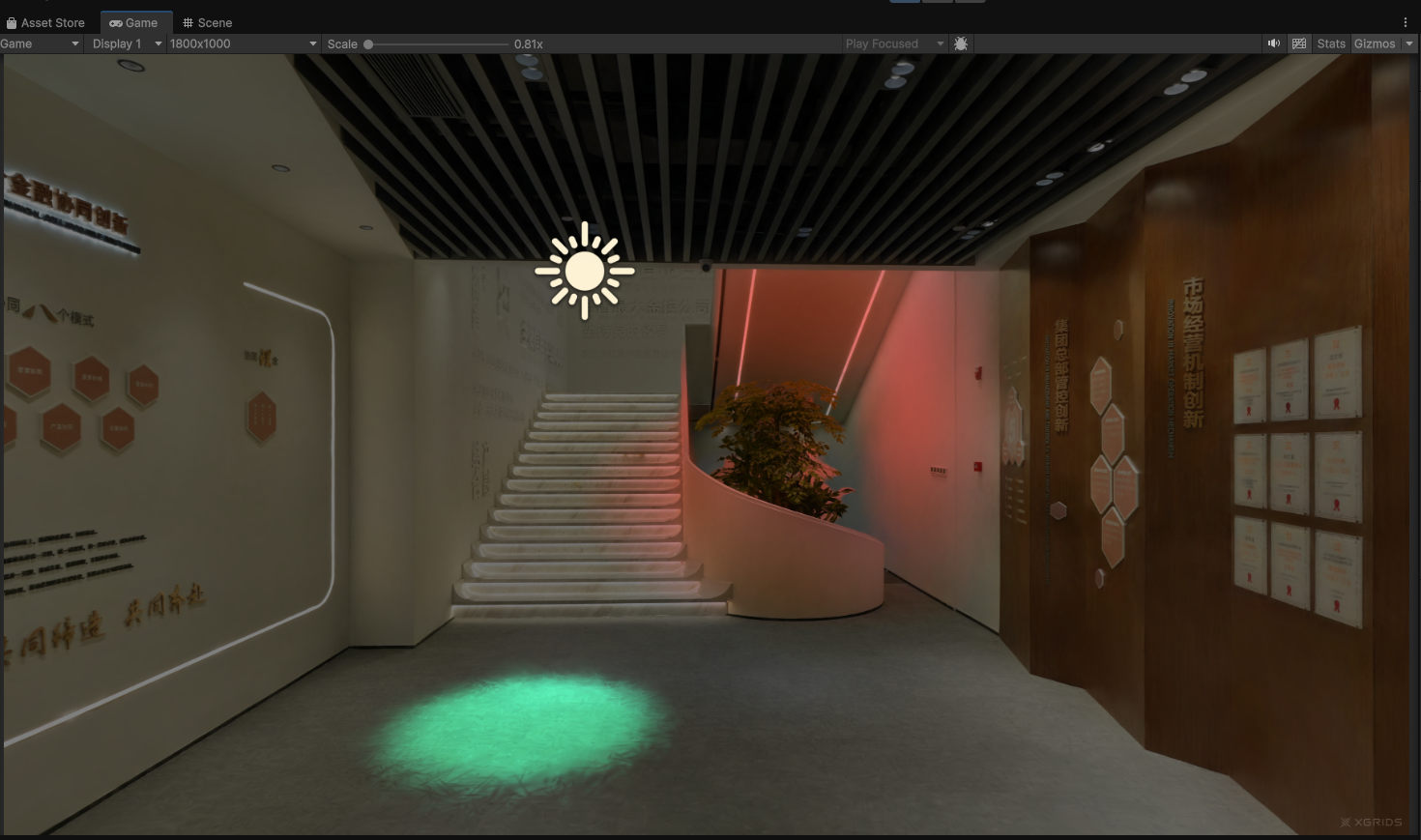
运行后 3DGS 场景中的实时光照效果
3DGS 光照的特殊性
3DGS 中的光照相比于传统 Mesh 模型光照有较大的不同。3DGS 的光照效果是直接写入到 RGB 颜色中的,即光照部分固化到了渲染颜色分量中。因此,如果 3DGS 模型是在大太阳晴天采集、带有非常强烈的硬阴影,重打光也无法消除这些已经固化的阴影。
另外,渲染时颜色取值范围为 [0, 1]。如果不做处理直接增强光照,会出现过曝现象。为防止过曝,通常会将 3DGS 场景先压暗一点再重打光。
在 SDK 中可通过 LCCManager.SetLightIntensity(float _intensity) 方法调整光照强度:
- 输入参数
_intensity取值范围为[0, 1]。 - 该函数影响整体光照效果:设置的光照强度越强,3DGS 场景会被压得越暗。
- 默认值为
0.5。
提示:
光照计算是相对消耗性能的操作。SDK 最大支持 50 个动态光源(点光源和聚光灯光源合计)。超出上限时
SetLights会返回-1且不生效。
关键步骤
为 3DGS 场景添加实时光照的关键步骤:
- 完成
SetPlatformType/SwitchRenderPass/SetMainCamera等前置配置,并通过GetRender+Load加载 LCC 场景。 - 在场景加载完成后(
onComplete回调中)构建PointLightData列表并调用SetLights下发光源。 - 需要动画时,在
Update中更新光源参数并重新调用SetLights。 - 如出现过曝,通过
SetLightIntensity先将场景压暗再重打光。 - 关闭实时光照时,向
SetLights传入null或空列表。
实时光照相关 API
LCC Unity SDK 通过 LCCManager 提供了以下两个实时光照相关 API。它们都需要在 LCC 场景加载完成后调用(即在 onComplete 回调中)。
SetLights
// 返回值:int → 0=成功, -1=超出最大数量限制
public int SetLights(List<PointLightData> lights)
设置自定义点光源列表。传入 null 或空列表可关闭自定义光照。
| 参数 | 类型 | 说明 |
|---|---|---|
lights | List<PointLightData> | 光源列表(点光源与聚光灯合计最多 50 个) |
调用示例:
using Unity.Mathematics; // float3

var lights = new List<PointLightData>();
lights.Add(new PointLightData {
    position = new float3(0, 5, 0),
    lightType = 0,              // 0=点光源, 1=聚光灯
    color = new float3(1, 1, 1),
    intensity = 2f,
    range = 10f
});
m_manager.SetLights(lights);
说明:
- 字段类型为
Unity.Mathematics.float3,非Vector4;color无 alpha 分量。 lightType:0= 点光源(忽略direction/spotAngle),1= 聚光灯(需设置direction/spotAngle)。- 最大数量为 50(点光源与聚光灯合计),超出返回
-1。 - 传入
null或空列表关闭自定义光照。 - 开启后会启用
_USERLIGHTshader keyword。 - 数据结构定名为 PointLightData 原因是 UnityEngine 已定义 LightData ,为避免歧义。
SetLightIntensity
// 返回值:void
public void SetLightIntensity(float intensity)
设置全局光照强度,用于在重打光前压暗 3DGS 场景、防止过曝。
| 参数 | 类型 | 说明 |
|---|---|---|
intensity | float | 光照强度,取值范围 [0, 1] |
调用示例:
m_manager.SetLightIntensity(0.5f);
说明:
- 默认值为
0.5。 - 取值范围
[0, 1],超出范围会自动钳制。 - 值越大,3DGS 场景整体被压得越暗。
PointLightData 数据结构
public struct PointLightData {
    public float3 position;    // 世界坐标
    public int lightType;      // 0=点光源, 1=聚光灯
    public float3 color;       // rgb 颜色(无 alpha 分量)
    public float intensity;    // 光照强度
    public float3 direction;   // 聚光灯朝向(点光源忽略)
    public float range;        // 光照范围
    public float spotAngle;    // 聚光灯锥角(度,点光源忽略)
    public float3 pad;         // 对齐填充,无需赋值
}
| 字段 | 类型 | 说明 |
|---|---|---|
position | float3 | 光源世界坐标 |
lightType | int | 0 = 点光源,1 = 聚光灯 |
color | float3 | RGB 颜色(无 alpha 分量) |
intensity | float | 光照强度 |
direction | float3 | 聚光灯朝向,点光源忽略 |
range | float | 光照范围 |
spotAngle | float | 聚光灯锥角(度),点光源忽略 |
pad | float3 | 对齐填充,无需赋值 |