
Applications
This chapter covers industry applications such as volume calculation, volume comparison, enclosed volume calculation, and Mesh generation.
Volume Calculation
Description:
Measure and calculate the volume of stockpile point cloud data.
Steps:
- Select the point cloud, then click Volume Calculation
 . The Volume Calculation panel opens on the right.
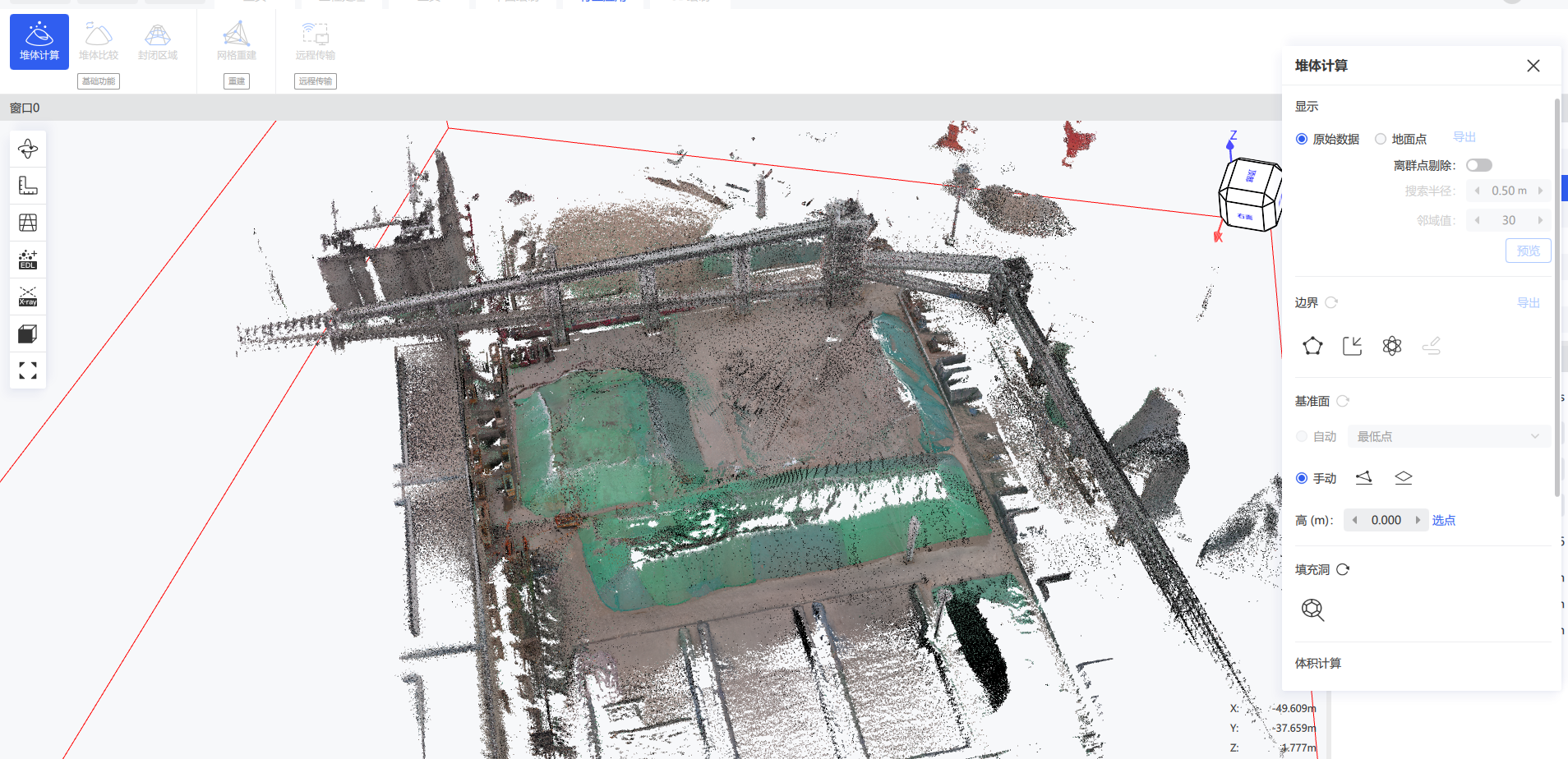
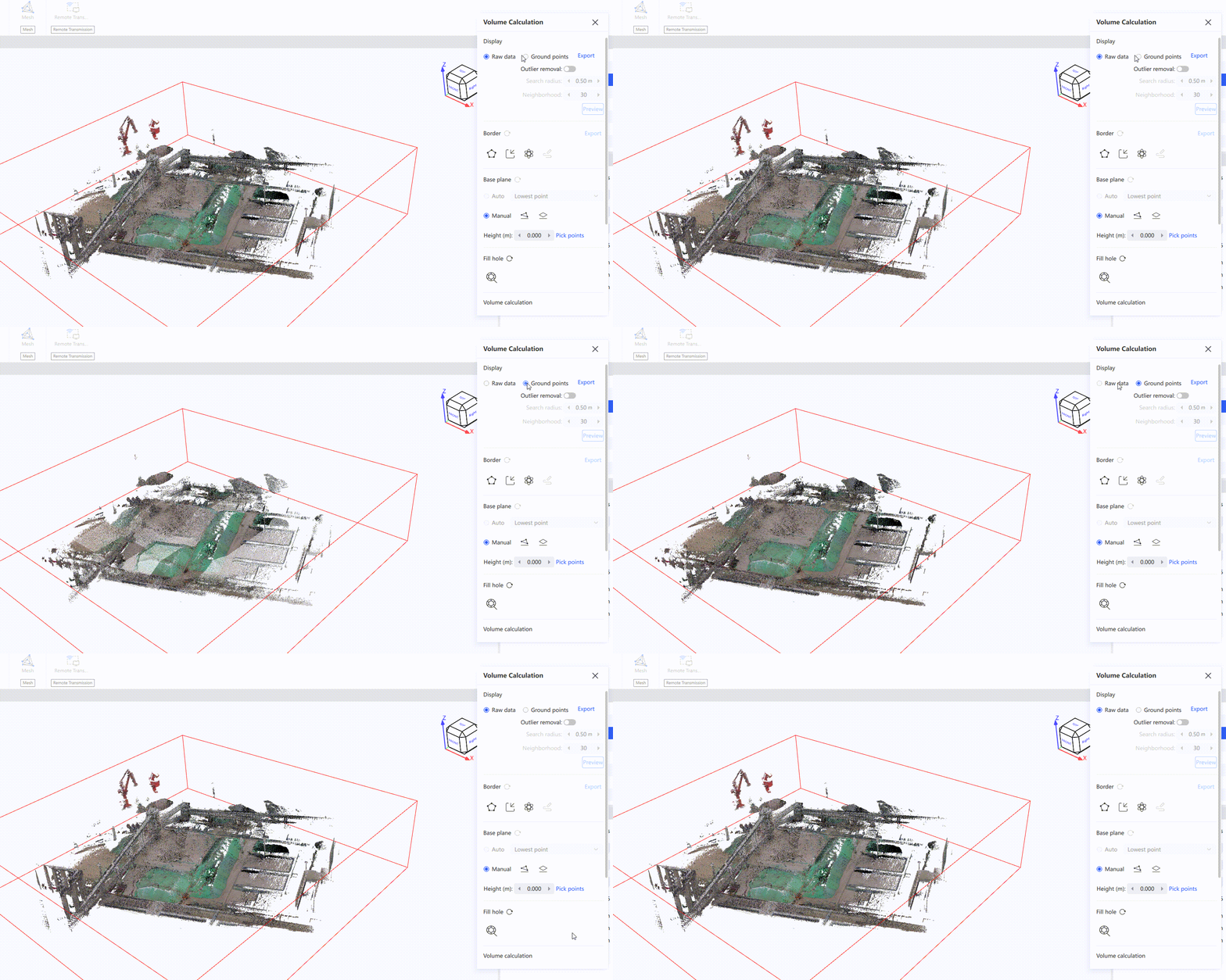
- After enabling Show Ground Points, the software automatically extracts the ground points. If noise remains in the result, enable Outlier Removal to clear it. You can switch between the original point cloud and the ground points at any time.
- There are three ways to define the boundary for volume calculation: draw it manually, import a boundary, or auto-detect the stockpile range
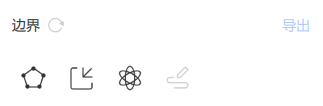 . Once the boundary is confirmed, you can enter edit mode to adjust it, either deleting an entire boundary line or modifying individual nodes.
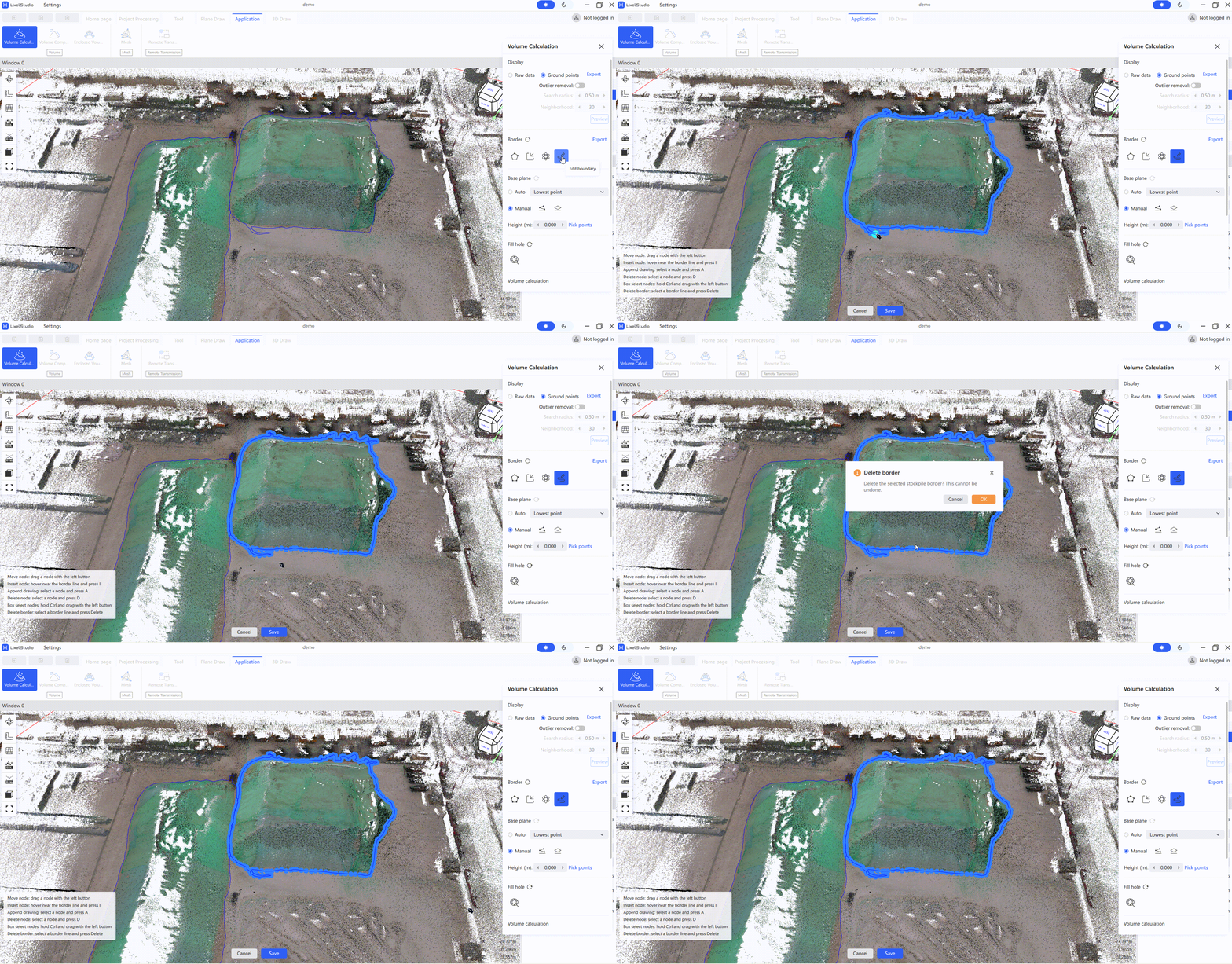
- Select the base plane. Two modes are available: Three-Point Plane and Horizontal Plane.
| Base Plane Mode | Description |
|---|---|
| Auto Select | The software automatically determines the base plane from the nodes of the boundary line |
| Three-Point Plane | Click the point selection button below the base plane, then click three points around the stockpile to draw the base plane |
| Horizontal Plane | Enter the base plane height in the popup, and the base plane is automatically generated in the model |
- Click Fill Holes
 to fill the point cloud holes in the stockpile. Left-click to select points, and right-click to end. To reset, click the reset button to the right of Fill Holes.
 - Set the mesh building parameters in the right panel. The mesh density represents the point cloud mesh grid size; generally, the default parameters are sufficient.
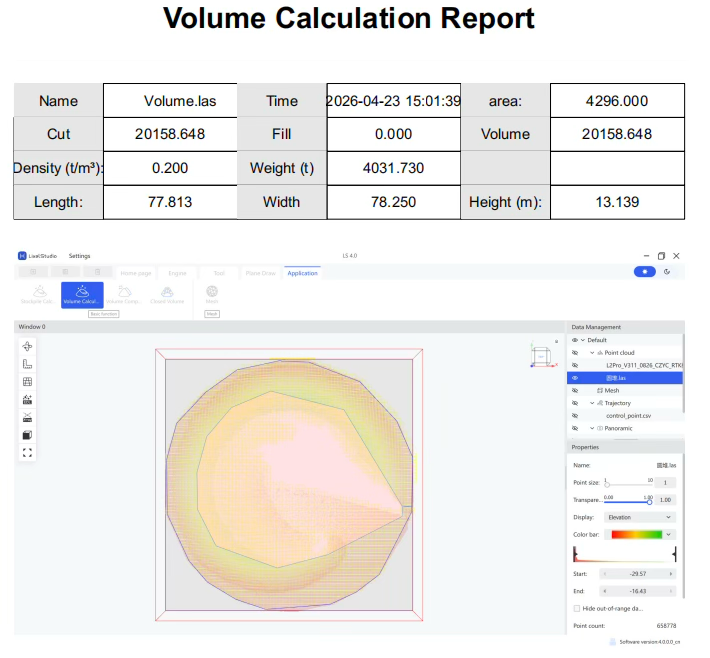
- Click Calculate to start the stockpile volume calculation. When it finishes, the results are displayed below.
- Click Export Report to export the result report. Choose the save path and filename yourself.
Volume Comparison
Compare two periods of stockpile data.
Note: The two periods of point cloud must maintain a consistent base plane. Registration is recommended.
- Select the point clouds.
- Click Volume Comparison
 .
.
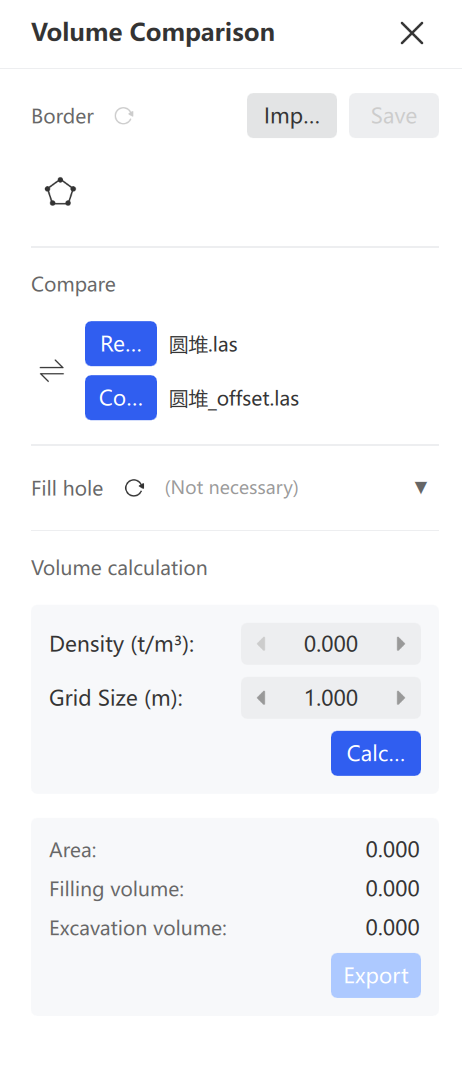
- Draw Border: Click Draw Border
 , left-click the boundary, and right-click to end. Click the save button to save the border.
 - Confirm Base and Change: Identify which dataset is the base and which is the change. Click Switch
 to adjust if needed.
 - Fill Holes (Optional): Click the point cloud requiring hole filling and perform the operation.
- Set Mesh Parameters: Set the Mesh Density. Generally use the default parameters.
- Calculate: Click Calculate and view the comparison results.
- Export Report: Click Export Report, then select the save path and filename.
Enclosed Volume Calculation
Calculate the volumes of enclosed areas such as mine tunnels and cabins.
Note: Denoise and downsample the point cloud first so that the data contains only the calculation area.
- Select the point cloud.
- Click Enclosed Volume
 .
.
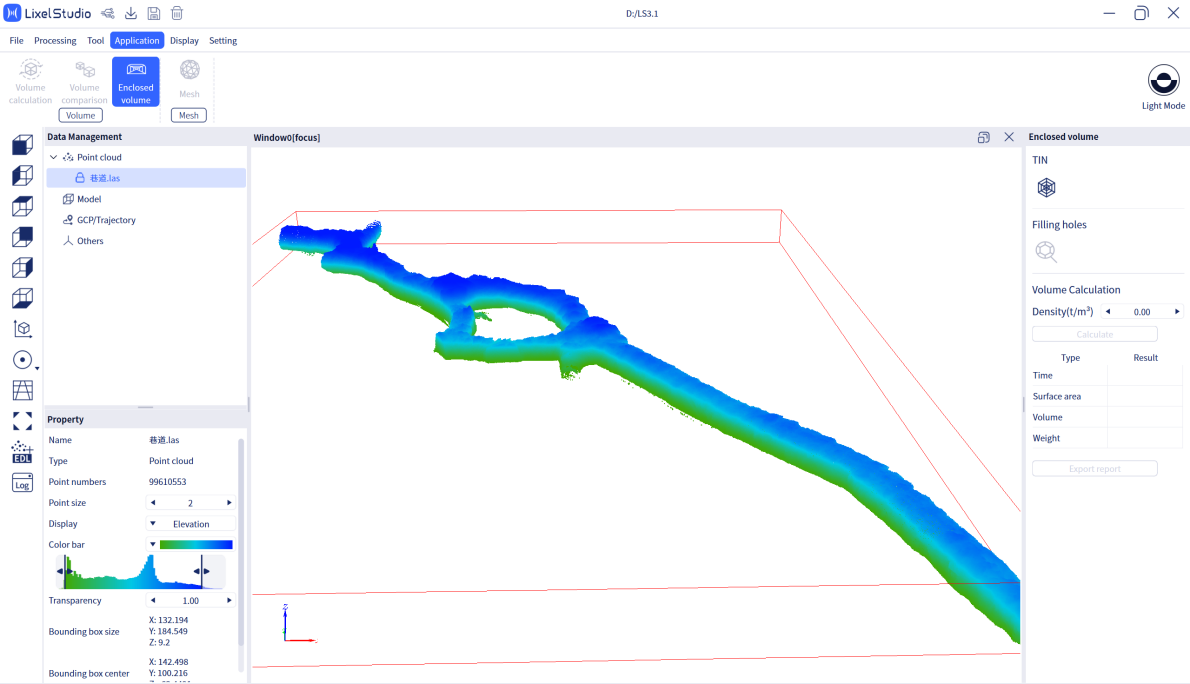
- Create Mesh: Click Mesh
 and wait for the TIN (Triangulated Irregular Network) to be built.
 - Fill Holes: Click Fill Holes
 . The software auto-fills mesh holes to obtain a complete enclosed model.
 - Modify Density (Optional): Adjust if weight calculation is not needed.
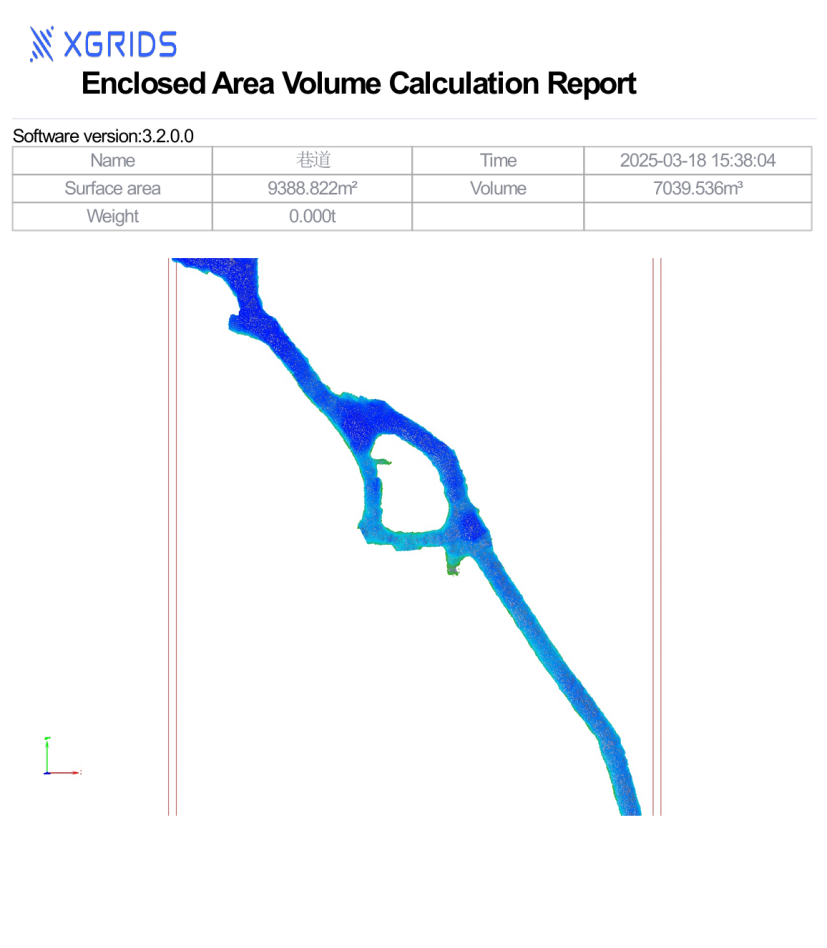
- Calculate: Click Calculate, select the
XXX_tinflXXXX.plyfile, and view the volume and surface area data. - Export Report: Click Export Report, then select the save path and filename.
- Exit: Click Enclosed Volume in the menu to exit.
Mesh
One-click textured 3D mesh generation from L1/L2 laser point clouds with external panoramic camera data, and from K1/K2/L2 Pro point clouds with onboard panoramic camera data.
- Click Mesh.
- Input the scanned result data folder (after panoramic coloring).
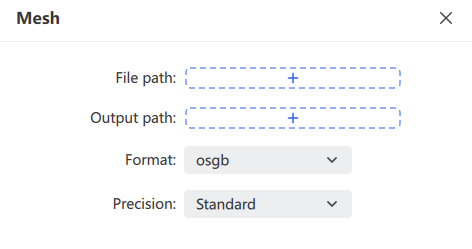
- Choose the export path and format (
.objor.osgb). - The software generates the textured 3D model.
Note: This version supports K1, K2, and L2 Pro result data with onboard colorization and panoramic photo output. It only processes post-processed
.lasresults under 50 GB.
Remote Transfer
Stream a handheld device's working data to LixelStudio in real time over a mobile network. Use it to remotely monitor operators and devices, start or stop scanning remotely and generate data in real time, and store the device's real-time discrete data as structured data for post-processing and other operations.
Note: Remote Transfer only supports K1 and L2 Pro devices with firmware 3.0 or later.
Steps:
- Click Remote Transfer
 in the menu bar to open the feature.
 - Choose a connection method.
- Click the target device to enter the live view.
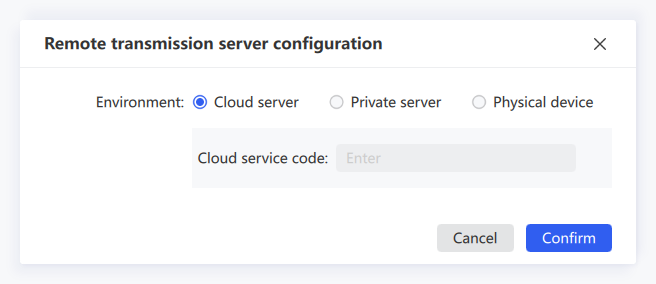
Remote Transfer offers three connection methods: Cloud Service Code, Private Server, and Physical Device.
Cloud Service Code
A cloud service provided by XGRIDS. Register and apply for a service code before use. Users sharing the same service code can see all cloud-connected devices under that code. Using the cloud service requires no self-hosted server; it handles data transfer, storage, and forwarding. Obtain the service code in advance by contacting your sales representative.
- Configure the mobile App: set the network transfer type to Cloud Service Code and enter the service code. For details, see the K1 and L2 Pro user manuals.
- After configuring the App, select Cloud Service Code in LixelStudio, enter the same service code as in the App, and click Confirm. The corresponding device is then displayed.
- Click the device. Once it starts recording, you can view it in real time.
Private Server
Use the remote transfer service through a private server address and access key. Contact technical support for private server deployment and access key generation.
Physical Device
Connect directly to the device via USB or WiFi.
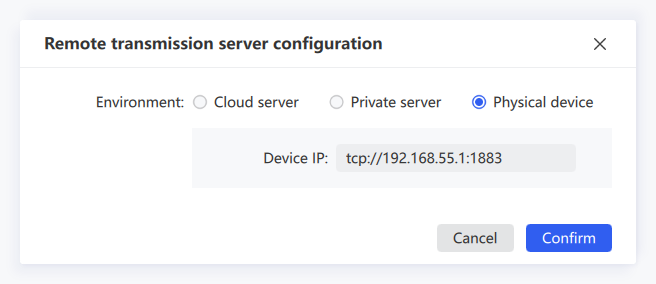
- For a USB connection, the IP address is usually
tcp://192.168.55.1:1883. For a WiFi connection, the computer must first connect to the phone hotspot (the same hotspot the device connects to). - Click Bridge Mode in the App to view the current IP address, then enter that IP on the computer. Once configured correctly, you enter the live view.
Live View Controls
| Icon | Control | Description |
|---|---|---|
 | Start Scanning | Remotely starts scanning on the device |
| Stop Scanning | Remotely stops scanning on the device | |
 | Reconnect | Reconnects after the network is interrupted |
 | Property Settings | Sets the point size, rendering mode (elevation, intensity, time, single color), and opacity of the real-time rendered point cloud |
 | Browse Mode | Switches between free browsing and trajectory-following browsing |
 | Pause/Resume Transfer | Pauses or resumes point cloud transfer. Click to pause; click again to resume |
 | Save | Saves the point cloud transferred in real time |
 | Close | Exits Remote Transfer |
Note: Point clouds during a pause are not saved in LixelStudio.