
Device Activation and Connection
The Lixel K1 is connected, activated, and managed through the LixelGO app on your phone. This chapter covers the installation environment requirements for LixelGO and the full device activation and connection workflow.
About LixelGO
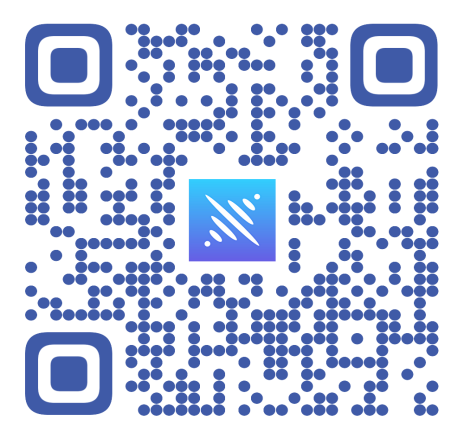
LixelGO is the phone app for the Lixel K1 as well as the L1 and L2. It supports Wi-Fi and 5G/4G real-time transmission for connection and synchronized work, quick switching between true-color and elevation modes, and viewing and managing projects, enabling cloud management of digital 3D spatial assets. Scan the code to install LixelGO.
Recommended Installation Environment
Phone configuration requirements:
| Module | Requirement |
|---|---|
| CPU | Snapdragon series, Snapdragon 8 or above recommended |
| Random Access Memory | 8 GB minimum |
| Display chip | Discrete display chip |
| Other | Supports Bluetooth, wireless hotspot, and USB tethering |
Phones verified to work well in testing:
| Brand | Model | CPU | RAM | GPU |
|---|---|---|---|---|
| VIVO | IQOO NEO 6 | Snapdragon 8+ Gen 1 | 12 GB | Adreno 730 |
| Redmi | Redmi K50 Gaming Edition | Qualcomm Snapdragon 8 Gen 1 | 8 GB | Adreno 730 |
| Huawei | Huawei P50E | Snapdragon 778G | 8 GB | Adreno 642L |
| OPPO | OPPO K10 | Dimensity 8000-MAX | 8 GB | Mali-G510 MC6 |
Device Activation
1. Register and log in to LixelGO
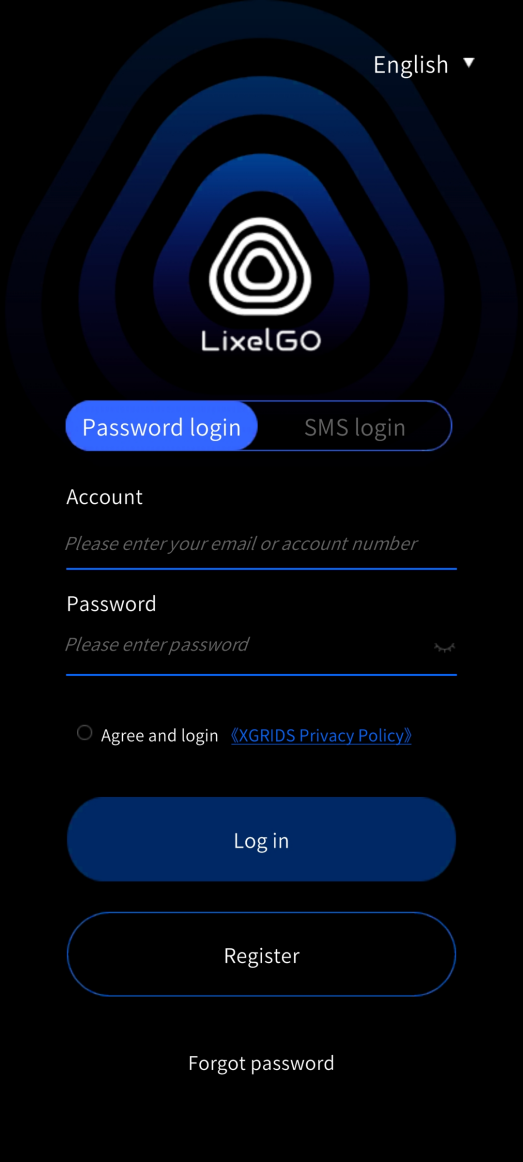
After installing LixelGO, open the app and tap Use Now to enter the login/registration screen. New users should register with an email or phone number. Registered users can log in with account and password or via SMS.
2. Forgot password
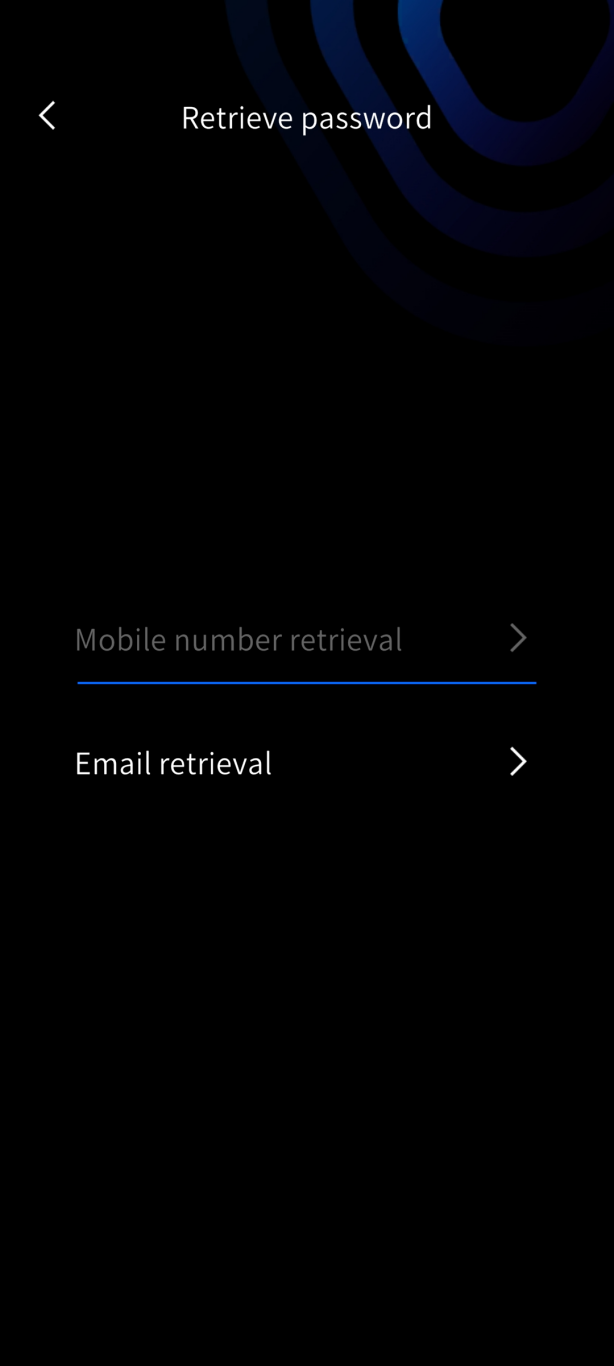
If you have registered an account but forgot the password, tap "Forgot password" on the screen and retrieve it via your registered phone number or email.
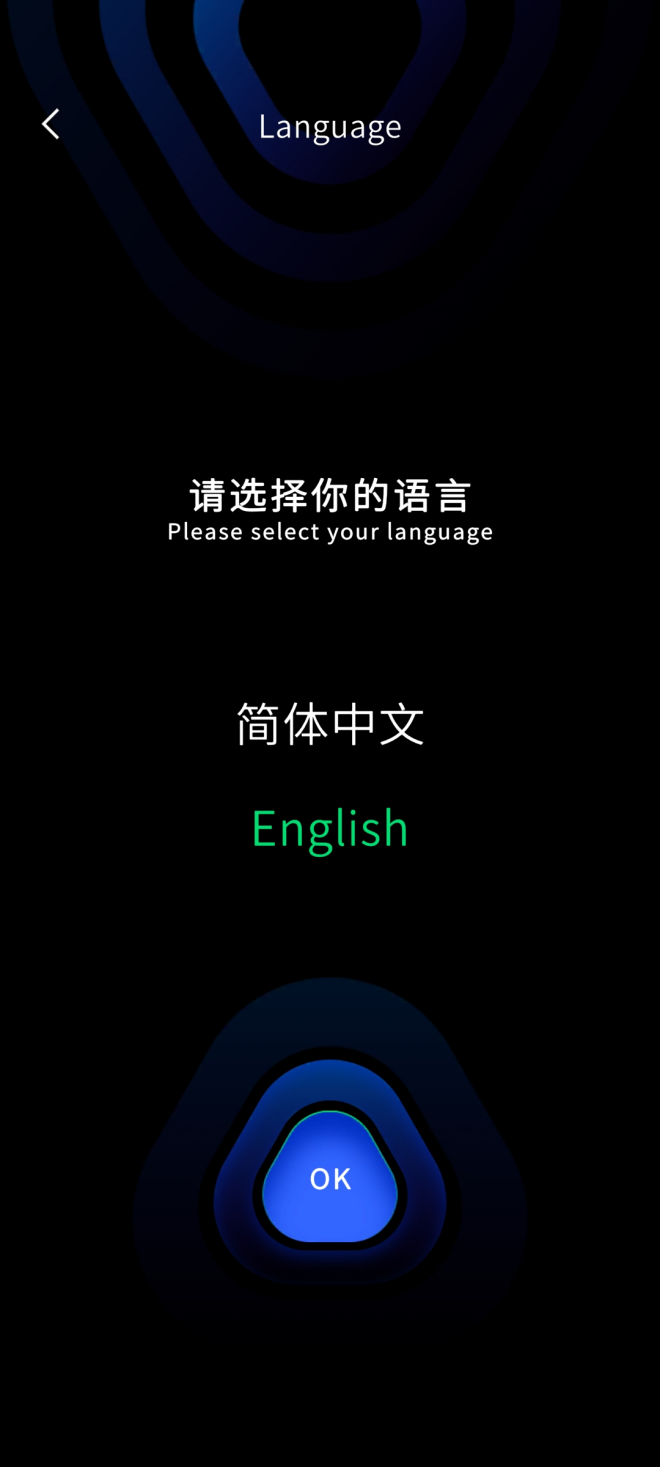
3. Switch language
Tap the top-right corner of the screen to switch language. Currently Simplified Chinese and English are supported.
4. Add a device
Press and hold the power button to turn on the handheld scanner. The device has started successfully when the indicator changes from fast-flashing blue to solid green.
Adding a device works slightly differently on Android and iOS. Follow the section that matches your phone.
Android version
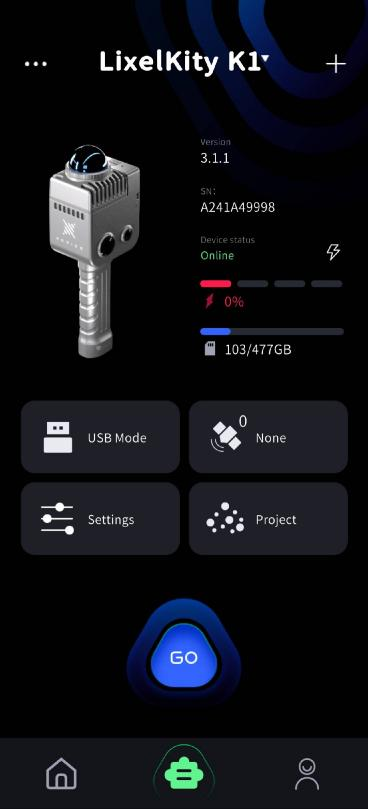
- Quick Connect Mode: LixelGO with device firmware V3.2.1 uses Quick Connect Mode by default.
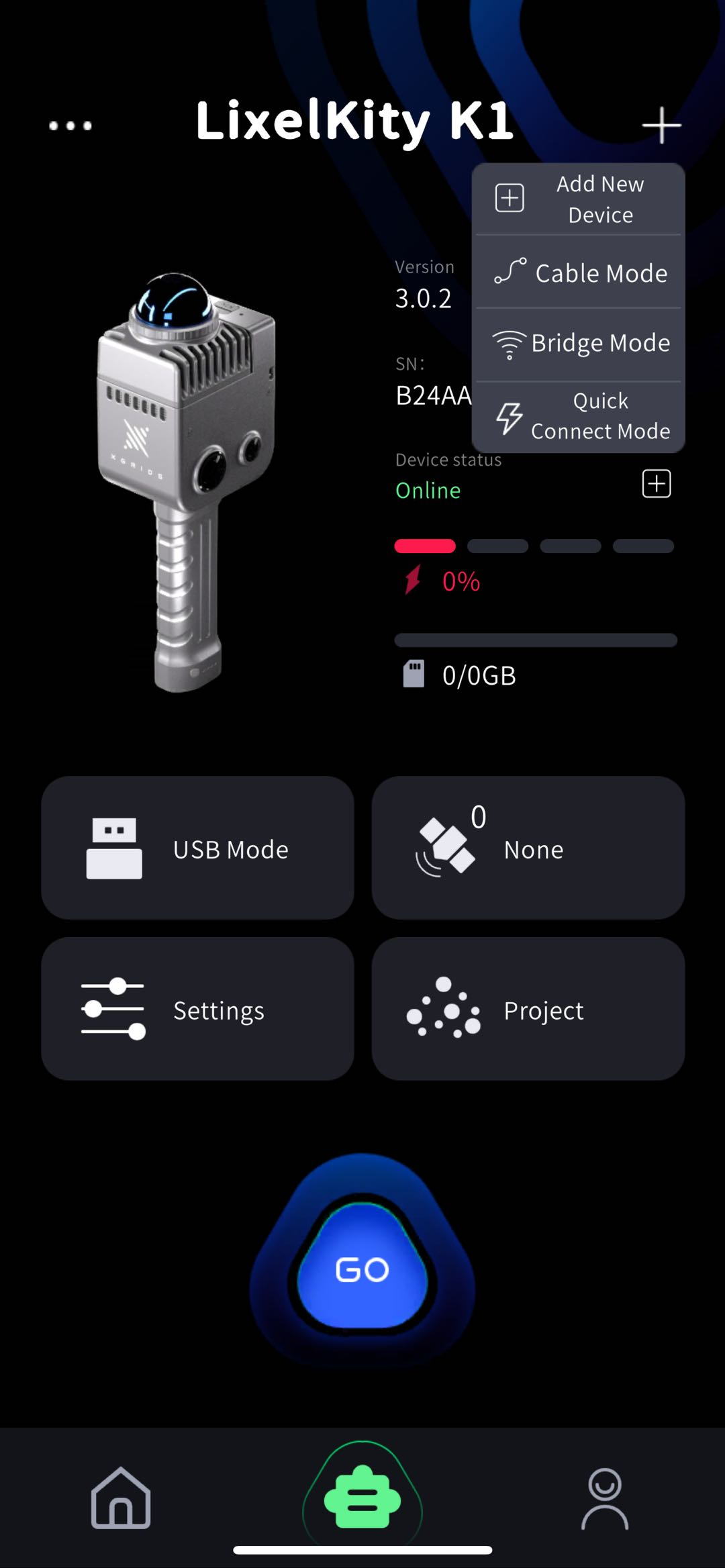
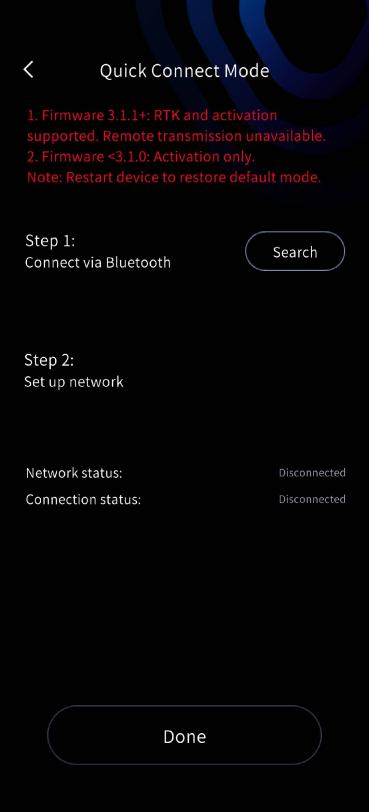
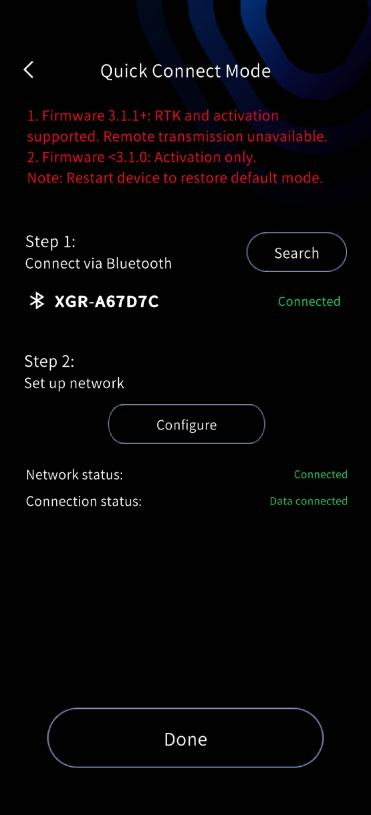
- Direct Connect Mode: Tap Add Device, grant permissions, and follow the steps.
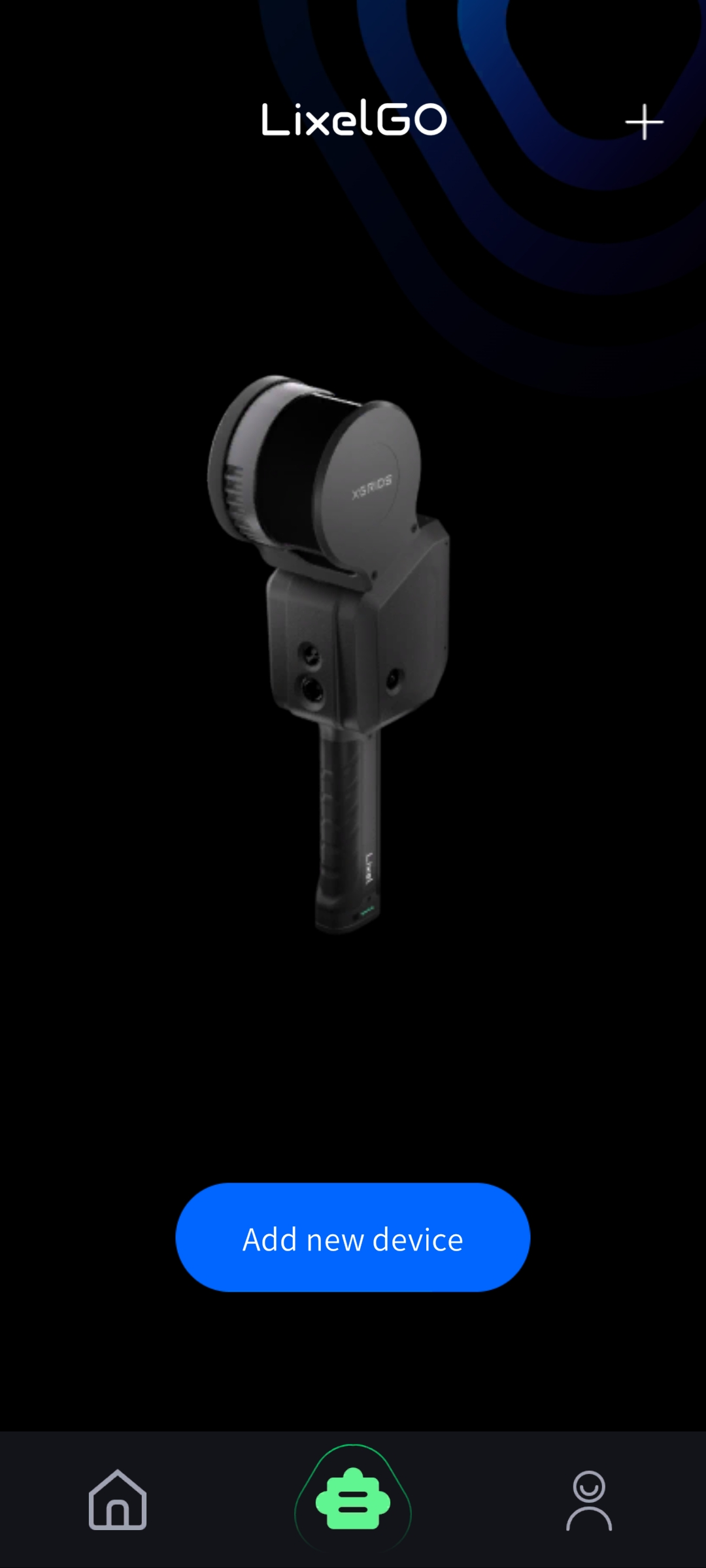
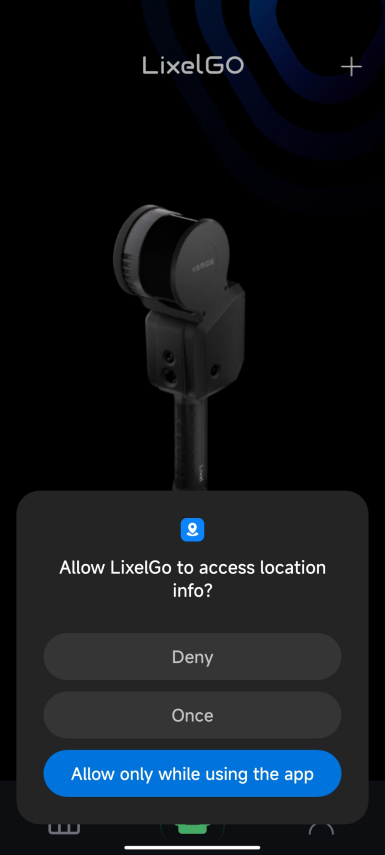
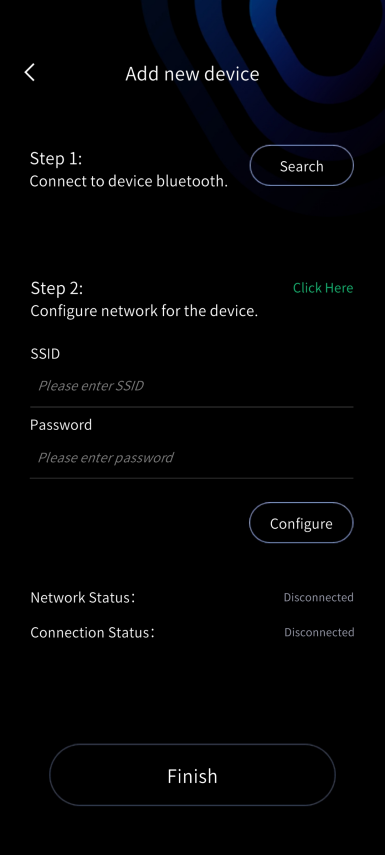
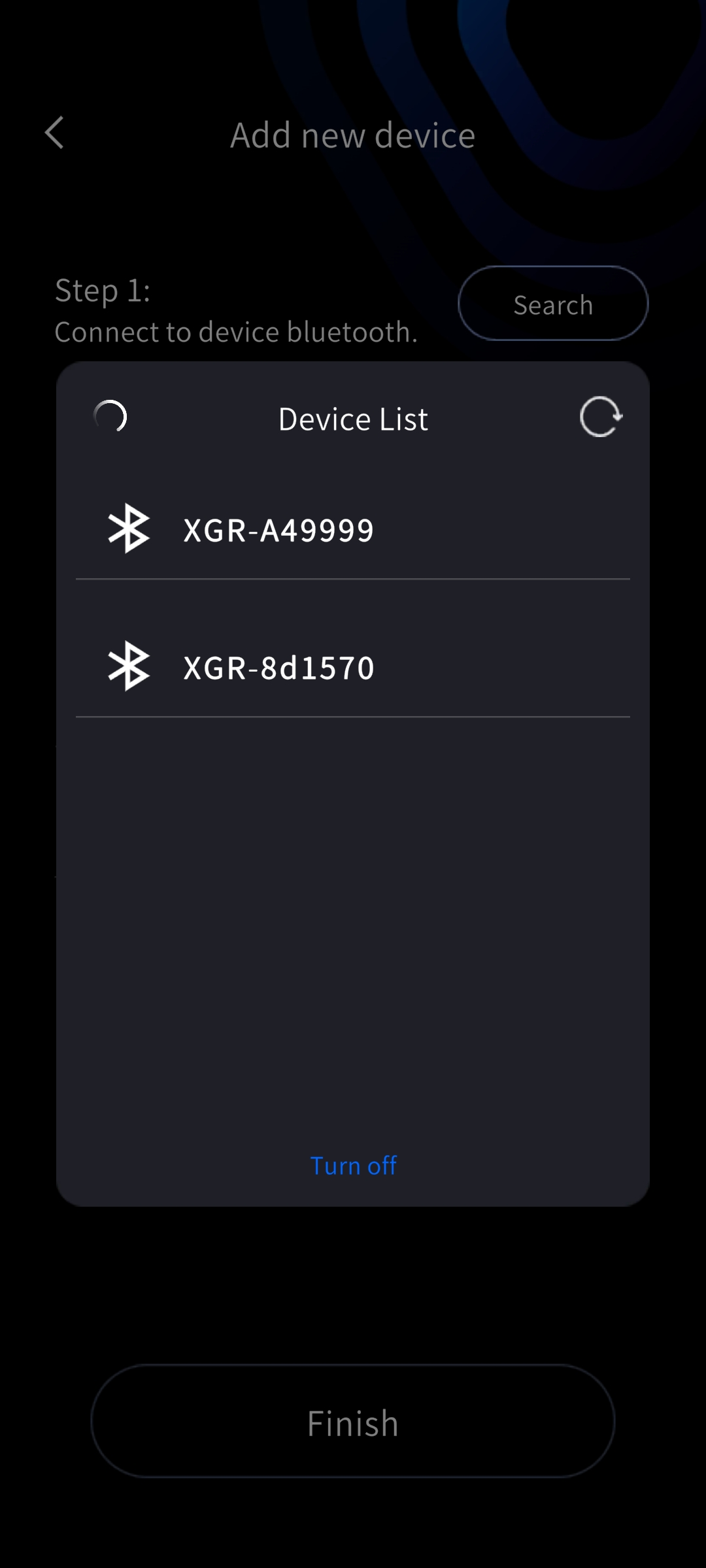
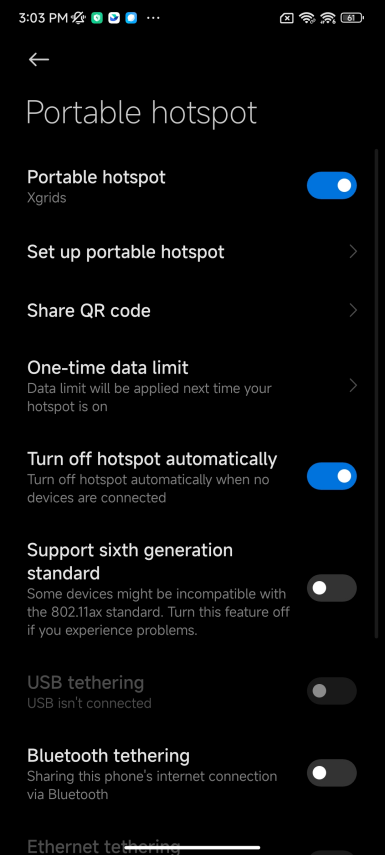
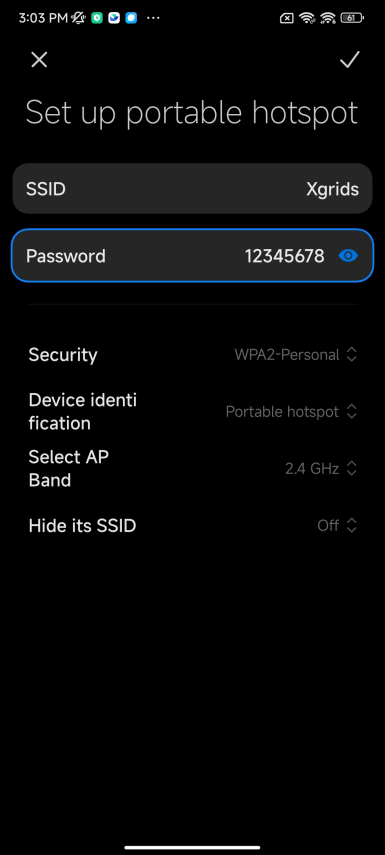
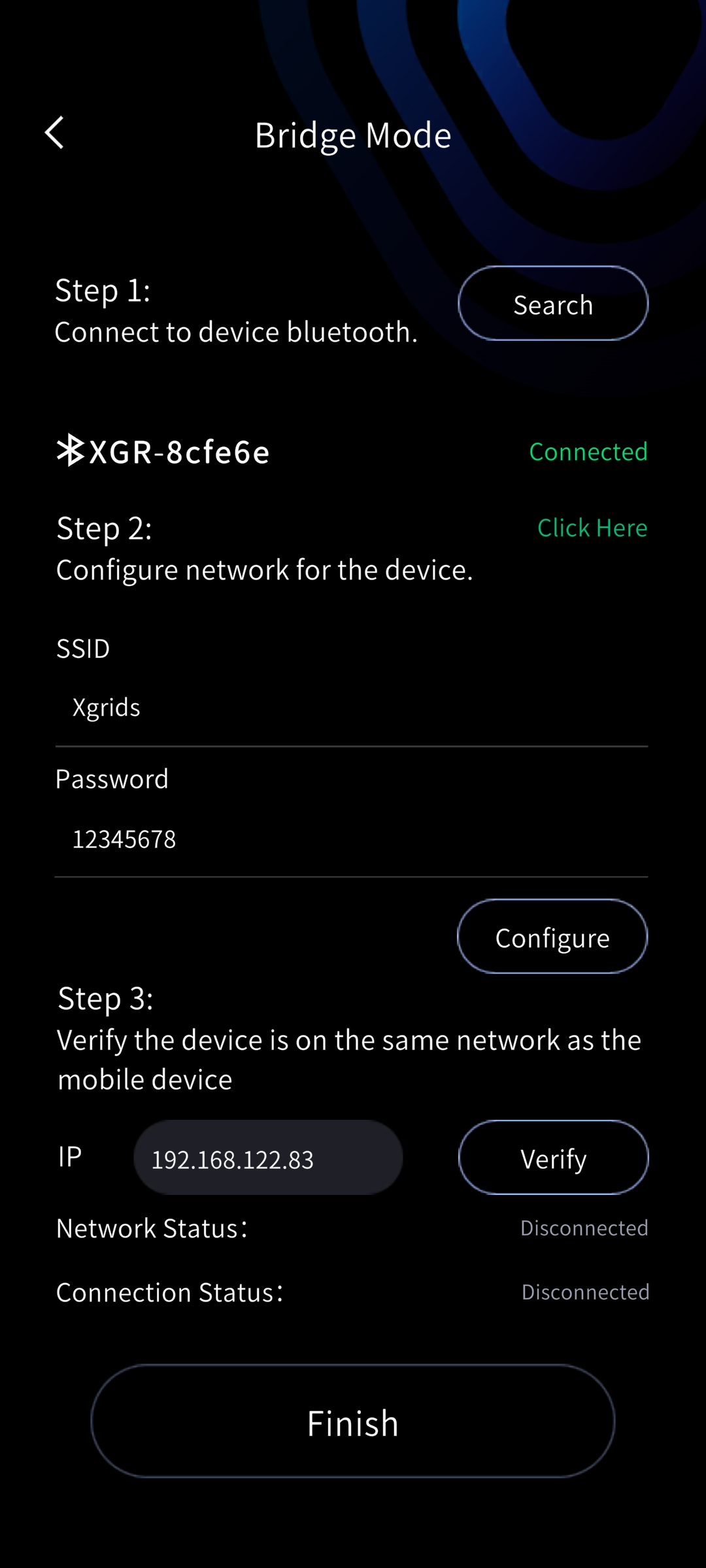
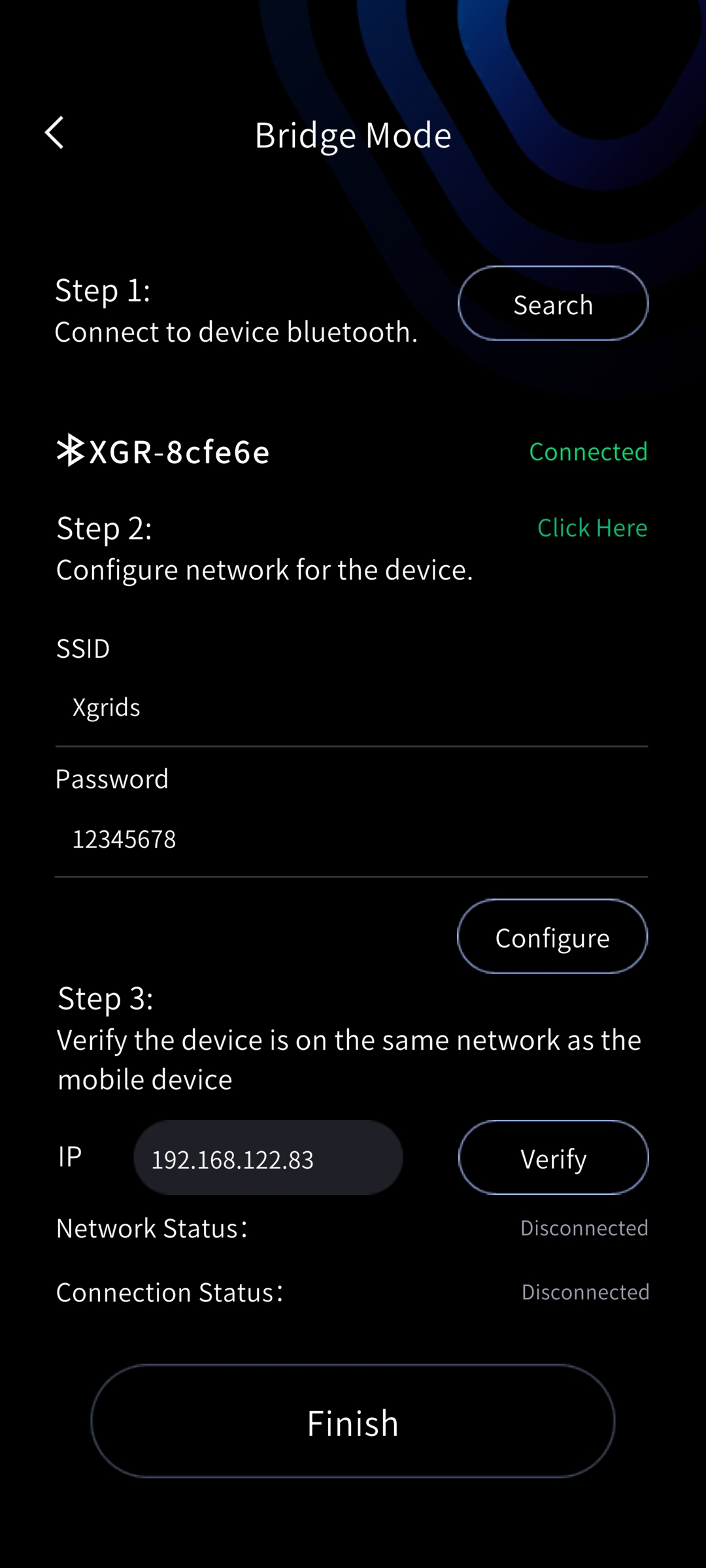
Step 1: Turn on your phone's Bluetooth and tap the screen to search for Bluetooth, then connect to the device's Bluetooth. Step 2: Configure the network for the device. First turn on your phone's hotspot, enter the hotspot name and password, and tap Configure; the device connects to the phone hotspot automatically. Keep the hotspot name and password as simple as possible.
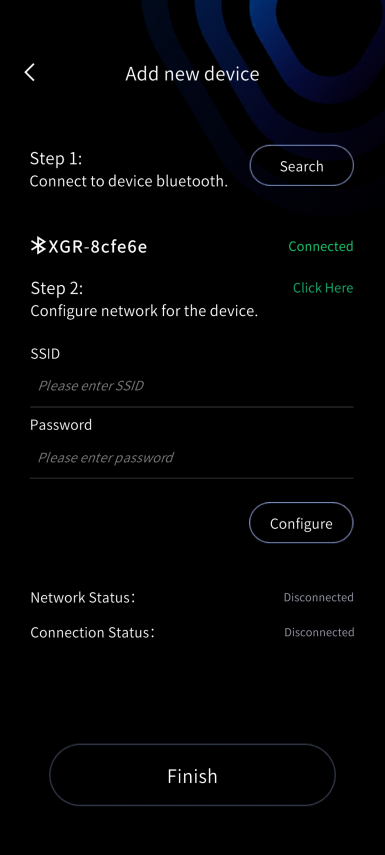
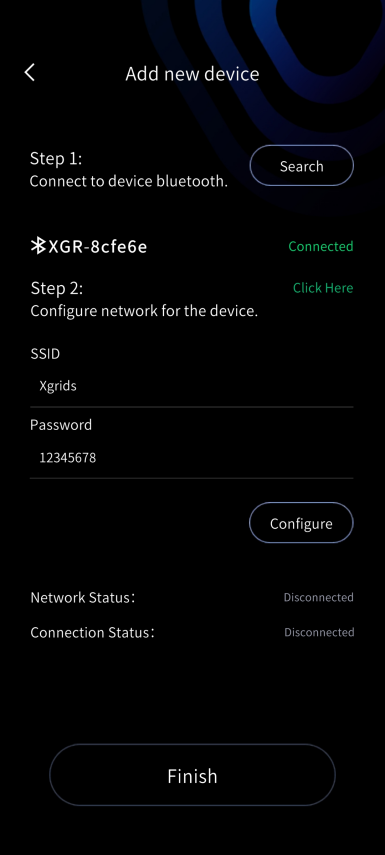
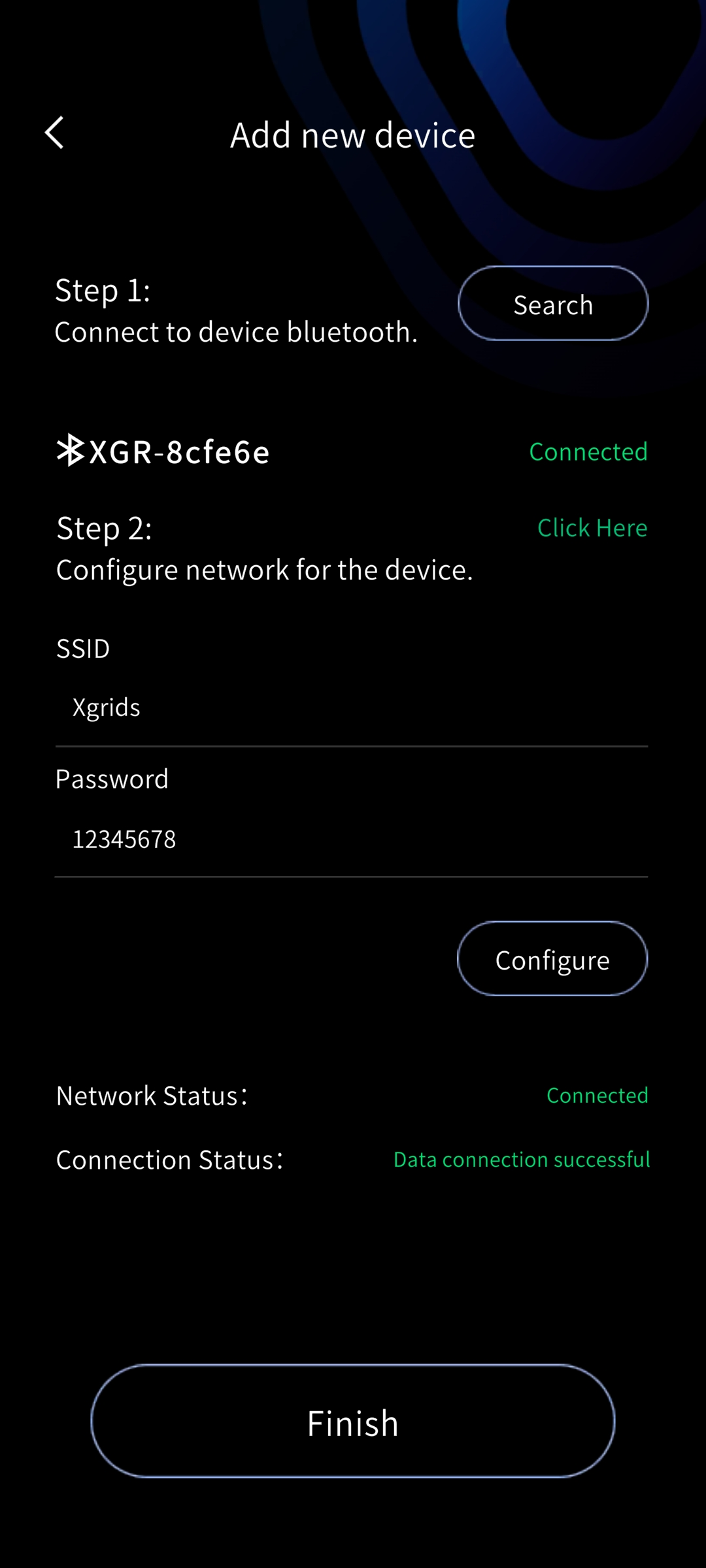
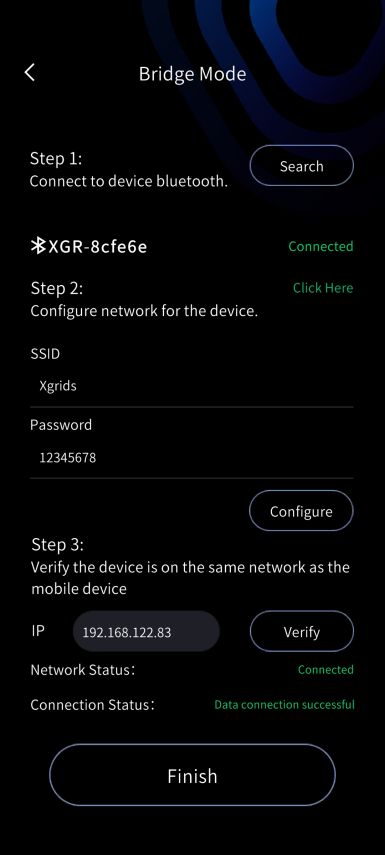
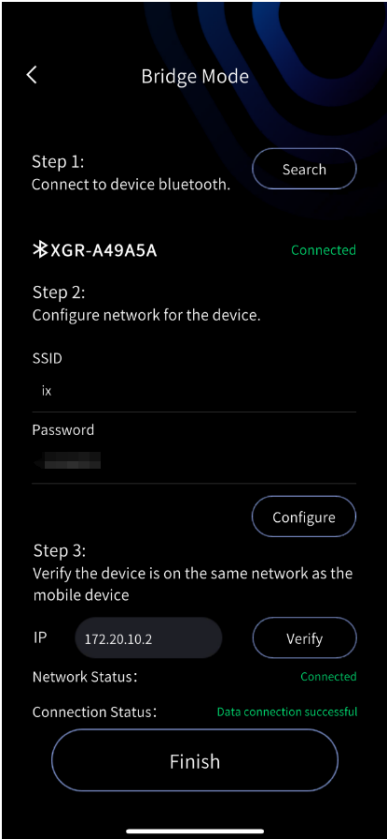
When both the network connection status and the data connection status show success, tap Done to view the basic information of the connected device.
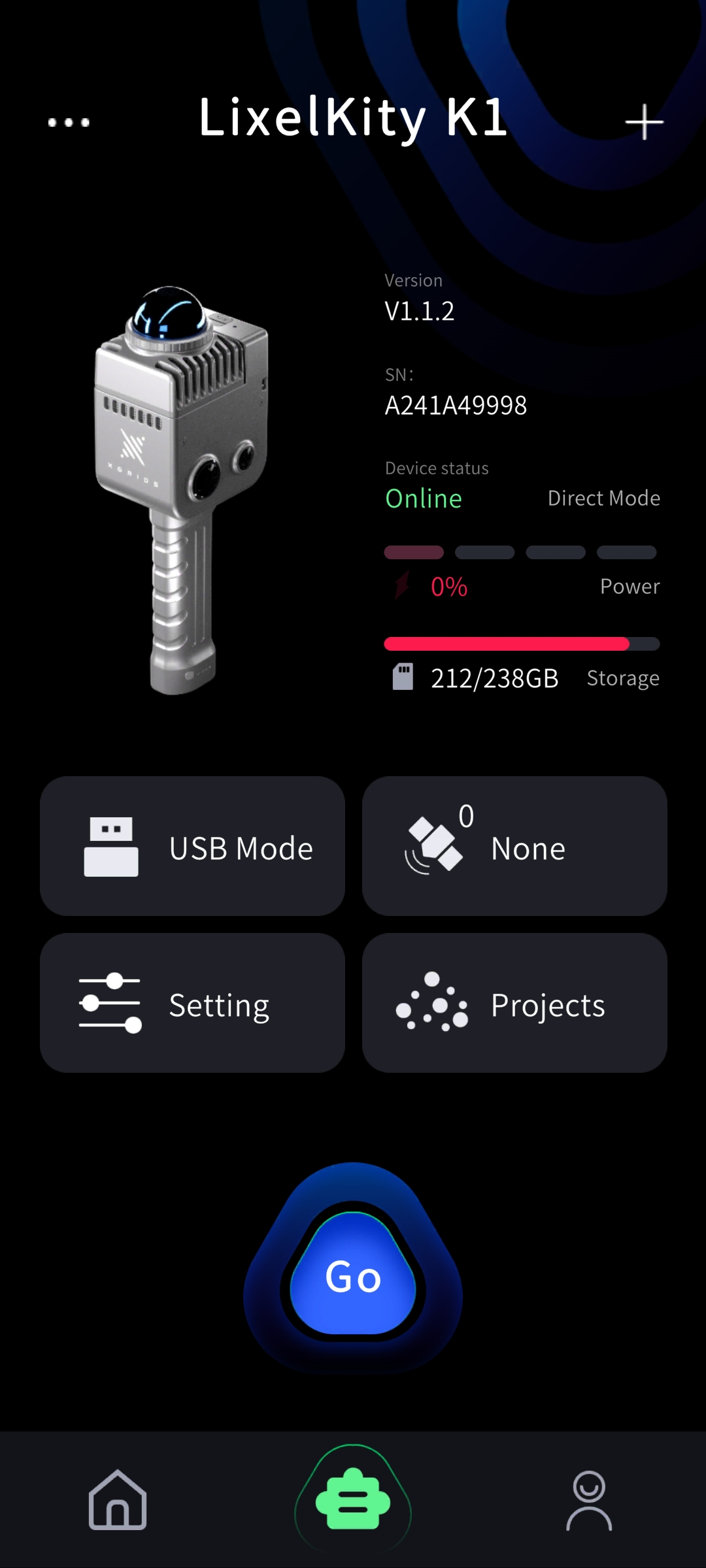
- Bridge Mode: Tap the plus sign in the top-right corner, select Bridge Mode, enter the screen, and follow the steps.
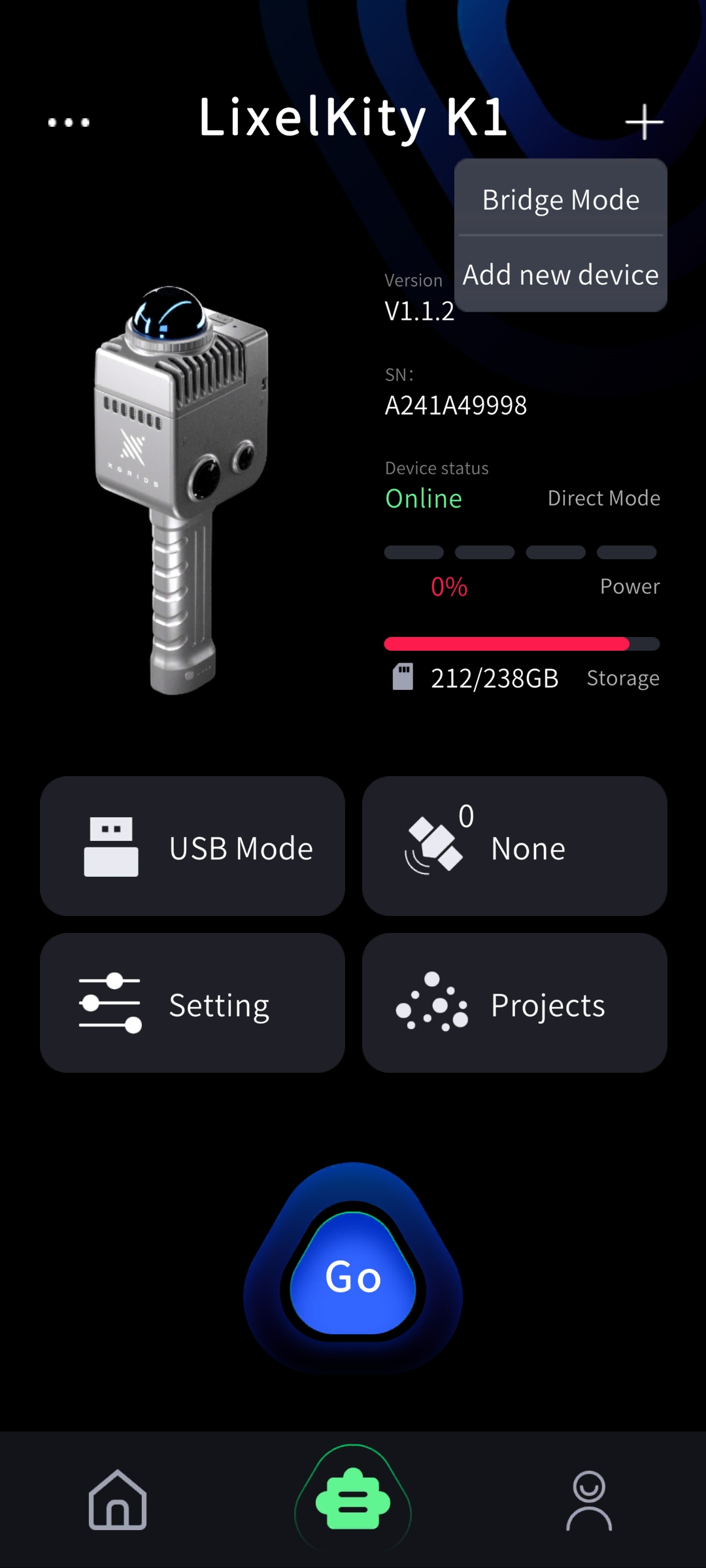
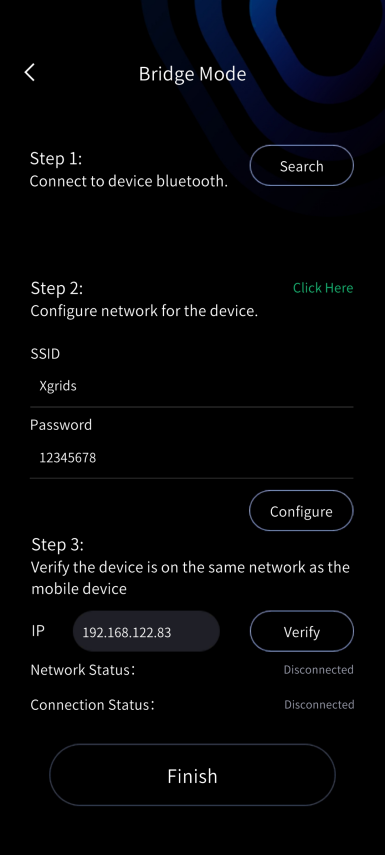
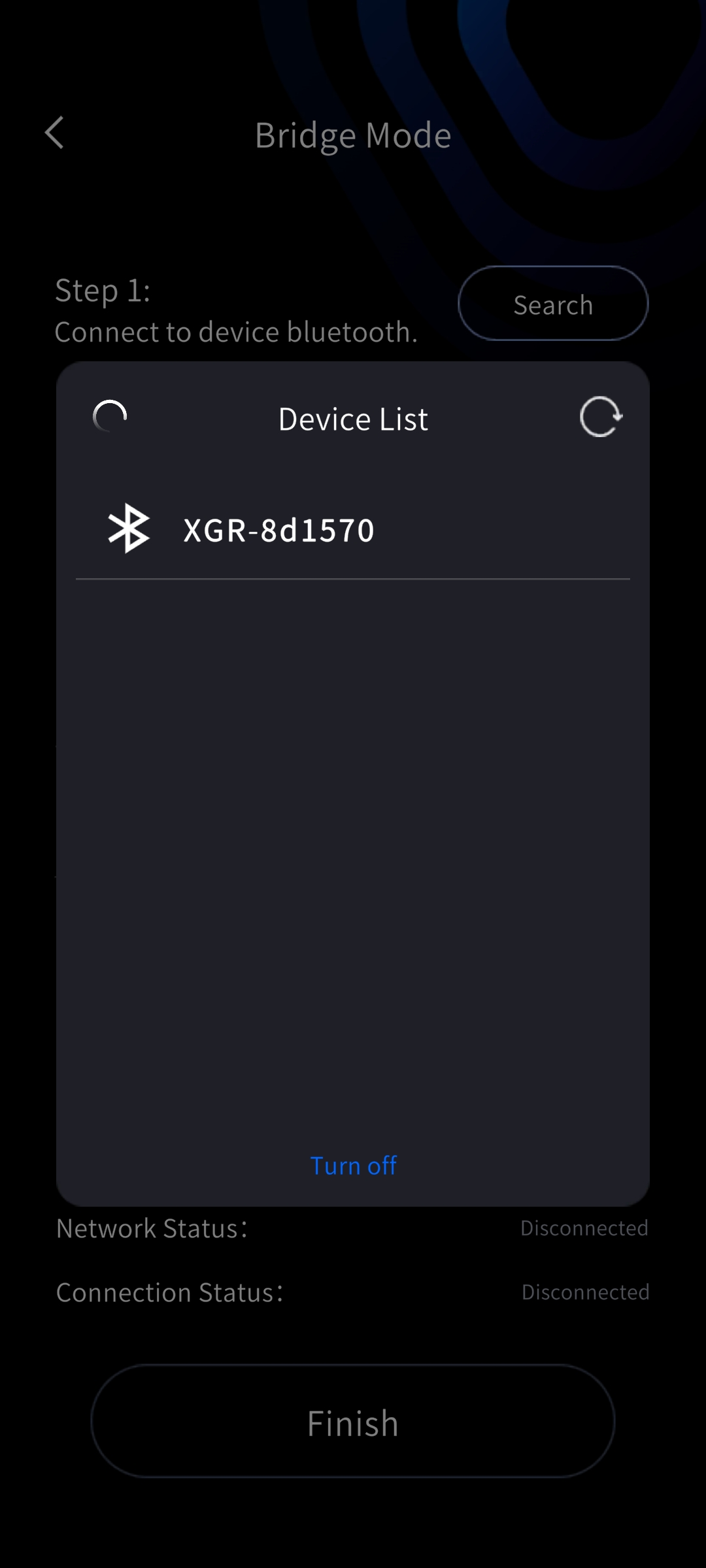
Step 1: search for the device's Bluetooth. Step 2: configure and verify the network. After connecting correctly, tap Done to view the basic device information.
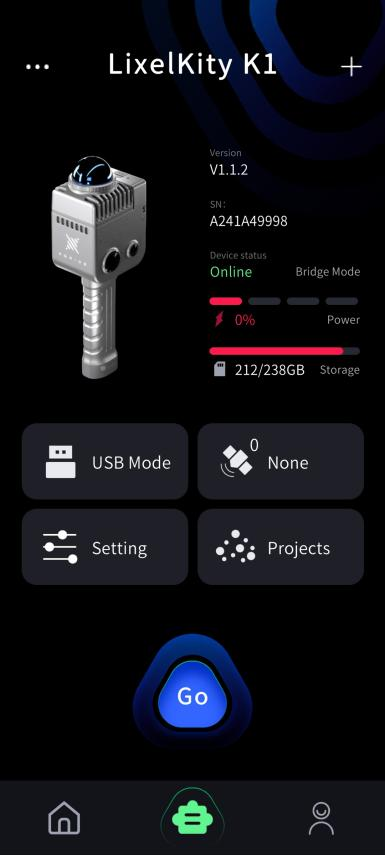
New Quick Connect Mode:
Prerequisite for this feature: firmware version 3.0 or above.
Device firmware above 3.1.0 supports RTK and activation, but not remote transmission.
Device firmware below 3.1.0 supports activation, but not RTK or remote transmission.
You must power the device off and on again to restore the default mode.
iOS version
- Quick Connect Mode: With device firmware V3.2.1 and LixelGO V1.3.0, Quick Connect Mode is used by default.
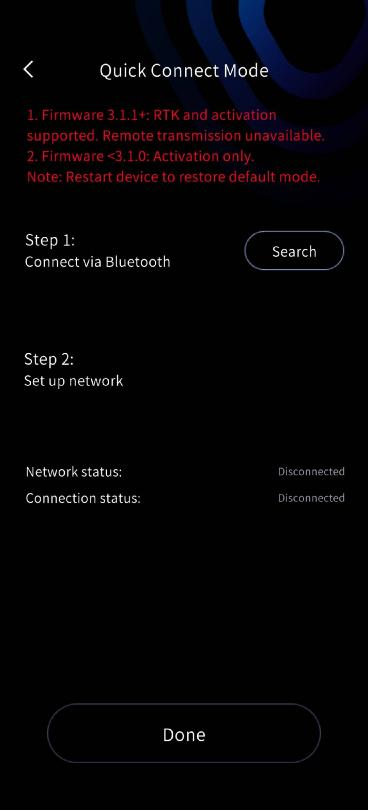
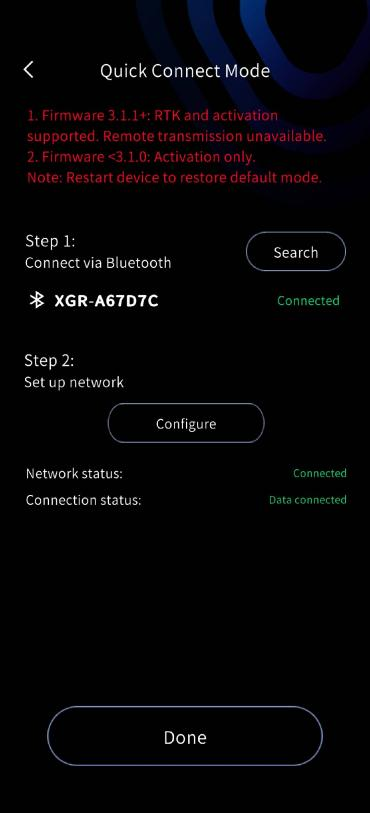
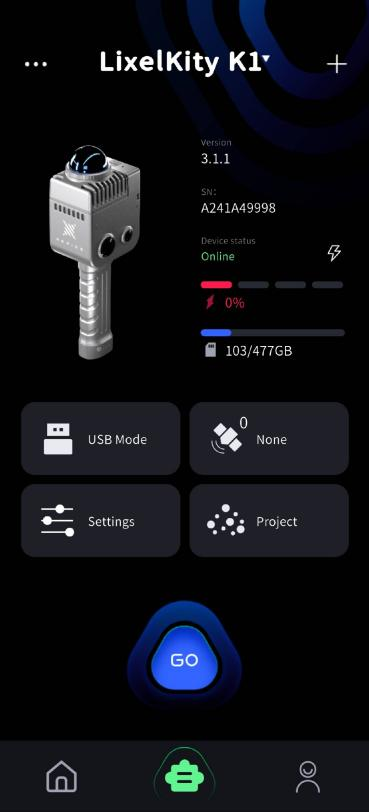
Before using the app, set up your iPhone first. Go to Settings, open General, then About, and change the Name field so it contains only English characters, with no spaces or special characters. This name is used as the phone's hotspot SSID.
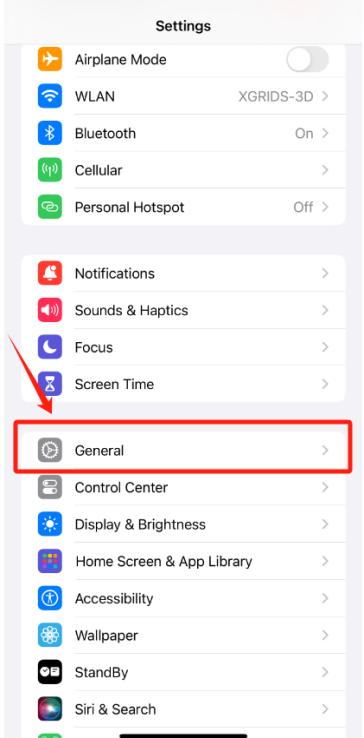
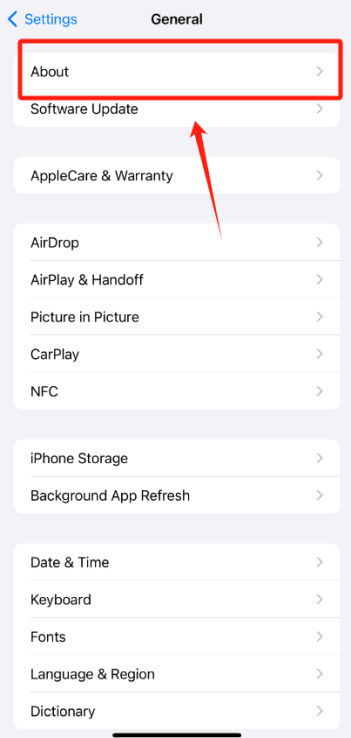
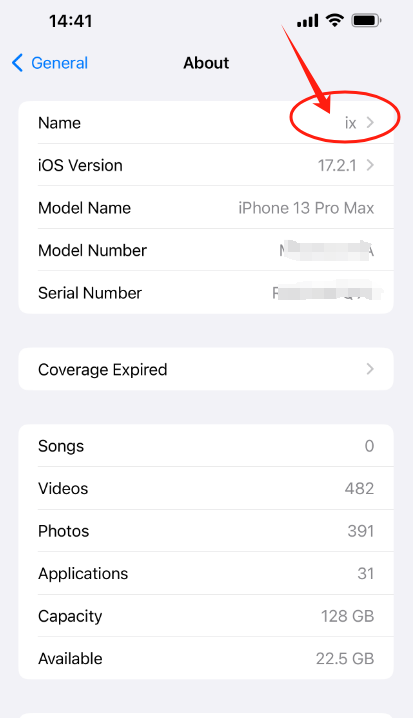
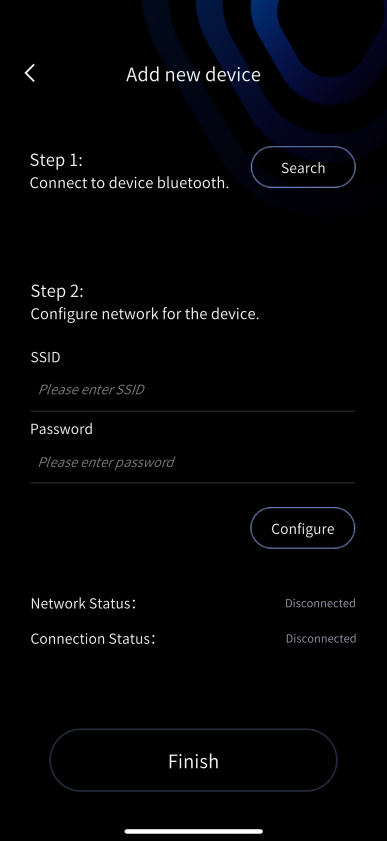
- Direct Connect Mode: Press and hold the power button to turn on the Lixel K1; the device has started successfully when the indicator changes from blue to green. Tap Add Device, tap Close, and follow the steps.
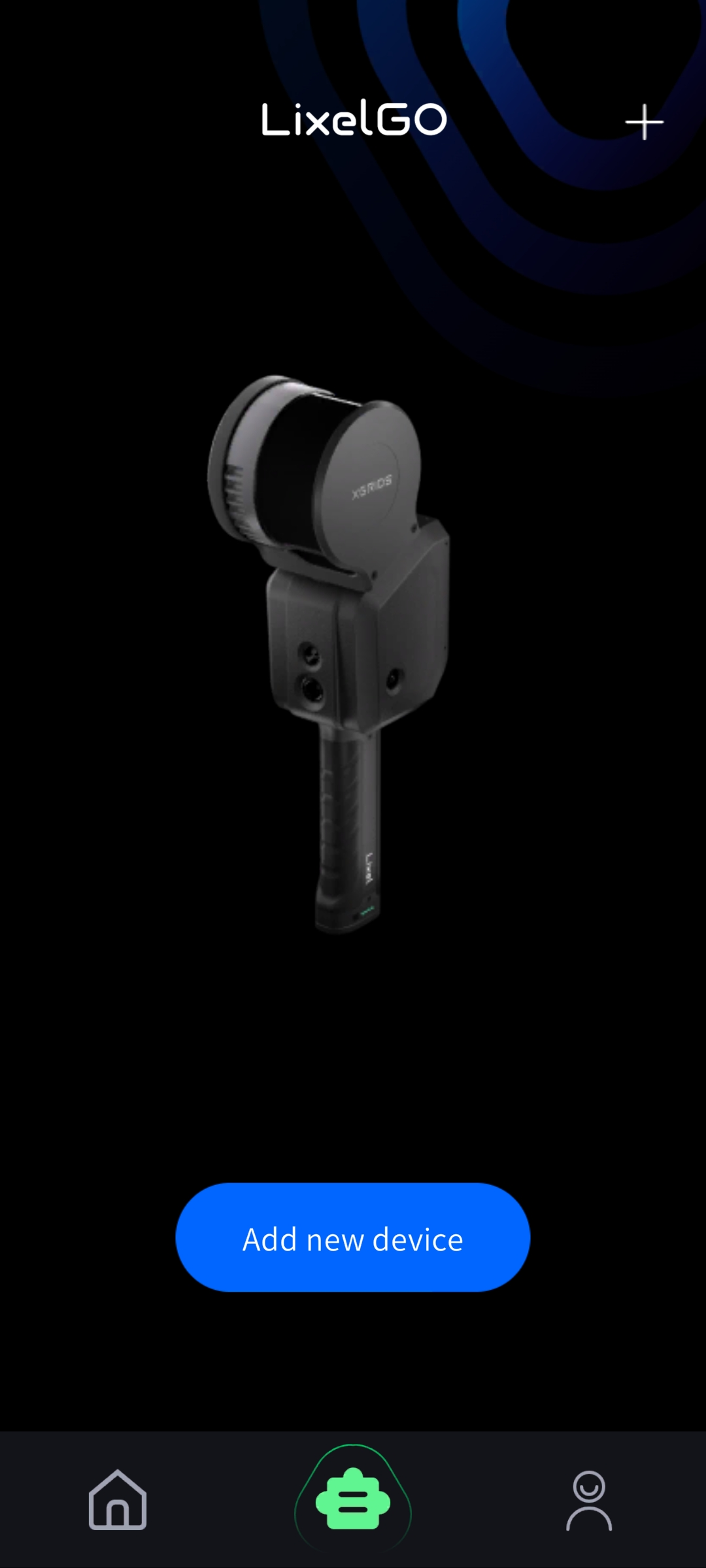
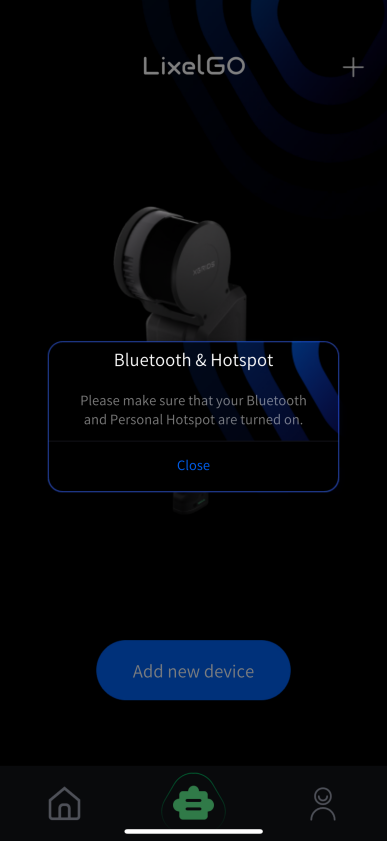
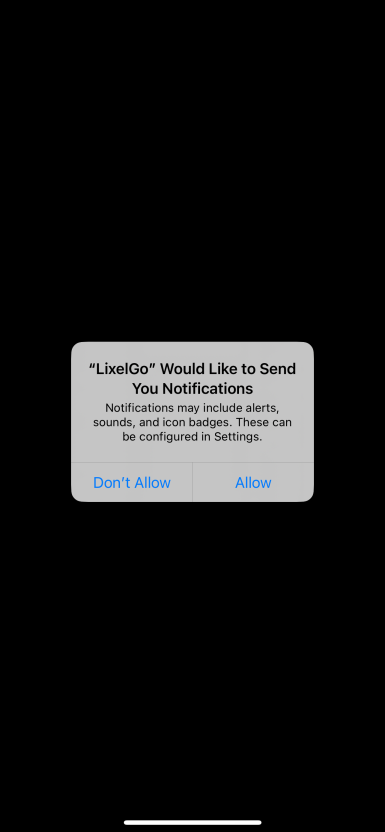
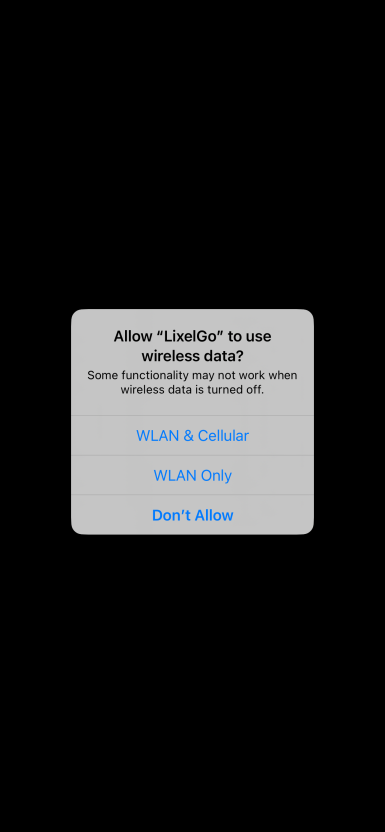
First-time connection: when prompted for permission, tap Allow. Select "WLAN & Cellular", then tap Allow again when prompted.
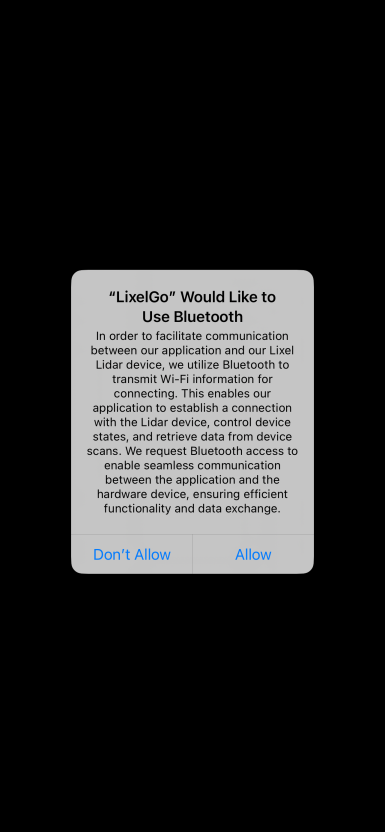
Turn on your phone's Bluetooth, then search for and connect to the device's Bluetooth. Next, configure the network for the device: enter your iPhone's device name and hotspot password (keep them as simple as possible), tap Configure, and read the tips carefully.
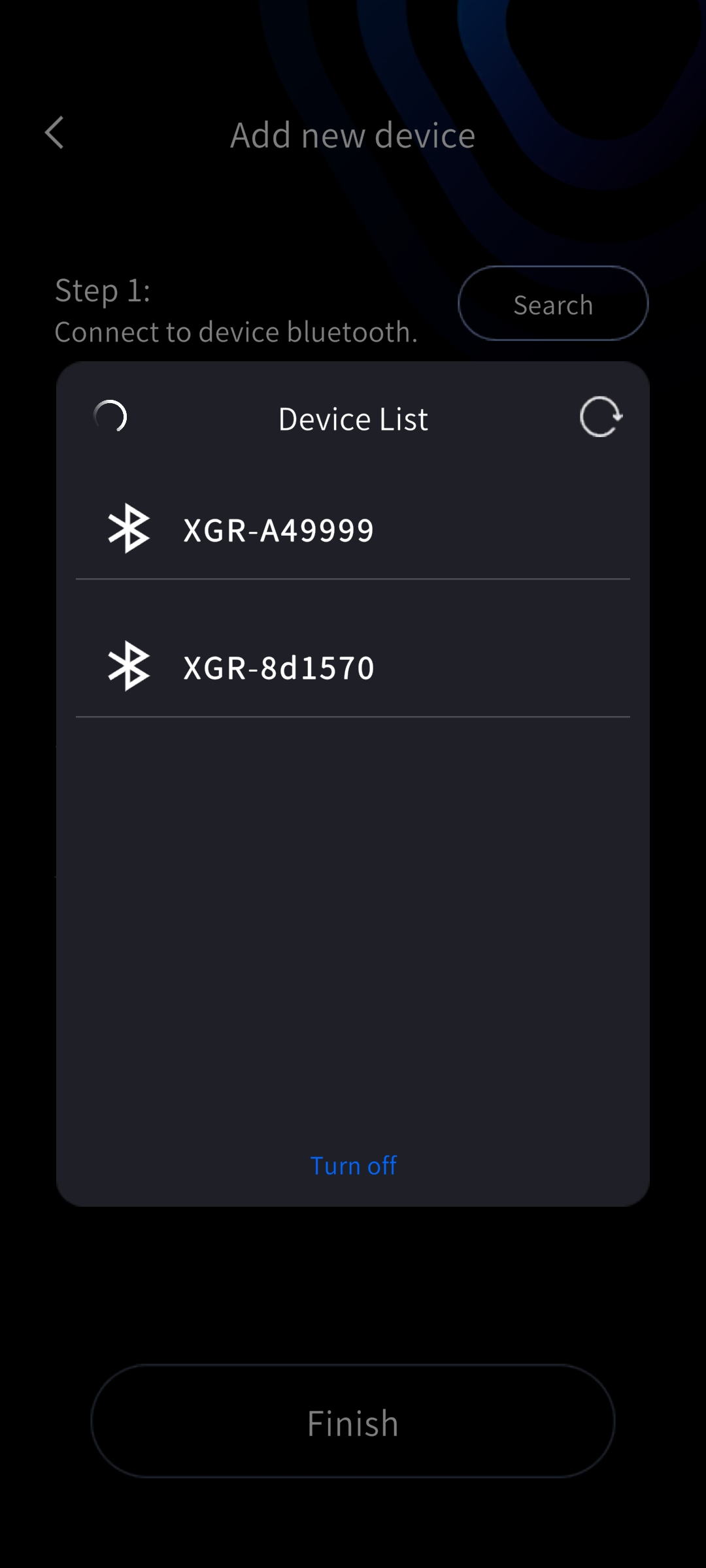
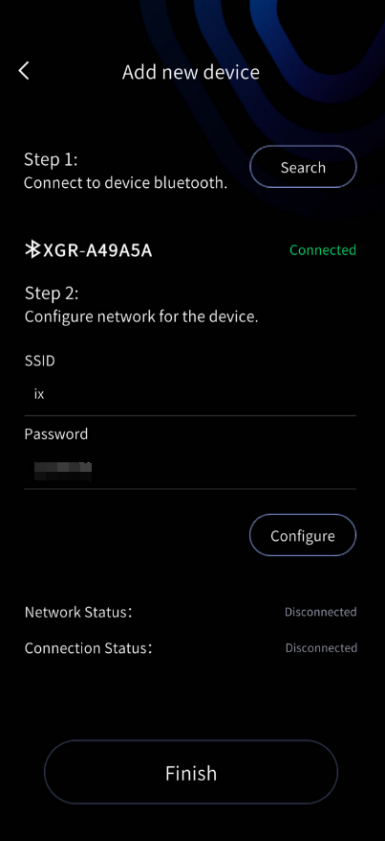
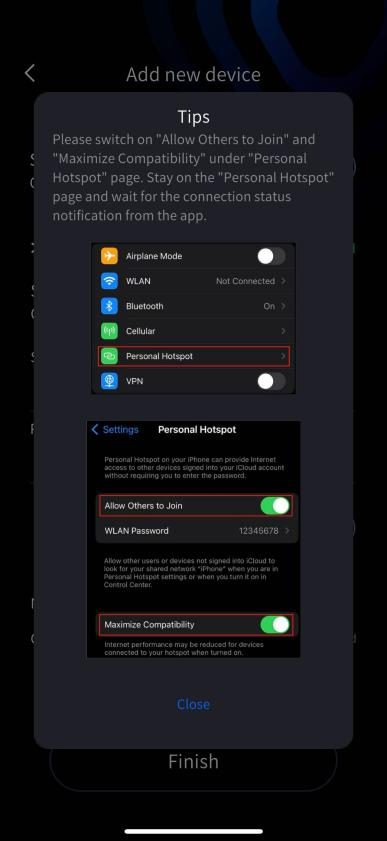
Note: When enabling the hotspot, cellular data (mobile network) must be turned on. Changing the Wi-Fi connection status affects the hotspot toggle. Only while staying on the "Personal Hotspot" page can you confirm the phone hotspot is enabled. Also make sure "Allow Others to Join" is turned on so devices can find and connect to the Wi-Fi, and set the hotspot to maximum compatibility for a successful connection. Stay on the "Personal Hotspot" page until you see "Data Connection Successful!", then return to the LixelGO app.
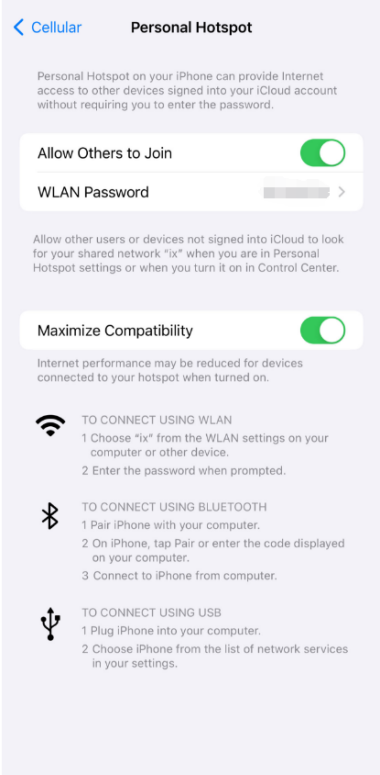
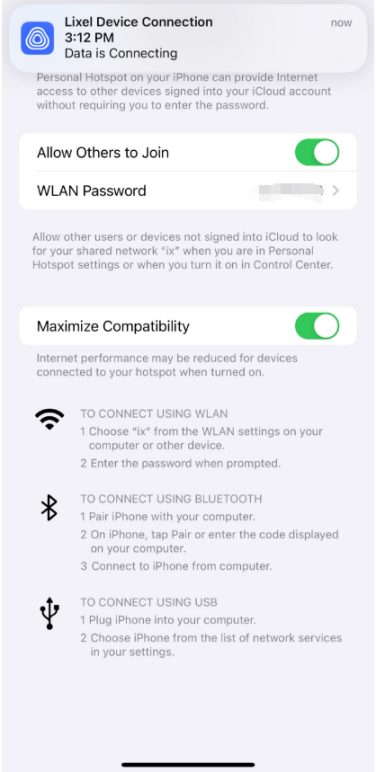
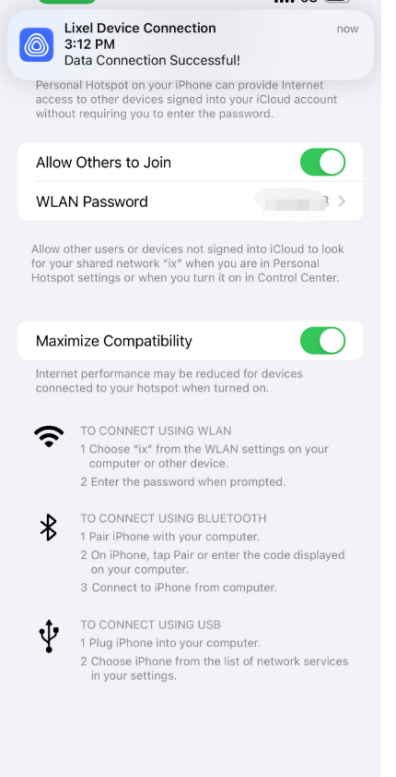
During the first connection, the data connection may fail because of permissions. After returning to the app, tap Configure to trigger the permission dialog again; tap Allow to establish the connection immediately.
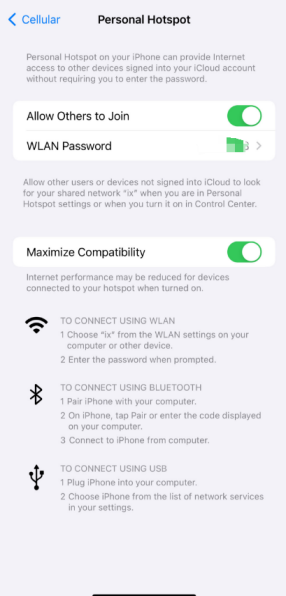
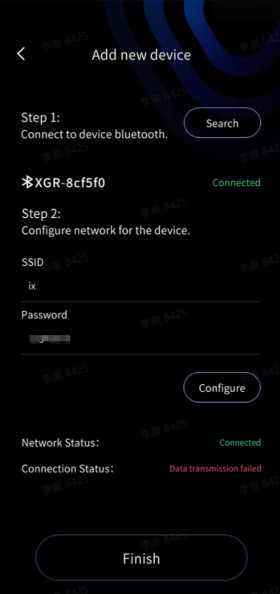
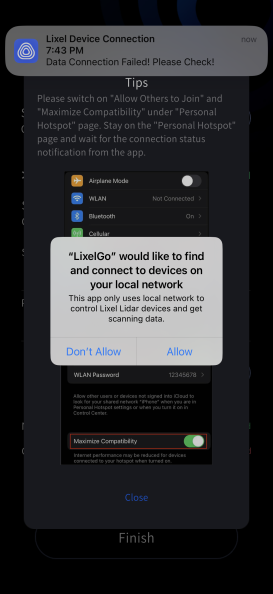
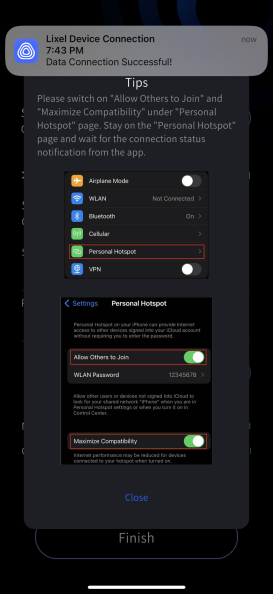
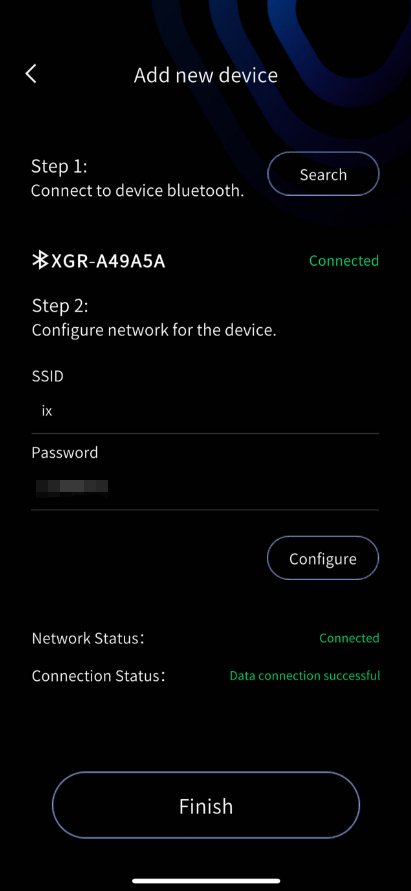
When both the network connection status and the data connection status show success, tap Done to view the basic information of the connected device.
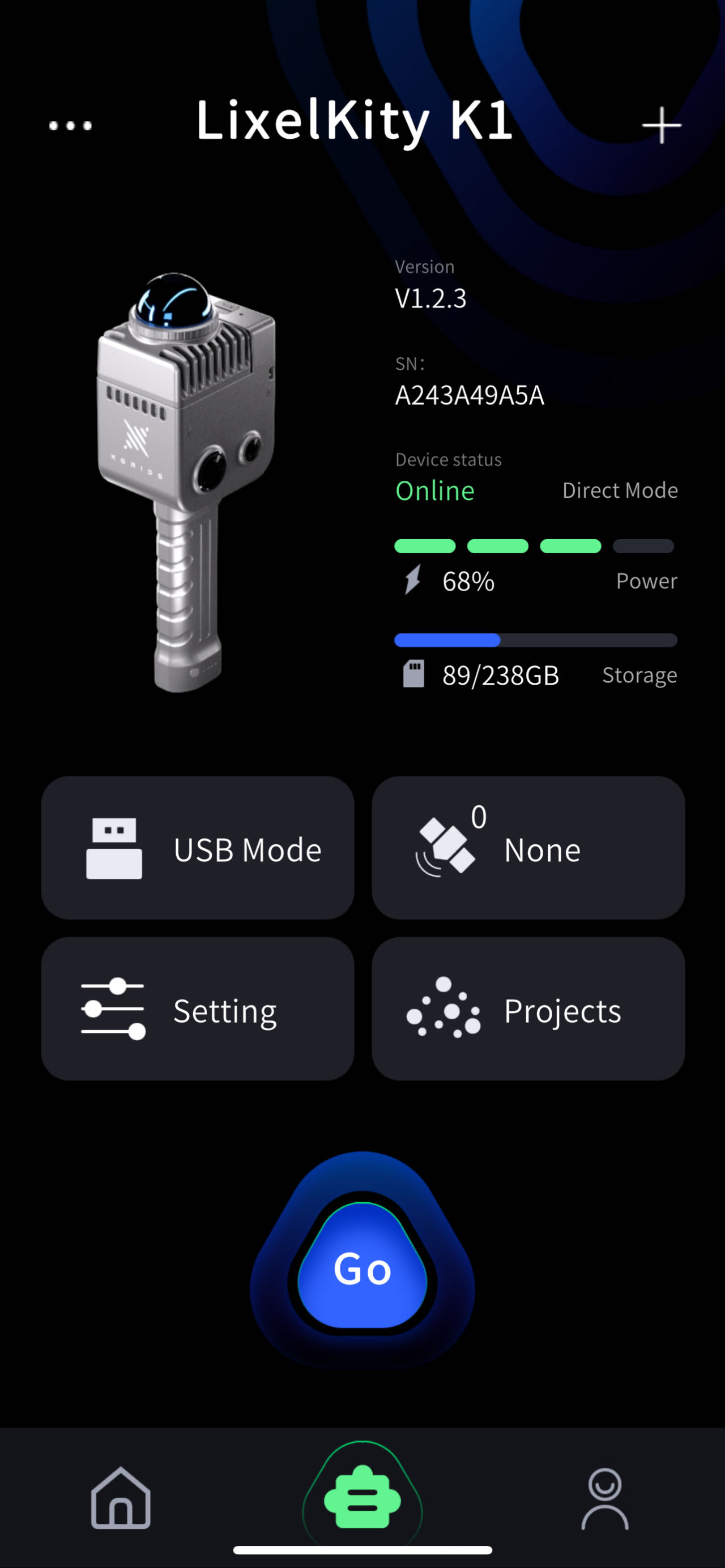
- Bridge Mode: Tap the plus sign in the top-right corner, select Bridge Mode, enter the screen, and follow the steps.
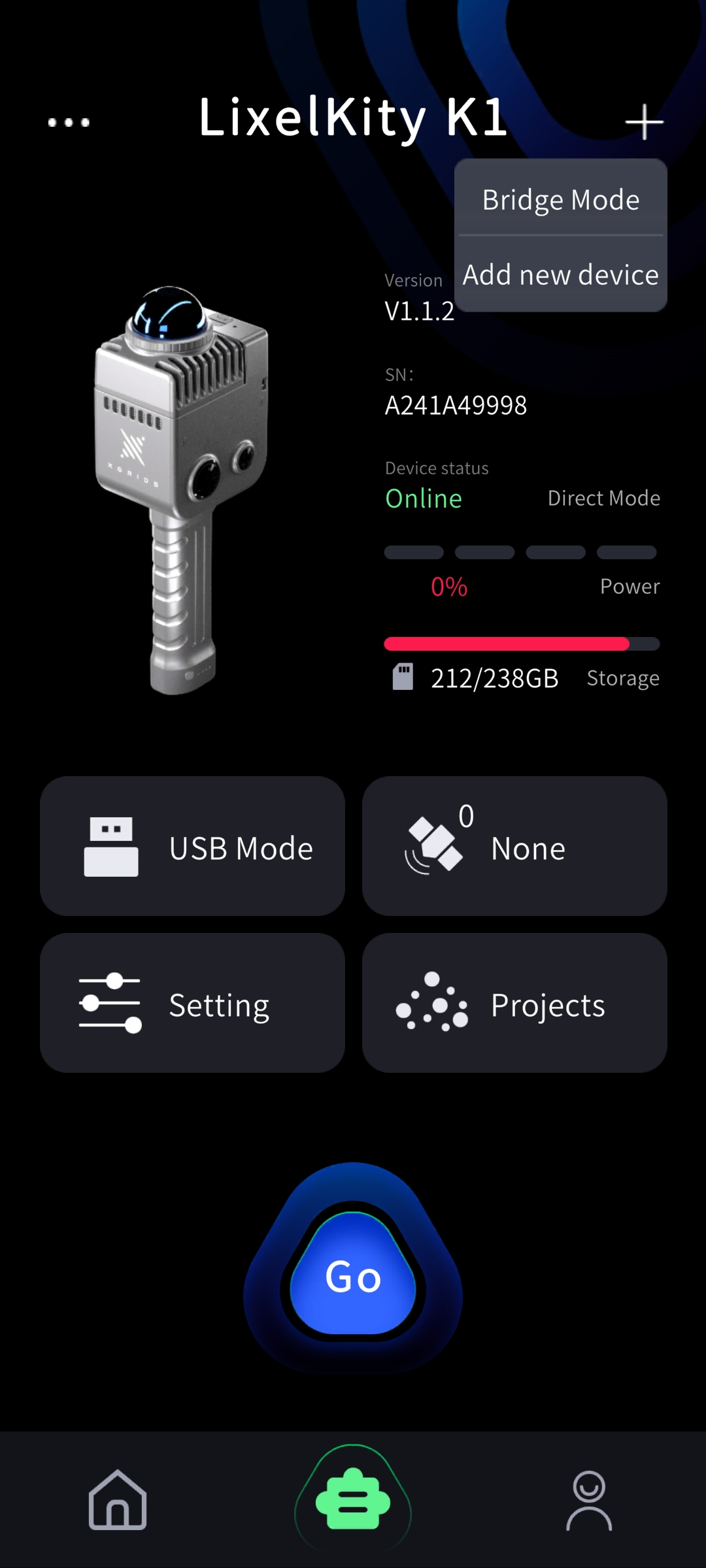
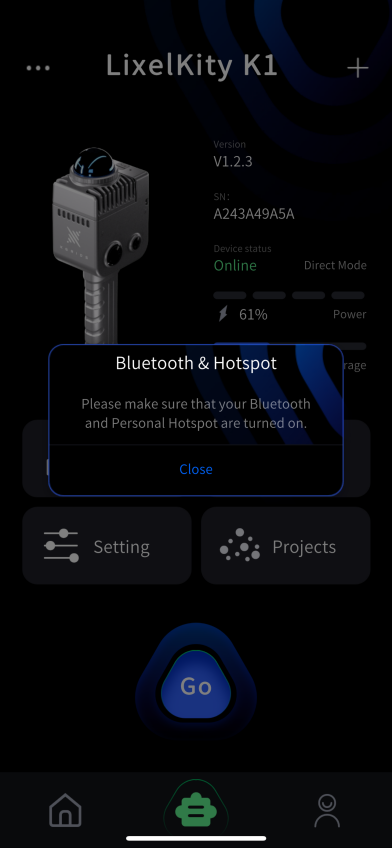
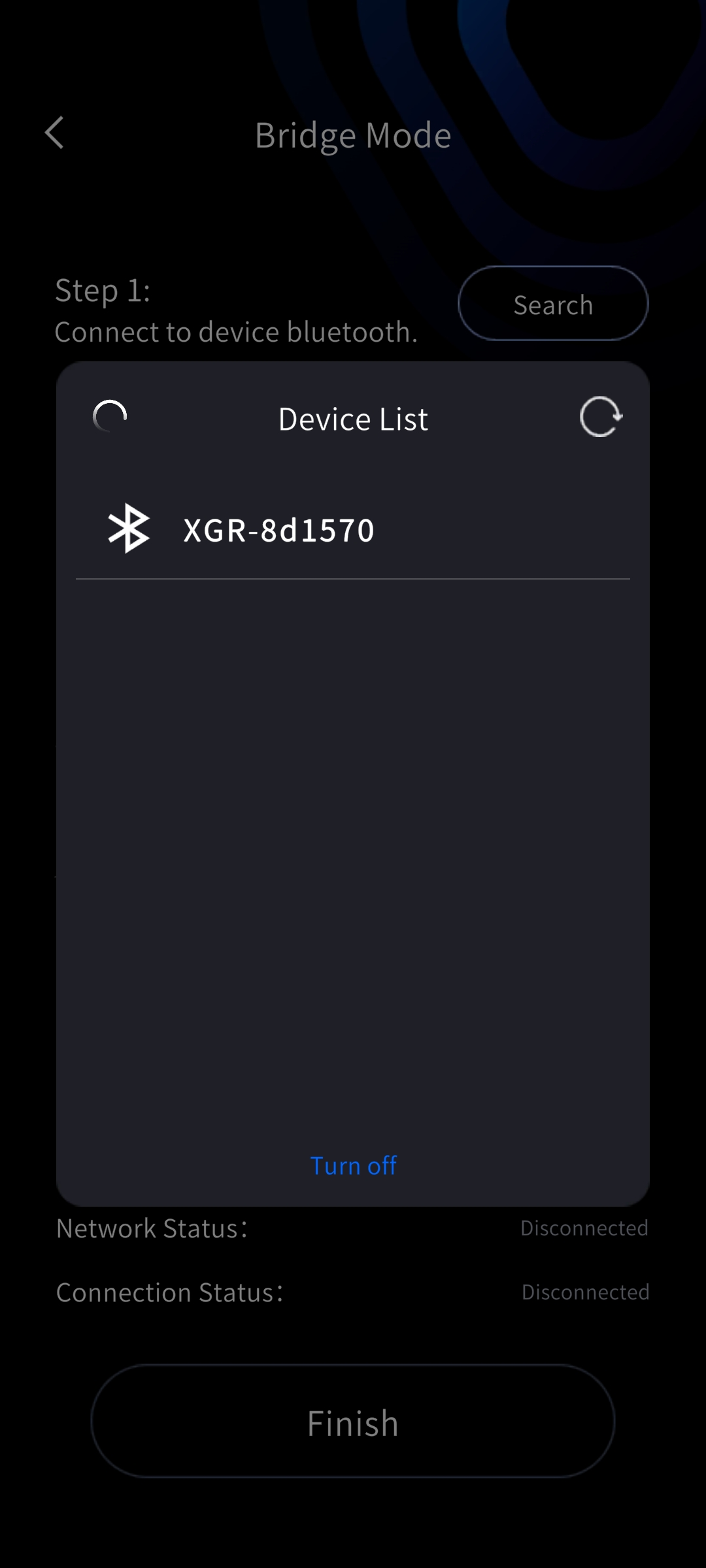
Tap Close and go to the connect page. First search for and connect to the device's Bluetooth. Then configure the network (see the steps under Direct Connect Mode above). After connecting correctly, tap Done to view the basic device information.
New Quick Connect Mode:
Device firmware above 3.1.0 supports RTK and activation, but not remote transmission.
Device firmware below 3.1.0 supports activation, but not RTK or remote transmission.
You must power the device off and on again to restore the default mode.
5. Device management
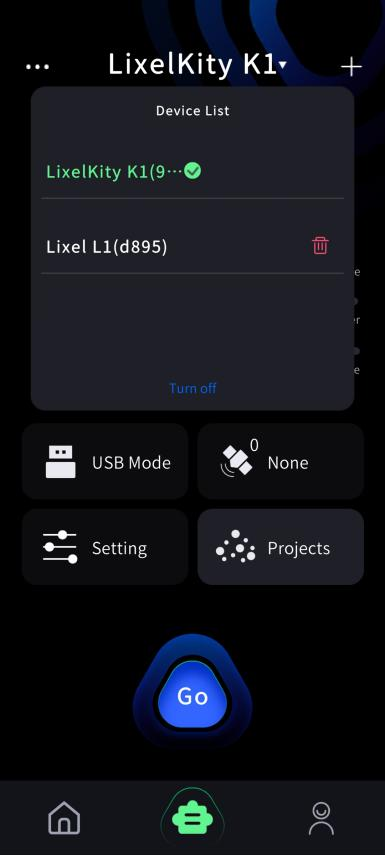
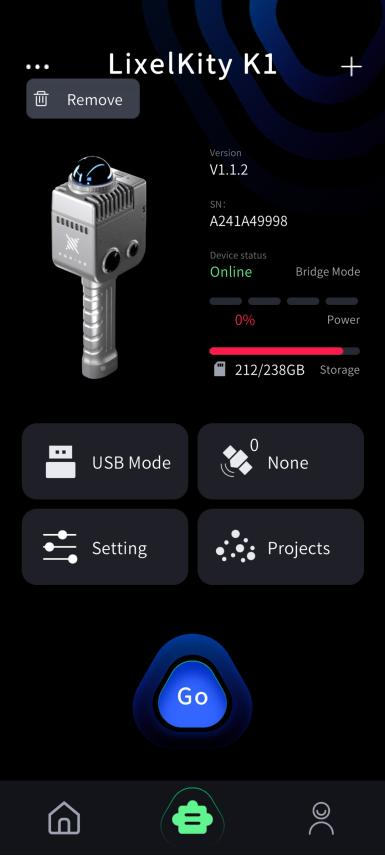
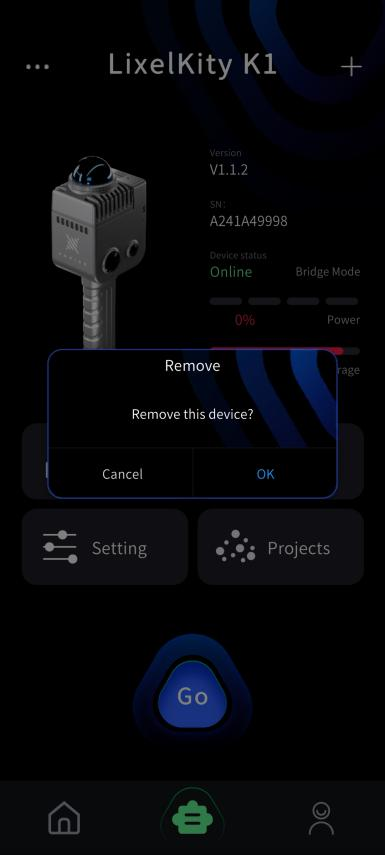
On the device screen, pull down the device name at the top of the screen to manage the connected device. Tap Remove Device to remove the connection to that device.
6. Device activation
Tap "Connect", confirm device activation, and bind and activate the device.