
FAQ
1. What is the positioning of Lixel K2? What type of customers is it suitable for?
Lixel K2 is a lightweight handheld 3D scanner designed for small to medium-sized scenes, targeting field operators in surveying, construction, cultural heritage preservation, and related industries. It is suitable for scenarios such as real estate measurement (floor plan measurement, renovation design), engineering measurement (project management, completion acceptance), heritage conservation (architectural surveying, digital archiving), and stockpile volume measurement (earthwork measurement, inventory counting). The multi-format output capability of K2 (point cloud/Mesh/3DGS) can also extend to digital twin, spatial visualization, VR/AR, and other fields.
2. What are the differences between Lixel K2 and Lixel K1?
Key upgrades of K2 compared to K1:
- Added a front-facing camera, significantly improving point cloud Coloring quality with more uniform and realistic colors.
- Better 3D Gaussian model quality.
- The RTK module is now built-in, providing more stable positioning and easier operation.
3. How to choose between Lixel K2 and Lixel L2 Pro?
Consider the scene scale and accuracy requirements:
- K2 has a scanning distance of 40m (10% reflectivity), point cloud frequency of 200,000 points/sec, and point cloud thickness of 1cm or less. It is more suitable for small to medium-sized indoor scenes, offering lightweight efficiency and better cost-effectiveness.
- L2 Pro has multiple versions available (16-line/32-line LiDAR, 120m/300m ranging), point cloud frequency up to 640,000 points/sec, and point cloud thickness as low as 5mm. It is more suitable for medium to large or complex scenes.
4. What scenes is Lixel K2 not suitable for?
Large and complex outdoor spaces are better suited for Lixel L2 Pro. Projects requiring millimeter-level accuracy are also not recommended for K2.
5. How to upgrade the K2 firmware?
Please ensure the device battery level is above 70%.
- Download the K2 firmware file from the official website on your computer. Do not extract the firmware file after downloading.
- Turn on the device and enter standby mode (steady green light). Connect the device to your computer using a USB cable and observe whether it automatically switches to USB Mode (indicator light changes from green to blue). If it does not switch automatically, use the app or manually press the power button (press once to get white light, then press again) to switch.
- Locate the USB drive root directory in your file manager and drag the firmware file (keep it as a compressed package) directly to the root directory.
- Safely eject the USB device from your computer, then exit USB Mode.
- Turn off the device and restart it. The device will enter firmware upgrade mode, indicated by alternating red and green flashing lights.
- Wait patiently for the upgrade to complete. Once successful, the indicator light will change to a steady green. Do not power off the device or remove the battery during the upgrade process.
- Connect the device using the app to confirm the firmware version.
6. The K2 did not enter the alternating red-green flashing state after restart, or the firmware version did not change after the update?
Possible causes:
- The firmware package was extracted, renamed, or the system automatically appended characters like "(1)" to the filename. Do not make any modifications after downloading from the official website.
- USB Mode must be enabled (use the app, or press the power button once to get white light, then press again). The firmware must be placed at the same level as the model folder, outside the folder rather than inside it.
- Battery must be above 70%. The battery button indicator should show at least 4 green bars.
- If the USB-TypeC cable is damaged, the copied firmware package may be smaller in size. Try a different cable.
If the issue persists, please contact official technical support.
7. What are the K2 button operations?
| Function | Button Operation | Indicator Light Change |
|---|---|---|
| Power on | Long press for 4 seconds | Blue slow flash then steady green (standby mode) |
| Power off | Long press for 4 seconds | Steady green then white flash then off |
| Start scanning | Double click | Steady green then fast green flash then slow green flash |
| Stop scanning | Double click | Slow green flash then fast green flash then steady green |
| Record control point | Single click | Steady for 1 second then returns to slow green flash |
| Switch to USB Mode | Single click then single click again during white light | Green then white then steady blue |
8. What do the K2 indicator lights mean?
- No light: Device is not powered on.
- Blue slow flash (approximately 30 seconds): Booting up.
- Steady green: Standby mode.
- Slow green flash: Scanning mode.
- Fast green flash: Starting or stopping a scan.
- Steady blue: USB Mode.
- Steady yellow: Device not activated.
- Steady red: Serious malfunction.
- Alternating red-green flash: Firmware upgrade in progress.
9. How to switch the K2 to USB Mode for data transfer?
In device standby mode (steady green light), connect the device to your computer using a USB 3.1 data cable, then use LixelGO or the shortcut key (single click, then single click again during the white light) to switch to USB Mode. Notes:
- USB Mode will automatically turn off after the device restarts.
- If you need to continue scanning after enabling USB Mode, you must first manually disable USB Mode or restart the device.
- Please use the standard USB 3.1 data cable included with the device. Using other cables may result in slow data transfer speeds.
10. How to perform a proper scan with the K2?
Initialization phase:
- Check that the LiDAR head and lens surfaces are clean and free of fog. Devices are prone to fogging in environments with alternating hot and cold temperatures, so pay special attention.
- Confirm the battery has at least three bars (51% or above) before going out to scan.
- Place the device flat and stable on the ground, keeping it still. Avoid facing crowds, vehicles, or other highly dynamic areas.
- Tap the start button in LixelGO or double-click the device power button.
- After the point cloud appears on the phone screen, keep the device stationary for at least 10 seconds and wait for the "Initialization successful" prompt.
- Slowly and steadily pick up the device and begin scanning.
Scanning process:
- Keep walking speed below 1m/s (approximately a slow walking pace). In high-definition mode, keep it below 0.5m/s.
- Do not tilt the device more than 15 degrees (in special situations such as scanning ground targets, it can briefly exceed 15 degrees but must not exceed 30 degrees).
- Maintain a distance of 0.5 to 1 meter from the scan target.
- Avoid large, fast turns, sudden stops and starts, or swinging the device.
- Do not suddenly extend the device into a small enclosed space (such as a cabinet smaller than 0.5 meters), as this will cause LiDAR degradation and data drift.
- For outdoor scenes, use a loop-closure route (circular or serpentine pattern) and avoid single-direction straight-line routes.
- For indoor multi-room scenes, open all doors in advance and pass through doorways slowly while turning sideways.
Ending the scan:
- Return to the starting point of the current scan.
- Stand still at the starting point for 10 seconds, keeping the device stable and motionless.
- After 10 seconds, stop recording in the app. This allows the system to perform a real-time loop closure optimization, significantly reducing layer separation and improving accuracy.
11. Does the K2 support resuming a scan from a breakpoint?
No, it does not.
12. Can the reflective target paper used for LixelStudio accuracy verification be replaced with a different shape or size?
No. You must use the circular reflective target paper provided in the device case (original size is 4 cm). Otherwise, the software accuracy verification function cannot perform automatic recognition.
13. How to use the app-assisted scanning system to evaluate collection quality?
LixelGO has a built-in assisted scanning system that displays the current point cloud data density in real time:
- On the project launch page, select guided mode and set the render mode to "QUAL".
- Observe the map colors: green areas indicate sufficient point cloud density, while areas that have not turned green indicate relatively sparse point cloud and require additional scanning.
- Ensure all target areas of interest have turned green before moving on. This effectively prevents rework caused by missed areas or sparse point cloud.
14. How to clean the K2 LiDAR and lenses?
Use the dedicated lens cloth or non-woven cloth provided in the device case, and gently wipe in one direction. Do not touch the LiDAR or lens areas directly with your hands. Devices are prone to fogging in environments with alternating hot and cold temperatures, so inspect them before use.
15. What are the storage precautions for the K2 handle battery?
- After daily use, charge the battery to full promptly.
- Batteries that are fully charged but unused for a long period must be recharged at least once every 3 months.
- Batteries with very low or completely depleted charge must be recharged within 3 days.
Battery damage caused by not following the above requirements cannot be repaired and is not covered under warranty. A full charge takes approximately 2 hours.
16. What is the lifespan of the K2 handle battery?
After 300-500 charge-discharge cycles, the battery capacity will decrease to 70%-80% of its initial value, at which point the battery is considered to have reached the end of its lifespan. Please charge it fully after each use, store it in a cool and dry environment, and recharge it periodically if not used for extended periods.
17. What does the K2 IP54 protection rating mean?
IP54 indicates the device enclosure protection against solid objects and water:
- The first digit 5: Provides protection against harmful dust accumulation, but cannot completely prevent dust entry. Dust may enter but will not affect normal device operation.
- The second digit 4: Provides protection against water splashes from any direction.
Do not use the device in heavy rain, standing water, or high-dust environments.
18. Does XGRIDS RTK support 1+1 mode?
No, it does not.
19. What should I be aware of when using K2 RTK?
- The RTK module only works in outdoor environments with RTK signal coverage. It cannot be used indoors.
- During normal handheld operation, the device tilt angle should not exceed 15 degrees.
- The scanning area must cover a range of 10 meters or more, and the number of valid RTK data points must exceed 20.
- If accuracy verification is needed, the collection route must be 100 meters or longer and non-linear.
- To ensure post-processing accuracy, keep the continuous RTK unfixed distance below 50 meters whenever possible.
20. How to troubleshoot abnormal RTK indicator lights on the app?
Troubleshoot based on the RTK and NTRIP indicator light status in the app:
Both RTK and NTRIP show red: The RTK module is not properly connected to the device. It is recommended to power off, remove and reconnect the RTK module, then restart the device.
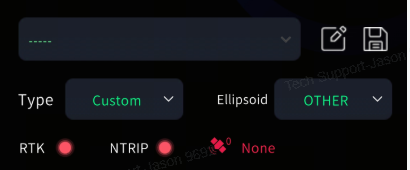
RTK red, NTRIP green: The device is in quick-connect mode and the RTK module is not properly connected. Follow the same steps as above.
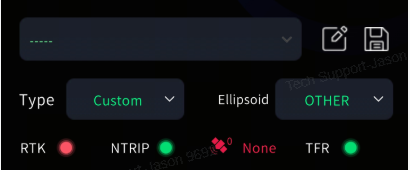
RTK green, NTRIP red: The NTRIP network is not connected. Check whether the phone has internet access, or try switching to a different CORS account.
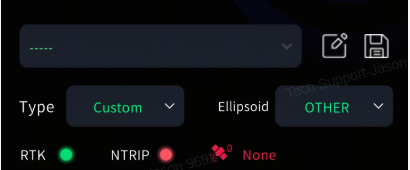
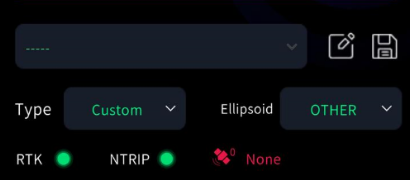
Both RTK and NTRIP are green, but satellite count is 0: RTK hardware failure. It is recommended to power off and ensure the RTK module is securely installed, then retry. If another RTK module is available, cross-test to determine whether a factory repair is needed.
21. How long should K2 data collection last to ensure good Coloring results?
The scanning session must last at least 3 minutes, and you must keep moving during collection. Do not keep the scanner stationary in one position.
Pay attention to how you hold the device and avoid blocking the cameras or having objects on one or both sides of the camera for extended periods. When Coloring is needed in dark environments, use supplemental lighting to ensure uniform brightness, while avoiding overexposure.
22. How does the K2 output panoramic photos for Coloring and Mesh?
When performing Project Processing in LixelStudio, check the "Output Panoramic Photos" option. After processing is complete, the photos will be saved in the output directory. Both Coloring and Mesh features require this option to be enabled.
23. What to do if point cloud layer separation occurs?
Possible causes:
- Fast turns or swinging the device during collection.
- Not using a loop-closure route.
- Not returning to the starting point and standing still for 10 seconds before stopping.
Solution: Strictly follow the operating guidelines. Always return to the starting point and stand still for 10 seconds before stopping. You can also enable "Robust Mode" in LixelStudio and reprocess the data.
24. What to do if indoor and outdoor point clouds cannot be aligned?
Possible causes:
- Passing through doorways facing forward instead of turning sideways.
- Not using the corner-hanging technique when turning (turning sideways at an angle to ensure the LiDAR simultaneously scans both walls around the corner).
Solution: Rescan and strictly follow the operating requirements for sideways door passage and corner-hanging turns.
25. What to do if point cloud is sparse in some areas?
Possible causes:
- Walking speed too fast (above 1.0m/s).
- Not paying attention to app prompts, resulting in missed areas.
- Too far from the scan target (recommended distance is 0.5 to 1 meter).
Solution: Control walking speed, monitor the app-assisted scanning system (QUAL mode) in real time, and ensure target areas have turned green before moving on. Perform supplementary scanning for sparse areas.
26. What to do if RTK mode accuracy is insufficient?
Check the following items:
- Is the scanning area 10 meters or larger?
- Are the number of valid data points greater than 20 (check in LixelStudio)?
- Is the continuous RTK unfixed distance less than 50 meters?
- Is the collection route 100 meters or longer and non-linear?
Ensure all RTK usage requirements are met, and rescan if necessary.
27. What is the K2 operating temperature range?
The operating temperature range is -20 to 50 degrees Celsius. Exceeding this range may affect normal device operation. The device will automatically shut down for protection when the temperature is too high. Please wait for it to cool down before using it again. Do not block the heat dissipation vents on the device body during use.
28. What happens when the K2 battery is critically low?
A pop-up warning will appear when the remaining battery level reaches 10%. At this point, you should save your data and stop scanning to prevent the device from shutting down automatically before data is properly saved. Ignoring the warning and continuing to scan is considered improper operation, and there is no guarantee that data will be fully saved or processed correctly afterward.
29. What output formats does the K2 support?
K2 supports multiple output formats: real-time point cloud, post-processed point cloud (LAS format), Mesh, and 3D Gaussian Splatting model (3DGS).
30. What software does the K2 work with?
- Mobile: LixelGO (collection control and device management).
- Desktop: LixelStudio Full Edition (point cloud processing, including Mesh and stockpile volume features) + LCC Studio (3DGS processing).
31. Does the K2 support explosion-proof operation?
The device does not currently support explosion-proof operation.