XGRIDSDocs
  • 简体中文
  • English
  • 繁體中文
  • 日本語
  • Deutsch
  • Español
  • Italiano
  • Français
  • Русский
  • Polski
  • Nederlands
  • 简体中文
  • English
  • 繁體中文
  • 日本語
  • Deutsch
  • Español
  • Italiano
  • Français
  • Русский
  • Polski
  • Nederlands
  • PortalCam

    • Product Overview
    • Basic Operation
    • Using the LCC Scan App
    • Maintenance and Care
    • FAQ
  • Lixel K Series

    • Lixel K1

      • Product Overview
      • Basic Operation
      • Device Activation and Connection
      • Scanning Workflow
      • Acquire Point Cloud Data with Absolute Coordinate
      • Map Fusion
      • Route Planning Suggestions for Typical Scenes
      • Precautions
      • FAQ
    • Lixel K2

      • Product Overview
      • Basic Operation
      • Device Activation and Connection
      • Scanning Workflow
      • Acquire Point Cloud Data with Absolute Coordinate
      • Map Fusion
      • Route Planning Suggestions for Typical Scenes
      • Precautions
      • FAQ
  • Lixel L Series

    • Lixel L2 Pro

      • Product Overview
      • Basic Operation
      • Device Activation and Connection
      • Scanning Workflow
      • Acquire Point Cloud Data with Absolute Coordinate
      • Measure Point
      • Appendix
      • FAQ
    • Lixel L3

      • Product Overview
      • Basic Device Functions
      • Device Activation and Connection
      • Data Capture
      • Capturing Absolute Coordinates
      • Appendix
  • Accessories

    • Stick Light

      • Installation Guide
      • Basic Operation
      • FAQ
  • Lixel Studio

    • Version and Copyright
    • Installation and Activation
    • Software Interface
    • File Operations
    • Project Processing
    • Tools
    • 2D Drawing
    • Applications
    • Settings
    • Device Connection
    • FAQ
  • Lixel CyberColor

    • LCC Studio

      • Getting Started
      • Version and Updates
      • Download and Installation
      • Interface Overview and Navigation
      • Before Reconstruction
      • Model Reconstruction
      • Single Model Reconstruction
      • Map Fusion
      • Aerial-Ground Fusion
      • Aerial Reconstruction
      • My Models
      • Other Features
      • Settings and Account
      • Converter
      • Video Reconstruction
      • FAQ
    • LCC Scene Editor

      • Version & Updates
      • Account & Login
      • Product Overview & Home
      • Editor Interface
      • Scene Navigation Modes
      • File
      • Settings
      • Edit Operations
      • Window
      • Global Toolbar
      • Assets & Properties
      • Left Toolbar
      • Viewpoints
      • Portal
      • Skybox
      • Annotations
      • Measurement
      • Flythrough
      • Scene Report
      • 3D Layout
      • Mini-Map
      • Preview Mode (Viewer)
      • Help
      • FAQ
      • Spawn Point
    • LCC Model Editor

      • Version and Updates
      • User Guide
      • Overview and Interface
      • File Operations
      • Selectors
      • Editing Models
      • Measurement
      • Color Grading
      • Asset Management
      • Settings and Help
      • FAQ
    • Capture Guide

      • Overview
      • Capture Devices Overview
      • General Capture Principles
      • Indoor Scene Capture
      • Outdoor Scene Capture
      • Large-Scale Capture (Map Fusion)
      • Aerial-Ground Map Fusion Capture
      • Object Capture
      • People Capture
      • Video Reconstruction Capture
      • HD Enhancement
      • Control Points (Lixel P1)
      • FAQ and Troubleshooting
    • LCC Studio Linux

      • Product Overview
      • Architecture Guide
      • Installation and Deployment Guide
      • Container Startup Parameters Guide
      • CodeMeter Offline Licensing Deployment Guide
      • API Reference
      • Appendix - Developer Data Guide
      • Appendix - Error Code List
      • Single-Machine Multi-GPU Cluster Deployment QuickStart
    • Best Practices

      • Merging Multiple Large 3DGS Models
    • Version History
  • Plugin & SDK

    • Unreal

      • Introduction
      • Quick Start - Windows
      • Quick Start - Linux
      • Quick Start - Quest3
      • Editions and Licensing
      • Rendering
      • Tiled Rasterization (Experimental)
      • Visual Settings
      • Normals and Lighting
      • Scene Editing
      • Performance Parameters
      • Performance Guide
      • Third-party and Engine Plugin Integration
      • Proxy Mesh
      • Loading Animation
      • Collision
      • Navigation System Support
      • Single Layer Water Support
      • Localization
      • FAQ
      • Troubleshooting
      • Logging and Diagnostics
      • Contact Us
      • Best Practices

        • Relighting 3DGS with a LixelStudio Mesh
      • API Reference

        • ALCCActorBase
        • ULCCComponentBase
        • ULCCComponent
        • ULCC2Component
        • SOG / SPZ / PLY Actors
        • ALCC2ProxyMesh
        • ALCCClippingVolume
        • ALCCSectionPlane
        • ALCCLoadVolume
        • ULCCUtilLibrary
        • Enums
        • Structs
      • Changelog

        • v3.4.0
        • v3.3.1
        • v3.0.0
        • v2.2.1
        • v1.0.0
        • v0.9.0
        • v0.8.0
        • v0.7.1
        • v0.6.1
        • v0.5.2
        • v0.4.1
        • v0.4.0
        • v0.3.0
        • v0.0.5
        • v0.0.4
        • v0.0.3
        • v0.0.2
        • v0.0.1
    • Web

      • Introduction
      • Rendering Performance Optimization Guide
      • Graphics Configuration
      • FAQ
      • API Reference

        • LCCRender::clearIndexDB
        • LCCRender::dispose
        • LCCRender::load
        • LCCRender::setCamera
        • LCCRender::unload
        • LCCRender::update
        • LCCObject::checkRenderNextFrame
        • LCCObject::clearRenderNextFrame
        • LCCObject::ecef2Prj
        • LCCObject::getBounds
        • LCCObject::getEnvInstancedMesh
        • LCCObject::getInstancedMesh
        • LCCObject::getLodInfos
        • LCCObject::getOriginPosition
        • LCCObject::getProjectionCoordinateSystemInfos
        • LCCObject::hasCollision
        • LCCObject::hasEnvironment
        • LCCObject::hasShcoef
        • LCCObject::intersectsCapsule
        • LCCObject::intersectsRayExt
        • LCCObject::intersectsRayFromOriginExt
        • LCCObject::intersectsSphere
        • LCCObject::lowerToBottom
        • LCCObject::prj2Ecef
        • LCCObject::raiseToTop
        • LCCObject::raycast
        • LCCObject::raycastFromOrigin
        • LCCObject::setAlpha
        • LCCObject::setClipBox
        • LCCObject::setClipPlane
        • LCCObject::setEndLod
        • LCCObject::setLodAutoLevelUp
        • LCCObject::setMaxDistance
        • LCCObject::setMaxNodeSplats
        • LCCObject::setMaxSplats
        • LCCObject::setOriginPosition
        • LCCObject::setPointsColor
        • LCCObject::setRenderState
        • LCCObject::setRotation
        • LCCObject::setScale
        • LCCObject::setSemantic
        • LCCObject::setSemanticColor
        • LCCObject::setSmooth
        • LCCObject::setStartLod
        • LCCObject::setTranslation
        • LCCObject::setVisible
        • LCCObject::togglePointsDisplayMode
        • LCCObject::useEnvironment
        • LCCObject::useShcoef
      • Changelog

        • v0.6.3
        • v0.6.2
        • v0.6.1
        • v0.6.0
        • v0.5.5
        • v0.5.4
        • v0.5.3
        • v0.5.2
        • v0.5.1
        • v0.5.0
        • v0.4.1
        • v0.4.0
        • v0.3.1
        • v0.3.0
        • v0.2.0
    • Lixel OpenAPI

      • Overview
      • Connection & Authentication
      • Message Model & Codec
      • Interface Catalog
      • Real-time Data
      • Project File Access
      • Error Codes
      • Python

        • Quick Start
        • Client Wrapper & Tools
        • FAQ
      • C++

        • Quick Start
        • Client & Examples
        • FAQ

Capturing Absolute Coordinates

This chapter covers the two ways to capture absolute coordinates: using external control points, or using the GNSS module.

Using External Control Points

Capture control points with the device to transform point cloud coordinates and improve accuracy.

Note

Set the number of control points by accuracy requirement and distribute them evenly. Each scan needs at least 3 well-distributed control points for coordinate transformation. More high-accuracy control points, placed more evenly, give higher accuracy.

Field Scanning

1. Site visit and planning

If a topographic map is available, plan control points on the map and confirm them on site. If not, plan them on site.

Distribute control points evenly, no more than 100 m apart. Coordinate transformation needs at least 3 control points, not in a straight line. Plan the scan route around the control points and site conditions.

2. Start scanning

Turn on the scanner (see Data Capture).

3. Add external control points during scanning

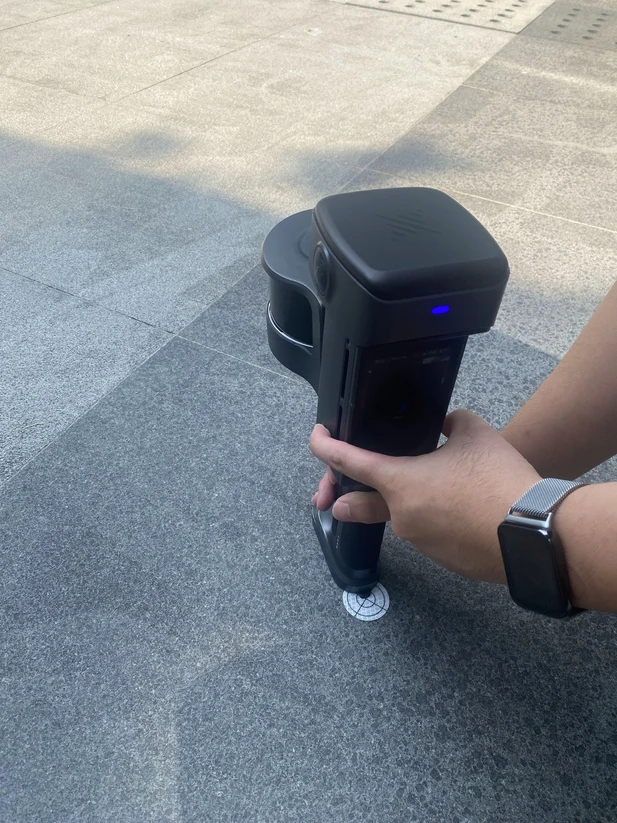
Using the control point marker on the bottom of the scanner

Adding ground control points:

  1. At each control point, enter its name on the device screen.
  2. Align the scanner's control point tip with the control point.
  3. Add the point by pressing the power button or tapping the screen. Use standard survey nails or target sheets.
  4. Enter the control point ID and tap OK. The point is captured when the screen shows "Added" or a tone plays.
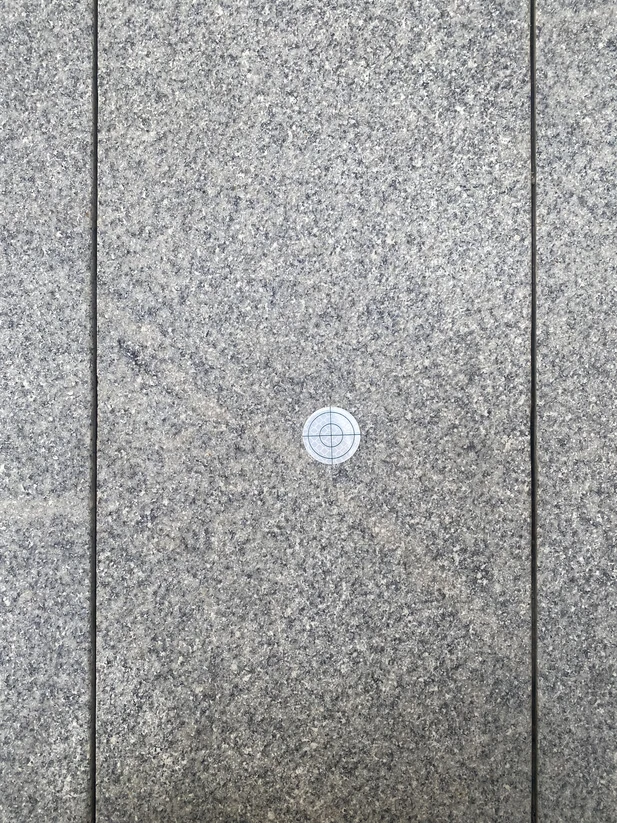
Ground control point target sheet
Aligning the scanner tip with a ground control point

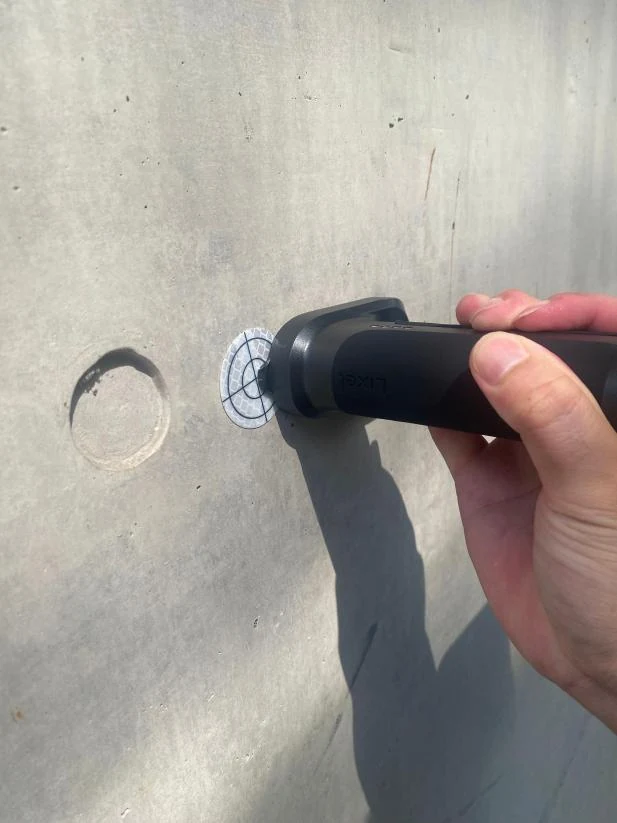
Adding wall control points (supported on the L3):

  1. At each control point, enter its name on the device screen.
  2. Keep the LiDAR facing as steady as possible and rotate slowly within the smallest range; fast rotation causes accuracy loss.
  3. Align the scanner's control point tip with the control point.
  4. Add the point by pressing the power button or tapping the screen.
  5. The point is captured when the screen shows "Added" or a tone plays.
  6. After adding, rotate slowly within the smallest range back to the normal capture posture.
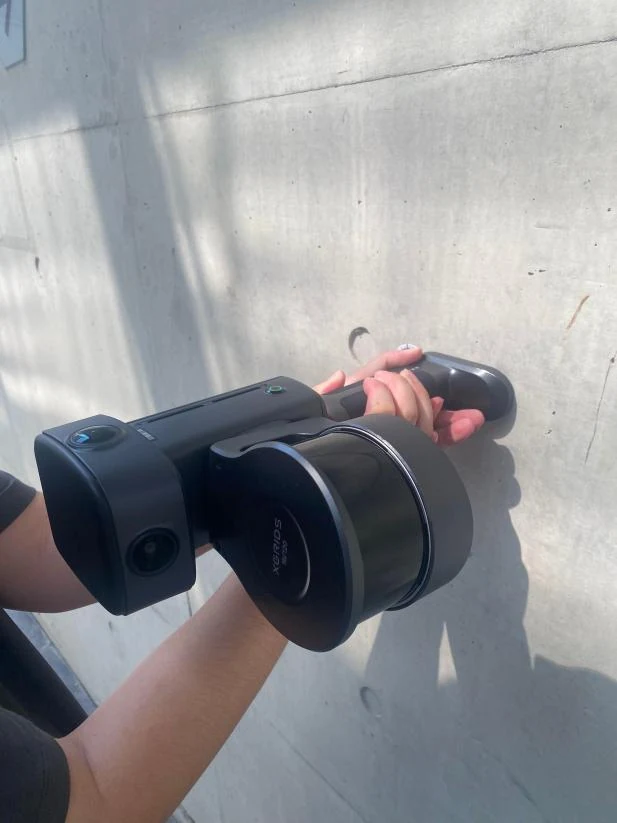
Rotating the scanner toward a wall control point
Aligning the scanner tip with a wall control point

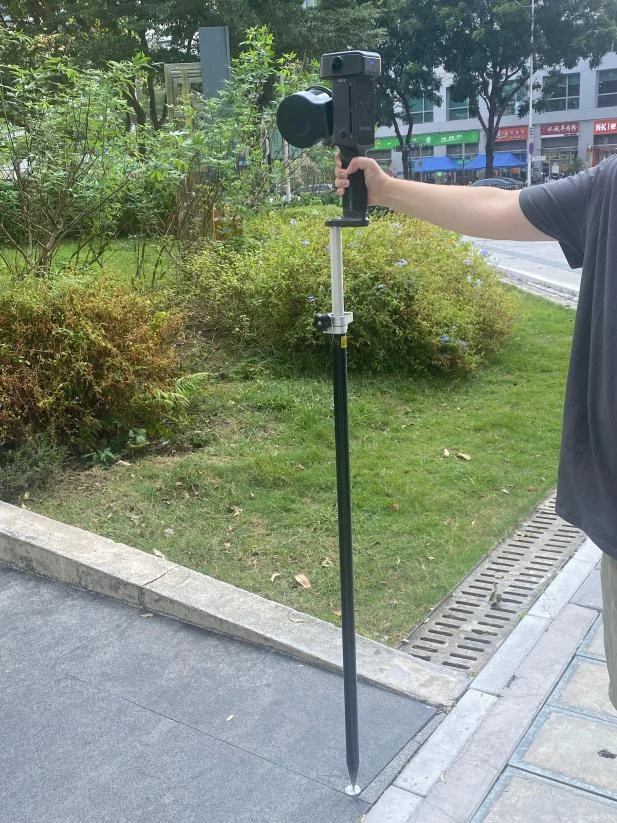
Using a pole

  1. At each control point, enter its name on the device screen, set Target height to "Pole", and select the correct pole height. Pole height: enter the height shown on the pole.
  2. Align the pole tip with the control point.
  3. Add the point by pressing the power button or tapping the screen. Use standard survey nails or target sheets.
  4. The point is captured when the screen shows "Added" or a tone plays.
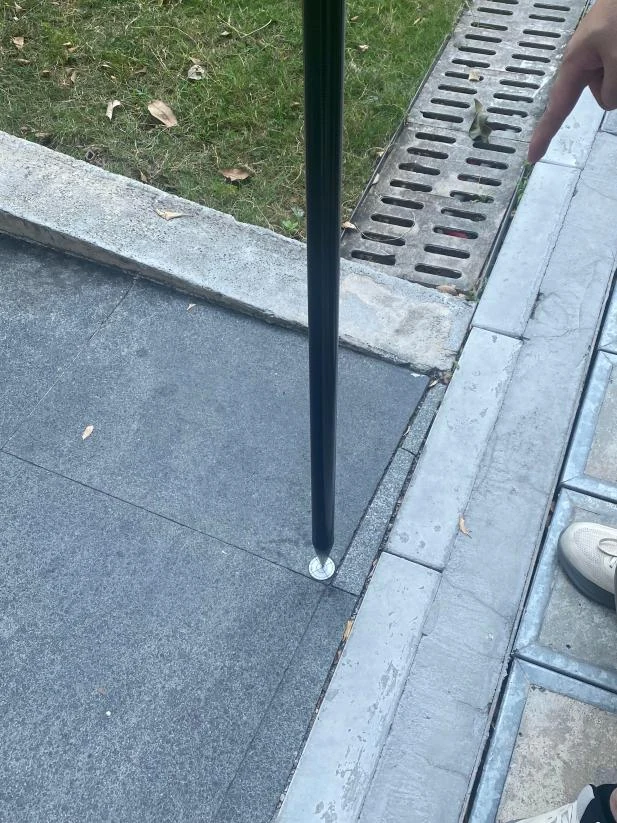
Aligning the pole tip with a control point
Pole capture posture
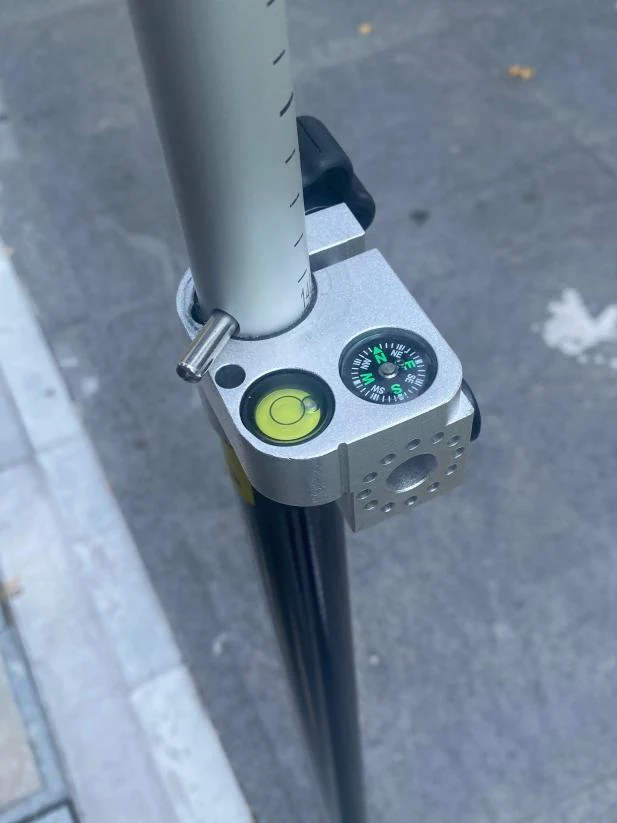
Pole bubble level and height scale
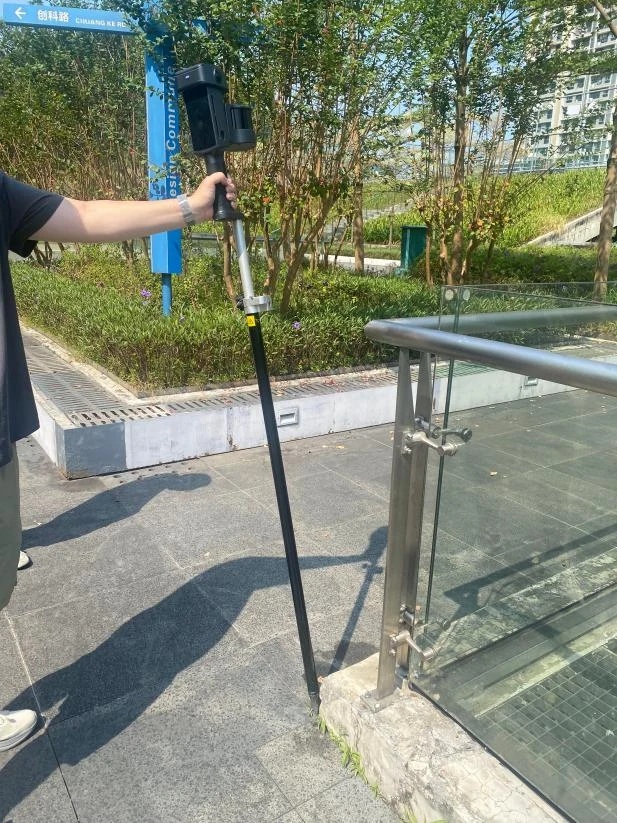
Adding a control point with the pole tilted

Pole mode usage notes:

  • With control points only, the tilt angle may exceed 30°.
  • With GNSS, keep the tilt within 15°; exceeding 30° affects the GNSS signal and lowers accuracy.
  • While adding, you do not need to center the bubble level; the device compensates for the angle automatically.
  • Select the correct pole height. Pole height: enter the height shown on the pole.

Note

  • Record the control point names and order shown on the screen. In LixelStudio, names in the imported control point file must match the names on the device exactly.
  • If a name is duplicated, the screen shows a prompt. Choose how to proceed.
  • View or delete captured points in "Control Point List". Tap the delete button next to a point to remove it.

4. Stop scanning

Tap the red stop button at the bottom center of the screen. The indicator flashes green rapidly, then turns solid green when the scan ends. Power off or start another scan.

Data Processing

See the LixelStudio user manual.

GNSS Module

RTK or PPK mode records absolute coordinates during capture and improves overall point cloud accuracy.

Note

Use this mode outdoors with good GNSS signal.

Field Scanning

1. Scan route planning

Plan a route that keeps GNSS signal strong. For post-processing accuracy, keep any continuous stretch of GNSS loss or unfixed solution under 100 m.

2. Connect the device

Turn on the scanner (see Data Capture).

3. Stop scanning

Tap the red stop button on the right side of the screen. The indicator flashes green rapidly, then turns solid green when the scan ends. Power off or start another scan.

Data Processing

See the LixelStudio user manual.

Note

  • RTK works only outdoors with good GNSS signal and a stable network. It cannot get a fixed solution indoors.
  • The module indicator is green with a fixed solution. When blue, check the satellite count. Start work only when the status is Fixed, not NONE, Float, or Single.
  • Keep a fixed solution for most of the capture, with more than 100 valid RTK records, so LixelStudio can run coordinate transformation.
  • Keep the scanner upright, tilting less than 15° while walking. For special cases (such as small-space floors or ground targets), do not exceed 30°. Long periods above 30° degrade GNSS positioning; if this happens, raise the GNSS tilt limit in LixelStudio post-processing (default: 15°).
  • The scan area must extend beyond 10 m.
  • For accuracy checks, use a non-linear route of at least 100 m.
  • Keep any continuous unfixed RTK stretch under 100 m.