XGRIDSDocs
  • 简体中文
  • English
  • 繁體中文
  • 日本語
  • Deutsch
  • Español
  • Italiano
  • Français
  • Русский
  • Polski
  • Nederlands
  • 简体中文
  • English
  • 繁體中文
  • 日本語
  • Deutsch
  • Español
  • Italiano
  • Français
  • Русский
  • Polski
  • Nederlands
  • PortalCam

    • Product Overview
    • Basic Operation
    • Using the LCC Scan App
    • Maintenance and Care
    • FAQ
  • Lixel K Series

    • Lixel K1

      • Product Overview
      • Basic Operation
      • Device Activation and Connection
      • Scanning Workflow
      • Acquire Point Cloud Data with Absolute Coordinate
      • Map Fusion
      • Route Planning Suggestions for Typical Scenes
      • Precautions
      • FAQ
    • Lixel K2

      • Product Overview
      • Basic Operation
      • Device Activation and Connection
      • Scanning Workflow
      • Acquire Point Cloud Data with Absolute Coordinate
      • Map Fusion
      • Route Planning Suggestions for Typical Scenes
      • Precautions
      • FAQ
  • Lixel L Series

    • Lixel L2 Pro

      • Product Overview
      • Basic Operation
      • Device Activation and Connection
      • Scanning Workflow
      • Acquire Point Cloud Data with Absolute Coordinate
      • Measure Point
      • Appendix
      • FAQ
    • Lixel L3

      • Product Overview
      • Basic Device Functions
      • Device Activation and Connection
      • Data Capture
      • Capturing Absolute Coordinates
      • Appendix
  • Accessories

    • Stick Light

      • Installation Guide
      • Basic Operation
      • FAQ
  • Lixel Studio

    • Version and Copyright
    • Installation and Activation
    • Software Interface
    • File Operations
    • Project Processing
    • Tools
    • 2D Drawing
    • Applications
    • Settings
    • Device Connection
    • FAQ
  • Lixel CyberColor

    • LCC Studio

      • Getting Started
      • Version and Updates
      • Download and Installation
      • Interface Overview and Navigation
      • Before Reconstruction
      • Model Reconstruction
      • Single Model Reconstruction
      • Map Fusion
      • Aerial-Ground Fusion
      • Aerial Reconstruction
      • My Models
      • Other Features
      • Settings and Account
      • Converter
      • Video Reconstruction
      • FAQ
    • LCC Scene Editor

      • Version & Updates
      • Account & Login
      • Product Overview & Home
      • Editor Interface
      • Scene Navigation Modes
      • File
      • Settings
      • Edit Operations
      • Window
      • Global Toolbar
      • Assets & Properties
      • Left Toolbar
      • Viewpoints
      • Portal
      • Skybox
      • Annotations
      • Measurement
      • Flythrough
      • Scene Report
      • 3D Layout
      • Mini-Map
      • Preview Mode (Viewer)
      • Help
      • FAQ
      • Spawn Point
    • LCC Model Editor

      • Version and Updates
      • User Guide
      • Overview and Interface
      • File Operations
      • Selectors
      • Editing Models
      • Measurement
      • Color Grading
      • Asset Management
      • Settings and Help
      • FAQ
    • Capture Guide

      • Overview
      • Capture Devices Overview
      • General Capture Principles
      • Indoor Scene Capture
      • Outdoor Scene Capture
      • Large-Scale Capture (Map Fusion)
      • Aerial-Ground Map Fusion Capture
      • Object Capture
      • People Capture
      • Video Reconstruction Capture
      • HD Enhancement
      • Control Points (Lixel P1)
      • FAQ and Troubleshooting
    • LCC Studio Linux

      • Product Overview
      • Architecture Guide
      • Installation and Deployment Guide
      • Container Startup Parameters Guide
      • CodeMeter Offline Licensing Deployment Guide
      • API Reference
      • Appendix - Developer Data Guide
      • Appendix - Error Code List
      • Single-Machine Multi-GPU Cluster Deployment QuickStart
    • Best Practices

      • Merging Multiple Large 3DGS Models
    • Version History
  • Plugin & SDK

    • Unreal

      • Introduction
      • Quick Start - Windows
      • Quick Start - Linux
      • Quick Start - Quest3
      • Editions and Licensing
      • Rendering
      • Tiled Rasterization (Experimental)
      • Visual Settings
      • Normals and Lighting
      • Scene Editing
      • Performance Parameters
      • Performance Guide
      • Third-party and Engine Plugin Integration
      • Proxy Mesh
      • Loading Animation
      • Collision
      • Navigation System Support
      • Single Layer Water Support
      • Localization
      • FAQ
      • Troubleshooting
      • Logging and Diagnostics
      • Contact Us
      • Best Practices

        • Relighting 3DGS with a LixelStudio Mesh
      • API Reference

        • ALCCActorBase
        • ULCCComponentBase
        • ULCCComponent
        • ULCC2Component
        • SOG / SPZ / PLY Actors
        • ALCC2ProxyMesh
        • ALCCClippingVolume
        • ALCCSectionPlane
        • ALCCLoadVolume
        • ULCCUtilLibrary
        • Enums
        • Structs
      • Changelog

        • v3.4.0
        • v3.3.1
        • v3.0.0
        • v2.2.1
        • v1.0.0
        • v0.9.0
        • v0.8.0
        • v0.7.1
        • v0.6.1
        • v0.5.2
        • v0.4.1
        • v0.4.0
        • v0.3.0
        • v0.0.5
        • v0.0.4
        • v0.0.3
        • v0.0.2
        • v0.0.1
    • Web

      • Introduction
      • Rendering Performance Optimization Guide
      • Graphics Configuration
      • FAQ
      • API Reference

        • LCCRender::clearIndexDB
        • LCCRender::dispose
        • LCCRender::load
        • LCCRender::setCamera
        • LCCRender::unload
        • LCCRender::update
        • LCCObject::checkRenderNextFrame
        • LCCObject::clearRenderNextFrame
        • LCCObject::ecef2Prj
        • LCCObject::getBounds
        • LCCObject::getEnvInstancedMesh
        • LCCObject::getInstancedMesh
        • LCCObject::getLodInfos
        • LCCObject::getOriginPosition
        • LCCObject::getProjectionCoordinateSystemInfos
        • LCCObject::hasCollision
        • LCCObject::hasEnvironment
        • LCCObject::hasShcoef
        • LCCObject::intersectsCapsule
        • LCCObject::intersectsRayExt
        • LCCObject::intersectsRayFromOriginExt
        • LCCObject::intersectsSphere
        • LCCObject::lowerToBottom
        • LCCObject::prj2Ecef
        • LCCObject::raiseToTop
        • LCCObject::raycast
        • LCCObject::raycastFromOrigin
        • LCCObject::setAlpha
        • LCCObject::setClipBox
        • LCCObject::setClipPlane
        • LCCObject::setEndLod
        • LCCObject::setLodAutoLevelUp
        • LCCObject::setMaxDistance
        • LCCObject::setMaxNodeSplats
        • LCCObject::setMaxSplats
        • LCCObject::setOriginPosition
        • LCCObject::setPointsColor
        • LCCObject::setRenderState
        • LCCObject::setRotation
        • LCCObject::setScale
        • LCCObject::setSemantic
        • LCCObject::setSemanticColor
        • LCCObject::setSmooth
        • LCCObject::setStartLod
        • LCCObject::setTranslation
        • LCCObject::setVisible
        • LCCObject::togglePointsDisplayMode
        • LCCObject::useEnvironment
        • LCCObject::useShcoef
      • Changelog

        • v0.6.3
        • v0.6.2
        • v0.6.1
        • v0.6.0
        • v0.5.5
        • v0.5.4
        • v0.5.3
        • v0.5.2
        • v0.5.1
        • v0.5.0
        • v0.4.1
        • v0.4.0
        • v0.3.1
        • v0.3.0
        • v0.2.0
    • Lixel OpenAPI

      • Overview
      • Connection & Authentication
      • Message Model & Codec
      • Interface Catalog
      • Real-time Data
      • Project File Access
      • Error Codes
      • Python

        • Quick Start
        • Client Wrapper & Tools
        • FAQ
      • C++

        • Quick Start
        • Client & Examples
        • FAQ

Basic Device Functions

This chapter covers battery installation and charging, button functions, the indicator light, data transfer, firmware updates, and precautions for the Lixel L3.

Battery Installation
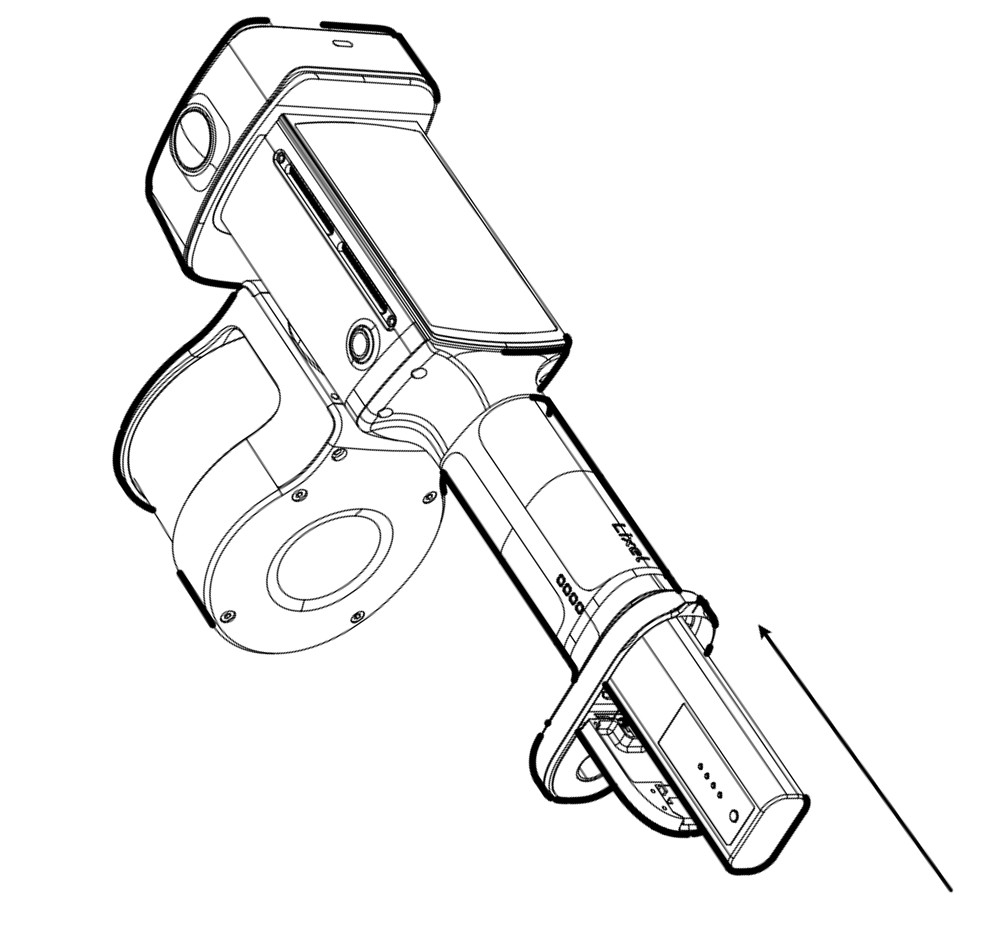
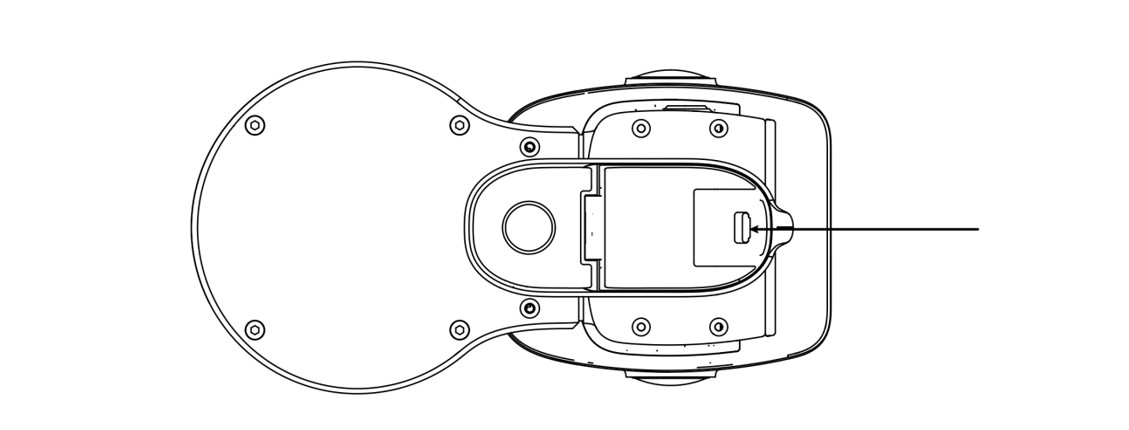
Open the battery cover and insert the battery
1. Open the battery cover and insert the battery as shown
Close the battery cover and check that it locks
2. Push the battery fully into the base of the device, close the cover, and check that it locks

Battery Charging

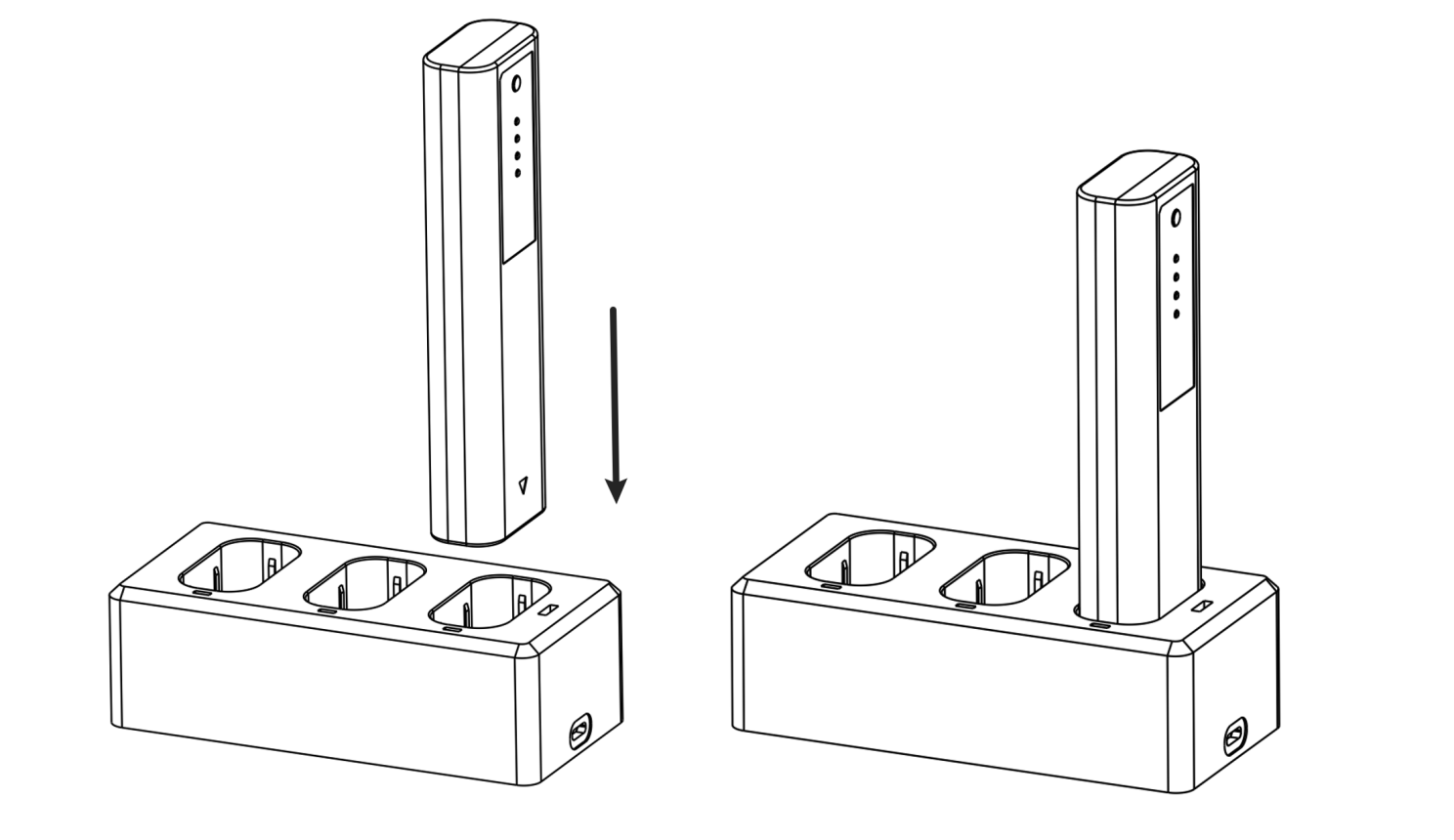
Place the battery on the included charging hub and connect the charging cable.

Charging time: about 100 min for a full charge. The indicator shows the charge level while charging:

Flash PatternCharge Level
Green, 1 flash0-24%
Green, 2 flashes25%-49%
Green, 3 flashes50%-74%
Green, 4 flashes75%-99%
Charging hub
Charging hub

Note

Battery Care

  1. Fully recharge the battery after each use.
  2. Recharge fully charged batteries in storage at least every 3 months.
  3. Recharge low or depleted batteries within 3 days.
  4. For long-term storage, set the charging hub to Storage mode, then store the batteries once charged.

Battery damage from not following these guidelines cannot be repaired and is not covered by warranty. Maintain batteries regularly to keep the device in good condition.

Button Functions

FunctionActionStatus
Power onHold 4 sSlow-flashing blue → solid green (standby)
Power offHold 4 sIndicator off
Start scanDouble-press / tap screenIn standby: (1) Double-press the button. The scan has started when the indicator goes solid green → fast-flashing → slow-flashing green. (2) Or start from the screen.
Stop scanDouble-press / tap screenWhile scanning: (1) Double-press the button. The scan has stopped when the indicator goes slow-flashing → fast-flashing → solid green. (2) Or stop from the screen.
Add control pointPress / tap screenWhile scanning: (1) Press the button once. The indicator stays solid for about 1 s, then returns to slow-flashing green to confirm. (2) Add or delete control points from the screen.
Switch to USB storage modeTap screenIn standby, connect the USB cable and confirm the USB storage mode prompt on the screen.

Note

  • Place the device on a flat, level surface before starting a scan. Wait until the LiDAR spins and the screen shows initialization is complete or the tone sounds before moving the device.
  • Fast-flashing green after stopping means scan files are being saved. Cutting power now may cause file loss or incomplete saves.
  • Saving time depends on the size of the scanned scene.

Indicator Light

IndicatorStatus
OffPowered off
Slow-flashing bluePowering on
Solid blueUSB storage mode
Solid greenStandby
Fast-flashing greenStarting/stopping scan
Slow-flashing greenScanning
Solid yellowDevice not activated
Solid redCritical fault

Data Transfer

Connect the device in standby to a computer with the included USB cable. Then confirm the USB storage mode prompt on the screen. Once the computer recognizes the device, copy your data.

Note

  1. USB storage mode turns off after a restart.
  2. To scan again without restarting, turn off USB storage mode manually.
  3. Other USB cables may transfer slowly or fail.

Firmware Update

Update firmware online or with an offline package.

Online update

On the screen, go to "Settings", connect to Wi-Fi, and follow the update prompt.

Offline update

  1. Download the firmware from the XGRIDS website (full packages are usually over 1 GB).
  2. Switch to USB storage mode and copy the firmware to the root directory of the device storage.
  3. Turn off USB storage mode. A firmware update prompt appears.

Precautions

  1. The Lixel L3 is a precision surveying instrument. Drops or impacts can damage it and cause malfunctions or reduced accuracy.
  2. Once powered on, keep the LiDAR free to rotate and keep the LiDAR and camera views unobstructed. Blocking them may cause mapping to fail or colors to render incorrectly.
  3. Use the supplied base mount for accurate initialization. Uneven ground can make the device wobble, causing initialization to fail or a thicker point cloud.
  4. Avoid fast turns and strong shaking, which can cause mapping to fail or reduce accuracy.
  5. The Lixel L3 is rated IP54. Do not use it in conditions beyond this rating. Clean it with a soft, dry cloth or the supplied cleaning cloth, and keep the LiDAR and lenses clean. Do not touch them with your fingers.
  6. Keep the heat dissipation area uncovered. Blocking it reduces cooling and may cause an automatic shutdown.