
Editing Models
Tools for editing and selecting model content.
Entry: Menu bar → Edit, or the quick action bar
Undo and Redo
| Action | Shortcut | Description |
|---|---|---|
| Undo | Ctrl + Z | Reverts the last action |
| Redo | Ctrl + Shift + Z | Reapplies an undone action |
Note: A new action clears the redo stack. When there's nothing to undo or redo, the button greys out.
Delete
Select a model or selection, then press Delete or click Delete. Cropping doesn't change the original data — afterward you can save the result as a new model, keeping the original intact.
- Deleting a model needs a second confirmation
- Deleting a selection runs immediately
Add to Selection
Add to selection is the default selection mode and needs no shortcut key. Just use any selection tool to make a new selection, and objects in the new region are automatically added to the current selection.
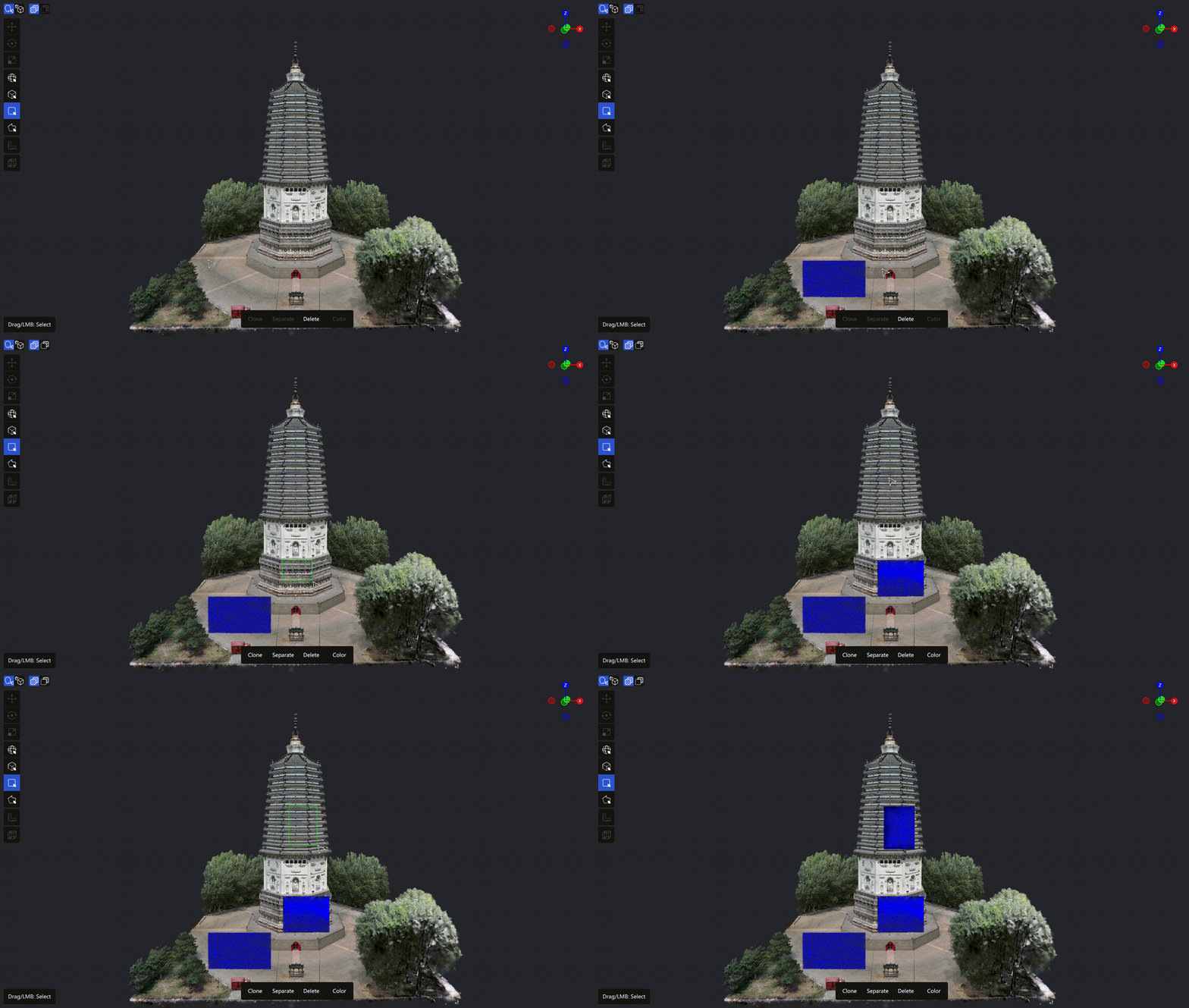
Add to selection
Use cases:
- Selecting objects across several separate regions
- Catching content you missed in an initial selection
- Combining different selection tools for a complex selection
Subtract from Selection
Hold Ctrl and make a new selection. Already-selected objects in the new region are deselected.
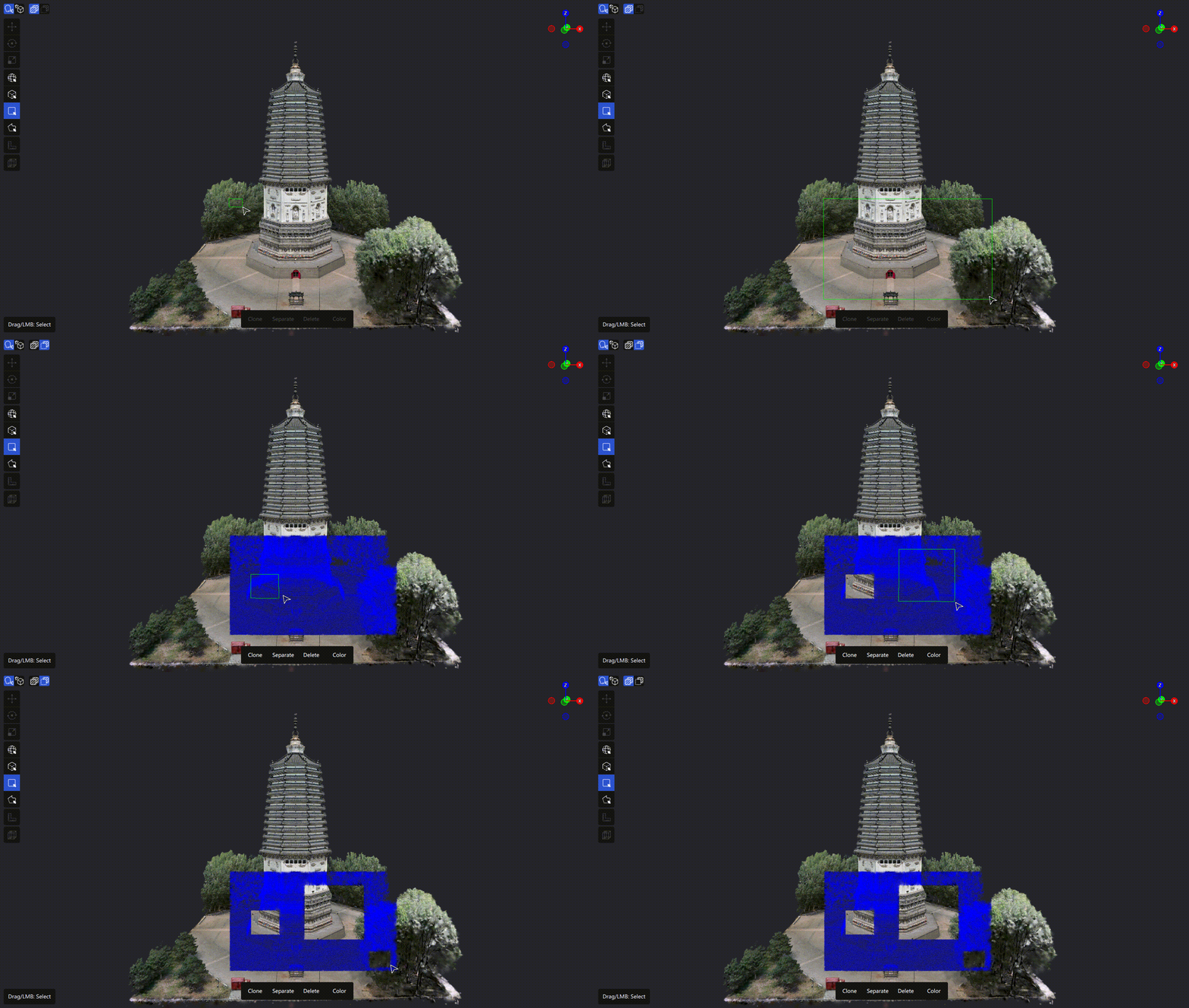
Subtract from selection
Use cases:
- Removing a local region after a broad selection
- Refining a complex selection alongside Add to selection
- Controlling the final crop range to avoid removing content you want to keep
Invert Selection
Press Ctrl + I to toggle between "inside the box" and "outside the box."
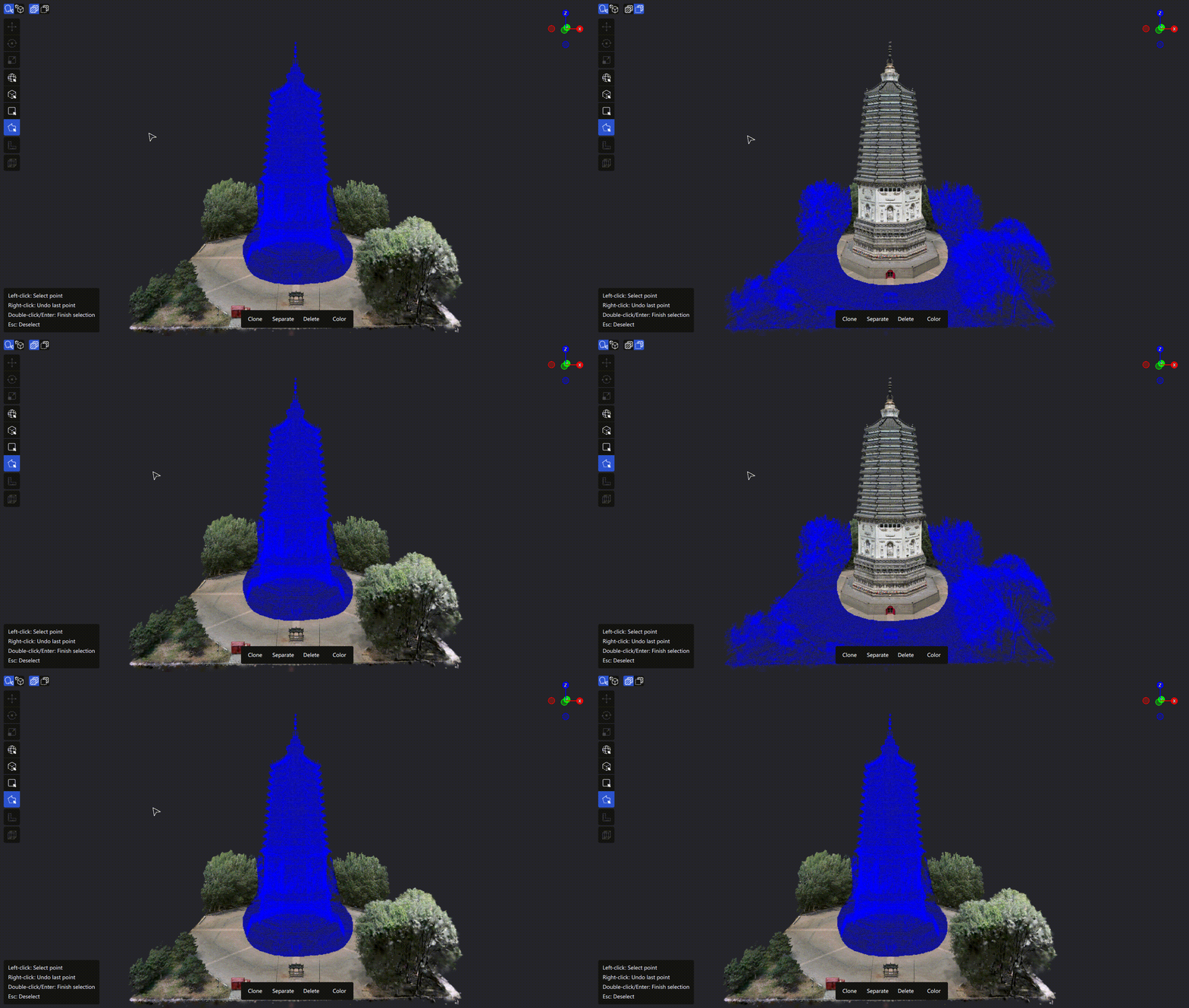
Invert selection
Use cases:
- Selecting everything outside a region
- Clearing regular regions or quickly excluding areas in large scenes
Separate
Separates the selected content from the original model as a new, independent model.
How to use: Select a target region → press Ctrl + Shift + D or click Separate
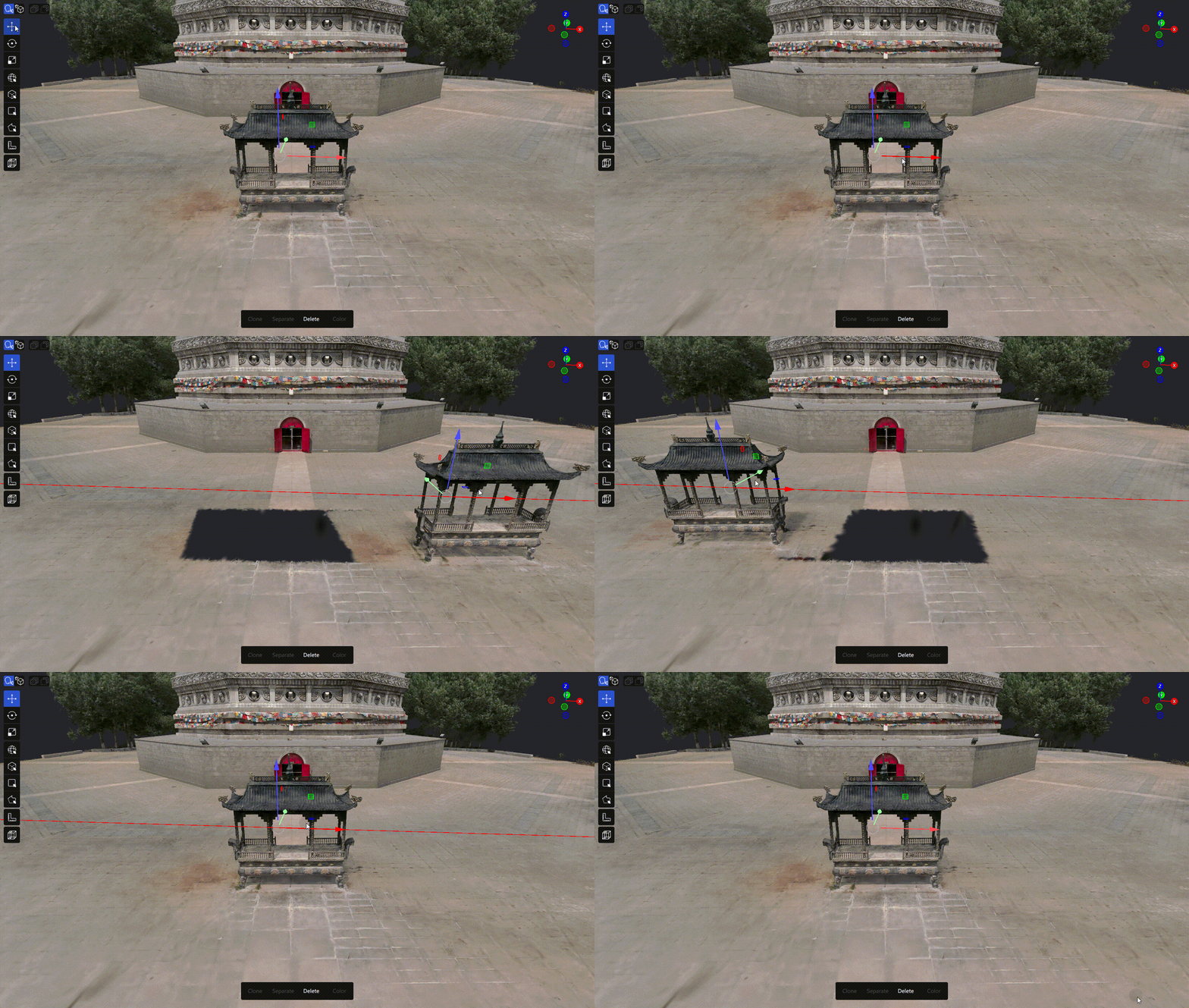
Separate operation
Use cases:
- Extracting standalone objects (furniture, equipment) from the whole model
- Color grading or transforming a local region on its own
Clone
Copies the selected content as a new, independent model. The original is unchanged.
How to use: Select a target region → press Ctrl + D or click Clone
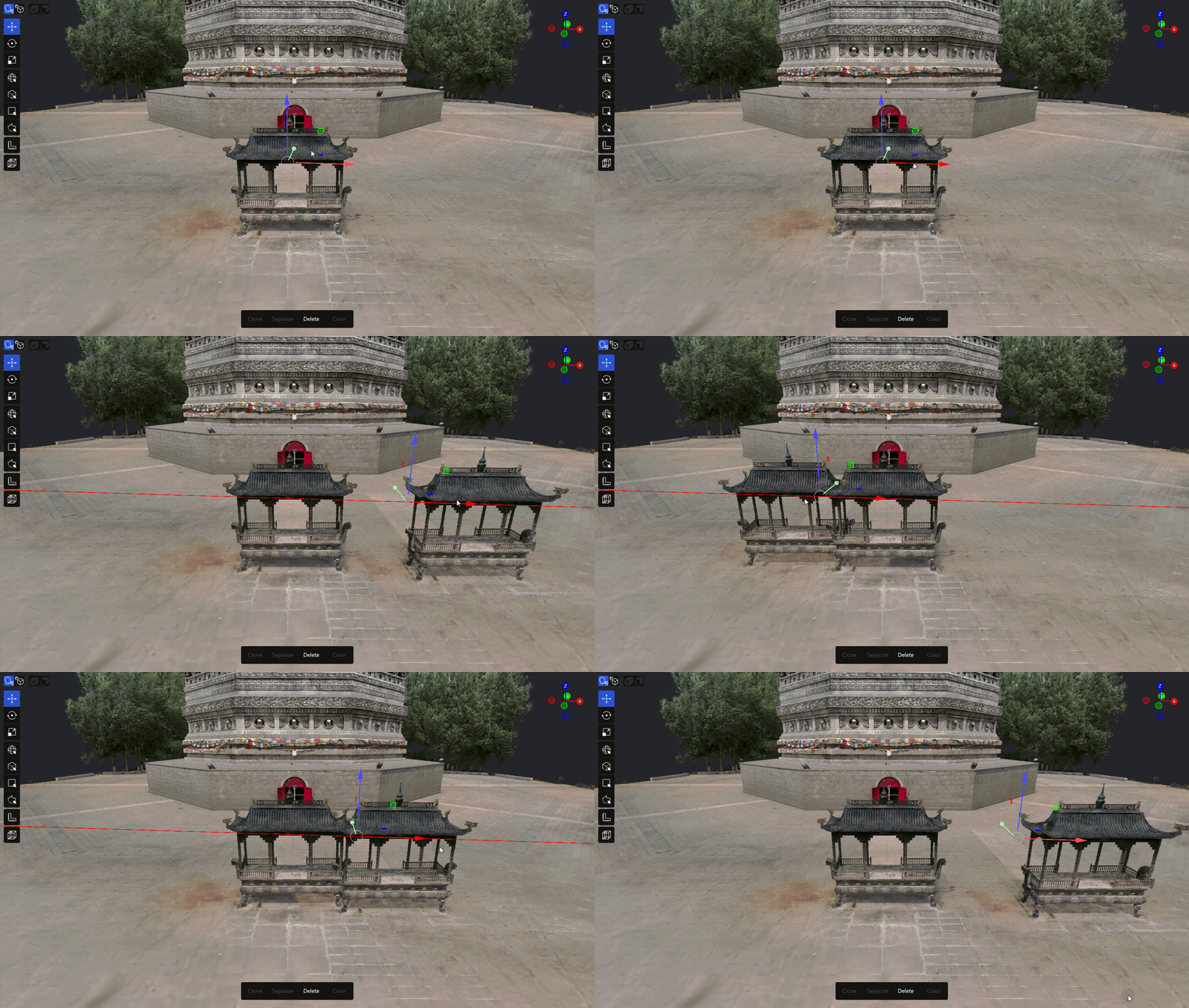
Clone operation
Use cases:
- Experimenting on a copy while keeping the original data
- Duplicating a region to compare color grading
Move / Rotate / Scale
Select a model, then switch edit type in the toolbar:
| Tool | Description |
|---|---|
| Move | Translate the model along the X / Y / Z axes |
| Rotate | Rotate the model around the X / Y / Z axes |
| Scale | Scale the model uniformly |
- The three tools are mutually exclusive; only one is active at a time
- When active, the matching gizmo appears at the model's center
- Supports batch operations on multiple selected models
Align
Align uses a reference plane to align a model with the current grid plane. Use it to correct the orientation of a tilted model.
How to use:
- Enter Edit mode, then click Application Tools > Align in the left toolbar.
- Click three points (P1, P2, and P3) on the model surface to define the reference plane to align.
- After selecting the third point, the viewport displays the reference plane and a normal-direction arrow.
- Click Align to Grid. The model rotates as a whole to align the reference plane with the current grid plane.
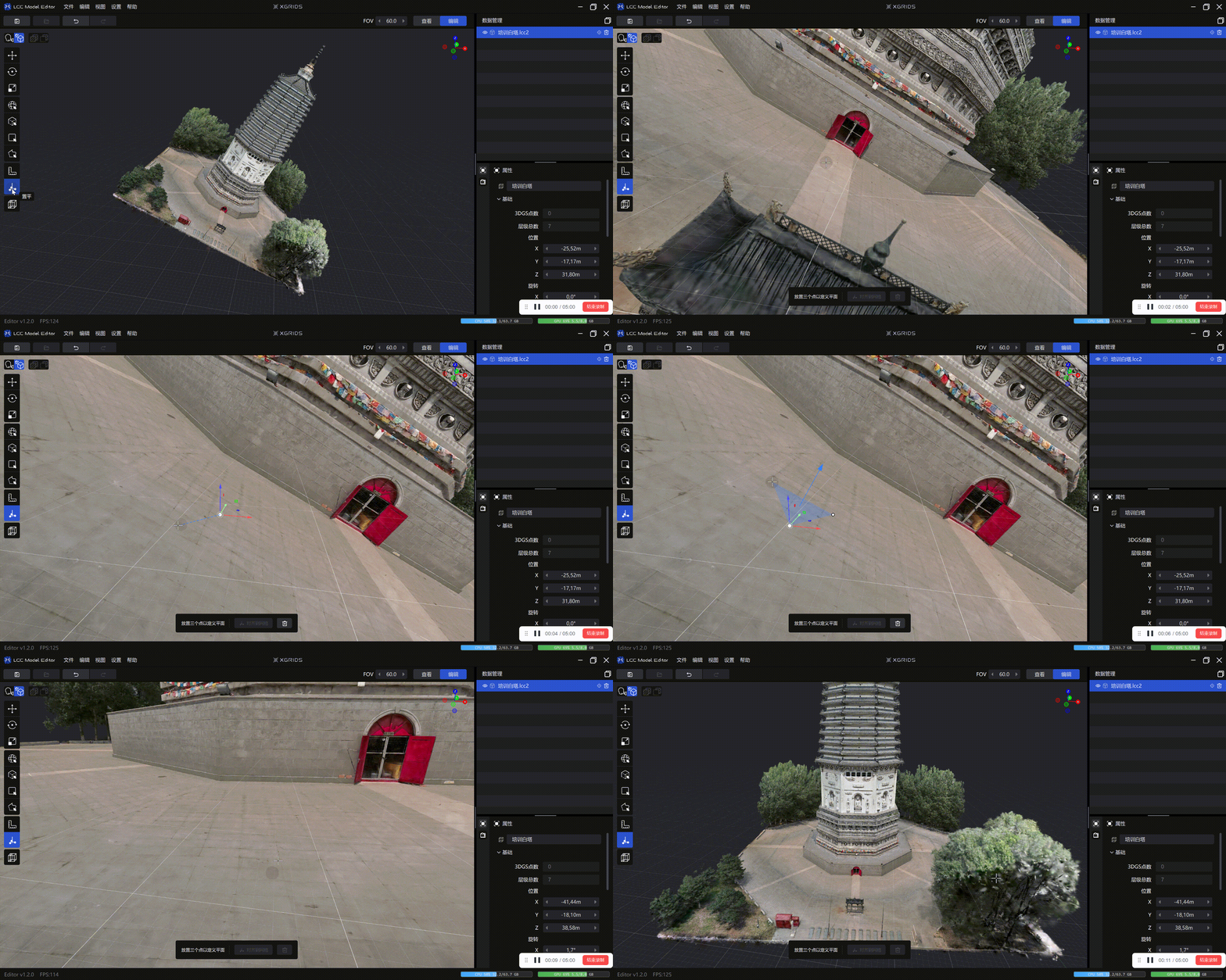
Align operation
After alignment, the normal direction of the reference plane aligns with the positive Z-axis direction of the world coordinate system.
Undoing and canceling:
- While selecting points, press
Ctrl+Zor select Undo Last Point from the context menu to undo selected points one at a time. - Click Cancel or press
Escto exit Align without changing the model. - After alignment, press
Ctrl+Zto restore the model's previous position and orientation.
Shortcut Reference
| Function | Shortcut |
|---|---|
| Save | Ctrl + S |
| Save As | Ctrl + Shift + S |
| Undo | Ctrl + Z |
| Redo | Ctrl + Shift + Z |
| Cancel selection | Esc |
| Invert selection | Ctrl + I |
| Delete | Delete |
| Clone | Ctrl + D |
| Separate | Ctrl + Shift + D |