XGRIDSDocs
  • 简体中文
  • English
  • 繁體中文
  • 日本語
  • Deutsch
  • Español
  • Italiano
  • 简体中文
  • English
  • 繁體中文
  • 日本語
  • Deutsch
  • Español
  • Italiano
  • PortalCam

    • Product Overview
    • Basic Operation
    • Using the LCC Scan App
    • Maintenance and Care
    • FAQ
  • Lixel K Series

    • Lixel K1

      • Product Overview
      • Basic Operation
      • Device Activation and Connection
      • Scanning Workflow
      • Acquire Point Cloud Data with Absolute Coordinate
      • Map Fusion
      • Route Planning Suggestions for Typical Scenes
      • Precautions
      • FAQ
    • Lixel K2

      • Product Overview
      • Basic Operation
      • Device Activation and Connection
      • Scanning Workflow
      • Acquire Point Cloud Data with Absolute Coordinate
      • Map Fusion
      • Route Planning Suggestions for Typical Scenes
      • Precautions
      • FAQ
  • Lixel L Series

    • Lixel L2 Pro

      • Product Overview
      • Basic Operation
      • Device Activation and Connection
      • Scanning Workflow
      • Acquire Point Cloud Data with Absolute Coordinate
      • Measure Point
      • Appendix
      • FAQ
  • Lixel Studio

    • Version and Copyright
    • Installation and Activation
    • Software Interface
    • File Operations
    • Project Processing
    • Tools
    • 2D Drawing
    • Applications
    • Settings
    • Device Connection
    • FAQ
  • Lixel CyberColor

    • LCC Studio

      • Getting Started
      • Version and Updates
      • Download and Installation
      • Interface Overview and Navigation
      • Pre-Reconstruction Work
      • Model Reconstruction
      • Single Model Reconstruction
      • Map Fusion
      • Aerial-Ground Map Fusion
      • Aerial Reconstruction
      • My Models
      • Other Features
      • Settings and Account
      • Video Reconstruction
      • FAQ
    • LCC Scene Editor

      • Version and Updates
      • Account and Sign In
      • Product Overview and Home
      • Editor Interface
      • Three Navigation Modes
      • File
      • Settings
      • Edit
      • Window
      • Global Toolbar
      • Assets and Properties
      • Left Toolbar
      • Viewpoint
      • Skybox
      • Annotation
      • Measurement
      • Flythrough
      • Scene Report
      • 3D Layout
      • Preview Mode (Viewer)
      • Help
      • FAQ
    • LCC Model Editor

      • Version and Updates
      • User Guide
      • Overview and Interface
      • File Operations
      • Selectors
      • Editing Models
      • Measurement
      • Color Grading
      • Asset Management
      • Settings and Help
      • FAQ
    • Version History

Device Connection

This chapter covers connecting XGRIDS handheld scanners to the software and upgrading device firmware.

Switch to USB Mode

Connect an XGRIDS handheld scanning device.
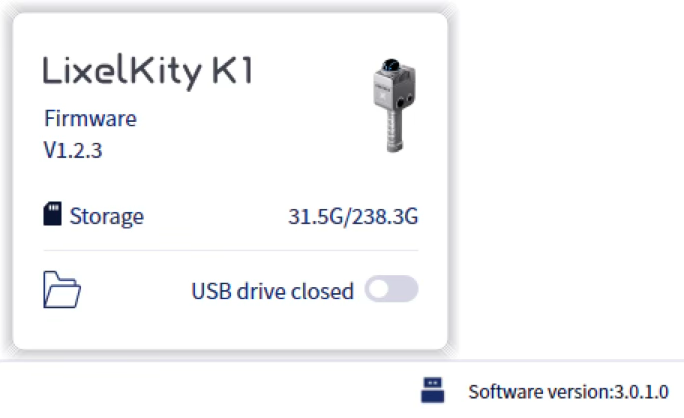
USB mode
  1. Connect Device:
    • Turn on the XGRIDS handheld scanner.
    • Connect it to the computer via USB cable.
    • Wait about 30 seconds until the USB button lights up.
  2. View Device Info:
    • Click the USB button.
    • View the current device firmware and storage capacity.
  3. Open USB Drive Mode:
    • Click the USB Drive button in the lower-right corner.
    • The device USB mode opens and the device data folder opens automatically.

Note: Each USB mode switch disconnects and reconnects the device. Wait a few seconds.

Device Firmware Upgrade

Upgrade the firmware for all XGRIDS handheld scanner series.

Requirements:

  • The device is directly connected to the PC via USB.
  • The device battery is above 60%.

Steps:

  1. Power on the device and connect it via USB.
  2. Click the Device button in the lower-right, then click Update.
  3. Click the field under Firmware Path and select the firmware file.
  4. Click Start. The installation takes about 30 minutes. The device switches USB mode on and off during installation; this is normal.

Important: Do not cancel the update or unplug the USB cable before the process completes.

Prev
Settings
Next
FAQ