XGRIDSDocs
  • 简体中文
  • English
  • 繁體中文
  • 日本語
  • Deutsch
  • Español
  • Italiano
  • 简体中文
  • English
  • 繁體中文
  • 日本語
  • Deutsch
  • Español
  • Italiano
  • PortalCam

    • Product Overview
    • Basic Operation
    • Using the LCC Scan App
    • Maintenance and Care
    • FAQ
  • Lixel K Series

    • Lixel K1

      • Product Overview
      • Basic Operation
      • Device Activation and Connection
      • Scanning Workflow
      • Acquire Point Cloud Data with Absolute Coordinate
      • Map Fusion
      • Route Planning Suggestions for Typical Scenes
      • Precautions
      • FAQ
    • Lixel K2

      • Product Overview
      • Basic Operation
      • Device Activation and Connection
      • Scanning Workflow
      • Acquire Point Cloud Data with Absolute Coordinate
      • Map Fusion
      • Route Planning Suggestions for Typical Scenes
      • Precautions
      • FAQ
  • Lixel L Series

    • Lixel L2 Pro

      • Product Overview
      • Basic Operation
      • Device Activation and Connection
      • Scanning Workflow
      • Acquire Point Cloud Data with Absolute Coordinate
      • Measure Point
      • Appendix
      • FAQ
  • Lixel Studio

    • Version and Copyright
    • Installation and Activation
    • Software Interface
    • File Operations
    • Project Processing
    • Tools
    • 2D Drawing
    • Applications
    • Settings
    • Device Connection
    • FAQ
  • Lixel CyberColor

    • LCC Studio

      • Getting Started
      • Version and Updates
      • Download and Installation
      • Interface Overview and Navigation
      • Before Reconstruction
      • Model Reconstruction
      • Single Model Reconstruction
      • Map Fusion
      • Aerial-Ground Fusion
      • Aerial Reconstruction
      • My Models
      • Other Features
      • Settings and Account
      • Converter
      • Video Reconstruction
      • FAQ
    • LCC Scene Editor

      • Version & Updates
      • Account & Login
      • Product Overview & Home
      • Editor Interface
      • Scene Navigation Modes
      • File
      • Settings
      • Edit Operations
      • Window
      • Global Toolbar
      • Assets & Properties
      • Left Toolbar
      • Viewpoints
      • Portal
      • Skybox
      • Annotations
      • Measurement
      • Flythrough
      • Scene Report
      • 3D Layout
      • Mini-Map
      • Preview Mode (Viewer)
      • Help
      • FAQ
      • Spawn Point
    • LCC Model Editor

      • Version and Updates
      • User Guide
      • Overview and Interface
      • File Operations
      • Selectors
      • Editing Models
      • Measurement
      • Color Grading
      • Asset Management
      • Settings and Help
      • FAQ
    • Capture Guide

      • Overview
      • Capture Devices Overview
      • General Capture Principles
      • Indoor Scene Capture
      • Outdoor Scene Capture
      • Large-Scale Capture (Map Fusion)
      • Aerial-Ground Map Fusion Capture
      • Object Capture
      • People Capture
      • Video Reconstruction Capture
      • HD Enhancement
      • Control Points (Lixel P1)
      • FAQ and Troubleshooting
    • Version History

Overview and Interface

Product Overview

The LCC Model Editor is a low-level editing tool for 3DGS models. It handles selection, cropping, separation, cloning, and color grading.

How to open:

  • From the LCC Scene Editor, click the Model Editing button
  • Launch the standalone application (opens in View mode by default)

Two modes:

  • Browse mode: Browse and measure only; the Properties panel is read-only
  • Edit mode: All editing enabled; models can't be imported once you enter this mode

Interface Layout

The interface has three regions — top, left, and right:

RegionContents
Top — Menu barFile, Edit, View, Settings, Help
Top — Quick action barSave, Open, Undo, Redo, view switch, projection mode switch, selection mode switch
Left — ToolbarEdit tools (Move / Rotate / Scale), selectors, measurement tools, application tools (Align), color grading tools
Right — Asset listModel file management
Right — Properties panelProperties for the selected asset
Center — 3D viewportModel editing and preview

Camera Projection

Projection Modes

LCC Model Editor supports both Perspective Projection and Orthographic Projection. You can switch between them in View mode and Edit mode.
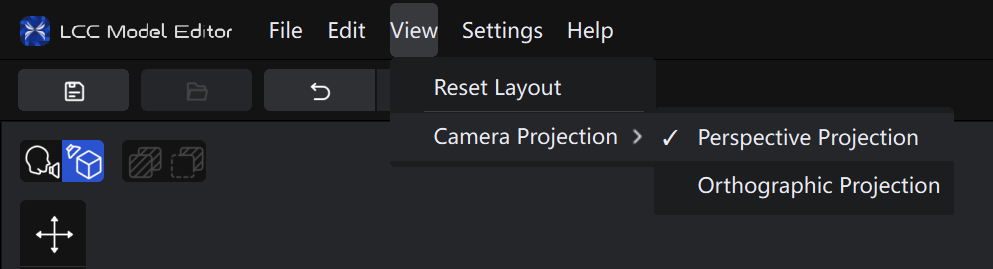
Camera Projection menu
Camera Projection menu

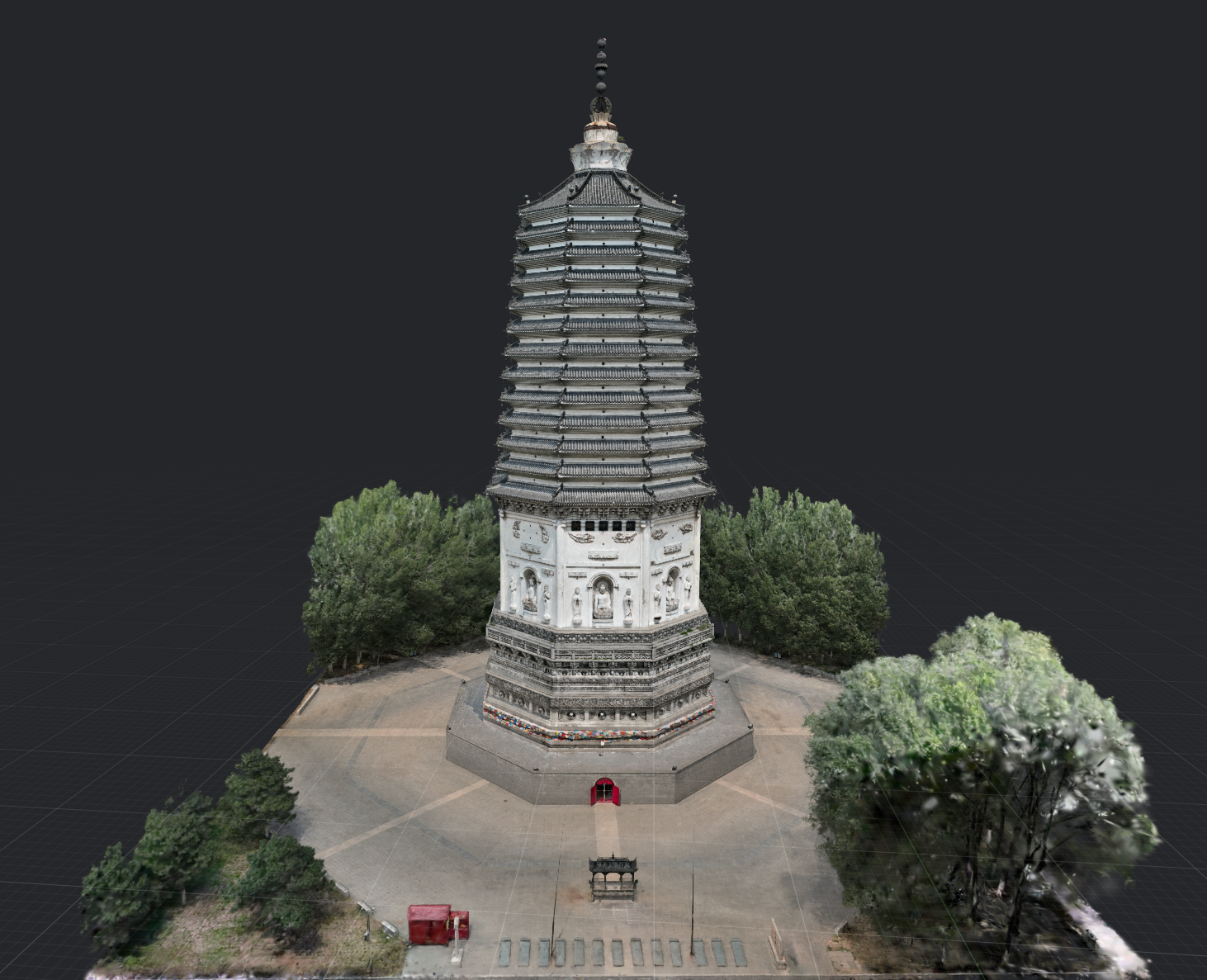
Perspective Projection
Perspective Projection

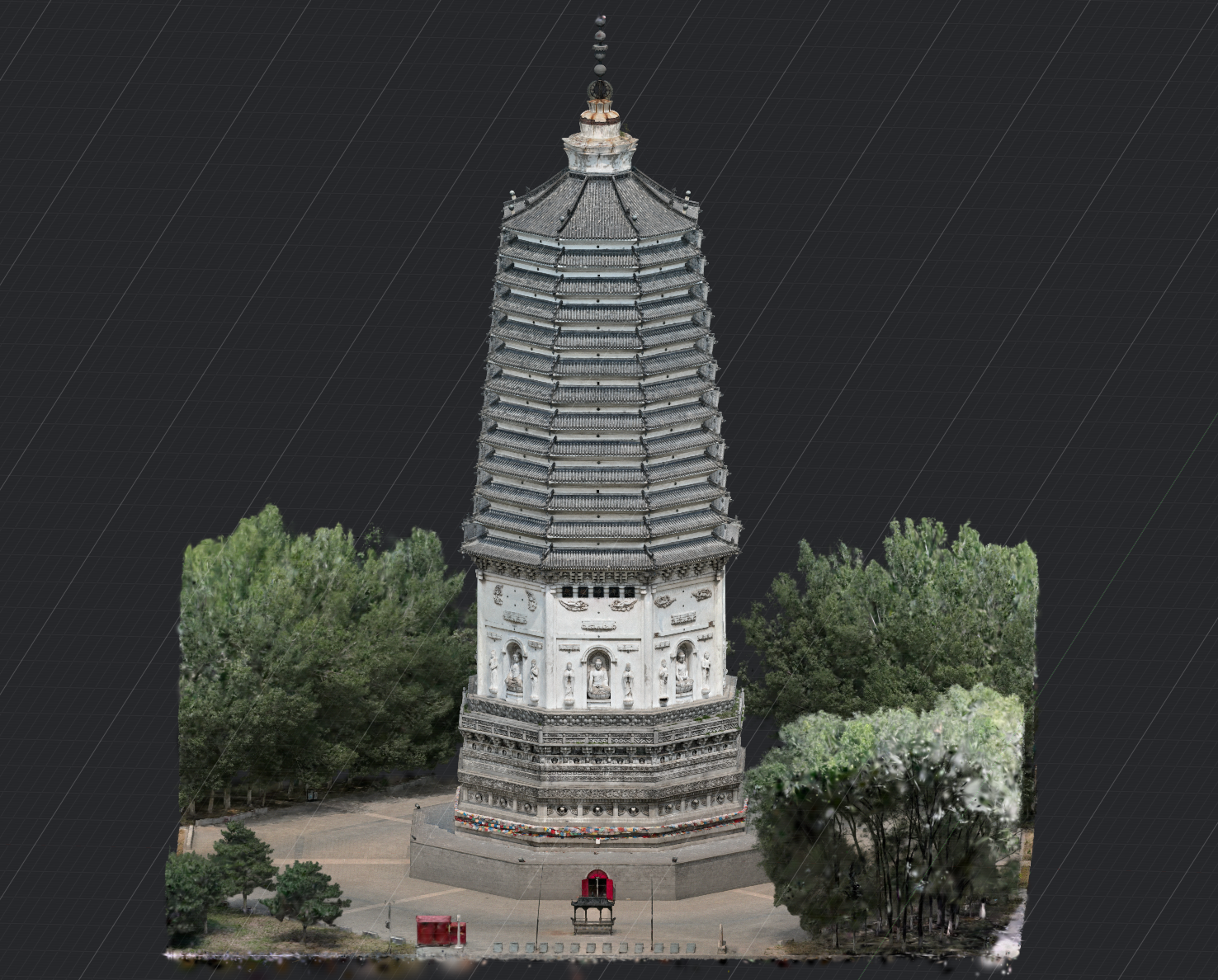
Orthographic Projection

Orthographic Projection

  • Perspective Projection (default): Objects closer to the camera appear larger, and distant objects appear smaller. Best for natural model browsing.
  • Orthographic Projection: Does not use perspective scaling, so parallel lines remain parallel. Best for front, side, and top views, as well as model alignment and measurement.

To switch: Select View > Camera Projection from the top menu bar, then choose Perspective Projection or Orthographic Projection.

Changing the projection mode does not change model data or the current camera position and orientation. In Orthographic Projection, scrolling changes the visible range instead of moving the camera.

Edit Mode and View Mode

Entering Edit mode

  1. Click Edit Mode
  2. Confirm to enter (models cannot be imported after entering Edit mode)

Exiting Edit mode

  • Saved with no new edits: exits to View mode directly
  • Unsaved edits present: prompts whether to save; choose to save, discard, or cancel
Prev
User Guide
Next
File Operations