
Download and Installation
Download the Installation Package
Obtain the software installation package through the official download link: https://xgrids.com/intl/support/download
System Requirements
Reconstruction Configuration Reference
Supported operating systems: Windows 10/11 Professional and Home editions.
Hardware configuration:
Important Notice
- Starting with v1.9.0, data captured with Lixel L2 devices is not compatible and can only be reconstructed in v1.8.1 or earlier.
Basic Configuration:
| Item | Requirement |
|---|---|
| CPU | Intel Core i7 10700K or AMD Ryzen 7 3700X (8-core desktop CPU) |
| RAM | 64 GB |
| GPU | NVIDIA GeForce RTX 3060 12 GB or NVIDIA Quadro RTX A4000 16 GB |
| Storage | At least 120 GB of available space |
| OS | Windows 10 19H1 or later |
Recommended Configuration:
| Item | Requirement |
|---|---|
| CPU | AMD Ryzen 9 7950X (16-core desktop CPU) |
| RAM | 64 GB or more* |
| GPU | NVIDIA GeForce RTX 4090 24 GB or NVIDIA Quadro RTX 6000 Ada 48 GB or NVIDIA Tesla L40 48 GB |
| Storage | SSD with at least 240 GB of available space |
| OS | Windows 10 19H1 or later |
Impact of GPU Performance on Reconstruction Efficiency
High-End GPUs (such as the 4090D):
- Provide faster reconstruction, especially when processing high-resolution and large-scale point-cloud data.
- Maintain high processing efficiency with large data volumes, reducing wait time.
Mid-Range GPUs (such as the 3060):
- Suitable for processing conventional-scale point-cloud data.
- Their reconstruction efficiency is lower than high-end GPUs with large data volumes, but they still provide stable performance.
Memory and Data Processing Capacity Reference
- 64 GB RAM: With 64 GB of RAM, the system can reliably process up to 30 minutes of capture data. Attempting to process 50% more than this amount—more than 45 minutes of data—may result in reconstruction failure.
- 128 GB RAM: With 128 GB of RAM, the system can reliably process up to 60 minutes of capture data. Likewise, processing 50% more than this amount—more than 90 minutes of data—may increase the risk of reconstruction failure.
Recommended Configuration for Map Fusion/Aerial-Ground Fusion
Map Fusion and Aerial-Ground Fusion require higher hardware specifications to support automated, high-density stitching of multiple models and computationally intensive reconstruction. To ensure system performance for intensive data processing and automatic stitching of multiple tasks, we recommend the following:
Recommended Configuration:
- Processor: High-performance desktop CPU with 16 or more cores (such as an AMD Ryzen 9 9950X or equivalent)
- RAM: 64 GB DDR5; 96 GB or 128 GB is recommended for larger-scale data processing.
- GPU: NVIDIA RTX 3090; RTX 4090 or 4090D is recommended for optimal performance.
Notes:
- Before starting a task, ensure that your device has sufficient resources to avoid interruptions or failures.
- Large models (with a total duration of 150 minutes or more) that require high-quality reconstruction may need 96 GB to 128 GB of RAM. If RAM is insufficient, select Reconstruction Efficiency - Standard to ensure a smooth workflow.
- Reconstruction time currently has no definitive estimate. With the recommended configuration above and the Standard setting, estimate processing time at a 1:20 ratio (each minute of capture data requires 20 minutes of processing).
Installation
LCC Studio uses a full .iso installation package, which supports offline installation of all LCC functional modules.
Registration and Sign-In
Registration
When you open the software, you are taken to the sign-in page. Click Register Account to open the registration page.
On the registration page, enter the required information and click Register to complete registration and sign in.
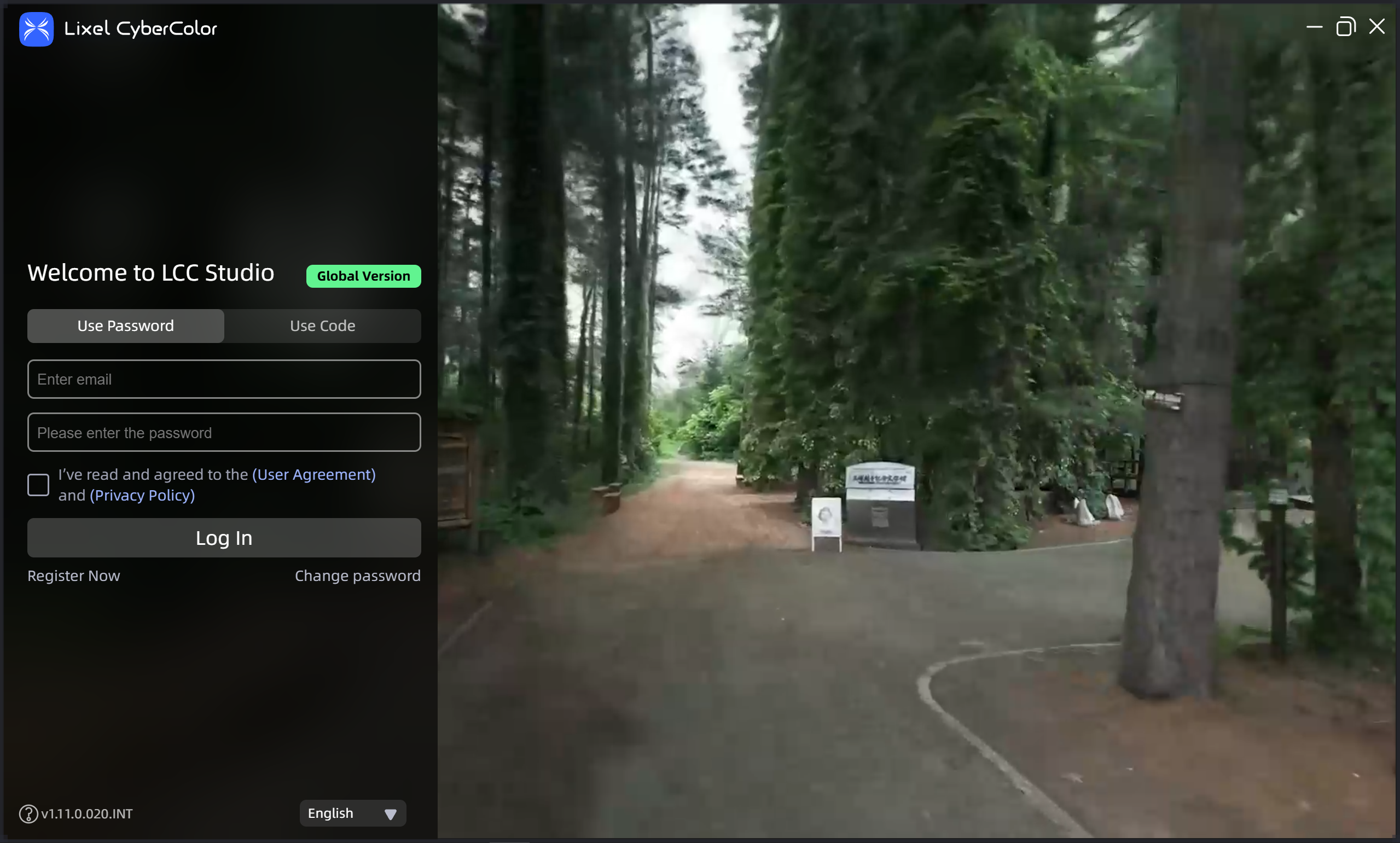
Sign-in page

Register an account
Subscribe to receive the latest XGRIDS product and event information: selecting the subscription option while registering takes effect immediately, and we will periodically send product and event updates to your email address. To unsubscribe later, select the unsubscribe option in a notification email; you will no longer receive XGRIDS updates.
Sign In
Users in mainland China can sign in with either a password or a verification code. After signing in, you can start using the platform features.