
Assets and Properties
Assets List
The Assets list is located on the right side of the interface, providing centralized management of all objects and data in the current scene (models, annotations, viewpoints, measurements, etc.).
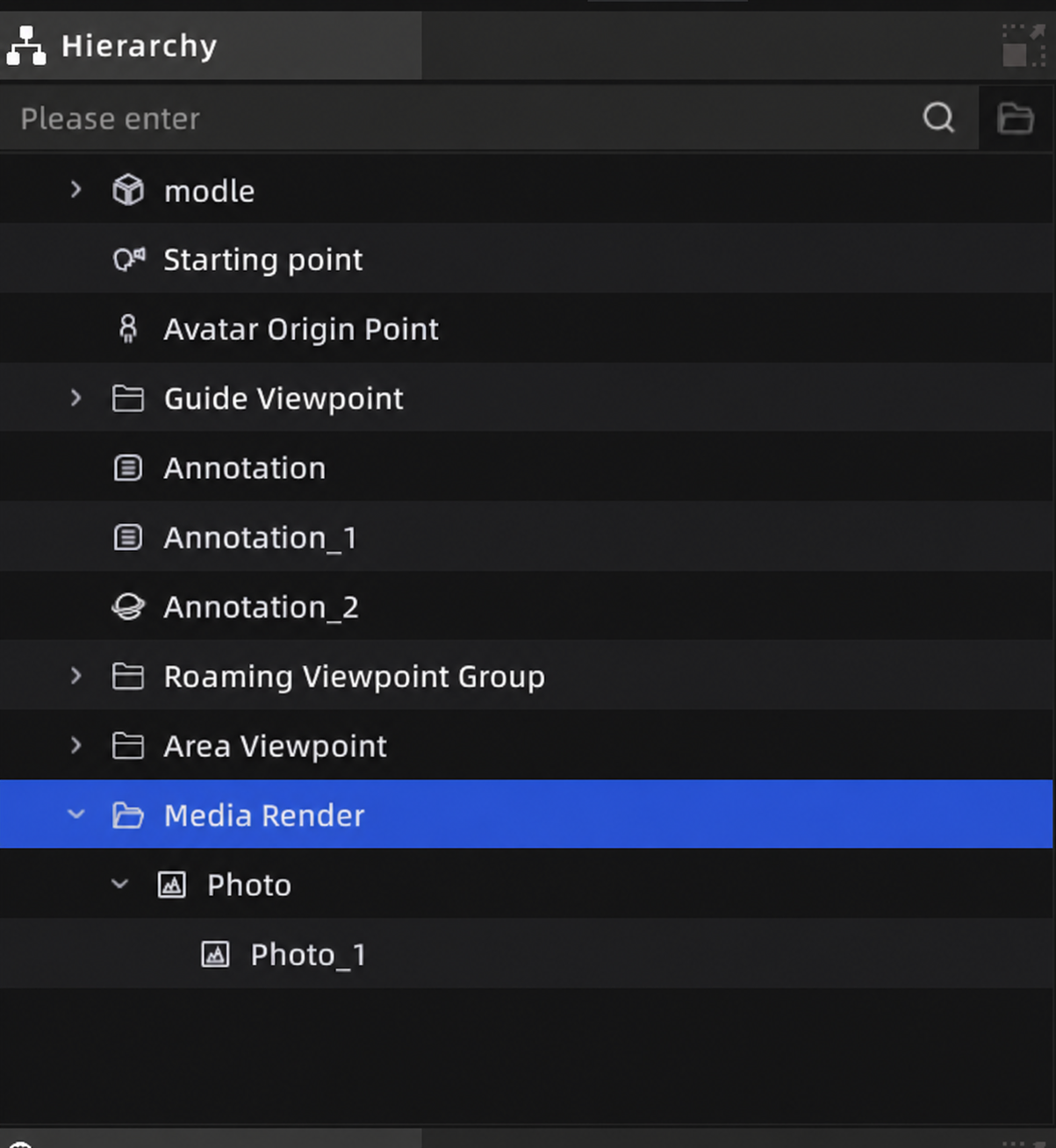
Assets list
Selecting Assets
- Single click: Select an asset; the Property panel switches to display that asset's properties
Ctrl+ click: Multi-select individual itemsShift+ click: Range select in sequence- Double-click: Locate the asset (3D view jumps to the asset's position)
- Click empty area: Deselect
Note: When an asset is selected in the Assets list, the corresponding asset in the 3D view is highlighted and displays a manipulation handle (Gizmo).
Adding Assets
When you complete a creation operation in the scene, the asset is automatically added to the list.
Deleting Assets
Select an asset and press Delete or right-click → Delete. The Assets list and 3D view update simultaneously.
Non-deletable assets:
- Colliders (cannot be deleted individually; they follow their model)
- Origin Point, Digital Human Origin Point
Note: Delete operations support Undo (
Ctrl+Z).
Show/Hide
Click the eye icon on the left side of an asset entry to toggle visibility:
- Visibility state is saved with the project
Drag to Reorder
Drag asset entries to adjust their order or move them into folders:
- Same-level drag: Drag to a same-level position; a reference line indicates the drop location
- Child-level drag: Drag below a parent asset to nest it within that group
Non-draggable assets: Colliders, Environment Data, media files under Annotations, 3D Layout components, AI Recognition Data, Mini Map, Multi-Floor, Area Viewpoints, Tour Viewpoints
Note: Nesting depth cannot exceed 4 levels.
Search
Enter keywords in the search box at the top of the Assets list to filter assets by name. Search results display matching assets along with their parent paths. Hidden assets can also be found through search.
Context Menu
Right-click an asset to access available operations (options vary by asset type):
| Action | Description |
|---|---|
| Locate | Jump the 3D view to the asset's position |
| Rename | Modify the asset's display name |
| Delete | Delete the asset |
| Hide/Show | Toggle visibility |
| Export | Export the asset as a file |
| Copy/Paste | Copy the asset (supported for models, 3D Layout components) |
| Create Folder | Create a new grouping folder |
| Ungroup | Move assets inside a folder back to the parent level |
| Relink | Re-specify the file path when an asset's file is missing |
Missing Resources and Relinking
When an asset's corresponding file has been moved or deleted, the asset name displays in red.
Fix method:
- Right-click the missing asset → select "Relink"
- Select the correct file in the file manager
- Confirm to restore the link
Property Panel
The Property panel is located at the bottom-right of the interface. After selecting any asset, it automatically displays that asset's editable parameters.
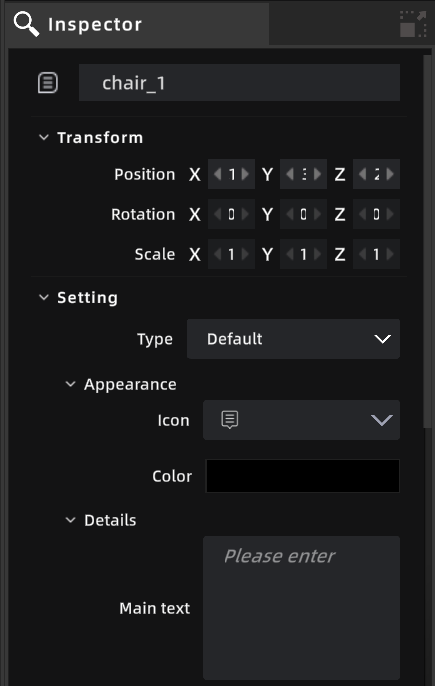
Property panel