XGRIDSDocs
  • 简体中文
  • English
  • 繁體中文
  • 日本語
  • Deutsch
  • Español
  • Italiano
  • 简体中文
  • English
  • 繁體中文
  • 日本語
  • Deutsch
  • Español
  • Italiano
  • PortalCam

    • Product Overview
    • Basic Operation
    • Using the LCC Scan App
    • Maintenance and Care
    • FAQ
  • Lixel K Series

    • Lixel K1

      • Product Overview
      • Basic Operation
      • Device Activation and Connection
      • Scanning Workflow
      • Acquire Point Cloud Data with Absolute Coordinate
      • Map Fusion
      • Route Planning Suggestions for Typical Scenes
      • Precautions
      • FAQ
    • Lixel K2

      • Product Overview
      • Basic Operation
      • Device Activation and Connection
      • Scanning Workflow
      • Acquire Point Cloud Data with Absolute Coordinate
      • Map Fusion
      • Route Planning Suggestions for Typical Scenes
      • Precautions
      • FAQ
  • Lixel L Series

    • Lixel L2 Pro

      • Product Overview
      • Basic Operation
      • Device Activation and Connection
      • Scanning Workflow
      • Acquire Point Cloud Data with Absolute Coordinate
      • Measure Point
      • Appendix
      • FAQ
  • Lixel Studio

    • Version and Copyright
    • Installation and Activation
    • Software Interface
    • File Operations
    • Project Processing
    • Tools
    • 2D Drawing
    • Applications
    • Settings
    • Device Connection
    • FAQ
  • Lixel CyberColor

    • LCC Studio

      • Getting Started
      • Version and Updates
      • Download and Installation
      • Interface Overview and Navigation
      • Pre-Reconstruction Work
      • Model Reconstruction
      • Single Model Reconstruction
      • Map Fusion
      • Aerial-Ground Map Fusion
      • Aerial Reconstruction
      • My Models
      • Other Features
      • Settings and Account
      • Video Reconstruction
      • FAQ
    • LCC Scene Editor

      • Version and Updates
      • Account and Sign In
      • Product Overview and Home
      • Editor Interface
      • Three Navigation Modes
      • File
      • Settings
      • Edit
      • Window
      • Global Toolbar
      • Assets and Properties
      • Left Toolbar
      • Viewpoint
      • Skybox
      • Annotation
      • Measurement
      • Flythrough
      • Scene Report
      • 3D Layout
      • Preview Mode (Viewer)
      • Help
      • FAQ
    • LCC Model Editor

      • Version and Updates
      • User Guide
      • Overview and Interface
      • File Operations
      • Selectors
      • Editing Models
      • Measurement
      • Color Grading
      • Asset Management
      • Settings and Help
      • FAQ
    • Version History

FAQ

1. When should a user use Model Editor?

  • Model Editor is an editing tool for 3D Gaussian models. It supports selection, cropping, separation, cloning, and color adjustment. Users can take model A exported from LCC Studio, edit it in Model Editor, and export a new model B. If model B needs to have Mesh (FBX/OBJ/GLB) assets overlaid or needs to be published, use Scene Editor. Note that assets cannot be published online — projects containing assets can currently only be exported and then shared.

2. How do I rotate the model to another side while cropping?

  • The camera view is locked when the selection tool is active. Hold Alt + left mouse button to temporarily change the view and rotate to a different angle. You can also switch to Pivot Mode after cropping to quickly rotate the scene.

3. What is the Depth option used for?

  • It controls the penetration distance of the selection area. The deeper the depth, the farther the selection area penetrates.

4. Can the gaps left after LCC model cropping be repaired?

  • If there is similar texture nearby, you can use Model Editor to perform the repair. It is recommended to first adjust the model viewing angle when cropping, select an appropriate cropping boundary, and try to perform cuts in areas where the texture is smooth or inconspicuous.
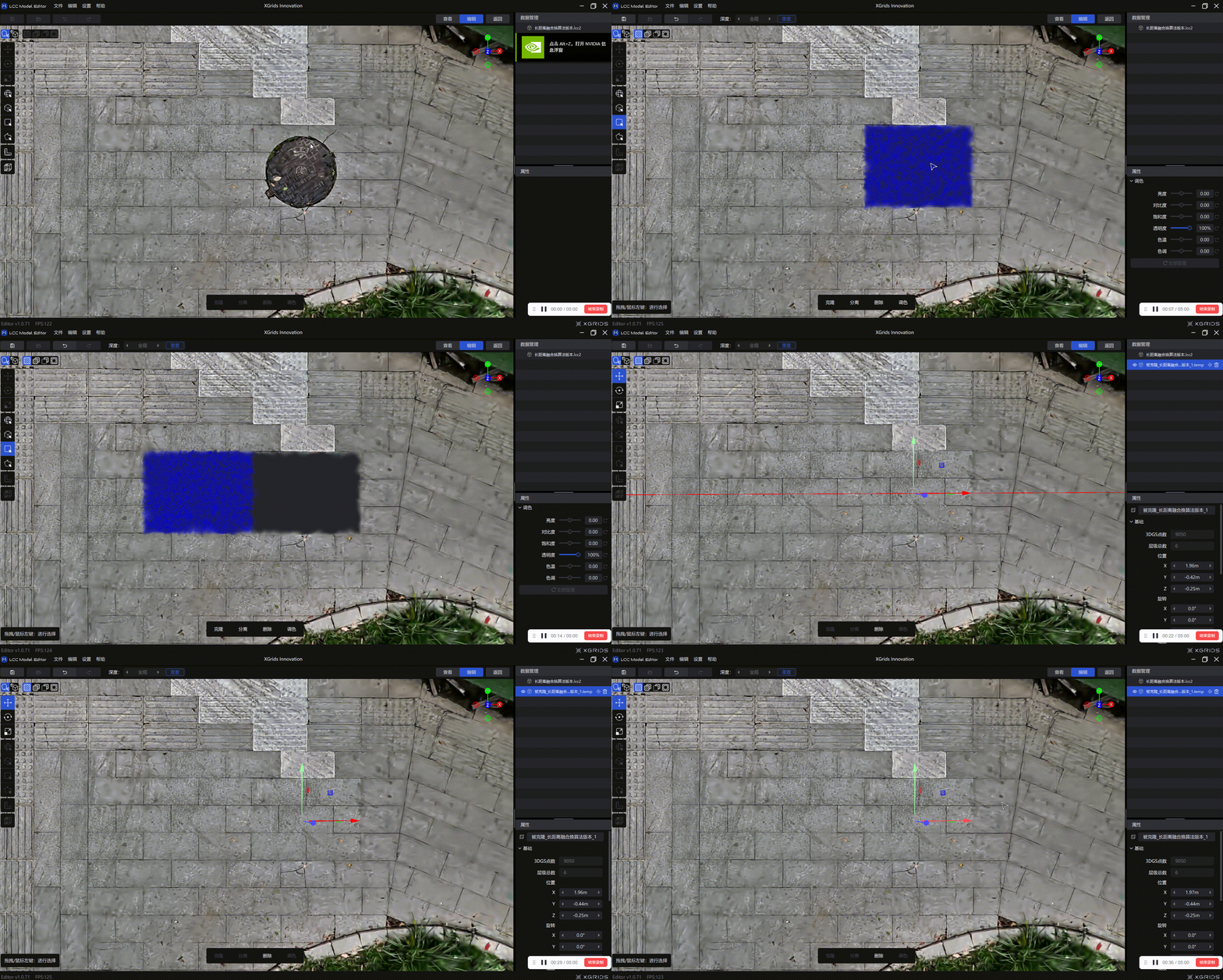
Cropping repair demonstration

Cropping repair demonstration

5. Why is the exported LCC2 model in its original pre-edit state?

Users report that after importing an LCC model into Model Editor for cropping edits and exporting in LCC2 format, the exported model is still in the original pre-cropping state.

Solutions:

  • Confirm the cropping operation was properly saved (File → Save/Save As)
  • Before exporting, confirm the current view displays the post-cropping result.
  • Use "File → Save As" to save the cropped model as an .lcc2 file.
  • If the issue persists, it may be a version bug — update to the latest version of Model Editor.
  • Note: Starting from Model Editor v1.0.72, opening older .lcc files will automatically upgrade and convert them to LCC2 format.
Prev
Settings and Help