
FAQ
1. What are the recording duration requirements for LCC capture?
- L1 and L2 must be used with a panoramic camera. Recording should be at least 3 minutes and no longer than 30 minutes. Exceeding the time limit generates an additional video group, and reconstruction cannot process it properly — multi-segment video merging is not supported. Do not stop recording right at the time limit. Recordings that are too short will also cause reconstruction failure. K series and L2 Pro require at least 1 minute per recording. Single-map capture exceeding 30 minutes is not recommended. If capture time exceeds 30 minutes, equip the computer with high memory (96–256 GB) to avoid modeling process crashes. Refer to LCC Studio's estimated memory display — red indicates a high crash risk.
- Note: After all devices finish initialization, you must start moving. The minimum trajectory displacement is 1 meter.
2. What is the recommended movement speed during LCC capture?
- Generally no more than 1 m/s. In indoor environments, corridors, close-range targets, doorways, dim areas, turns, and corners, keep the speed below 0.5 m/s.
- For PortalCam, do not exceed 0.5 m/s. In indoor environments, corridors, close-range targets, doorways, dim areas, turns, and corners, keep the speed below 0.3 m/s.
3. Why is it not recommended to have people following during LCC capture?
- Stationary or slowly moving people may be incorrectly reconstructed, affecting model quality. If someone must follow, maintain a distance of at least 5 meters from the device.
4. Should I use RTK when capturing outdoors with LCC?
- RTK is recommended for outdoor capture to obtain a good fixed solution and reduce reconstruction layering issues.
5. What are the lighting requirements during LCC capture?
- Uniform and bright ambient lighting is recommended. Avoid strong lighting changes or direct sunlight. Significant lighting variations affect image matching and reduce reconstruction stability. Indoors, turn on lights, open curtains, and reduce capture speed as appropriate.
6. How should I plan the path and movement pattern for LCC capture?
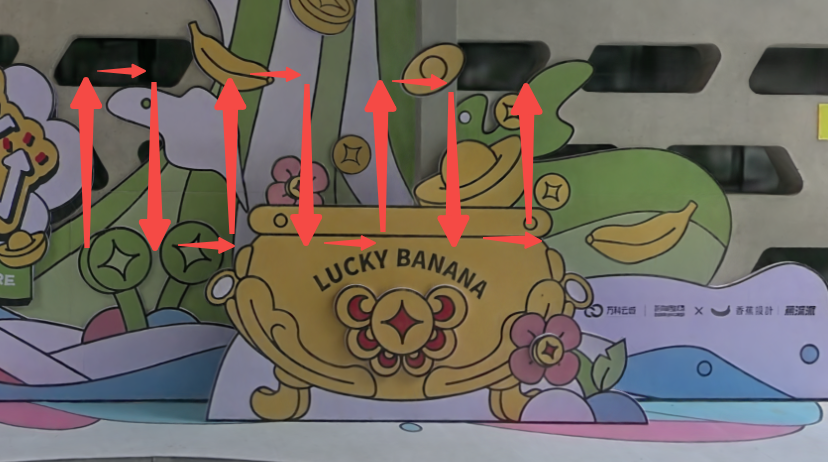
- A serpentine pattern (side-to-side movement) is recommended rather than a straight line, to increase viewing angle coverage and avoid areas lacking multi-angle data. For large or complex scenes, add loop closures (return to previously captured positions while maintaining a similar viewing angle) to improve reconstruction stability and avoid model discontinuities.
7. What are the device orientation requirements during LCC capture?
- During capture, maintain the device pitch angle between −60° and +60°. Pointing directly up or down is not recommended, as it may affect data quality.
- The recommended distance between the device and the captured object is approximately 0.5 meters.
- For K1, maintain a 15°–20° downward tilt so the LiDAR laser can scan the ground ahead. In corridor scenarios, capture sideways to ensure one camera lens faces forward.
8. How can I achieve better LCC capture results?
Please refer to: Pre-Reconstruction | Product Manual.
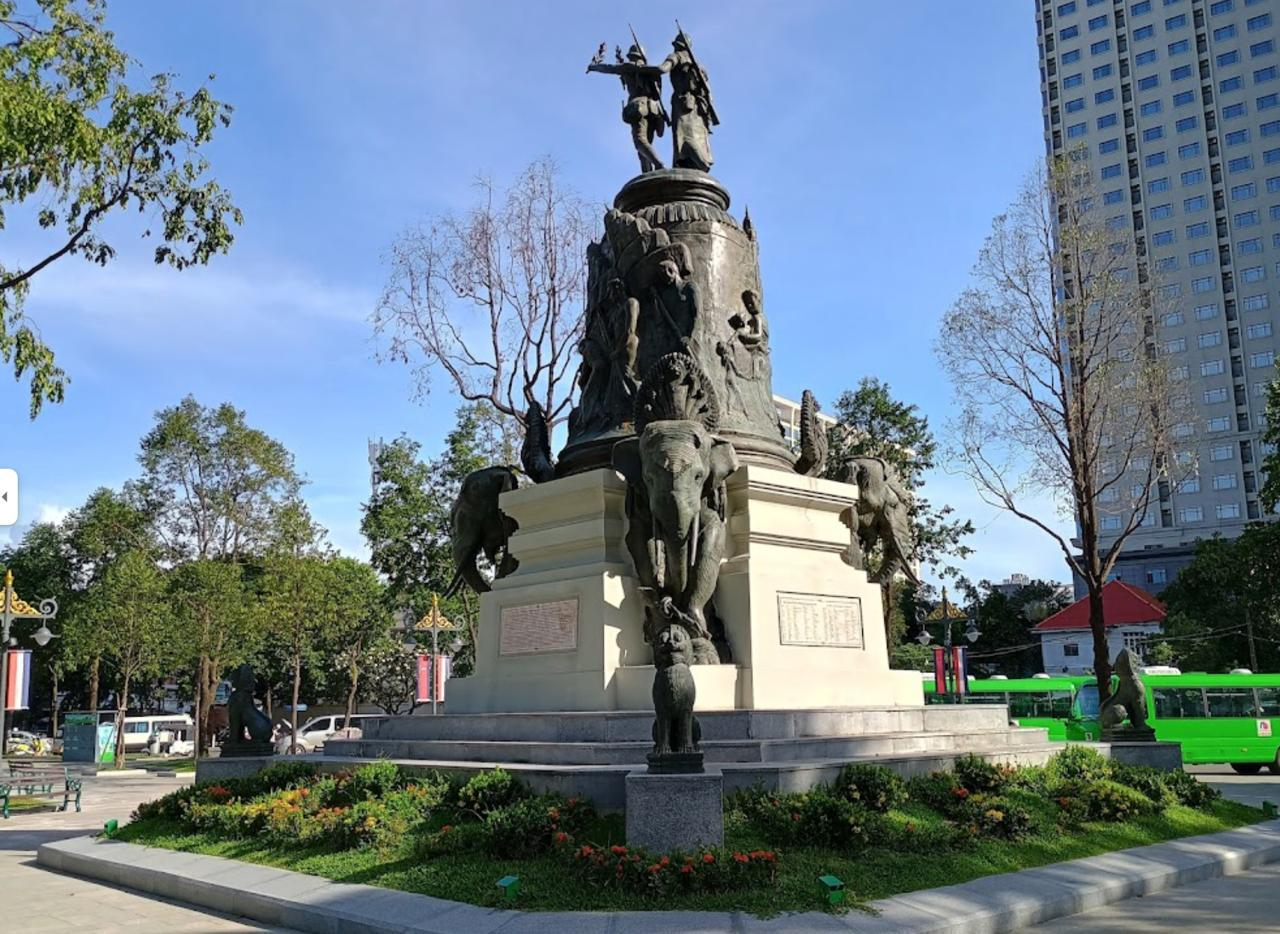
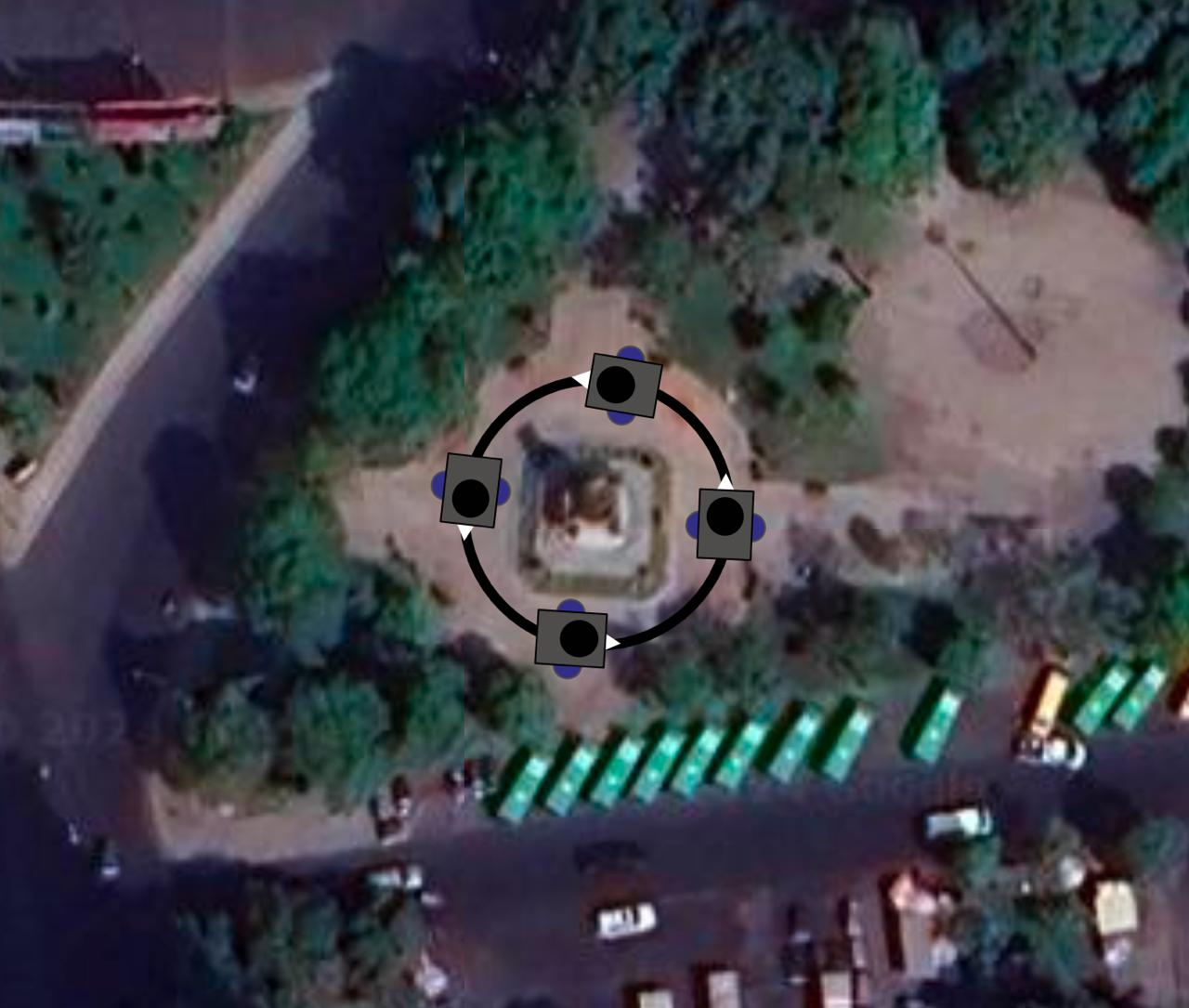
- For example, when scanning a sculpture, hold the device in a normal handheld position and slowly orbit around it at upper, middle, and lower heights for several passes.
9. Why does Aerial-Ground Map Fusion require RTK?
- For the Aerial-Ground Map Fusion feature, even though it primarily involves taking photos, RTK positioning is crucial and indispensable. This is because the core of Aerial-Ground Map Fusion lies in overlaying and aligning aerial images with ground scan data at high precision and seamlessly, to build a complete and accurate comprehensive map.
- High-precision alignment: RTK provides centimeter-level positioning accuracy, ensuring each aerial photo has extremely accurate geographic coordinates.
- Algorithm foundation and optimization: This high-precision positioning data is also a critical foundation for subsequent complex algorithm optimization.
- In short, RTK ensures the absolute accuracy and spatial consistency of the Aerial-Ground Map Fusion map.
10. What are the takeoff/landing photography tips for Aerial-Ground Map Fusion capture?
During Aerial-Ground Map Fusion capture, the photography method at takeoff/landing points affects subsequent data fusion results. Refer to the following tips:
- PortalCam (Pcam) takeoff/landing photography — When using PortalCam for Aerial-Ground Map Fusion, the drone nose direction must align with the connection point direction during Pcam capture. Photograph the takeoff/landing point once.
- L2 Pro takeoff/landing photography — When using L2 Pro for Aerial-Ground Map Fusion, photograph the takeoff/landing point twice with different orientations, approximately 90° apart, to increase fusion success rate.
- Aerial photo shooting method — Aerial photos can be set to automatic swing-shot mode. When photographing the takeoff/landing point, position above the connection point at approximately 50 cm height, aim at a fixed object ahead for stationary orbit shooting, and simultaneously control the drone to ascend vertically above the aerial capture altitude.
- Takeoff/landing point placement.
- For small, roughly rectangular survey areas (approximately 100 × 100 m or less), place one takeoff/landing point at each of the four corners and one at the center.
- For larger survey areas, distribute takeoff/landing points evenly, generally one every 50–100 m.
- For highway-type survey areas, place takeoff/landing points on both sides of the road approximately every 100 m.
- For wide streets or roads, add connection points at the road centerline.
- Supplemental building capture — If you need to orbit-capture a specific building or large sculpture within the survey area, no additional takeoff/landing points are needed around it, as this may affect the overall reconstruction result.
11. What causes the LCC message "Device usage limit exceeded, please log out of other accounts and try again"?
- LCC Studio does not have a forced logout feature. The user must manually log out of their LCC account on the current computer. After approximately 6 minutes, the server will refresh the login node count, and you can then log in on another computer.
12. Why is the LCC Studio reconstructed model blurry?
A blurry model is usually related to software version, video footage, or capture method. Check the following:
- Confirm the software is updated to the latest version.
- Capture trajectory is too monotonous or lacks sufficient coverage of important areas (it is recommended to scan from multiple angles and perform "saturation-level" capture of key targets: multi-angle, slow orbit, ensuring every surface is thoroughly scanned)
- Camera lens installed in the wrong direction (button should face outward)
- Camera lens is obstructed (RTK cable obstruction, dust, smudges, etc.)
- Video footage has glare or exposure issues.
- Movement speed is too fast or excessive shaking during capture.
- Scene lighting is too dim.
- When using L1/L2 external panoramic cameras, verify the video corresponds to the current point cloud project.
- "Exposure Optimization" was not enabled during capture; it is recommended to enable this option in scenes with significant lighting variation.
- Strong reflections or special lighting scenes (e.g., glass curtain walls, blue-lit venues, mirror-finish floors) have known limitations — the current algorithm has limited capability to reproduce such scenes.
- Data captured by different devices or at different times is not directly comparable; when evaluating model quality, use results captured by the same device during the same time period.
13. Why does the LCC reconstruction result show layering?
Layering refers to obvious misalignment, ghosting, or partial offset in the reconstructed model, typically caused by the following:
- Capture path lacks loop closures (repeated trajectories), preventing the algorithm from performing global consistency correction.
- Scene is too large with insufficient overlap; overlapping areas during Map Fusion should be at least 15 meters.
- Capture speed is too fast, especially angular speed during turns exceeding approximately 2.1 rad/s, which causes local trajectory deviation.
- Poor RTK signal quality; stitching accuracy drops significantly when a Fixed solution is not obtained.
- In aerial-ground fusion scenarios, missing takeoff/landing point data prevents correct alignment between aerial and ground data.
Solutions:
- Plan routes according to the capture guide, add loop closure paths and reduce capture speed.
- Provide sufficient trajectory overlap areas (no less than 15 meters)
- Slow down when turning to avoid sharp turns.
- Confirm RTK maintains a Fixed solution throughout the entire capture.
- Ensure takeoff/landing point data is complete for aerial-ground fusion scenarios.
- Enable "Robust Mode" and reprocess; Robust Mode has targeted optimizations for this type of issue.
14. Why does LCC Map Fusion fail?
Map Fusion failure is usually related to the following factors:
- Insufficient overlap area or poorly chosen overlap location. Overlapping areas should be at least 10–15 meters, and it is recommended to select texture-rich areas (e.g., corridor corners, near objects with distinct features). Avoid setting overlaps in areas that are dimly lit, have mirror reflections, or have monotonous textures.
- Insufficient number of control points or inadequate accuracy. At least 3 control points must be set, with control point positions roughly consistent (distance difference < 0.5 m, direction difference ± 20°, height difference approximately 10 cm)
- Excessive lighting variation — significant differences in lighting conditions between different data segments.
Limitations:
- A single Map Fusion supports a maximum of 10 data segments, with total duration not exceeding 200 minutes.
- All data segments participating in fusion must come from the same device model; mixed-device fusion is not supported.
- The processing computer should have at least 64 GB of RAM, and the processing drive should have at least 2x the free space of the uploaded data.
Solutions:
- Set overlapping trajectories in texture-rich, lighting-stable areas.
- Ensure overlap areas are no less than 15 meters.
- Set up 3 or more control points and ensure accuracy.
- Keep lighting conditions as consistent as possible across all data segments.
- Confirm the total data volume does not exceed the limitation requirements.
15. Why does LCC HD Enhancement fail?
Possible causes:
- Insufficient image overlap.
- Overall or local image blur (incorrect focus, motion blur, dirty lens)
- Inconsistent focal length.
- Weak-texture special scenes (white walls, frosted glass, white tabletops), reflections (polished surfaces, water surfaces, mirrors), dynamic scenes (trees, LEDs), repetitive textures (grass, brick walls)
- Underexposed or overexposed images.
- Total number of HD Enhancement photos is fewer than 20. Solutions:
- Ensure 80% image overlap rate.
- Use the same lens focal length and resolution for all shots.
- Ensure images are sharp and not blurry.
- Maintain uniform lighting.
- Each HD Enhancement point should have > 10 photos, with total photo count > 20.
16. Does the LCC model support conversion to OBJ and OSGB?
- The LCC model is not a traditional mesh model and is not suitable for conversion to common 3D mesh formats such as OBJ or OSGB.
17. LCC has only one project, but clicking Reconstruct shows "Queued" for a long time without entering processing.
- The LCC data directory has no space available. Clean up files, or change to a different path and recreate the project to run reconstruction.
18. LCC reconstruction failure with error 0xc0000409 or 0xc0000005
- Check whether the computer has an Intel 13th/14th generation CPU. This series is prone to CPU overclocking issues that cause crashes. If reprocessing does not resolve the issue, use a different desktop computer, or contact Intel professional technicians to downclock the CPU.
19. LCC supported device firmware versions
- K1 firmware version 1.2.0 or above required.
- L1/L2 firmware version 1.4.2 or above required.
- L2 Pro/K2: all versions supported.
- PortalCam: all versions supported.
20. Does the LCC online version require a network connection during data processing?
- LCC Studio online version requires account login and network connectivity during login — offline login is not possible. No network is needed during the reconstruction process itself, but network connectivity is required when creating a model, clicking Start Reconstruction, or generating developer data.
- The offline version can be used directly without the login step. Contact your sales manager for purchase if needed.
21. Why does "LCC reconstruction data not found" appear when opening a model?
- Data produced by LCC Studio versions prior to 1.8.0 cannot be opened in newer versions due to format changes. Regenerate the data using the latest version.
- The storage path in LCC settings has been changed, or data at that path has been deleted. Switch back to the original path, or use "Scene Editor" to open previously exported results.
22. Does the LCC reconstruction result include absolute coordinates?
- If GNSS provides raw data that satisfies coordinate transformation requirements, the reconstruction can produce results in the corresponding coordinate system. Use the measurement point tool to query the EPSG code of the current coordinates.
- The coordinate system information for LCC results is written in the .lcc file. The coordinate system information for PLY results is written in the point_cloud.ply file. Third-party software that needs to read this coordinate system information must handle compatibility on its own.
23. Why does LCC Studio fail to open with a "WebView2 missing" message after installation?
- You need to download and update the WebView2 plugin: Microsoft Edge WebView2
24. Can LCC reconstruct multiple projects simultaneously?
- The standard version from the official website does not support this.
25. Can LCC Studio and LCC Viewer display trajectory files?
- You need to use LCC Studio version 1.5.1 or above for reconstruction to see the capture trajectory. Enable "Capture Trajectory" in Settings. Note: When the imported model format is PLY, trajectory viewing is not supported.
26. What causes the LCC Studio reconstruction failure message "HBC (or XBC, Xbin) corrupted"?
- Files with HBC, XBC, or Xbin extensions are raw data packages essential for post-processing. Corruption may result from incomplete file copying or device shutdown during capture causing incomplete data. Newer firmware displays a data validity prompt after capture and save, helping users determine on-site whether recapture is needed.
27. How to set an application to use the dedicated GPU on Windows 10 and Windows 11?
Refer to: ASUS GPU Settings Guide
28. What does the "Portability Optimization" option in LCC reconstruction mean?
- Portability Optimization ON: No spherical harmonics; exported LCC results contain no shcoef.bin file. Recommended for mobile, XR, and web platforms — smaller data size and lower rendering overhead.
- Portability Optimization OFF: 3rd-order spherical harmonics; shcoef.bin file is included. Recommended for PC to achieve the best rendering quality.
29. What should I keep in mind for HD Enhancement?
- Supports 20–500 images per session (JPG, PNG, JPEG formats supported)
- Images provided for reconstruction must maintain the same camera focal length and resolution.
- Do not mix images taken with different lenses.
- Do not zoom during capture.
- Avoid manually scaling or cropping images, which causes pixel loss.
- Optimal horizontal field of view (FOV) for images is approximately 100 degrees.
- Image exposure should be normal — not overexposed or too dark.
- The captured object must remain stationary.
- HD Enhancement photos do not need to be taken at the same time as the original data capture.
- Capture HD Enhancement photos in a consistent order as much as possible.
- Photo resolution must be greater than 1024×768.
30. Why doesn't HD Enhancement require RTK?
- HD Enhancement is typically used to supplement and enhance visual details for specific areas on top of an existing map. In this scenario, it relies more on feature matching and relative positioning within the images themselves. The requirements for global absolute geographic accuracy differ from Aerial-Ground Map Fusion, so RTK is not needed.
31. Why is there no develop_data in the output directory after enabling the "Developer Data" option in LCC?
- The computer must not be disconnected from the network when building with the developer option enabled. The online version of LCC requires an internet connection and permission verification.
32. Why does the LCC model appear blurry when displayed on the web?
- Individual blocks in the LCC model have a large number of points. Web-based rendering engines have limited loading capacity, so the SDK selects an appropriate LOD for rendering, which may not be the highest precision model. Rendering quality ranking: Local desktop > Local web > Mobile web.
33. How do I choose the Maximum Gaussian Points for LCC reconstruction?
- The Maximum Gaussian Points affects the final point count of a single map. Generally, keep the default value. If adjustment is needed, refer to the "Estimated VRAM" status. If the estimated VRAM turns red, it indicates insufficient VRAM or degraded reconstruction performance.
34. Is the effect the same when manually canceling vs. pausing LCC reconstruction?
- Resuming reconstruction after manual cancellation and resuming after pausing have the same effect — both continue from where the process left off.
35. How do I obtain an LCC offline permanent license?
- The LCC offline permanent version uses a hardware dongle (a Ukey in Dongle form), which is authorized and shipped by the factory upon order. Customers who have purchased should contact their corresponding sales representative for the installation package.
- If the software prompts "Running this software requires a CodeMeter license," download and install: CodeMeter Runtime.
36. If company firewall restrictions prevent LCC from logging in
- Configure the firewall to allow access to all xgrids overseas service domains:
https://*.xgrids.com - If wildcards are not allowed, at minimum open:
https://api-gw.xgrids.com(port 443) - Test login on the webpage XGRIDS Developer Platform to confirm whether the issue is with the backend service.
37. Why does LCC Studio show "GPU driver not installed"?
- Ensure the GPU is an NVIDIA GPU — AMD and Intel GPUs are not supported.
- Driver version 581.90 or above is typically required.
- If no GPU information is displayed, go to NVIDIA Drivers to download and install the driver for your model, then restart the computer.
- If the "driver not installed" message persists, add the nvidia-smi.exe path to the system environment variable Path.
- Run LCC Studio as administrator to proceed with reconstruction tasks.
38. LCC Studio installation and runtime environment (computer configuration)
LCC Studio has specific hardware requirements. Below are the detailed configuration recommendations:
- CPU: When purchasing Intel 13th/14th generation CPUs, ensure the motherboard BIOS has been updated to fix the Intel crash issue.
- GPU: Dual discrete GPUs are not supported (multiple GPUs will conflict); AMD GPUs are not compatible; only NVIDIA GPUs are supported. RTX 4090 or above is recommended, with VRAM no less than 12 GB; 24 GB or more is recommended for complex projects.
- RAM: 64 GB is recommended for typical scenarios; 128 GB or more is recommended for large datasets (over 30 minutes of capture or over 100 GB of data)
- Storage: SSD is recommended; mechanical hard drives will noticeably slow down processing speed. The processing drive should have at least 2–3x the free space of the raw data.
- Laptop vs. Desktop: Laptops can be used for small data processing, but desktops are recommended for prolonged large-data processing (better cooling, more stable performance, less likely to throttle due to overheating)
- Server deployment: For batch processing of large-scale data, the LCC Linux Server version supports multi-GPU, multi-node parallel processing. Contact the sales team for details.
39. How to confirm a customer's GPU is compatible with LCC software installation and reconstruction tasks?
On Windows, open CMD or PowerShell and run:
nvidia-smi --query-gpu=index,name,memory.total,driver_version,compute_cap --format=csv,noheader,nounitsCheck the last column value: if greater than 7.5, the GPU is supported; otherwise it is not supported.
40. Does LCC support dual-GPU CrossFire? (Multi-GPU operation)
- Not supported. Currently LCC Studio only supports single-GPU reconstruction. If multiple GPUs are installed, the software will not automatically select the most powerful GPU and may sometimes fail reconstruction due to GPU conflicts. Recommended approach:
- Manually disable other GPUs in the system or Device Manager to ensure LCC Studio uses only one GPU.
- NVIDIA RTX series GPUs are recommended (VRAM ≥ 12 GB; 24 GB or more recommended for complex projects)
41. Can the LCC format be converted to other formats?
- LCC and PLY results can be converted to each other, and can also be converted to lcc2 (SOG/SPZ compression). No other formats are available at this time.
42. Supported web browsers for published LCC models
- Supports 4 major browsers: Chrome, Firefox, Edge, Safari.
43. Can the offline version of LCC publish models?
- Not supported. The offline version has no internet functionality.
44. Can LCC models with overlaid assets be packaged and published?
- FBX/OBJ/GLB format assets cannot be published to the cloud or web. However, the entire project can be packaged as a local compressed archive for transfer.
45. What should I do if LCC reconstruction fails with an "undefined error"?
Possible causes:
- Intel 13th/14th generation CPU instability due to overclocking.
- Insufficient system memory or other high-load applications consuming resources.
- Outdated GPU driver version.
- Estimated memory usage exceeding actual physical memory.
- EXIF attributes of drone photos have been modified.
- Antivirus software quarantining program files.
Solutions:
- Check if the CPU is Intel 13th/14th gen. If so, contact IT to update the BIOS microcode (0x12B patch)
- Close other high-load applications or restart the computer to free resources.
- Update the NVIDIA GPU driver to version 595.97 or above.
- Verify the "estimated memory" before reconstruction does not exceed actual physical RAM.
- Ensure drone photo EXIF attributes (dimensions, resolution, original aspect ratio, etc.) have not been altered.
- Disable antivirus software or add the LCC installation directory to the whitelist.
- It is recommended to upgrade LCC Studio to the latest version — many such undefined errors have been fixed in newer versions and most users find the issue resolved after upgrading.
- If all the above steps have been tried without success, keep the complete processing logs and raw data (logs from the day of the failure are most valuable for reference) and contact technical support for further analysis.
46. What should I do if LCC reconstruction fails with "Required program components are missing" (0x34041002)?
- Program files are partially missing, possibly due to antivirus software quarantine or accidental deletion. Disable antivirus software or add it to the whitelist, then reinstall or repair-install LCC Studio.
47. What should I do if LCC reconstruction fails with "Project file corrupted" (0x34040100)?
- Part of the project file data is missing. Verify that the project file download and copy processes completed without errors, and confirm that file sizes match the source.
48. Why is the exported mesh quality from LCC not ideal?
- The mesh in LCC is designed for collision detection by default and does not prioritize precision. For results closer to a refined model, use the pre-simplification mesh_raw.ply file.
49. What should I do if the computer blue-screens or restarts during LCC reconstruction?
- High system load and poor cooling (aging fans) can easily trigger blue screens. Check for background programs consuming resources and look up the error code in Windows Event Viewer at the time of the blue screen.
- For further troubleshooting, contact your company's IT technicians or Intel support.
50. What should I do if antivirus software causes LCC reconstruction issues?
Antivirus software may cause: exe files being quarantined during installation, "undefined error" during reconstruction, or "program startup timeout" warnings. Solutions:
- Disable antivirus software or add the LCC installation directory to the whitelist.
- If exe files have already been quarantined, reinstall LCC.
- If Windows Security Center pops up a warning, search for "Reputation-based protection" and turn off the Smart App Control switch.
51. What should I do if the model is not visible after LCC model cropping (spawn point issue)?
- In version 1.9.0 and earlier, the spawn point area may have been cropped away, causing the model to appear missing when opened. Please upgrade to a newer version.
- In versions 1.9.1–1.10.0, cropping triggers a prompt to reset the spawn point. Reset both the first-person and avatar spawn points, then save the model.
- In version 1.11.0 and above, the spawn point is visualized and can be dragged to any position. Save and publish after modifying.
52. What causes LCC Studio to display "Timeout" at various processing stages?
Possible causes:
- Computer screen sleep or system sleep is enabled.
- Background processes consuming too many system resources.
- Software installed on the C drive with administrator permission issues. Solutions:
- In System Settings > Power > Screen and Sleep, set all options to "Never".
- End other resource-intensive background processes in Task Manager.
- Try installing the software on a drive other than C.
- If still unresolved, provide post-processing logs and software logs to technical support.
53. What should I do when LCC Editor shows "Estimated memory insufficient" during export?
Users encounter an "estimated memory insufficient" message when using Editor for cropping and exporting PLY/LCC/LCC2 files. Solutions:
- Close other memory-intensive programs to ensure sufficient available system memory.
- Hardware requirements: PC RAM should be 64 GB or more. 64 GB RAM can stably process up to 30 minutes of captured data; processing over 45 minutes may fail. 128 GB RAM can stably process 60 minutes of data.
- Try exporting by region: crop into smaller areas first, then export each separately.
- Ensure sufficient remaining disk space: the export process requires substantial temporary space (SSD with ≥ 240 GB free space recommended)
- Use Low-Memory Mode: LCC Studio provides a Low-Memory reconstruction option that reduces memory usage through disk caching (no quality impact, but increases processing time)
- Update to the latest version: newer versions may have optimized memory usage.
54. How to handle incorrect coordinates in 3DGS PLY exported from LCC?
Users report that PLY files exported from LCC do not align with the base map when imported into UE/Unity or third-party software.
Coordinate system:
- The LCC model uses a Z-up coordinate system.
- After exporting PLY, you may need to switch to Z-up view when opening in other tools.
- Importing into third-party tools (e.g., UE, Unity, CloudCompare) may require a 90° rotation.
Coordinate alignment methods:
- Without RTK data: exported coordinates are relative — manually adjust the position in the target software.
- With RTK data: align using the offset values in pose_no_offset.csv.
- pose.csv = relative coordinates; pose_no_offset.csv = absolute coordinates (WGS84/CGCS2000)
- Aligning with LAS point clouds: LAS may contain RTK absolute coordinates while LCC models use relative coordinates — align the two using the offset values.
55. How to view LCC Gaussian Splatting models on mobile devices?
There are several ways to view LCC models on mobile devices:
- Publish as a Web Viewer link via LCC Studio (simplest method): Publish the model to the cloud in LCC Studio to generate a Web Viewer link. Open it in a mobile browser for online viewing. Supports Password-Free Sharing and Encrypted Sharing — no app installation required.
- Package as an Android/iOS app using Unity SDK: Develop a mobile application through the LCC Unity SDK, package as APK/IPA and install on the phone. Offers better rendering quality and interactivity.
- Open Web SDK pages in a mobile browser: Web applications developed with the LCC Web SDK can be accessed via a mobile browser. Quality is slightly lower than PC but no installation is needed.
56. How to handle the LCC Studio message "Data corruption or internal error detected, please contact technical support"?
This message is commonly seen in the following situations:
- Multiple versions of LCC Studio were previously installed on the computer, and incomplete uninstallation left residual file conflicts. It is recommended to completely uninstall all versions (including cleaning up residual installation directories and related configuration files), then re-download and install the latest version.
- Insufficient RAM caused an intermediate file to fail during processing. Check the processing logs for out-of-memory messages. If found, switch to a computer with more RAM and reprocess.
- If none of the above methods resolve the issue, contact technical support and provide the raw data and processing logs.
57. What does the LCC Studio reconstruction failure message "Pose estimation error occurred, please check project integrity" mean?
- This message typically appears in capture scenarios that are relatively open or have sparse features (e.g., large grass areas, open plazas, long straight corridors). The algorithm faces greater difficulty with trajectory estimation in such scenes.
- Confirm whether there were rapid large-angle turns or prolonged periods of keeping the device stationary during capture, as these operations can easily cause estimation failure.
- Try enabling "Robust Mode" and reprocessing; Robust Mode has specialized optimizations for this type of scene.
- If the scene is indeed open and featureless, there is a certain probability of failure even when capturing according to specifications — this is a known limitation of the current algorithm for such scenes. You can try reprocessing several times, or consider changing the capture route to add more scene feature points.
58. Is LCC Studio stuck when reconstruction progress stays at a certain percentage for a long time?
- Usually it is not stuck — the current processing stage has a large data volume or complex scene, and the algorithm needs more computation time.
- Check if the computer configuration meets requirements (RAM, GPU, disk speed); insufficient specs will noticeably slow processing speed.
- Check whether the capture data contains sharp-turn segments; sharp turns increase algorithm computational complexity.
- Open Task Manager to observe CPU and GPU usage; if they are still actively computing, the process has not stalled.
- If progress shows absolutely no change for over 24 hours, cancel the current task, check data and configuration, then reprocess.
59. What should I do when LCC Studio shows "Insufficient memory" during data processing?
- LCC Studio estimates required memory before reconstruction. If the computer's actual available memory is less than the estimated value, this message appears.
- Check current available memory: close other memory-intensive programs and confirm in Task Manager that available memory meets the estimated requirement.
- If the computer's physical RAM is insufficient, switch to a computer with more RAM. 64 GB is recommended for typical scenarios; 128 GB or more is recommended for large datasets.
- You can also try switching the processing mode to "Standard Mode" — Standard Mode uses less memory than High-Quality Mode.
- Ensure the processing drive has sufficient remaining space for virtual memory and temporary files.
60. How to resolve the LCC Studio message "Insufficient disk space, unable to continue processing"?
- Check the remaining space on the disk where the project data storage directory is located. LCC Studio stores project data on the C drive by default; if C drive space is insufficient, change the storage path in Settings.
- Do not set the project data storage path to an external hard drive, USB drive, or network-mapped path, as these may cause read/write anomalies or processing interruptions.
- Before processing, reserve 2–3x the disk space of the raw data (e.g., if raw data is 10 GB, the disk should have at least 20–30 GB of available space)
- Regularly clean up completed historical project data to free up space.
61. Is a network connectivity failure in LCC Studio actually a network issue?
- First confirm if the network is normal: try opening XGRIDS Developer Platform in a browser to check accessibility
- Check whether a firewall or antivirus software is blocking LCC Studio's network requests; LCC-related domains need to be added to the whitelist.
- In corporate network environments, there may be proxy or firewall restrictions; access to
https://*.xgrids.comneeds to be enabled - If using the offline version of LCC Studio, some network prompts related to online features can be ignored and do not affect local reconstruction processing.
62. Does the LCC Studio activation code message "already used" mean I received a fake code?
- Usually not a fake code. If the activation code was previously activated on the same or another computer, entering it again will show "already used" — this is normal duplicate recognition.
- First confirm whether you have previously activated it: check if the current computer or other computers already have a valid LCC Studio authorization.
- If you confirm the activation code was never activated, contact technical support with the activation code information. Technical support can query the binding record for that code and assist with resolution.
63. How to migrate an LCC offline license to another computer?
- Hardware authorization (Ukey): Simply unplug the Ukey from the original computer and insert it into the new computer. The authorization follows the Ukey, not the computer.
- Software authorization: First export the authorization on the original computer through LCC Studio's authorization management function, then import it on the new computer. The operation path is: Settings - Authorization Management - Export/Import.
- Note: LCC Studio versions prior to 3.2 do not support software authorization export migration. If using an older version, upgrade to version 3.2 or above before performing the migration.
64. What is LCC2 format? What's the difference from the original LCC format?
- LCC2 is an upgraded version of the LCC format, primarily adding depth information support, which provides better occlusion relationships and spatial perception during model rendering.
- LCC2 supports multi-model overlay rendering, allowing multiple LCC2 models to be displayed overlaid in the same scene.
- LCC2 uses SOG/SPZ compression, resulting in smaller file sizes for faster transmission and loading.
- Some third-party platforms are still working on LCC2 format support. If compatibility is a concern, it is recommended to also export in LCC format as a fallback.
65. What should I do if the LCC Studio Smart Space Recognition (floor plan recognition) function produces incorrect results?
- Inaccurate recognition of duplex structures and split-level layouts is a known current limitation — the algorithm has limited capability for spaces with non-standard floor heights.
- Heavy furniture obstruction in furnished spaces affects recognition accuracy, especially when doors and windows are blocked by large furniture.
- During capture, it is recommended to thoroughly photograph door and window areas, ensuring door frames and window frames are clearly visible in the footage — these are important reference points for the algorithm to determine space segmentation.
- If recognition results are incorrect, you can use the manual correction tool to adjust room boundaries and space divisions.
66. What is the "Reconstruction Time Selection" feature in LCC Studio?
Reconstruction Time Selection is a new feature in v2.1.0 that allows you to select a specific time segment from the start of captured data for single-scene reconstruction. Applicable scenarios:
- When the capture is long but you only need to reconstruct a portion of it.
- When anomalies occur near the end of capture (e.g., trajectory drift, device collision), you can select only the earlier normal segment for reconstruction.
- Combined with estimated memory, selecting a shorter time segment can reduce memory requirements.
Note: Currently only supports selection from the starting point. Selection from an arbitrary midpoint is not supported.