
File
Used to perform operations such as open, save, save as, import, export, export project, publish, settings, and quit on projects/models in Editor.
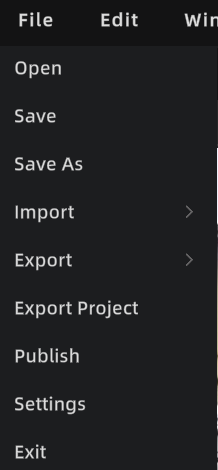
File menu
Open
Open a project file or model file from local storage.
- Open Project: Used to continue editing the same work content (models, assets, annotations/measurements and other editing states).
- Open Model (e.g., .lcc / .ply): Used for temporary viewing/editing. For long-term maintenance, it is recommended to use Save to create a project.
Steps: Menu bar → File → Open → Select the file to open → Confirm
Save
Used to save the editing state of the current project.
Steps: Press Ctrl + S to save, or Menu bar → File → Save → Select save location → Click OK
Auto Save:
- Auto save only applies to "projects"; temporary projects are not auto-saved
- Auto-save copies are stored in the
autosavefolder within the project directory - Currently only supports saving 1 latest project copy, retained for one month
- After 3 minutes of inactivity, auto-saves every 10 minutes
When the current work is a "temporary project," the first save will prompt you to enter a project name and select a storage path.
Save As
Save the current project as a new version, keeping the original project unchanged.
Import
Import external resources into the current scene.
Entry: Menu bar → File → Import
Import 3DGS Models
Supported formats:
| Format | Description |
|---|---|
| LCC2 | Loads directly, no conversion needed |
| LCC (LCC1) | A format conversion prompt appears on import; select a storage path for automatic conversion to LCC2 |
| PLY | Silently converts to LCC2 in the background on import |
Import Mesh Models
Supported formats: FBX / OBJ / GLB
Import Other Resources
Supports importing: Colliders, 3D Layout, Developer Data, AI Recognition Data
Export
Export editing results as deliverable files or data.
- 3DGS models: Supports LCC, LCC2, and PLY formats (only supports individual export, not merged export)
Export Project
Export the current project as a complete project file for other Editor users to continue editing.
Entry: Menu bar → File → Export Project
Export contents: Includes all model data, scene structure, annotations, measurements, viewpoints, and other editing data in the project. Other users can load the project via "Open Project" to continue editing.
Note: "Export Project" is for team collaboration or backup. It differs from "Export" (exporting a single model file) and "Publish" (generating an online viewing link).
Publish
Publish the project as a Web Viewer link for online sharing and viewing.
Entry: Menu bar → File → Publish
After model editing is complete, changes are automatically synced back to the main editor. You can click Publish directly without manually "exporting → re-importing."
Steps:
- Click "Publish" to enter the publishing workflow
- Wait for publishing to complete (progress is displayed)
- After successful publishing, a popup shows the link information:
- Click to copy the link
Settings
Open the Settings panel to manage various editor configurations. See Settings for details.
Quit
Close the current application.