
Editor Interface
Panels support free dragging, docking, and floating. You can adjust the interface layout according to your preferences.
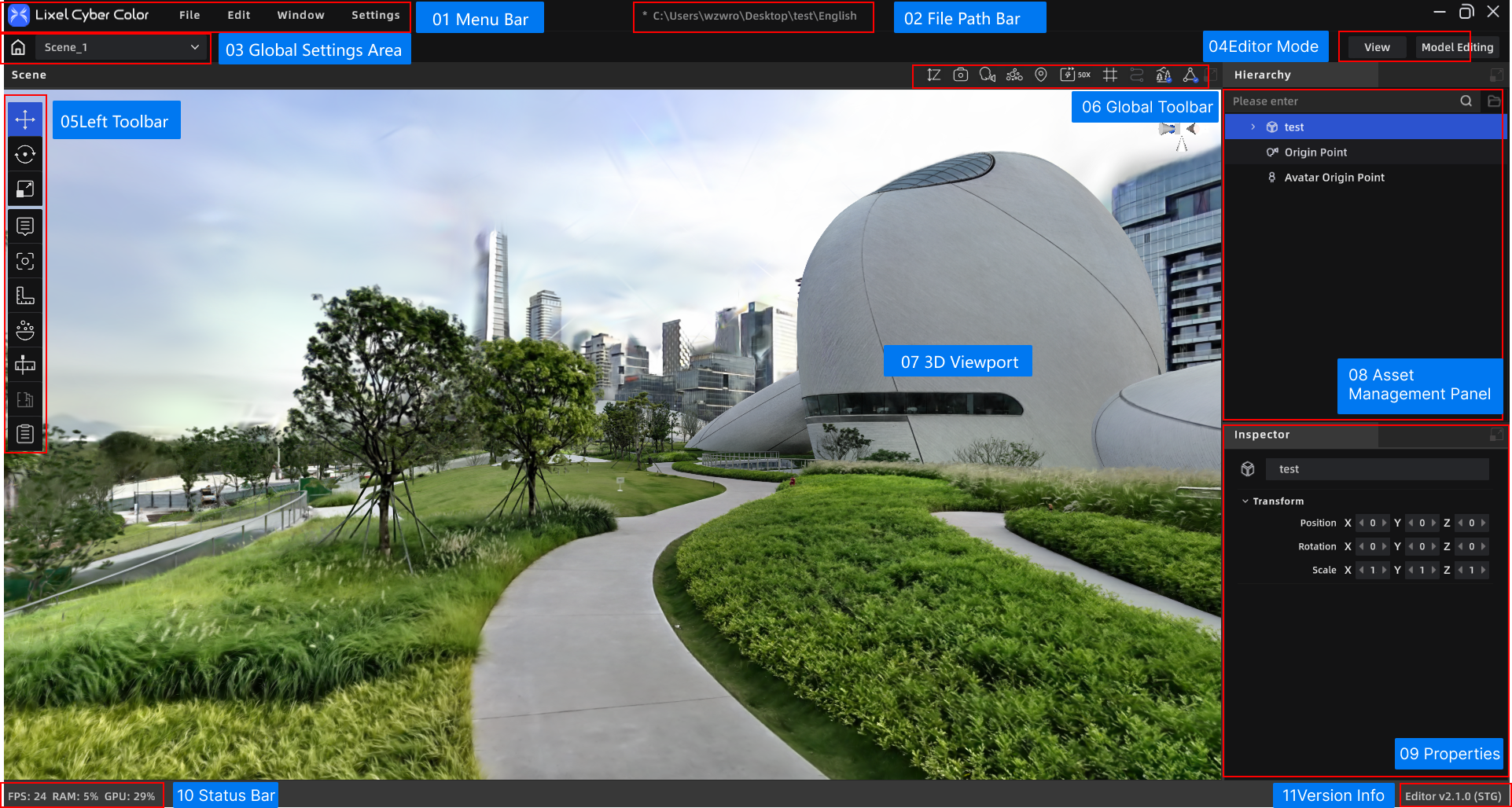
LCC Scene Editor interface layout
Default Layout:
- Menu Bar: File, Edit, Settings, Help
- File Path Display Bar: Shows/copies the file location
- Global Settings Area: Return to home, switch between scenes
- Edit Mode: Switch between Edit/Preview mode
- Left Toolbar: Collection of editing tools
- View Toolbar: Global shortcut operations (including Undo/Redo buttons)
- 3D Viewport: Scene editing and preview area
- Assets Panel: Asset management for the current project
- Property Panel: Parameter editing for selected assets
- Status Bar: Version number, frame rate, memory usage, etc.
- Version Info: Version number, region
Menu Bar
Located at the top-left, providing four menu entries: File, Edit, Settings, and Help.
File Path Display Bar
Displays the file path of the currently open project. Click to copy the path.
Global Settings Area
Located on the left side of the top toolbar, providing scene-level shortcut operations.
| Action | Description |
|---|---|
| Click Home icon | Return to the home page (project list) |
| Scene dropdown | Switch between multiple scenes in the current project |
Edit Mode
Located in the top toolbar for switching the current working mode.
| Mode | Description |
|---|---|
| Edit | Default mode for performing annotations, viewpoints, measurements, and other editing operations |
| Preview | Preview the final effect as seen by end users after publishing |
Left Toolbar
Provides a collection of editing tools, including entry points for Viewpoint, Annotation, Measurement, Skybox, Scene Report, and more.
3D Viewport
The main area for scene editing and preview. Supports free roaming, selecting assets, drag-and-drop placement, and more.
Assets Panel
Displays all assets in the current project, including models, annotations, viewpoints, measurements, and other elements. Supports show/hide control and locate-on-select.
Property Panel
After selecting an asset, edit its detailed parameters here, such as name, position coordinates, jump settings, etc.
Status Bar
Located at the bottom, displaying the current frame rate, memory usage, and other runtime status information.
Version Info
Displays the current software version number and region.