
Selectors
Selectors are a key foundational feature of the Model Editor, enabling flexible operations on the selection. The editor supports four selector types and three selection modes.
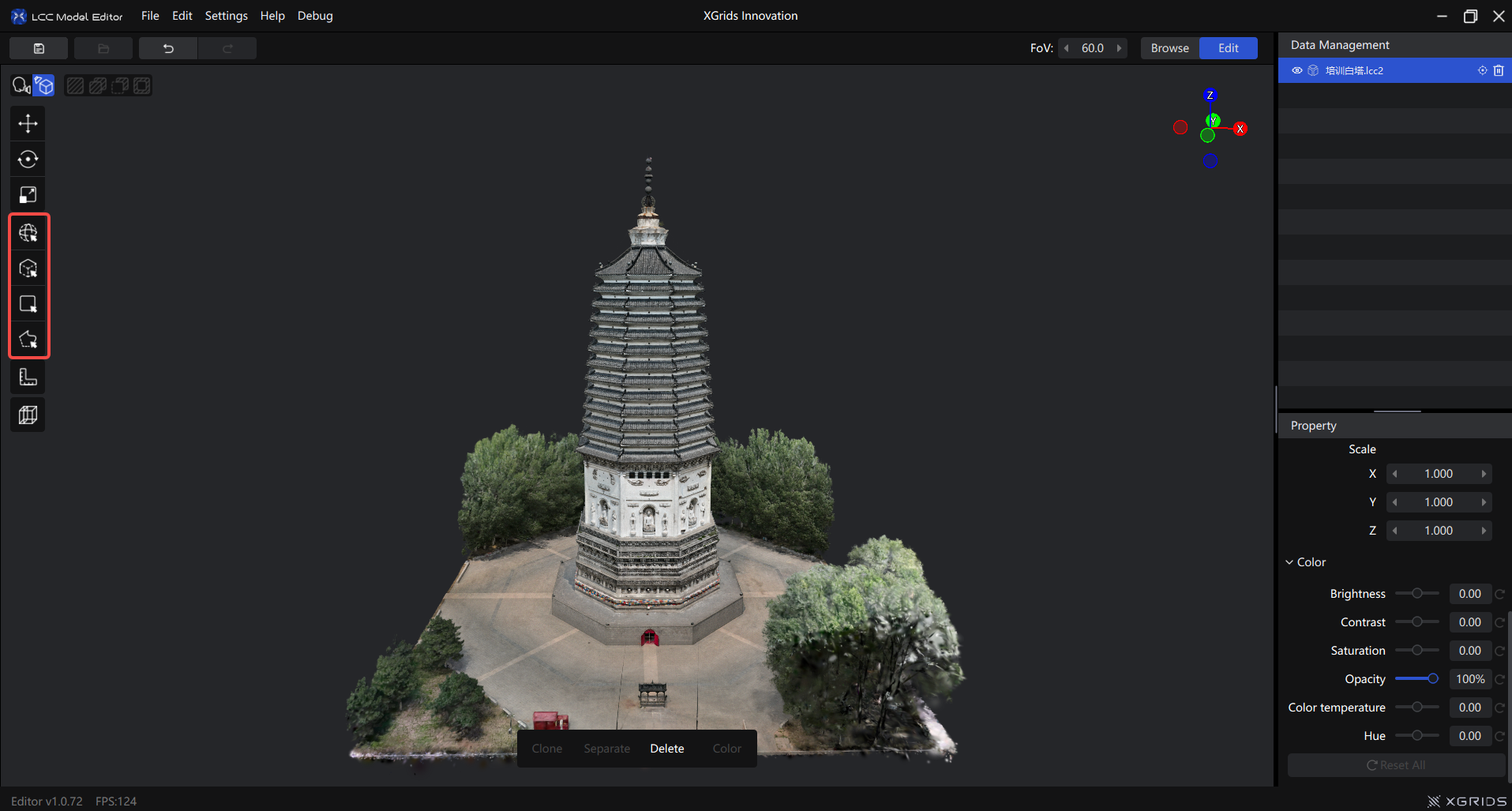
Selector buttons on the left toolbar
Selector Types
Sphere Selector
Attaches a sphere at the cursor and selects the model content within its radius. The sphere's depth is set by the first layer of the model the view reaches.
How to use: Click "Sphere Selector" in the toolbar → hold the left button to select
| Action | Function |
|---|---|
| Left click | Select |
| Left hold and drag | Continuous select (brush mode) |
Ctrl + scroll | Adjust sphere radius |
Alt + left | Rotate view |
| Scroll | Zoom view |
| Right drag | Pan view |
Radius: Default 1.00. Adjust with Ctrl + scroll, base increment 0.01. Continuous scrolling accelerates automatically.
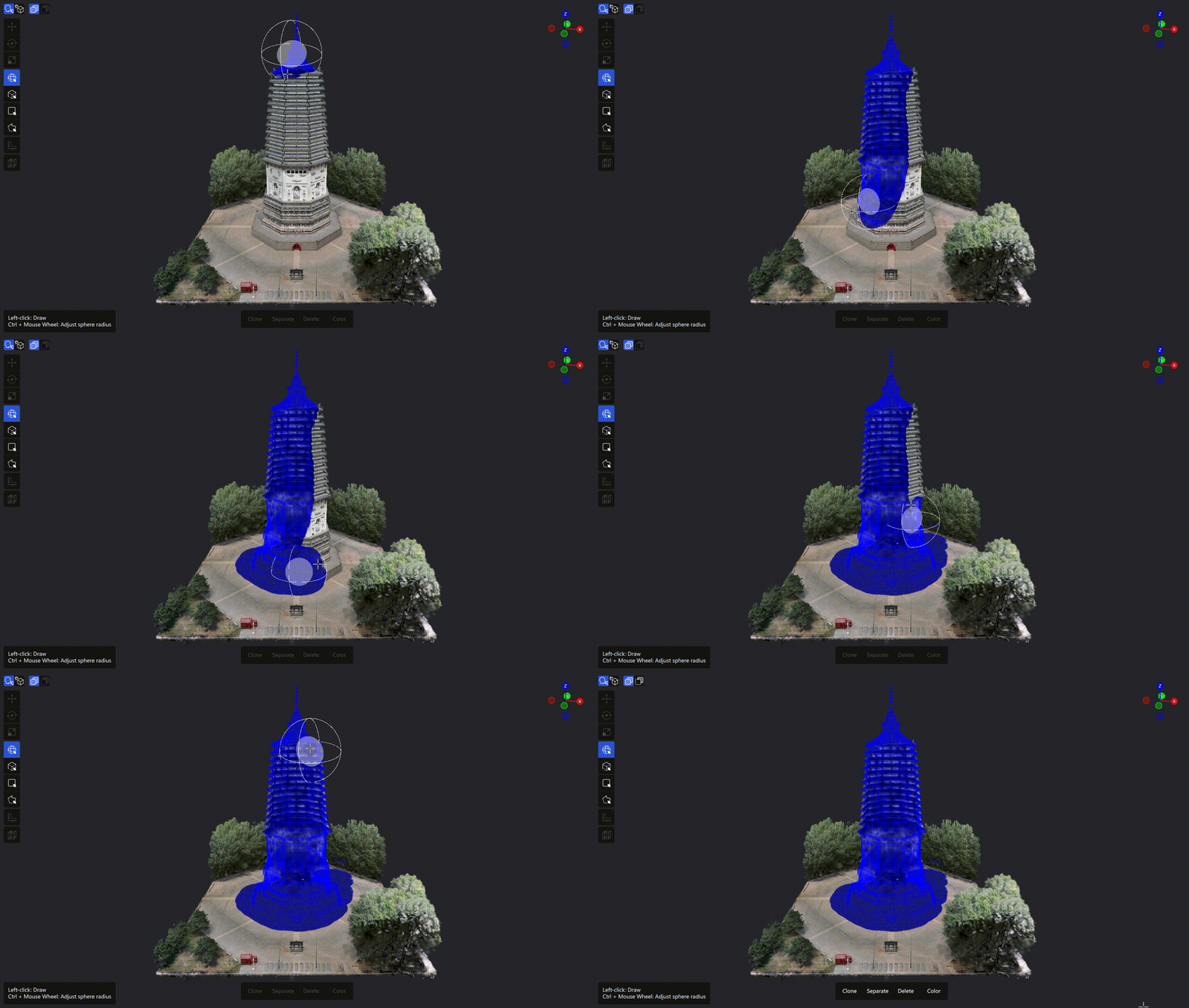
Sphere Selector operation
Box Selector
The only 3D selection method. Use it to precisely enclose a region in 3D space.
How to use:
- Click "Box Selector"
- First click sets the first corner of the base
- Second click sets the opposite corner, forming a rectangular base
- Third click sets the height (Z axis)
Adjust: Once created, the box can be moved, rotated, stretched, reset, and confirmed.
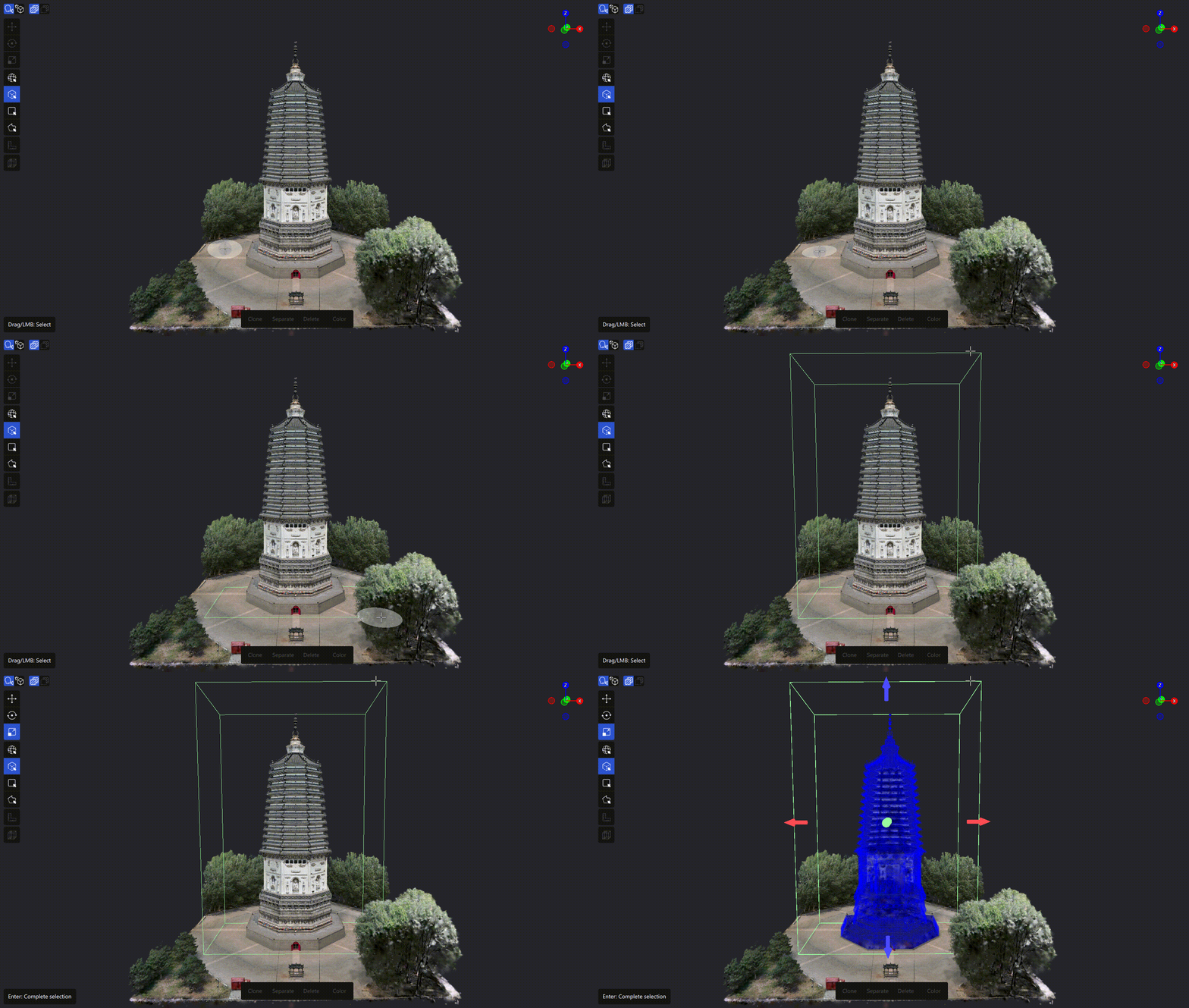
Box Selector operation
Rectangle Selector
Projection-selects a region based on the current camera view.
How to use: Click "Rectangle Selector" → hold the left button and drag out a box → release to complete
Also supports click-to-create: left click the start point, move, then click again for the end point.
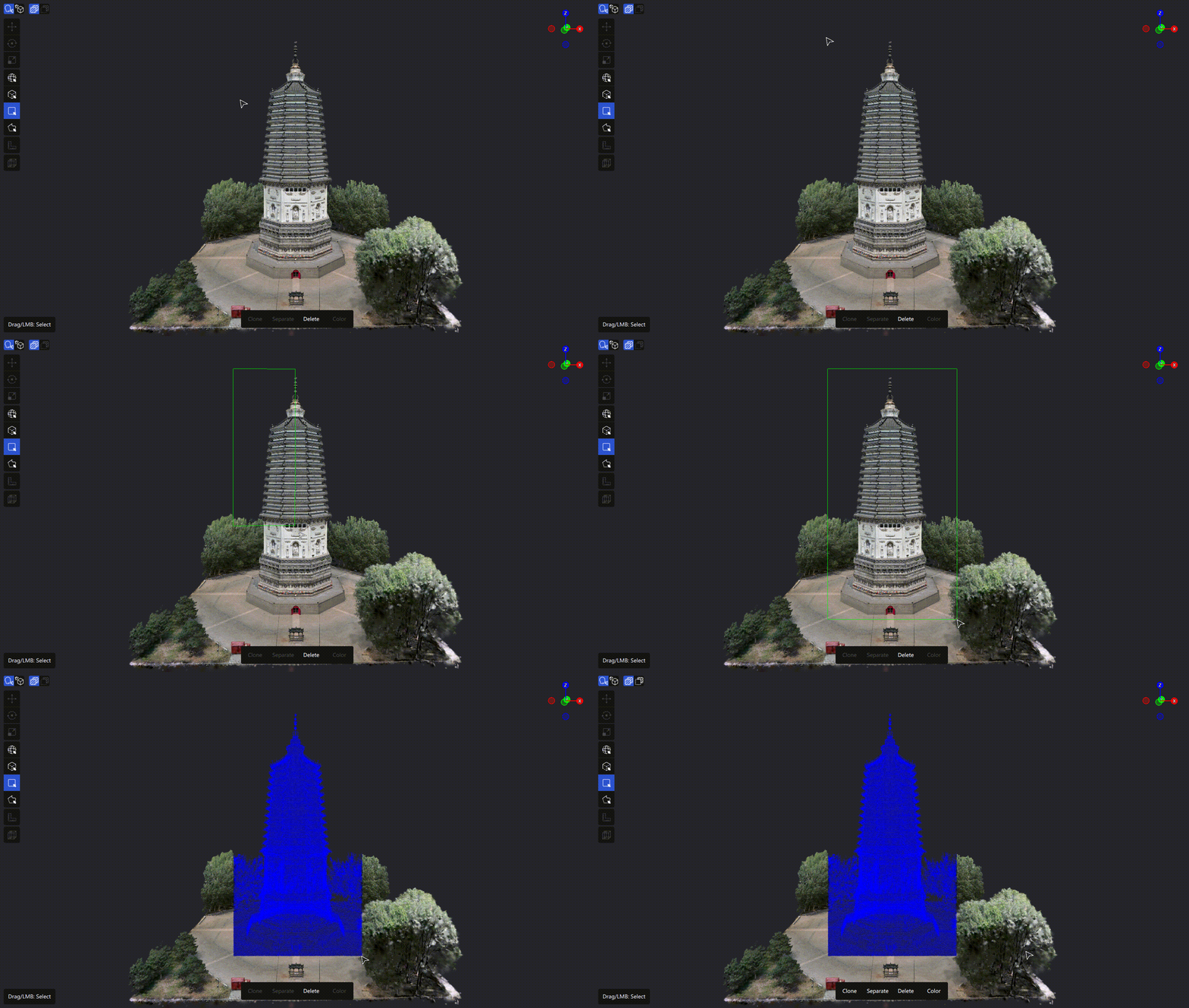
Rectangle Selector operation
Camera projection: From the camera, a beam shines toward your boxed region like a flashlight; everything the beam touches is selected.
Mixed Lasso Selector
Draw a polygon on screen to projection-select the scene. Supports straight-line and lasso drawing.
Straight-line:
- Left click to set the start point
- Keep clicking to add vertices
- Double-click to finish, or click the start point to close
Lasso:
- Hold the left button and drag to trace a line along the cursor path
- Release, then continue drawing
Either method: Right click to undo the last point
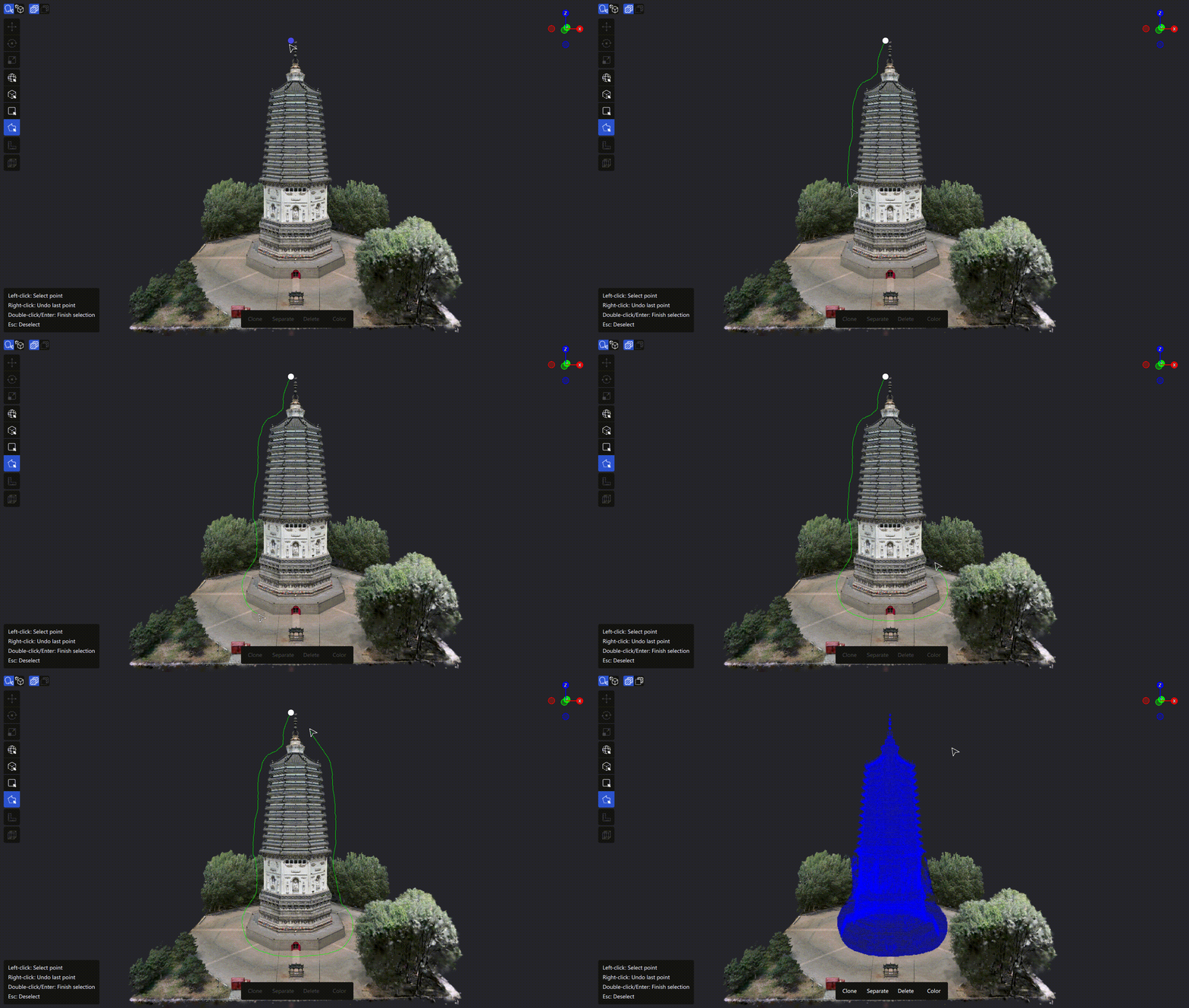
Mixed Lasso Selector operation
Selection Modes
| Mode | Description | Shortcut |
|---|---|---|
| Add to selection | Adds to the current selection | Default |
| Subtract from selection | Removes from the current selection | Ctrl |
| Invert selection | Selects the unselected, deselects the selected | Ctrl + I |
Note: While adding, holding
Ctrlswitches to subtract.
Depth Control (2D selectors)
The Rectangle Selector and Mixed Lasso Selector support depth control, which limits how far the selection penetrates.
- Default depth: 50.00 m
- Adjust by:
Ctrl+ scroll / panel slider / value entry - Click "Global" to remove the depth limit (select all depths)
- Depth patch: once a depth is set, the cursor shows a depth-range indicator in the scene
Hardware Limit Prompt
When the model data volume or the selection exceeds what the current hardware can handle, the system prompts you to save the current edits, avoiding data loss caused by exceeding the hardware load.
During editing, if the selection exceeds the current hardware capacity, it's best to save the current edits first, then continue processing region by region.
Tips Summary
View control
- View lock: the camera locks automatically when a selector is active
- Temporary unlock:
Alt+ left drag: rotate the camera- Right drag: pan the view
- Scroll: zoom the view
- Cancel selection: press
Esc
Selector comparison
| Use case | Recommended | Why |
|---|---|---|
| Quickly select a roughly regular region | Rectangle Selector | Simple and efficient |
| Precisely select a complex, irregular region | Mixed Lasso Selector | Precise and flexible |
| New users or quick tasks | Rectangle Selector | Easy to learn |
| High precision or edge control | Mixed Lasso Selector | Finer custom selections |
Shortcut reference
| Function | Shortcut | Description |
|---|---|---|
| Crop the selection | Delete / Backspace | Crops the current selection |
| Subtract from selection | Ctrl | Excludes from the current selection |
| Invert selection | Ctrl + I | Toggles between "inside the box" and "outside the box" |
| Cancel selection | Esc | Cancels the current selection drawing |
| Undo | Ctrl + Z | Undoes the last action |
| Redo | Ctrl + Shift + Z | Restores an undone action |
| Unlock view | Alt (hold) | Temporarily unlocks the camera |