XGRIDSDocs
  • 简体中文
  • English
  • 繁體中文
  • 日本語
  • Deutsch
  • Español
  • Italiano
  • Français
  • Русский
  • Polski
  • Nederlands
  • 简体中文
  • English
  • 繁體中文
  • 日本語
  • Deutsch
  • Español
  • Italiano
  • Français
  • Русский
  • Polski
  • Nederlands
  • Lixel PortalCam Series

    • PortalCam P1

      • Product Overview
      • Basic Operation
      • Using the LCC Scan App
      • Maintenance and Care
      • FAQ
  • Lixel K Series

    • Lixel K1

      • Product Overview
      • Basic Operation
      • Device Activation and Connection
      • Scanning Workflow
      • Acquire Point Cloud Data with Absolute Coordinate
      • Map Fusion
      • Route Planning Suggestions for Typical Scenes
      • Precautions
      • FAQ
    • Lixel K2

      • Product Overview
      • Basic Operation
      • Device Activation and Connection
      • Scanning Workflow
      • Acquire Point Cloud Data with Absolute Coordinate
      • Map Fusion
      • Route Planning Suggestions for Typical Scenes
      • Precautions
      • FAQ
  • Lixel L Series

    • Lixel L2 Pro

      • Product Overview
      • Basic Operation
      • Device Activation and Connection
      • Scanning Workflow
      • Acquire Point Cloud Data with Absolute Coordinate
      • Measure Point
      • Appendix
      • FAQ
    • Lixel L3

      • Product Overview
      • Basic Device Functions
      • Device Activation and Connection
      • Data Capture
      • Capturing Absolute Coordinates
      • Appendix
  • Lixel Studio

    • Version and Copyright
    • Installation and Activation
    • Software Interface
    • File Operations
    • Project Processing
    • Tools
    • 2D Drawing
    • Applications
    • Settings
    • Device Connection
    • FAQ
    • Usage Tips

      • Data Flow Overview
      • Software Licensing Guide
      • Understanding Scanner Accuracy Specifications
  • Lixel CyberColor

    • LCC Studio

      • Getting Started
      • Version and Updates
      • Download and Installation
      • Interface Overview and Navigation
      • Before Reconstruction
      • Model Reconstruction
      • Single Model Reconstruction
      • Map Fusion
      • Aerial-Ground Fusion
      • Aerial Reconstruction
      • My Models
      • Other Features
      • Settings and Account
      • Converter
      • Video Reconstruction
      • FAQ
    • LCC Scene Editor

      • Version & Updates
      • Account & Login
      • Product Overview & Home
      • Editor Interface
      • Scene Navigation Modes
      • File
      • Settings
      • Edit Operations
      • Window
      • Global Toolbar
      • Assets & Properties
      • Left Toolbar
      • Viewpoints
      • Portal
      • Skybox
      • Annotations
      • Measurement
      • Flythrough
      • Scene Report
      • 3D Layout
      • Mini-Map
      • Preview Mode (Viewer)
      • Help
      • FAQ
      • Spawn Point
    • LCC Model Editor

      • Version and Updates
      • User Guide
      • Overview and Interface
      • File Operations
      • Selectors
      • Editing Models
      • Measurement
      • Color Grading
      • Asset Management
      • Settings and Help
      • FAQ
    • Capture Guide

      • Overview
      • Capture Devices Overview
      • General Capture Principles
      • Indoor Scene Capture
      • Outdoor Scene Capture
      • Large-Scale Capture (Map Fusion)
      • Aerial-Ground Map Fusion Capture
      • Object Capture
      • People Capture
      • Video Reconstruction Capture
      • HD Enhancement
      • Control Points (Lixel P1)
      • FAQ and Troubleshooting
    • LCC Studio Linux

      • Product Overview
      • Architecture Guide
      • Installation and Deployment Guide
      • Container Startup Parameters Guide
      • CodeMeter Offline Licensing Deployment Guide
      • API Reference
      • Appendix - Developer Data Guide
      • Appendix - Error Code List
      • Single-Machine Multi-GPU Cluster Deployment QuickStart
    • Best Practices

      • Merging Multiple Large 3DGS Models
      • Aerial-Ground Map Fusion Workflow
      • Data Flow Overview
      • Software Licensing Guide
    • Version History
  • Plugin & SDK

    • Unreal

      • Introduction
      • Quick Start - Windows
      • Quick Start - Linux
      • Quick Start - Quest3
      • Editions and Licensing
      • Rendering
      • Tiled Rasterization (Experimental)
      • Visual Settings
      • Normals and Lighting
      • Scene Editing
      • Performance Parameters
      • Performance Guide
      • Third-party and Engine Plugin Integration
      • Proxy Mesh
      • Loading Animation
      • Collision
      • Navigation System Support
      • Single Layer Water Support
      • Localization
      • FAQ
      • Troubleshooting
      • Logging and Diagnostics
      • Contact Us
      • Best Practices

        • Relighting 3DGS with a LixelStudio Mesh
        • Per-camera Independent Rendering
      • API Reference

        • ALCCActorBase
        • ULCCComponentBase
        • ULCCComponent
        • ULCC2Component
        • SOG / SPZ / PLY Actors
        • ALCC2ProxyMesh
        • ALCCClippingVolume
        • ALCCSectionPlane
        • ALCCLoadVolume
        • ULCCUtilLibrary
        • Enums
        • Structs
      • Changelog

        • v3.5.0
        • v3.4.0
        • v3.3.1
        • v3.0.0
        • v2.2.1
        • v1.0.0
        • v0.9.0
        • v0.8.0
        • v0.7.1
        • v0.6.1
        • v0.5.2
        • v0.4.1
        • v0.4.0
        • v0.3.0
        • v0.0.5
        • v0.0.4
        • v0.0.3
        • v0.0.2
        • v0.0.1
    • Unity

      • Unity SDK Introduction
      • Technical Features
      • Development Environment Requirements
      • PC Quick Start Guide
      • Project Settings Optimization Guide
      • Pico 4 Ultra Development Guide
      • Pico 4 Ultra PC Streaming Guide
      • Quest 3 Development Guide
      • Quest 3 PC Streaming Guide
      • OpenXR Development Guide
      • Pico 4 Ultra Business Streaming Guide
      • Glossary
      • FAQ
      • Contact Us
      • Feature Development Guide

        • Multi-Scene Mixed Rendering Development Guide
        • Shadow Receiving Development Guide
        • Real-Time Lighting Development Guide
        • Multi-Camera Rendering Development Guide
        • High-Resolution Image Rendering Development Guide
        • LCC and LCC2 Data Format Compatibility Development Guide
        • Loading Effect Development Guide
        • Mip Rendering Mode Switching Development Guide
        • Edge and Corner Snapping Development Guide
        • Projected Decal Development Guide
        • Video Projected Decal Development Guide
        • Highlight Development Guide
        • Real-Time Clipping Development Guide
        • Color Adjustment Development Guide
        • Getting Scene Mesh Data Development Guide
        • Editor Mode Development Guide
        • Render Performance Parameter Configuration Guide
        • Application and Data Co-packaging Development Guide
        • Collision System Development Guide
        • macOS Development Permission Issue Guide
        • iOS Device Compilation and Packaging Development Guide
      • API Reference

        • LCCManager
        • Renderer
        • Data Types
      • Changelog

        • v2.3.0
        • v2.2.10
        • v2.2.0
        • v2.1.19
        • v2.0.14
    • Web

      • Introduction
      • Rendering Performance Optimization Guide
      • Graphics Configuration
      • WebGPU Development Guide
      • FAQ
      • API Reference

        • LCCObject::checkRenderNextFrame
        • LCCObject::clearRenderNextFrame
        • LCCObject::ecef2Prj
        • LCCObject::getBounds
        • LCCObject::getEnvInstancedMesh
        • LCCObject::getInstancedMesh
        • LCCObject::getLodInfos
        • LCCObject::getOriginPosition
        • LCCObject::getProjectionCoordinateSystemInfos
        • LCCObject::hasCollision
        • LCCObject::hasEnvironment
        • LCCObject::hasShcoef
        • LCCObject::intersectsCapsule
        • LCCObject::intersectsRayExt
        • LCCObject::intersectsRayFromOriginExt
        • LCCObject::intersectsSphere
        • LCCObject::lowerToBottom
        • LCCObject::prj2Ecef
        • LCCObject::raiseToTop
        • LCCObject::raycast
        • LCCObject::raycastFromOrigin
        • LCCObject::setAlpha
        • LCCObject::setClipBox
        • LCCObject::setClipPlane
        • LCCObject::setClipPrism
        • LCCObject::setEndLod
        • LCCObject::setLodAutoLevelUp
        • LCCObject::setMaxDistance
        • LCCObject::setMaxNodeSplats
        • LCCObject::setMaxSplats
        • LCCObject::setMipFilter
        • LCCObject::setOriginPosition
        • LCCObject::setPointsColor
        • LCCObject::setRenderState
        • LCCObject::setRotation
        • LCCObject::setScale
        • LCCObject::setSemantic
        • LCCObject::setSemanticColor
        • LCCObject::setSmooth
        • LCCObject::setStartLod
        • LCCObject::setTranslation
        • LCCObject::setVisible
        • LCCObject::togglePointsDisplayMode
        • LCCObject::useEnvironment
        • LCCObject::useShcoef
        • LCCRender::clearIndexDB
        • LCCRender::dispose
        • LCCRender::load
        • LCCRender::setCamera
        • LCCRender::unload
        • LCCRender::update
      • Changelog

        • v0.6.4
        • v0.6.3
        • v0.6.2
        • v0.6.1
        • v0.6.0
        • v0.5.5
        • v0.5.4
        • v0.5.3
        • v0.5.2
        • v0.5.1
        • v0.5.0
        • v0.4.1
        • v0.4.0
        • v0.3.1
        • v0.3.0
        • v0.2.0
    • Lixel OpenAPI

      • Overview
      • Connection & Authentication
      • Message Model & Codec
      • Interface Catalog
      • Real-time Data
      • Project File Access
      • Error Codes
      • Python

        • Quick Start
        • Client Wrapper & Tools
        • FAQ
      • C++

        • Quick Start
        • Client & Examples
        • FAQ
  • API

    • Structured Spatial Modeling

      • Access Guide
      • Modeling Workflow
      • API Reference
      • Temporary Upload Credentials
      • Error Codes

Single-Machine Multi-GPU Cluster Deployment QuickStart

Sample Type

  • Assume the customer server IP address is 192.168.1.217

  • Assume the high-capacity data disk is at /data

  • Authorization parameters

    • Online authorization mode (-e LICENSE_SERVER=CN -e LICENSE_KEY=AppKey delivered by XGRIDS)
    • Offline authorization mode requires using the offline version image (-e CODEMETER_SERVER=192.168.xx.xx)
    • The offline authorization server must be installed in advance according to the guide
  • Use the MySQL 8 Docker edition as the task information persistence database

Server Configuration Confirmation

Confirm the System OS Version

Ubuntu 20.04 or above is recommended

Confirm the Base Software

docker and graphics driver support

Confirm the NVIDIA Driver Version > 545

nvidia-smi

Confirm NVIDIA Driver Persistent Mode Is Enabled

sudo nvidia-smi -pm 1

Docker Configuration

Edit /etc/docker/daemon.json, add the cgroups configuration (if the default is systemd) and a domestic docker image source, etc., then restart Docker
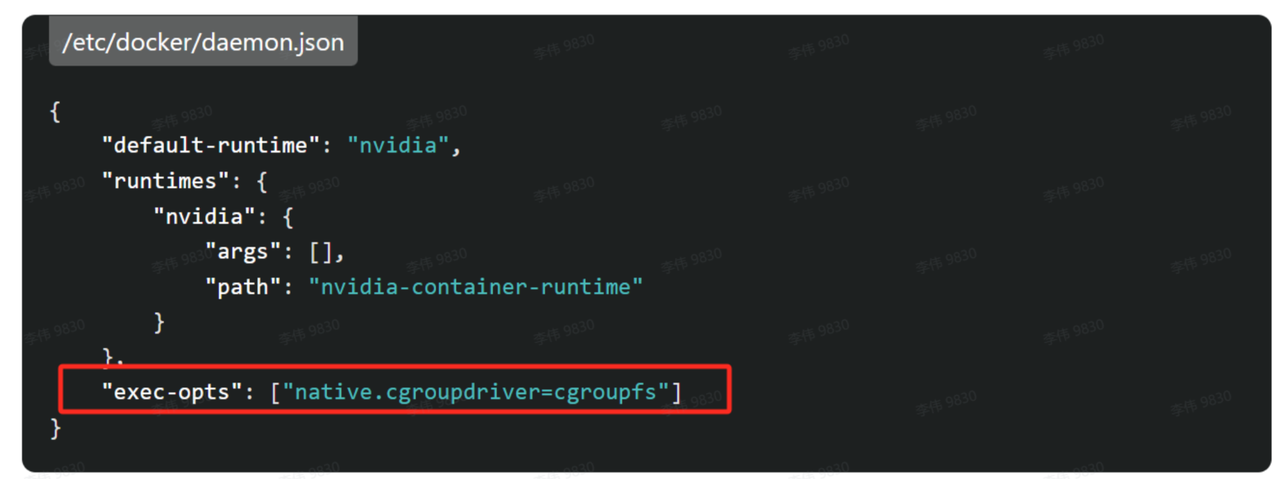
This image shows the configuration content of /etc/docker/daemon.json. The core content of the configuration is the docker runtime-related settings, where the key part "exec-opts": ["native.cgroupdriver=cgroupfs"] is highlighted with a red box. This configuration corresponds to the cgroups configuration required to be modified in the Docker configuration step of the document, used for Docker-related configuration adjustments.
Verify with $ docker info
 ...  
 Cgroup Driver: cgroupfs     # If you see Cgroup Driver = systemd, containers may lose access to the GPU
 Cgroup Version: 1

Consul Service Registry Quick Deployment

Pull the consul Image

docker pull hashicorp/consul:1.20

or, if the external network cannot connect

wget https://cdn-bukbb1.xgrids.cloud/developer/deploy/lcc/consul-120.tar.gz

gunzip -c consul-120.tar.gz | docker load

Start consul

docker run -d --restart always --name=consul -p 8300:8300 -p 8301:8301 -p 8302:8302 -p 8500:8500 -p 8600:8600 hashicorp/consul:1.20 agent -server -ui -node=n1 -bootstrap-expect=1 -client='0.0.0.0'

Access Address

http://192.168.1.217:8500/ui/

MySQL Database Quick Deployment

Pull the mysql Image

docker pull mysql:8.0

or

wget https://cdn-bukbb1.xgrids.cloud/developer/deploy/lcc/mysql-8.tar.gz

gunzip -c mysql-8.tar.gz | docker load

Start the mysql8 Image (with Character Set Setting Support)

docker run -d --restart=always --name mysql8 -e MYSQL_CHARACTER_SET_SERVER=utf8mb4 -e MYSQL_COLLATION_SERVER=utf8mb4_unicode_ci -e MYSQL_ROOT_PASSWORD=pwd123456 -e MYSQL_DATABASE=lcc-storage -v /data/lcc/mysql-data:/var/lib/mysql -p 3306:3306 mysql:8.0

💡

Production security notice: The above command is for a quick trial and can be copied and run directly; in a production environment, replace it with a strong password and use a dedicated least-privilege database account, restrict the network access scope of MySQL 3306 and phpMyAdmin, and do not expose them directly to the public network.

Pull the phpmyadmin Image

docker pull phpmyadmin

or

https://cdn-bukbb1.xgrids.cloud/developer/deploy/lcc/phpmyadmin.tar.gz

gunzip -c phpmyadmin.tar.gz | docker load

Start phpmyadmin (Database Management Interface)

docker run -d --restart=always --name phpmyadmin -e PMA_HOST=192.168.1.217 -e PMA_PORT=3306 -p 8098:80 phpmyadmin

Post-Deployment Database Interface Access Address

http://192.168.1.217:8098/index.php?route=/database/structure&db=lcc-storage

Start the LCC Docker Container Cluster

Pull and import the image

Cluster Access Address After Startup

http://192.168.1.217:8080

Start the Container Main Node (CLUSTER_MAIN)

(Using GPU 0, named lcc-rebuild-0, using port 8080 as the cluster main node)

Special parameter: the docker container domain name resolution on some servers is abnormal and cannot connect to the authorization server, in which case you can add the parameter --dns 8.8.8.8

docker run -d --restart always --name=lcc-rebuild-0 --gpus "device=0" -e APP_MODE=CLUSTER_MAIN -e SERVICE_REGISTER=http://192.168.1.217:8500 -v /data:/data -v /data/lcc-work:/work -p 8080:8080 -e CODEMETER_SERVER=192.168.xx.xx -e WEBUI=ON -e JOB_QUEUE_CONTROL=ON -e SERVICE_ADDRESS=192.168.1.217 -e SERVICE_PORT=8080 -e DB_TYPE="mysql" -e DB_USER="root" -e DB_PASSWORD="pwd123456" -e DB_HOST="192.168.1.217" -e DB_PORT="3306" -e DB_NAME="lcc-storage" -e RESULT_AUTO_ZIP=ON --dns 8.8.8.8 lcc-rebuild-cloud-server:tag-v1.1.0-offline-252856e6-20250908-01

Start the First Container Sub Node (CLUSTER_SUB)

(Using GPU 1, named lcc-rebuild-1, using port 8081, the cluster sub node)

docker run -d --restart always --name=lcc-rebuild-1 --gpus "device=1" -e APP_MODE=CLUSTER_SUB -e SERVICE_REGISTER=http://192.168.1.217:8500 -v /data:/data -v /data/lcc-work:/work -p 8081:8080 -e CODEMETER_SERVER=192.168.xx.xx -e WEBUI=OFF -e JOB_QUEUE_CONTROL=OFF -e SERVICE_ADDRESS=192.168.1.217 -e SERVICE_PORT=8081 -e DB_TYPE="mysql" -e DB_USER="root" -e DB_PASSWORD="pwd123456" -e DB_HOST="192.168.1.217" -e DB_PORT="3306" -e DB_NAME="lcc-storage" -e RESULT_AUTO_ZIP=ON --dns 8.8.8.8 lcc-rebuild-cloud-server:tag-v1.1.0-offline-252856e6-20250908-01

Start Other Nodes (for Example, the Second Sub Node Using GPU 2)

To make it easier to distinguish among multiple containers, it is recommended to modify the numeric index in the parameters in order. For example

Refer to the parameters of the first sub node

--name=lcc-rebuild-1 --gpus "device=1" -p 8081:8080 -e SERVICE_PORT=8081

Modify the parameters of the second sub node:

--name=lcc-rebuild-2 --gpus "device=2" -p 8082:8080 -e SERVICE_PORT=8082

Stop the Cluster

docker stop lcc-rebuild-0

docker stop lcc-rebuild-1

...

Delete the Cluster

docker rm lcc-rebuild-0

docker rm lcc-rebuild-1

...